Proof of delivery (POD) (order reception)
Last updated: 6 July 2026
 Order > Order reception
In this article
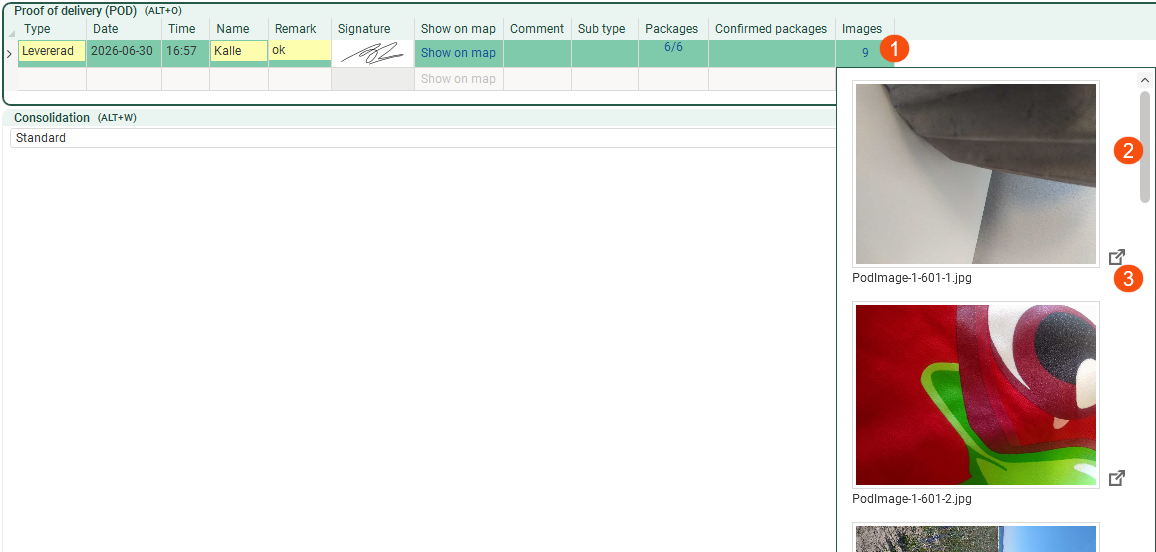
The Proof of delivery (POD) group displays information about the proofs of delivery registered for the order, such as the type of proof of delivery, the date and time it was created, the recipient’s signature and any attached images.

In group Proof of delivery (POD), you can also enter proofs of delivery retrospectively by filling in the details on the blank row at the bottom of the table and then saving the order. If you want to delete a proof of delivery that has been created in the order reception module, click on the far left of the row to select it, then press Deletethe - key. Then save the order.
If the group Proof of delivery (POD) is not displayed, or if you would like it to appear in a different place in the order reception area, you can configure this. For more information, see Organising the groups in Order reception.
You can choose which columns to display by clicking Settings > Order reception > POD settings and dragging the columns from the list Excluded to Included.
|
Function |
Description |
|---|---|
|
Type |
Shows what type of proof of delivery it is, for example Delivered. If you wish to register a proof of delivery retrospectively, select the POD-type (proof of delivery type) from the drop-down list. You can select the available POD-types in the Proof of delivery types window. For more information, see Configuring main POD types and sub-POD types and Proof of delivery types (window). |
|
Date |
Shows the date on which the proof of delivery was created. |
|
Time |
Shows the time at which the proof of delivery was created. |
|
Name |
Displays the recipient’s name. |
|
Remark |
Displays comments. |
|
Signature |
Displays the recipient’s signature. It is not possible to enter a signature in the order reception screen, but signatures from the Opter Driver and Opter Terminal apps are displayed here. |
|
Show on map |
If you want to see where the proof of delivery was created, click on Show on map. |
|
Comment |
Showing comments. |
|
Sub type |
Shows which sub-POD-type the proof of delivery is, if you use sub-POD-types. For more information, see Configuring main POD types and sub-POD types. |
|
Packages |
Shows the number of parcels covered by the proof of delivery. For example, if it says ‘1/2’, this means that the proof of delivery applies to one of two parcels, and if it says ‘2/2’, the proof of delivery applies to all the parcels in the order. If you’d like to find out more about collins, click on the numbers to open the window Packages for this POD. For example, Package id, Goods type and Abandoned. If the proof of delivery does not apply to all parcels, you will see which parcels (1) it applies to.
|
|
Confirmed packages |
Shows the number of approved parcels. If you do not scan, the driver will manually enter the number of parcels covered by the proof of delivery. For more information, see POD view in Opter Driver. |
|
Images |
Shows the number of attached images. The images on the delivery note have been attached in the Opter Driver and Opter Terminal apps, or on the status page (website) which you can access by scanning a QR code on the freight bill and registering a proof of delivery on the status page. If you want to view the images, click on the number in column (1). If there are a lot of images, you can scroll through them (2). If you want to view the images in a larger size, click on the icon (3) next to the image.
It is not possible to attach images to the proof of delivery in group Proof of delivery (POD) in the order reception section, but it is possible to attach images to the order in group Attachments. For more information, see Attachments (order reception). For more information, see Set the minimum number of POD images. |