
Last updated: 2025-09-24
Setting up weight calculation for long goods
In this article
If you use the dimension Length weight length, and if you want Length weight length to be converted to pricing weight, you need to set the rules that Opter will follow for weight calculations for long goods. You make these settings in the window Length weight calculation. The fields in the window are described in Length weight calculation (window). How pricing weights are calculated is described in Calculating the pricing weight.
Proceed as follows
To set the rules that Opter will follow for weight calculations for long goods, do the following
-
Click on Settings > Weight calculation. Select the weight calculation you want to work with in the list on the left.
-
From the drop-down menu Length weight calculation (on the General tab), go to

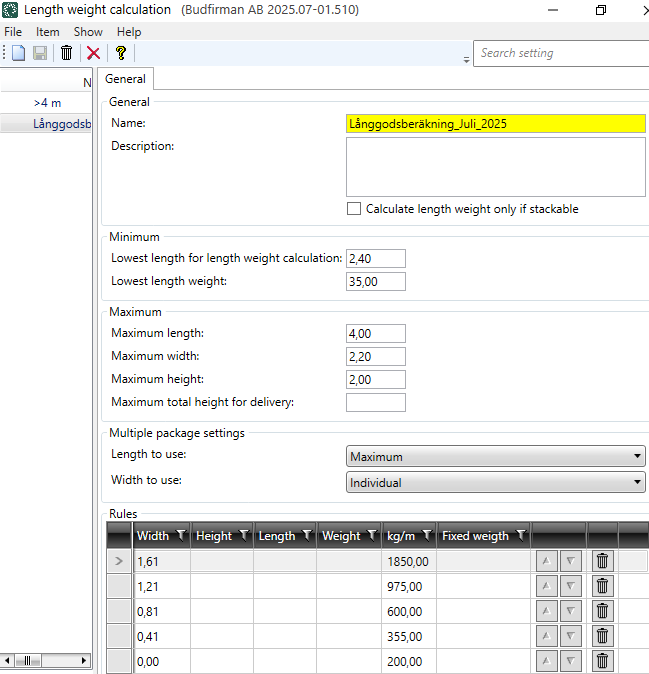
The Length weight calculation window opens. The fields in the window are described in Length weight calculation (window).
-
Click on New to create a new length weight calculation. Give the length weight calculation a name and possibly a description.
-
If you want goods to be considered as long goods only if they are stackable, tick the checkbox Calculate length weight only if stackable. For more information, see Length weight calculation (window).
-
In the Lowest length weight field, enter the minimum length weight that this calculation can return, for example 35kg.
This means that if the total of the long-haul weight calculation is 22 kg (i.e. less than 35 kg), Opter will use 35 kg as the result of the long-haul weight calculation.
-
In the following fields, enter the maximum and minimum length, as well as the maximum width and height of the package in order for the long fold calculation to be performed.
-
Lowest length for length weight calculation, for example 2.40 metres.
-
Maximum length.
-
Maximum width.
-
Maximum height.
-
-
In the Maximum total height for delivery field, enter the maximum total height of the order for the long goods weight calculation to be performed.
-
In the following drop-down lists, specify the length and width to be used in the long goods weight calculation, if the order contains more than one parcel:
-
Length to use.
For example, if you want the length of the longest collar to be used in the calculation, select Maximum.
-
Width to use.
For example, if you want the width of each individual parcel to be used in the calculation, select Individual.
The length weight is then calculated separately for each package, then these separate length weights are totalled.
-
-
In the table (in the box Rules), enter the rules that will apply to the long goods weight calculation. Enter one line per row.
In the first four columns (Width, Height, Length and Weight) you indicate which conditions apply. On each line, you can enter one or more terms, for example Width and Height, or just Width.
In the next two columns (kg/m and Fixed weigth), enter the result you want. Choose whether you want to use a fixed length weight (Fixed weigth) for a row, or whether you want to use a factor (kg/m) to multiply the number of metres by.
Opter checks the rules from top to bottom of the table, so it is important that you put the rules in the right order. You can use the arrow buttons
 to move a line up or down, so that you get the rules in the order you want.
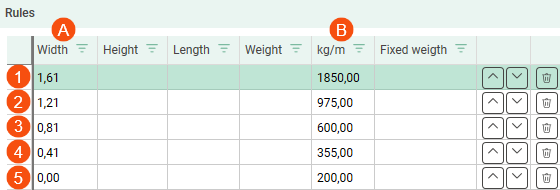
For example, the table might look like this: (The picture shows Opter in a new design.)
This is how Opter uses the table:
-
Opter first checks whether the criteria in the fields above the table are met. For example, whether the criteria for maximum and minimum length, as well as maximum width and height of the package are met in order for the long freight calculation to be performed.
-
Opter checks the rule on the top row (1 in the image above).
If the width (A) is 1.61 metres or more, Opter uses the factor (B) 1850 kg/m for the weight calculation.
For example, if the width is 2 m, Opter uses the factor 1850 kg/m. The calculation is then 2 x 1850 = 3700 kg.
-
If the width is not 1.61 metres or more, Opter moves on to the row under (2) and checks if the width is 1.21 metres or more, in which case Opter uses the factor 975 kg/m. For example, if the width is 1.40 metres, the calculation is 1.40 x 975 = 1365 kg.
Row 2 is therefore used if the width is between 1.21 and 1.60 metres.
Row 3 is used if the width is between 0.81 and 1.20 metres, and so on.
-
-
Click on
 to save all changes.
Testing
We recommend that you test that the result of the long goods weight calculation and thus also the calculation of the pricing weight is as you wish. Proceed as follows:
-
Create a new order in Order reception and test with, for example, different lengths and widths of packages. Will the pricing weighting be as you wish?
In the Dimensions box in Order reception, you will see the results of the weight calculation for the different dimensions (1 in the image below), and the pricing weight Opter will apply to the order (2). (Opter uses the largest corresponding weight from the dimensions as the pricing weight).
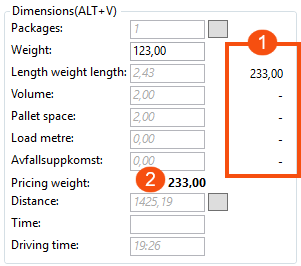
In the image, Opter uses the long goods weight calculation as the pricing weight of the order.
-
Feel free to test with more than one parcel on the order. For example, GIF packages of different widths. Will the pricing weighting be as you wish?
If the pricing weight is not as you wish, see Troubleshooting below.
Troubleshooting
If the pricing weight is not as you wish, you can check the following:
-
In the Dimensions box in the Order reception, you will see the weight calculation results for the different dimensions (1 in the image above), and the pricing weight Opter will apply to the order (2). Opter uses the greatest corresponding weight from the dimensions as the pricing weight. You may need to change some weight calculation settings to get the pricing weight you want. See the "Do this" section of Calculating the pricing weight.
-
In the Weight calculation window on the General tab, check that the correct length weight calculation is selected in the Length weight calculation drop-down list (if you have several different ones).
You can also check that the correct weight calculation is generally used in your Opter, by looking in the list on the left which one is marked as default
 . There may also be exceptions for a particular price list or customer, for more information see Calculating the pricing weight.
 -
In the Weight calculation window on the Automatic dimensions tab, check that the settings for the dimensions Load metre, Volume and Pallet space are set as you wish. For more information, see Weight calculation (window).
-
If the pricing weight is rounded incorrectly, check the settings in the Rounding rules. For more information, see Rounding rules (window) and Calculating the pricing weight window.
