Examples of pricing
Last updated: 27 April 2026
In this article
Here are a number of examples of common pricing schemes.
Fixed fee
A fixed fee can be used to cover, for example, express add-ons and various options. The price matrix for a flat fee will be simple. Just enter the price in the first cell in the table below Fixed price. You do not need to add any conditions.
This type of pricing, known as a ‘fixed fee’, should not be confused with a ‘fixed price’, which is one of two types of pricing matrices in Opter. For more information, see Fixed price and unit price.

Zone price
Zone prices are used to price transport between geographical zones. Prices are based on the existence of geo zones and price zones in the system, so start by checking that they are correct (see Zones, overview). Then add conditions Zone - from and Zone - to (1) to the price matrix.
If you do not want to enter prices for all zone combinations, or if the price is the same for many zone combinations, you can select [Any] (2) and enter a price for it in the matrix. If an order is assigned a zone combination for which no price is available, such as S1–S4 in the example below (3), the price for S1–[Any] is used instead (4). It thus acts as a kind of base price that captures everything.

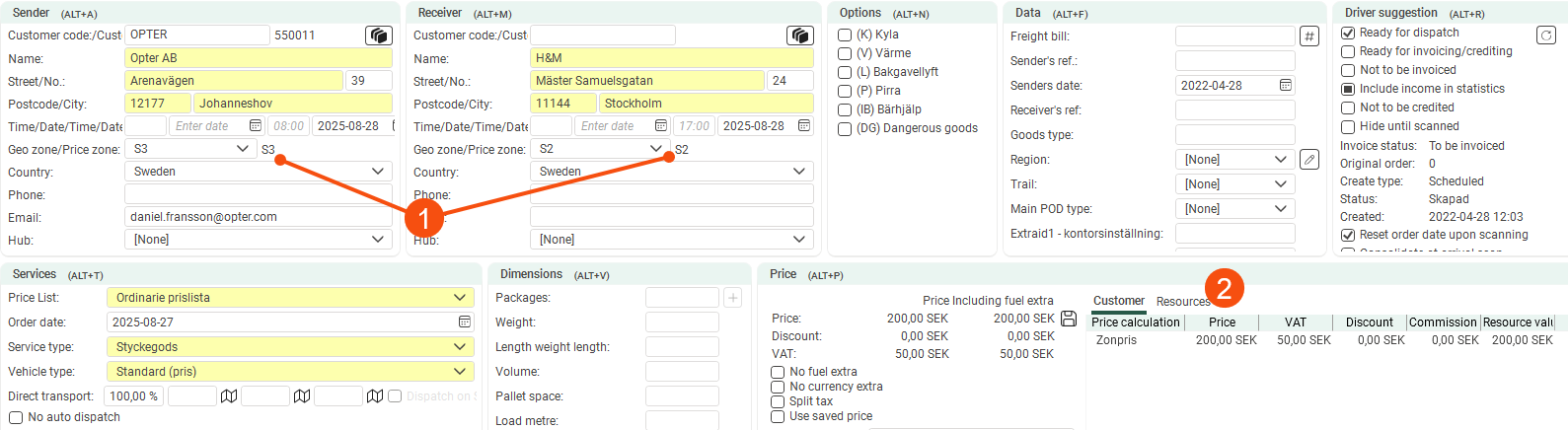
In the example below, the order goes from price zone S3 to S2 (1), resulting in a price of 200 SEK (2).
Kilos per kilometre
A combination of weight and mileage. Kg and km are conditions that retrieve values from the order instead of a register. Such conditions are called price units and must be entered into the system. You can check which price units are available by adding a condition and clicking on  .
.
-
Add the price units "KG" (based on weight or pricing weight) and "KM" (based on distance) if they do not already exist. For more information about the settings, see Price units (window).
Changing existing price units has a major impact on the prices of existing orders. Rather, create a new one if you need to change any setting.
-
Add the conditions to the price matrix. In brackets, you can see which dimension of the order is the price basis.
-
As the price units take numerical values from the order, we have to add the ranges to the axes manually. They are not taken from any register. Enter the next value in the field and add the row/column with
 . Then you can continue to click on to add more rows/columns at the same interval.
 -
Then enter the prices for the ranges or export to Excel and enter the prices there.

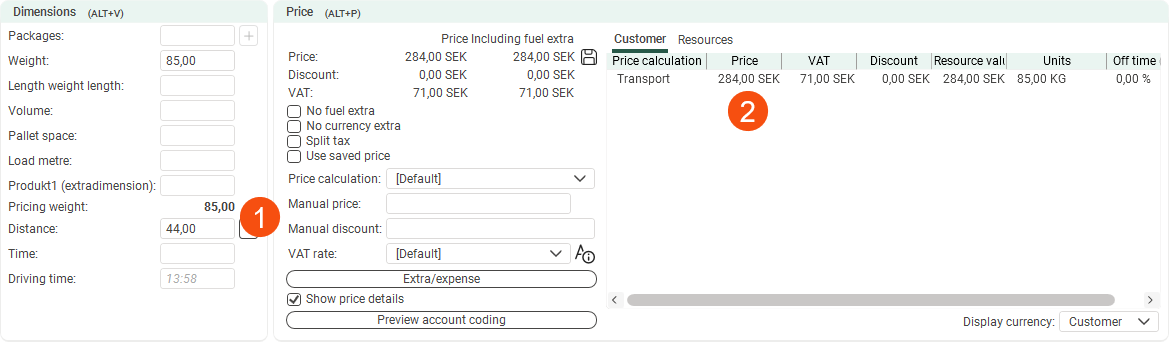
In the example below, the order has a pricing weight of 85kg and a distance of 44km (1). The ranges in the matrix are "from and including", so the price will be 284 SEK (cut 80-99.9 kg and 20-59.9 km), which we see has been collected on the order (2).
Hourly rate, tiered pricing
Hourly rates can be used, for example, for transport where loading and unloading takes a large part of the time for an order, or if you are involved in rental. The number of hours is taken from the order. Check that the price unit "hour" is in the system by adding a condition and clicking on .
In this case, we want to calculate the price per hour, but also have a lower hourly rate from the second, third and fourth day onwards. As a kind of discount for long-term rentals. We resolve this by using a unit price and a tiered pricing structure (see Step price and benefit/worst price calculation).
-
Add the "Hour" price unit if it does not exist. It is based on the dimension of time. As the value on the order is given in minutes, enter “60” in the Divide value by field so that you can enter hours in the price matrix. For more information about the settings, see Price units (window).
Changing existing price units has a major impact on the prices of existing orders. Rather, create a new one if you need to change any setting.
-
Add the condition to the price matrix. In brackets, you can see which dimension of the order is the price basis. Select Step price.
-
Enter the prices below Unit price. Enter "24" in the field at the bottom and click on
to add 24-hour intervals (days). -
Then enter the hourly rates for each day. The first 24 hours cost SEK 1 500/hour. From the fourth day onwards, it costs SEK 500/hour.

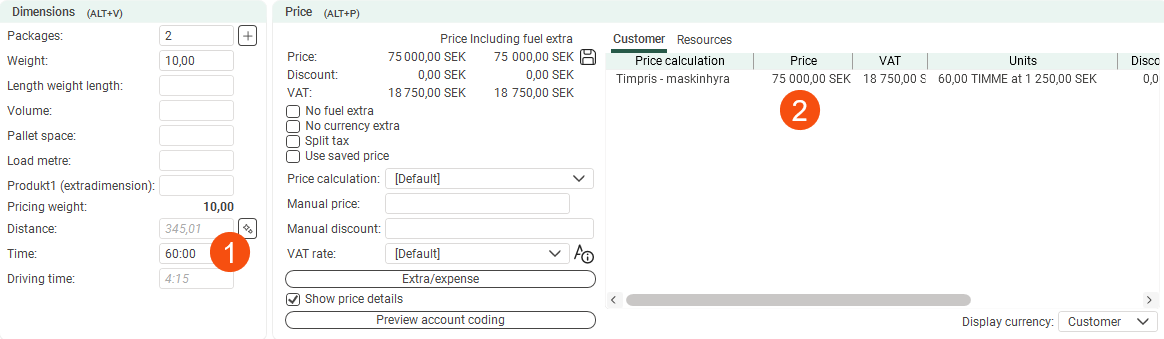
In the order below, the customer has hired a cement mixer for 60 hours, two and a half days (1). As we use tiered pricing, the price for the first 24 hours is SEK 1,500/hour, hours 24-48 are SEK 1,250/hour and the last 12 hours are SEK 750/hour. Total SEK 75 000 (2).
If we hadn’t ticked Step price on the price item, the price would have been calculated straightforwardly: 60 hours × 750 SEK = 45,000 SEK.
Sound kilometres
Fixed price
If you want to indicate the weight in tonnes instead of kg. Check that the price unit "tonne" is in the system by adding a condition and clicking on .
-
Add the price unit "Tone" if it does not exist. It is based on the dimension of weight or pricing weight. As the weight is given in kg on the order, enter “1000” in the Divide value by field so that you can enter the weight in tonnes in the price matrix. We round to the nearest half-tonne and enter 0.5 Lowest unit. For more information about the settings, see Price units (window).
Changing existing price units has a major impact on the prices of existing orders. Rather, create a new one if you need to change any setting.
-
Add the terms "Tonne" and "Km" to the price matrix. In brackets, you can see which dimension of the order is the price basis.
-
Enter the prices below Fixed price. Set the intervals you want. In our example, the ranges are 5 tonnes and 50 km.
-
Then enter the prices for each range.
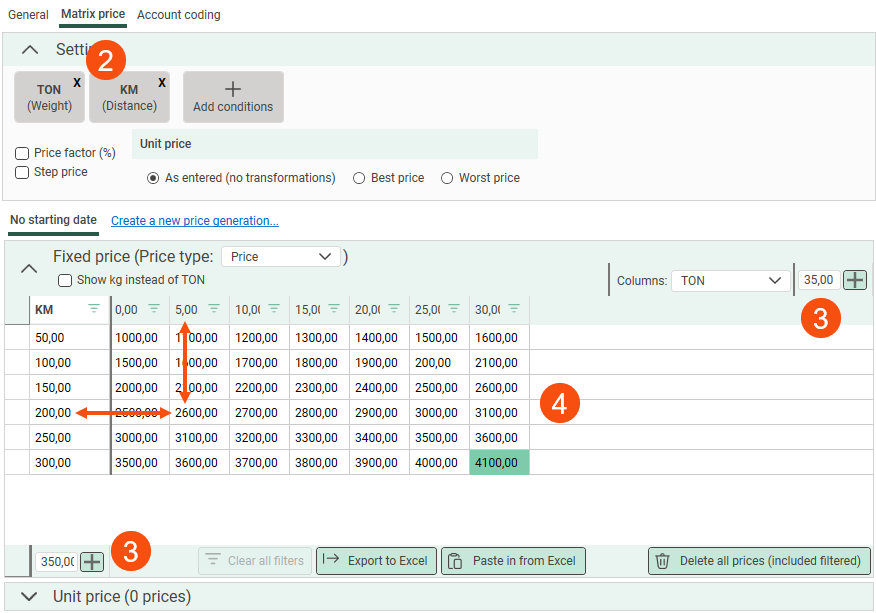
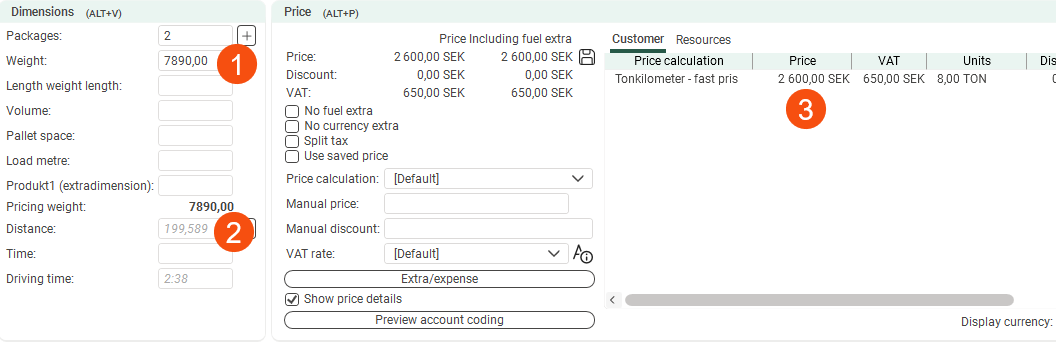
The weight of the order below is 7.89 tonnes (1), and the distance is just under 200 km (2). The price will be SEK 2 600 (3).
Unit price
If you would prefer to charge by the tonne, enter the prices below Unit price. There are three different settings for how the unit price is calculated (see Step price and benefit/worst price calculation). With the same prices and ranges in the price matrix as above, the price of the same order will be like this with one of the different settings:
-
As entered (no transformations) (1): SEK 20 800 (2 600 × 8 (7,89 tonnes rounded to the nearest half tonne).
-
Best price (2): Opter checks the price of the next interval in the matrix and selects the lowest price, that is, in favour of the customer. In our matrix, the higher range gives the price 2 700 × 10 = SEK 27 000. Opter therefore takes the actual weight as a basis and the price is SEK 20 800.
-
Worst price (3): Opter checks the price of the previous interval in the matrix and selects the highest price, i.e. in favour of the customer. In our matrix, the lower range gives the price 2 500 × 4.99 = 12 475 SEK. Opter therefore takes the actual weight as a basis and the price is SEK 20 800.
Normally, the unit price is lower the longer and heavier the transport is, which can make the advantage and Worst price calculations different. Not like our matrix, which is based on a matrix of fixed prices.

You can charge by the kilometre instead of by the tonne by selecting this option from the drop-down menu price per (4).
Unit price per 100 kg
A price of 50 SEK per 100 kg up to 499 kg. Over 500 kg, it costs SEK 40 per 100 kg.
-
Add the price unit "100kg", if it does not exist, and base it on the pricing weight dimension. As the weight is stated in kg on the order, enter “100” in the Divide value by field so that you can set the price per 100 kg in the price matrix. We round to the nearest 10 kg and enter 0.1 Lowest unit. For more information about the settings, see Price units (window).
Changing existing price units has a major impact on the prices of existing orders. Rather, create a new one if you need to change any setting.
-
Add the condition "100kg". In brackets, you can see which dimension of the order is the price basis.
-
Enter the prices below Unit price. Two ranges are sufficient, up to 500 kg (50 SEK) and over 500 kg (40 SEK).

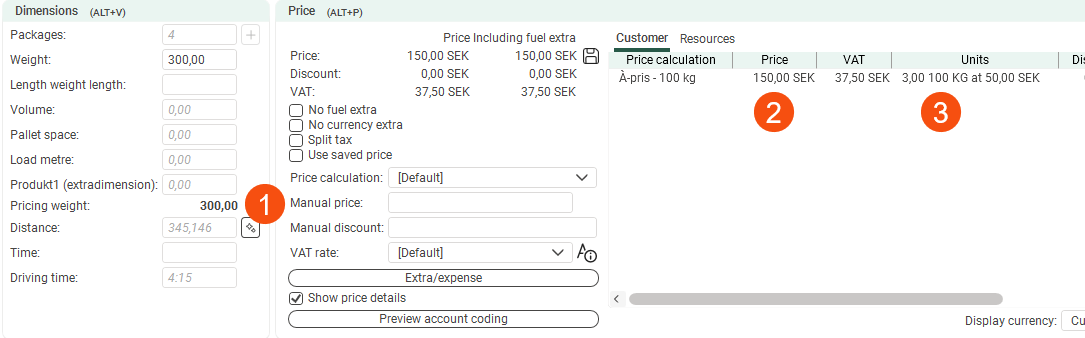
The pricing weight of the order below is 300kg (1). The price is 3 × 50 = SEK 150 (2). Under Units, you can see the number of units on which the price is based (3).
Extras for extra parcels
When ordering from the courier company, two parcels are included, but beyond that the customer has to pay extra. We therefore create a Price item that adds 20% to the price of the order if it has three packages or more.
-
Create a price item called “Extra parcels” and select Allow failure on the tab General. This means that the pricing we add the item to can be used on orders, even if this particular item doesn't have a price. Which it doesn't if there are fewer than three packages on the order.
A pricing with a kg/km item and this Price item gives a price for the order, even when it is only one parcel. That is, when the Price item for extra parcels does not yield a price, i.e. "fails".

-
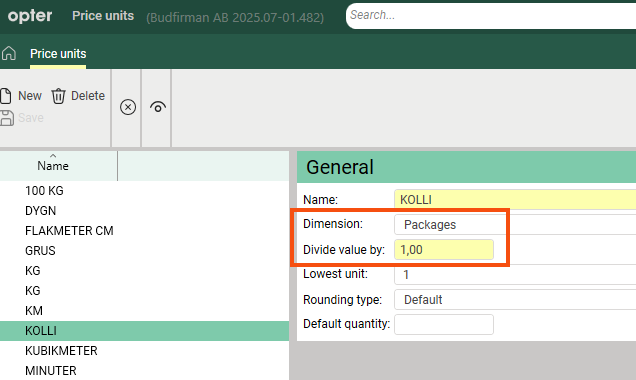
Create a price unit based on dimension Packages. Divide value by = 1 because we are counting whole packages.
-
Fill in the price matrix as shown below. Price factor (%) (1) Convert the values in the matrix to percentages instead of SEK. The Price item is priced by multiplying the sum of the other items in the pricing scheme by the percentage (2). In this case, the price is multiplied by 1.2 when there are three or more packages on the order.

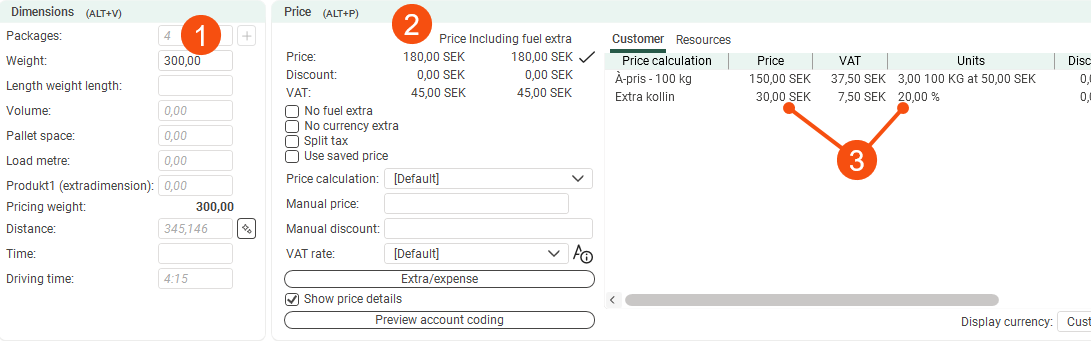
This is the same order as with the unit price per 100kg above, now with four packages (1). When we have added the Price item for extra parcels to the pricing of the service, the total price is 180 SEK (2). The price lines show you how the price has been calculated (3).
Percentage mark-up
50% surcharge for express orders. The price of the price item is based on the other service items on the order.
-
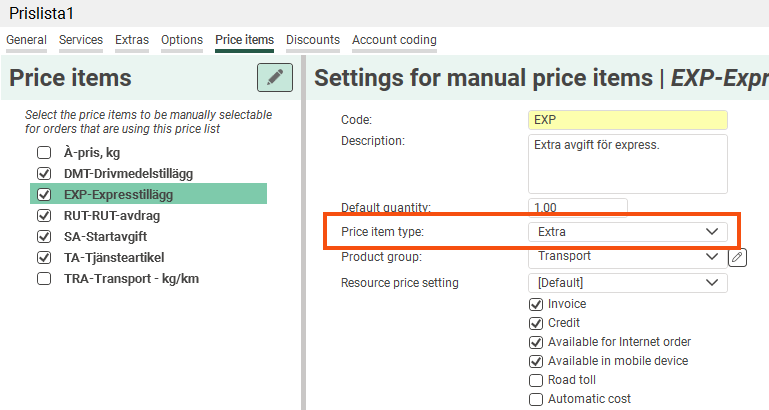
Create the price item “Express surcharge” of the type Extra.
-
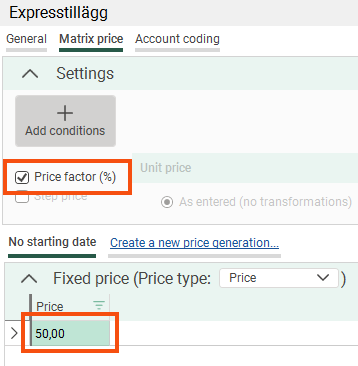
The price matrix will be simple. Select Price factor (%) and enter the percentage mark-up in the first cell below Fixed price. No conditions are needed.
-
We are preparing a quote for the “Express Delivery” service, adding the price item directly to the quote.
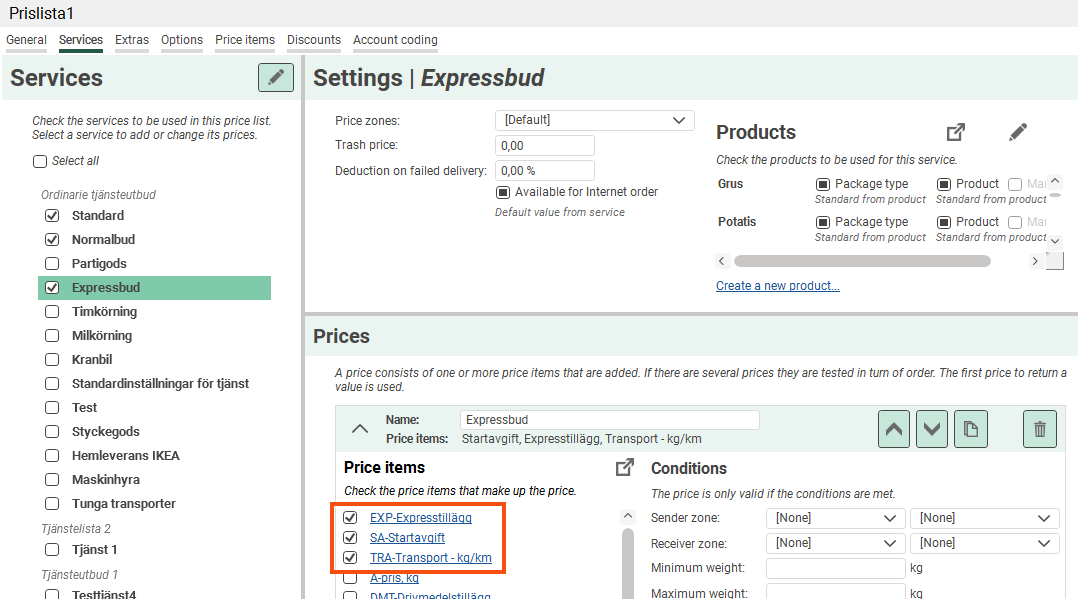
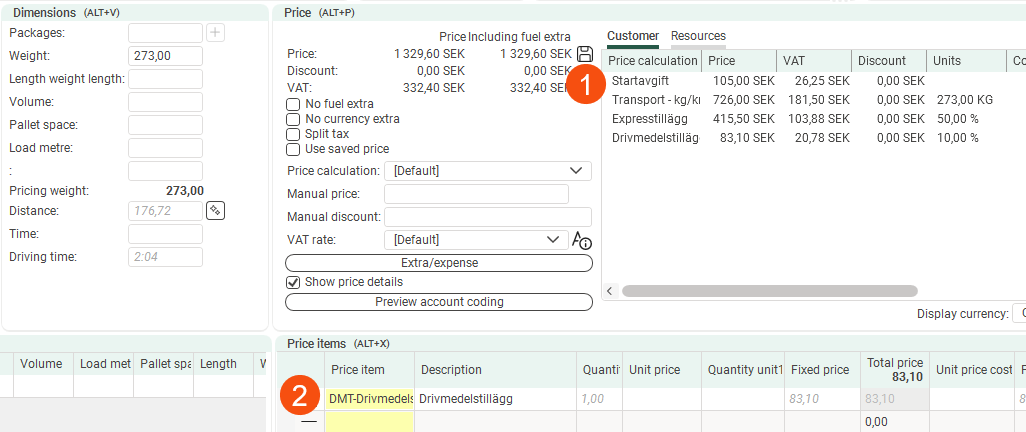
The price has been calculated automatically on the order, and the three price items included in the price calculation have been added to the price lines (1). The express surcharge has been calculated based on the price items “Start-up fee” and “Transport – kg/km” (50% of 105+726=831). We have also added a manual price item for fuel extra, which is 10% based on the same two price items (2). The express surcharge does not count towards the fuel surcharge, as the price item ‘Express surcharge’ is of the type Extra.
Surcharge for shipments
A fixed fee of SEK 100 for each shipment on the order. The more shipments, the higher the price.
-
Create the Price item "Mark-up - shipment". The price item should display a price for each order, so leave the Allow failure checkbox unticked.
-
Select Shipment from the Applies to drop-down list.
Further down, you can choose to apply the fee only to certain types of shipments. If you do that, you must select Allow failure, as the price item may not display a price in that case. In our case, we choose [Any], as all shipments are subject to the fee.
-
The price matrix will be simple. Just enter the price in the first cell below Fixed price. No conditions are needed.

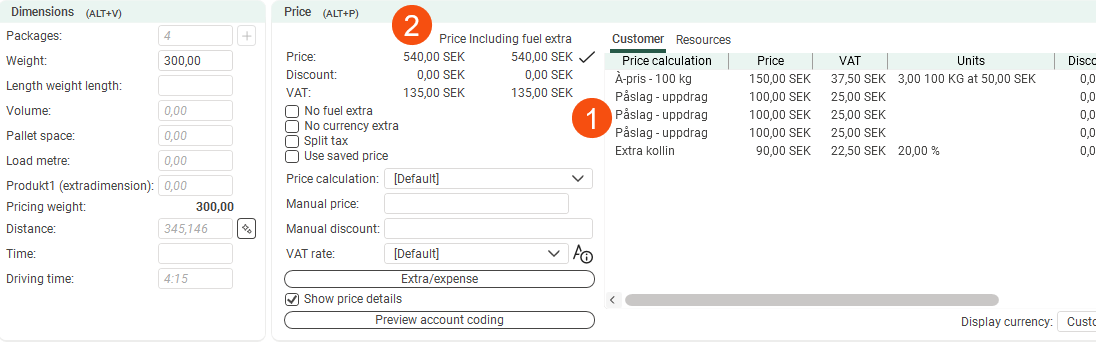
The same order as above has three shipments (1). The Price item for extra packages is a percentage surcharge and is calculated on the sum of all other items on the order, i.e. 450 × 1.2 = 540 SEK (2).
Unit price per package by weight
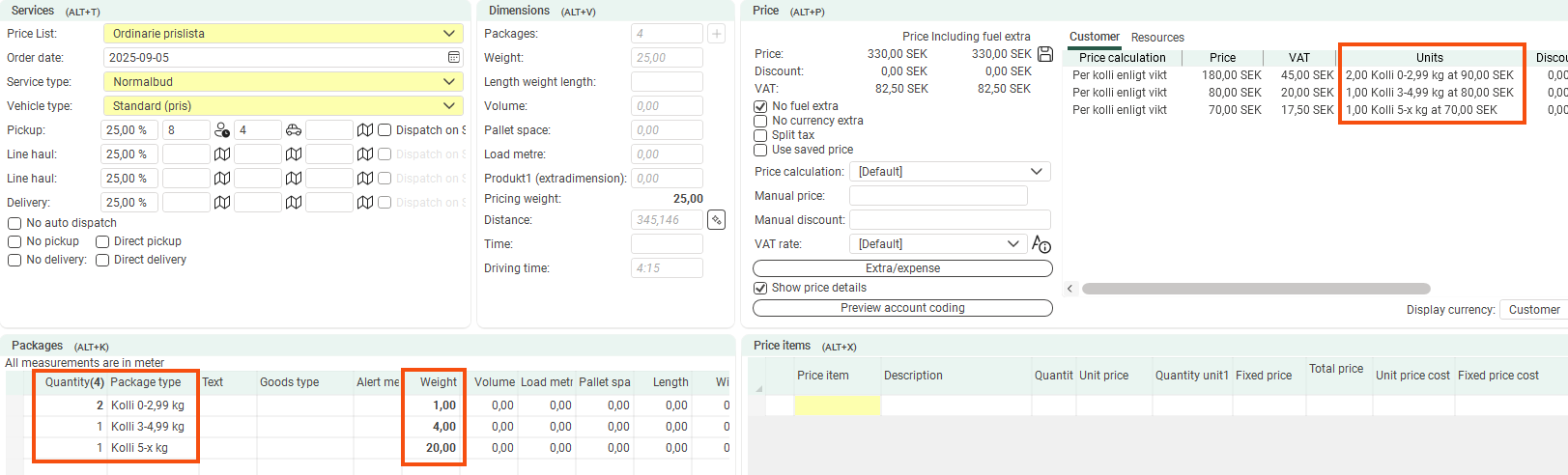
Packages up to 3kg will cost SEK 90 each, packages of 3-4.99kg will cost SEK 80 each and packages of 5kg and above will cost SEK 70 each. To organise it, we use products.
-
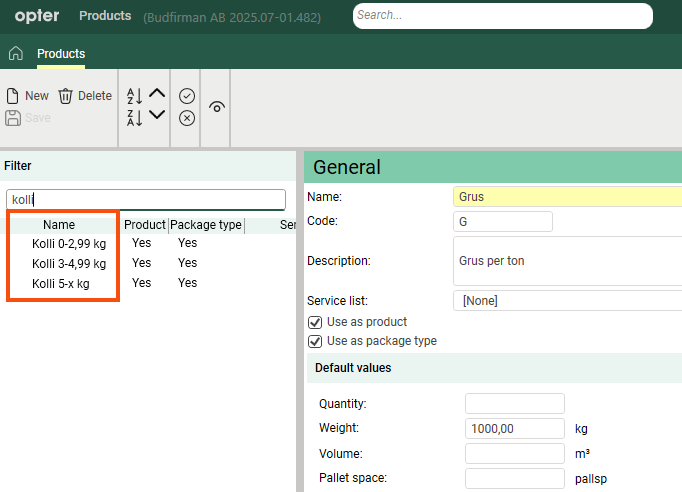
Create a product for each weight range. Enter the weight in the name, or something else that is easily recognisable, as you will be selecting the products on the column lines in the Order reception.
-
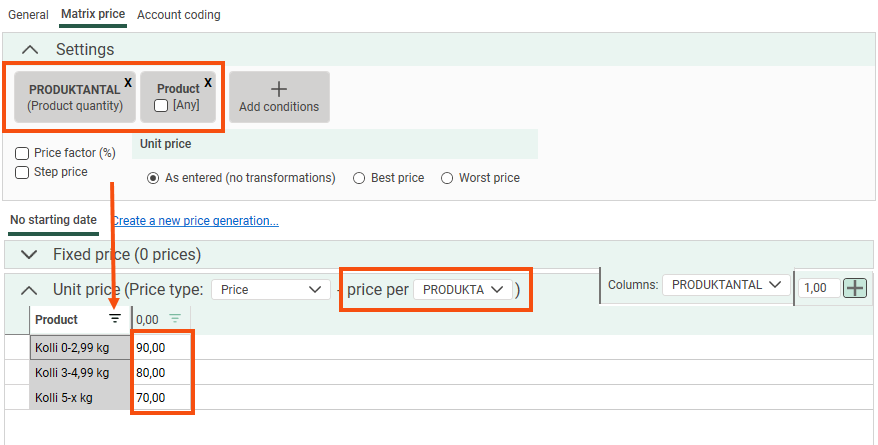
Create a price item with the conditions Product and “Product quantity” (unit price based on the dimension Product quantity). Please enter the prices under Unit price, as we want to charge for each individual parcel in each weight category. The range "0" for the number of products is sufficient because it is the same price for each parcel no matter how many there are.
If you have more products that you don't want to price, you can filter the list to see only the relevant products.
-
Select the products in column Package type in the order reception.
Options
The prices for the options can be added automatically to the item rows when they are added to the order, but can of course also be added as manual Price items. It is of course possible to base the price on any dimensions, but the most common is to have a fixed amount.
-
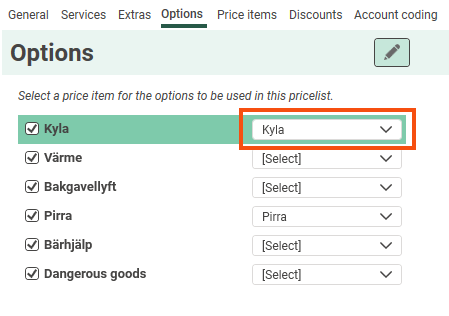
Create the Price item "Cold" and enter a fixed price of 300 SEK. No conditions are needed.

-
Go to tab Options in the price list and select the price item for the “Cooling” option.
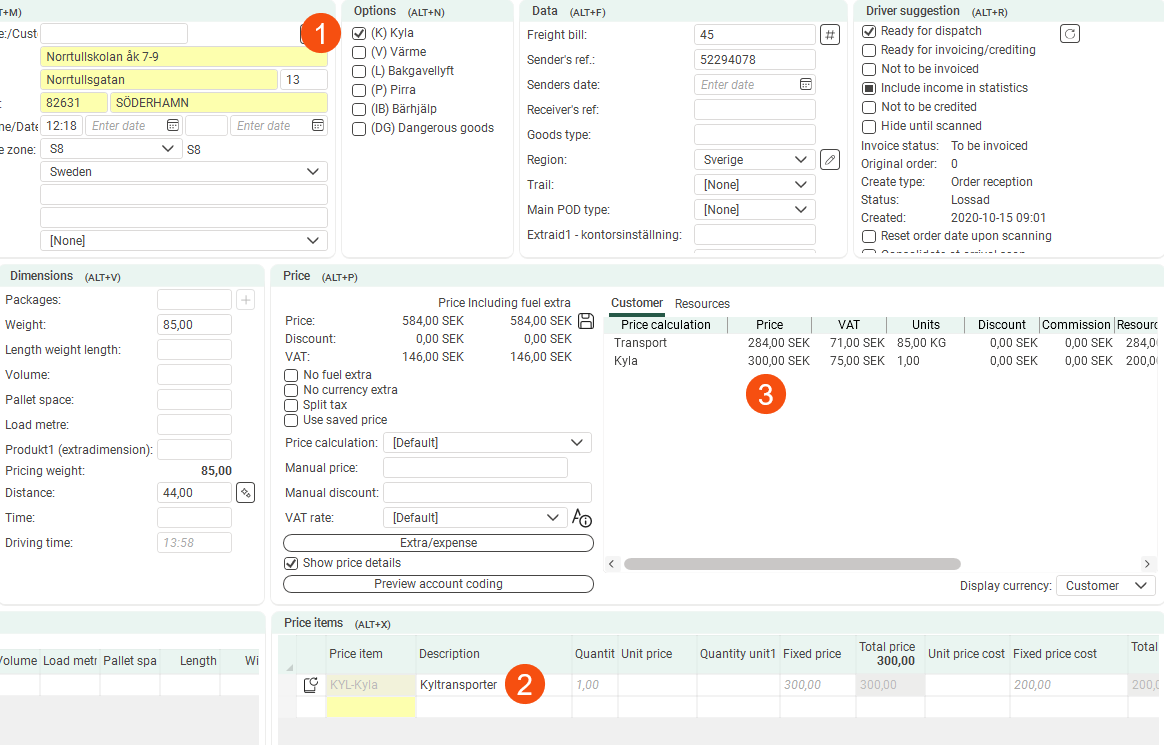
When the option is selected on the order (1), the item is added to an item row (2) and totalled together with the other price items (3), in this case the item "Transport" which is priced on the pricing weight.
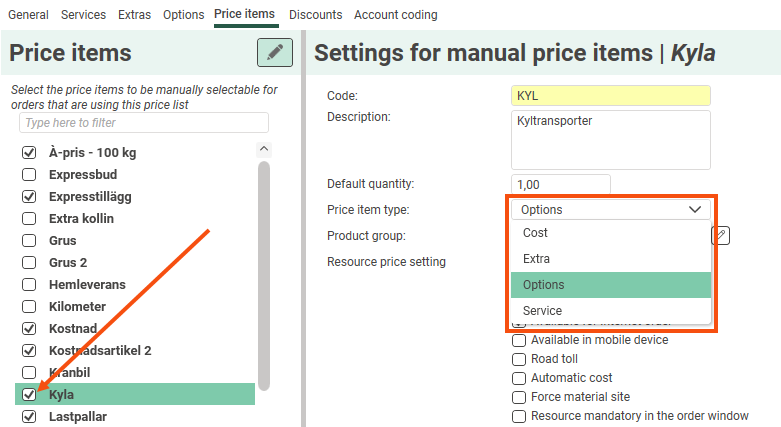
You can also tick the price item on the Price items tab, and it will be added manually to the price item lines. Just make sure the price item type is Options. If it is Service, other price items will be removed from the price rows when you add it.
Expenses that do not affect the resource price
Expenses are actually extra sales and can be handled through manual Price items on the item rows. Expenses shall not affect the remuneration of the resource.
-
Create the Price item "Pallets". As we will use the Price item as a manual item and enter the number of pallets directly on the item row, we can enter a fixed price of 150 SEK. No conditions are needed.
-
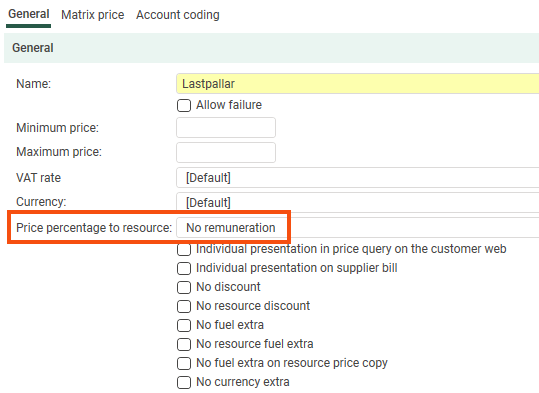
Go to the General tab and select No remuneration from the drop-down menu Price percentage to resource.
-
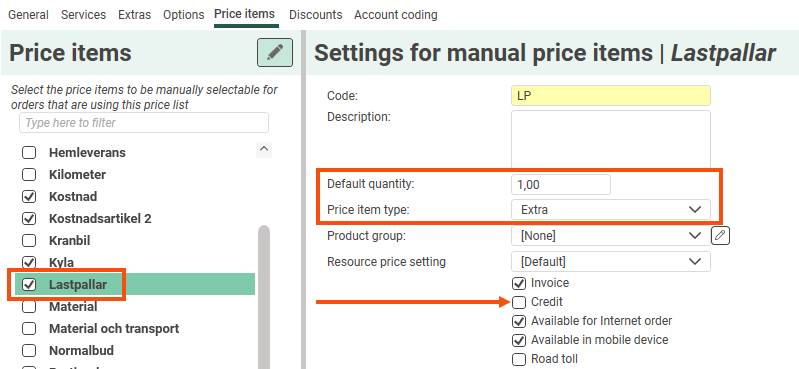
Tick the price item in the list on the Price items tab in the price list. Select Extra as the price item type and deselect Credit. We have also filled in "1" as the default number. The number can be changed on the item line of the order.
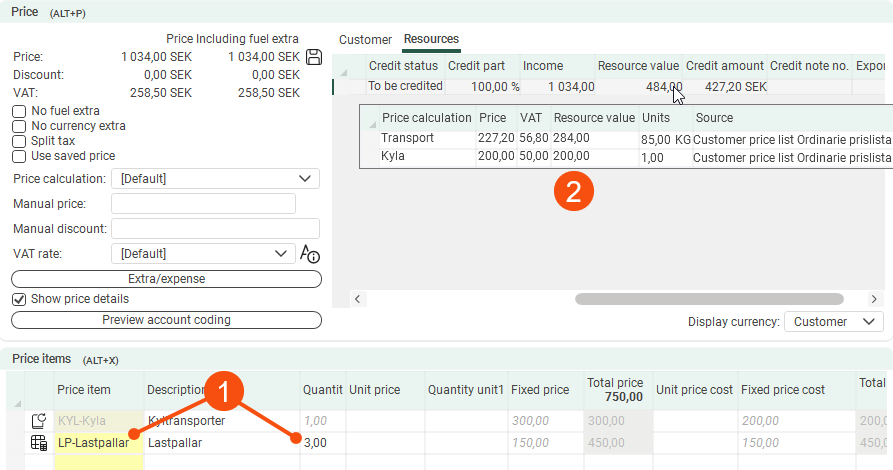
On the order below we have added three pallets as extra sales totalling 450 SEK (1). If we look at tab Resources, we can see that the sum not is included in the resource value on which the supplier bill is based (2).
Waiting time
From 30 minutes onwards it costs 10 SEK/minute, and after 60 minutes it increases to 20 SEK/minute.
-
Create a price item with the price unit “Waiting time”, based on the dimension [None]. This dimension is for manual Price items where you enter the number on the item row. The idea is that we should indicate the waiting time in whole minutes.

-
Select Step price and enter the prices under Unit price, as we want a wait of 30–60 minutes to cost 10 SEK per minute and, from 60 minutes onwards, 20 SEK per minute.
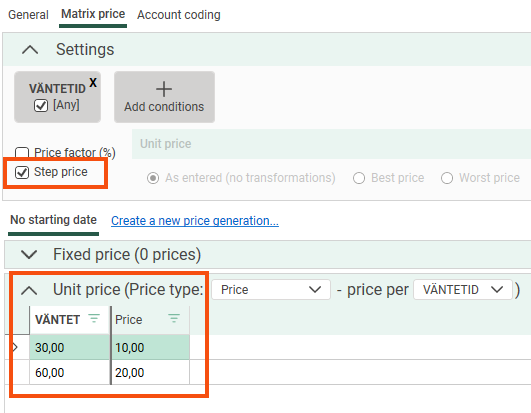
When using tiered pricing, the values entered in the matrix (30 and 60 in this example) are not from prices. For exactly those values, the price from the previous interval is used when calculating the price.
In our example, 30.00 does not give a price because we have not yet waited for any chargeable time, but 30.01 gives a price. Similarly, 60 minutes waiting time gives the price 30 × 10 = 300 SEK, not (29 × 10) + (1 × 20) = 310 SEK.
-
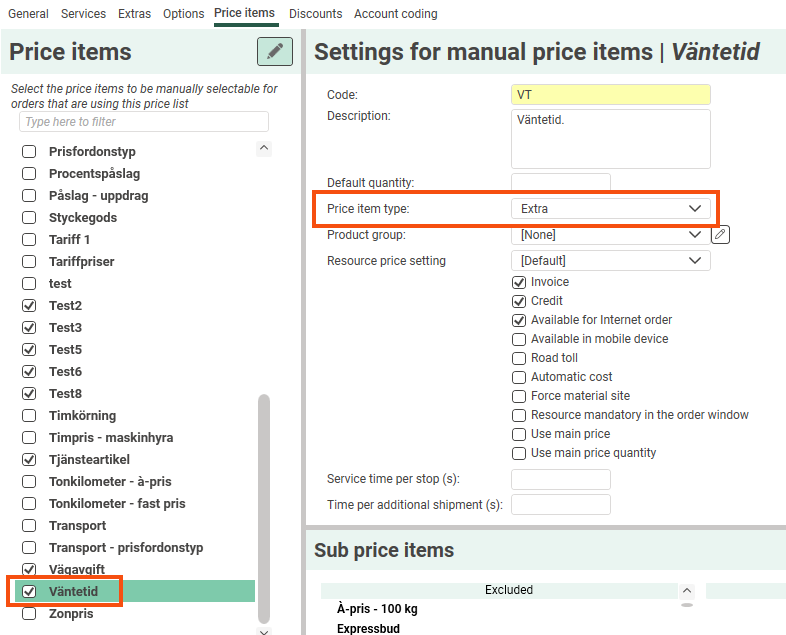
Tick the price item in the price list so that it functions as a manual price item, and select the price item type Extra.
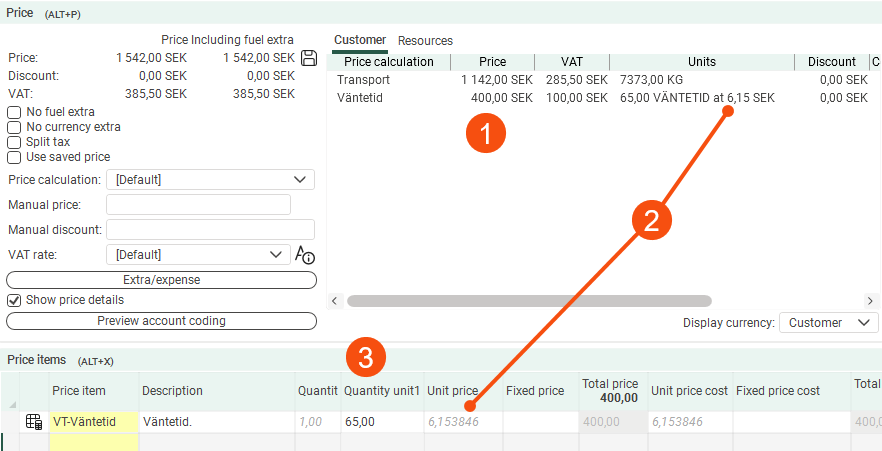
On this order, there was a 65-minute waiting time which was charged at 30 × 10 plus 5 × 20 = SEK 400 (1). The unit price shown is an average per minute for the entire waiting time (2).
The lead time must be entered in field Quantity unit1 on the price item (3) for the price to be retrieved from the item.
Fixed price up to a certain weight and then unit price
This price has a fixed price per tonne up to 5 tonnes, and then a unit price per tonne above 5 tonnes.
-
Create a Price item with the price unit "Ton", based on the pricing weight.
-
Enter the weight ranges and prices for loads of up to 5 tonnes Fixed price.
-
Enter the price for 5 tonnes and above below Unit price. Please note that the last fixed price is valid up to 5 tonnes even if it is not listed in that matrix. One could say that the weight range continues during Unit price.

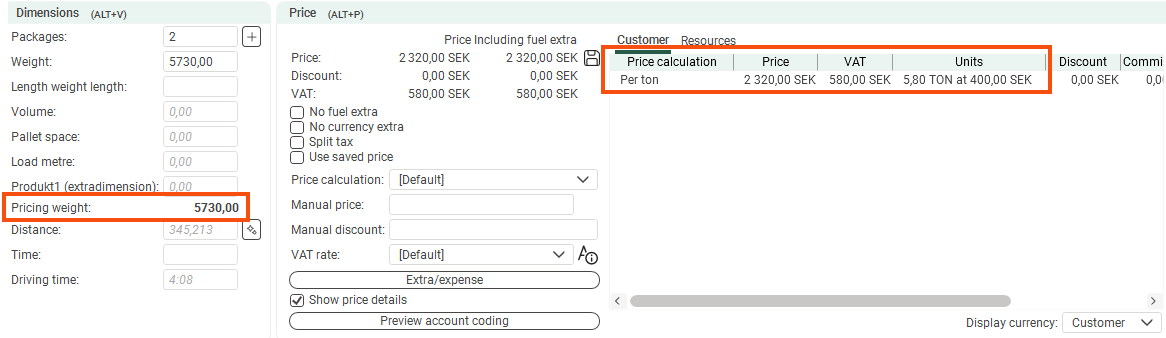
This order has a pricing weight of 5.73 tonnes and has therefore been given a unit price of 5.8 × 400 = SEK 2 320 after rounding off the weight.