Icons in the Order reception
Last updated: 2 June 2026
In this article
On the far left of Order reception, icons can be displayed so that you can quickly see which orders are Internet orders, consignment orders, Failed deliveries, and which orders are currently open with someone else, for example. The picture shows what the Order reception might look like in the new design. (The new Opter design will be available from 00:00 on 25 December 2025.)
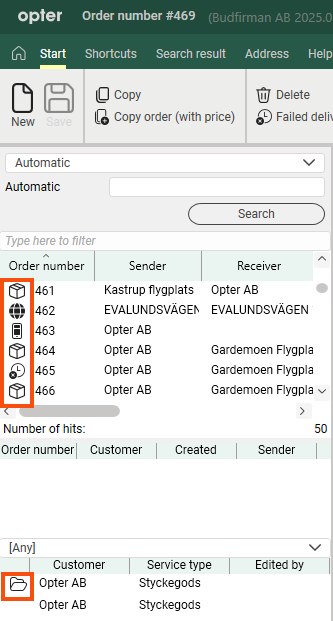
The image shows that orders 225 and 226 are internet orders, 227 and 230 were created in Opter Driver, and 231 is a failed delivery. Order 229 is a standard order created in the order reception department. It does not have an icon because icons are only displayed for orders that differ from the standard.
|
Icon in Classic design |
Icon in New design |
Description |
|---|---|---|
|
|
|
Internet orders. The order is created on one of the websites, for example on the customer web. For more information, see The customer web and Creating order templates on the customer web. |
|
|
|
The order is created in the Opter Driver app. For more information, see New orders in Opter Driver. |
|
|
|
The order is created/imported from an EDI connection. For more information, see EDI integration with Opter. |
|
|
|
The order is open. The column Edited by shows who has the order open. |
|
|
|
Consignment orders. For more information, see Consignment, overview. |
|
|
|
Failed delivery. |
|
|
|
Trashed order. |
|
|
|
The order is a schedule template. |
|
|
|
The order is created from a schedule template. |
|
|
|
If the icon appears next to the order number or next to the text New order, this means that prices are currently being calculated for the order.
|