Cost check (window)
Last updated: 1 April 2022
In this article
 Order > Cost check
In this window, it is possible to search for orders and track costs for invoices from suppliers and subcontractors. You can also enter costs from supplier invoices and link them to existing cost price items or create new cost price items.
Menu tabs
General
|
Function |
Description |
|---|---|
|
Open order (Ctrl+O) |
Opens the order that the cursor is currently on in the list. You cannot open multiple orders at the same time. |
|
Save (Ctrl+S) |
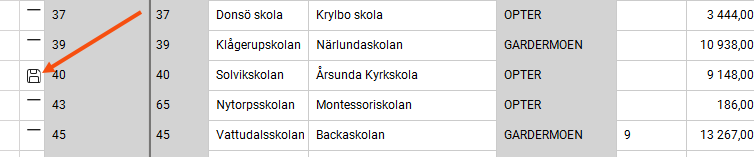
Saves all the changes you have made to the orders in the list. Amended orders are indicated by If you want to undo a change, click on that row and press Ctrl + Z. You can select and undo several rows at once by holding down Ctrl or Shift and clicking.
|
|
Delete (Del) |
If you want to delete an order, click on that row and press Delete. The line is marked with If you do not want to delete the order, click on the row and press Delete again, or press Ctrl + Z. You can select and undo multiple rows at once by holding down Ctrl or Shift and clicking.
|
|
Undo (Ctrl+Z) (order check only) |
If you want to undo a change or deletion, click on that row and press Ctrl + Z. You can select and undo several rows at once by holding down Ctrl or Shift and clicking.
|
|
Copy (Ctrl+C) (order check only) |
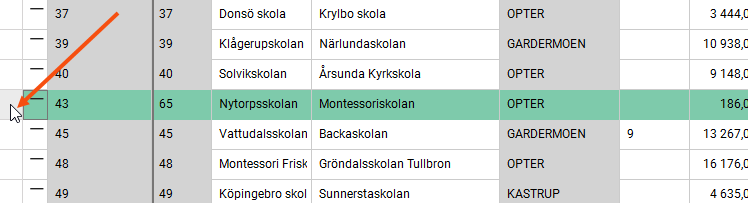
Copies a row or a cell in the order list. If you want to copy an entire row, click on the far left of the row to select the whole row. If you click in a cell, only that cell will be copied.
|
|
Paste (Ctrl+V) (order check only) |
Paste copied rows or cells. It is possible to copy an entire row and then paste it into a cell on another row (for example, in column Distance), but the result will be unpredictable. Just paste row by row and cell by cell. |
|
Export to Excel (Ctrl+E) (only the assignment review and the cost review) |
Exports the entire filtered list to Excel.
|
|
Setting |
You can have several different views for different tasks, for example with different columns. Use this drop-down menu to select a view. If you want to change a view or create a new one, click |
|
Consolidation type (consolidation check only) |
The consolidation type determines the properties of the consolidation order, and which orders are to be matched and proposed for consolidation. You may have several different types. Here you can choose which one to use. Click on |
|
Consignment type (consolidation check only) |
The consignment type determines the properties of the consignment order, and which shipments are to be matched and proposed for consignment. You may have several different types. Here you can choose which one to use. Click on |
|
Saved searches |
You can save searches you perform frequently so that you can use them again quickly. For more information, see . [Default]: Search for today's orders that are not ready for invoicing. You can change the search settings, but they will be reset when you close the control. If you want to save a search, select the criteria you want to search by (1), enter a name in the field (2) and save it (3). You are deleting a saved search with
|
|
Search |
Adjust your search settings and click on Search. You can then refine your search results further using the column filters. The information displayed in the columns is described in section Cost check (window) below. |
|
Clear search options |
Removes all settings under Search settings, as well as the customer code and customer name, but the search period is retained. |
|
Period From To |
Select a predefined time period or enter your own time period in the date fields. The search is based on the order date. |
|
Customer code Customer name Selected customer |
You can view orders from a specific customer by entering the customer code or customer name here. |
 .
.
 and is removed when you click on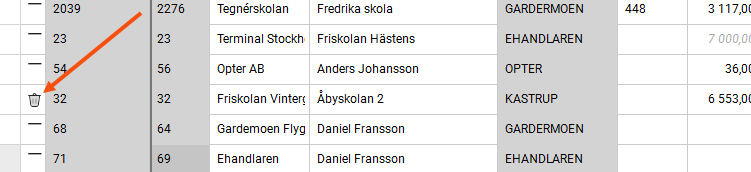
 to open the settings window.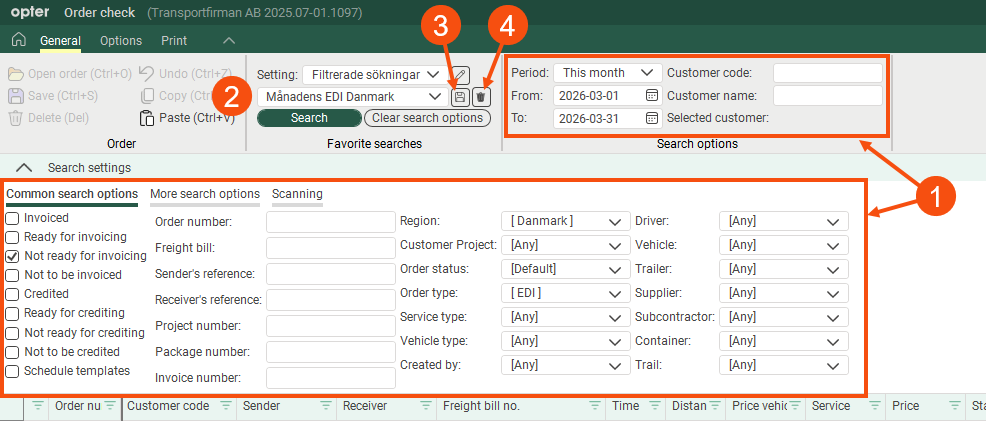
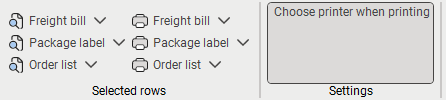
On this menu, you can preview and print freight bills, parcel labels and order lists for the orders you have selected. The reports you can choose from when you click on  are those marked as freight bill/parcel label/order list in the window Reports.
|
Function |
Description |
|---|---|
|
|
Preview or print the freight bills for the orders you have selected from the list. |
|
|
Preview or print the parcel labels for the orders you have selected from the list. |
|
|
Preview or print a list of the orders you have selected in the list. When you click on |
|
Choose printer when printing |
Click the button to enable it if you want to be able to choose a printer before printing. If this option is not enabled, freight bills, parcel labels and order lists will be printed directly on your default printer.
|
 /
/
Order list
(missing or bad snippet)For more information, see Price check settings (window)
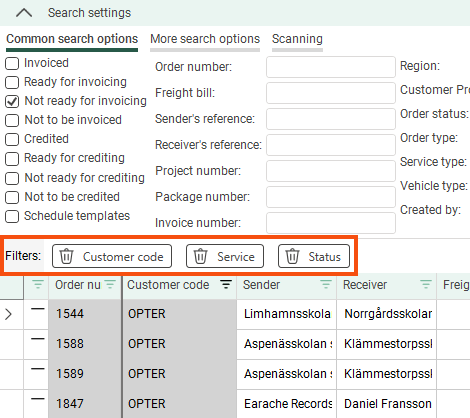
If you filter by any of the columns, they will appear as buttons just above the list. You can also use these buttons to disable the filters.
At the bottom of the window, the sum of the values in the columns is displayed.

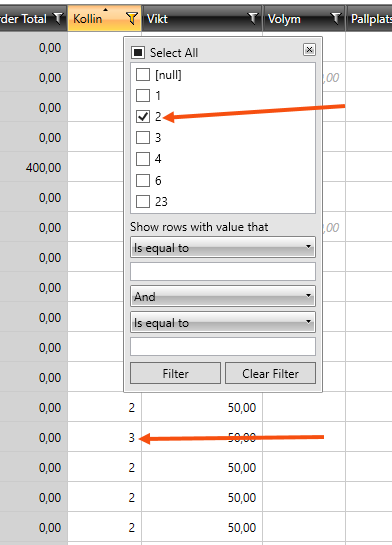
If you have filtered a column and sorted the search results, the list will not be updated if you change a value, such as the number of parcels. This also applies once you have saved the new number of packages. The search results will not be updated until you filter or sort the list again.
The above applies only to columns containing free-text values, not to columns that retrieve values from a register (for example, Resource), or when you use the special filters under Filter show rows with value that.
Columns in the order list
You can specify which columns should be displayed in the cost control section. For more information, see .
Column | Description |
|---|---|
Price item | Cost price item To add new cost price items directly in cost check, this column must be visible in cost check. |
Price item description | Displays the description of the price item, if you have added a description. |
Distance | The order’s driving distance in kilometres, i.e. the sum of the distances of all the shipments making up the consignment. If the distance is entered manually, the distance is displayed in normal black text. If the distance has not been entered manually, the calculated distance is displayed in grey text in italics. |
Sender reference | The order’s sender reference. |
Freight bill no. | The order’s freight bill number. |
Expected cost | Shows the total estimated cost of all the cost price items in the order. |
Cost (price item) | Cost of the cost price item. |
Cont. invoice done | The checkbox shows whether the supplier invoice has been finished. Select the checkbox when you have entered all the costs for the supplier invoice. |
Cont. invoice date | The supplier invoice date. The invoice date, which is also used as the accounting date. |
Cont. invoice no. | The supplier invoice number. |
Order number | The order number. |
Resource - price item | Displays the resource (subcontractor) associated with the supplier invoice. |
Currency | Shows the currency in which the costs on the current cost price item row are stated. |
Actual cost | Enter the actual cost from the supplier invoice. |

