Create manual invoice
Last updated: 25 February 2026
In this article
Your customers can be invoiced directly from Opter. The content of invoices is normally taken from the orders that you decide to invoice when you create an invoice period, but you can also create both invoices and correction invoices manually if necessary.
These instructions describe how to create:
-
Manual invoices.
-
Manual correction invoices.
(If the invoice period has not been closed, you do not need to credit an incorrect invoice; simply remove it from the period.)
Proceed as follows
-
Click on Economy > Invoices > Invoices. The Invoices window opens.
-
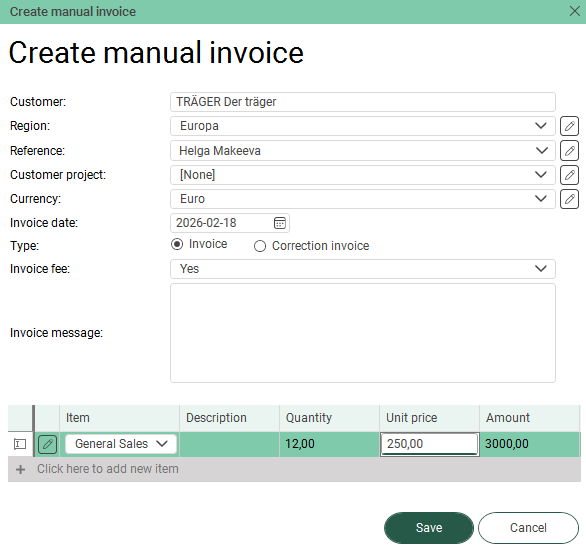
Click on File > Manual invoice. The Create manual invoice window opens.
-
Fill in the invoice header:
-
Customer: Start typing your customer code or customer name to search. Select a customer from the list.
-
Region: Select the region.
You are only required to enter a region if the tick box Separate invoice numbers for regions is ticked on the Invoice settings tab in the office settings.
If you want to add a new region to the register or make a change, press
 to the right of the field. The Regions window will then open. For more information, see Offices and regions.
 -
Reference: (Optional.) Select or enter customer reference.
If you wish to add a new customer reference to the register or make a change, click
to the right of the field. The Reference window will then open. For more information, see Reference (window). (If the button () cannot be pressed, please fill in the field Customer first.) -
Customer project: (Optional.) Select customer project.
If you wish to add a new entry to the register or make a change, click
to the right of the field. This will open the Customer project window. (Alternatively, you can click on Register > Customers, select the customer from the list on the left, and then click on  or
or  Projects at the top of the menu.)
 -
Currency: The currency is automatically set to the customer’s currency (as specified in field Currency in the customer register), but you can change the currency if you wish.
If you want to add a new currency to the register or make a change, click
to the right of the field. The window Currencies will then open. For more information, see Currencies (window) and Currencies. -
Invoice date: Select the desired invoice date. (Today's date is managed.)
-
Type: Select either Invoice (debit invoice) or Correction invoice. (For more information, see Correcting invoices.)
-
Invoice fee: Select whether to add, omit or deduct the invoice fee:
-
Yes: The invoice fee is added (as a positive amount) to the invoice; in other words, the customer is charged the fee. For more information, see Invoice fee.
-
No: No invoice fee is added to the invoice.
-
Negative: The invoice fee is added as a negative amount (deduction).
The option Negative is therefore used to credit or deduct the invoice fee rather than to charge it. This may be relevant, for example, in the case of a correction or compensation where you want to refund the customer for a previously charged fee.
-
-
Invoice message: (Optional.) Enter any text you want to appear on the invoice.
-
-
Add invoice lines to the table at the bottom:
-
Item: Select a price item from the drop-down list.
If you want to add new price items, click on
on the left. The Items (for manual invoice) window opens. -
Description: (Optional.) Enter a description of the item line.
-
Quantity: Enter the quantity for the price item on the line.
-
Unit price: Enter price per item.
-
Amount: Calculated automatically (Quantity x Unit price).
If you need more rows, click on Click here to add new item at the bottom of the list to create a new row.
To delete a row, click on the leftmost part of the row and press the Delete key.
-
-
Click the Save button at the bottom of the window to create the invoice.
If the fields are filled in correctly, the invoice is generated and is assigned an invoice number from the invoice number series for manual invoices or manual correction invoices. For more information, see Invoice types (window) and Invoice number series (window).
Export and printing are done in the same way as for normal invoices.
You can decide for yourself what the invoice sent to the customer should look like, and what information should appear on it. For more information, see Default settings for invoices.

