Settings for CO2 emission calculations
Last updated: 23 June 2026
In this article
We recommend that you read CO2 emissions, overview and This is how Opter calculates CO2 emissions before making the settings below.
Conditions
For Opter to calculate CO2 emissions, the following applies:
-
You must first make the settings described in the steps below.
-
There must be a distance on the order. For more information on how to get distance on orders, see Distances, addresses and maps, overview.
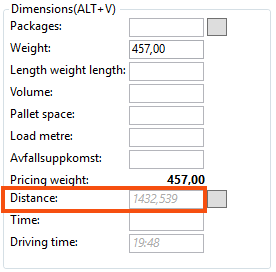
The image shows the field Distance in the section Dimensions in the Order reception and shows that there is a distance registered on the order.
Step 1 (optional): Plan
 Here are some suggestions on what to think about and decide before making your CO2 emissions settings
-
Decide whether or not the pricing weight of the order compared to the capacity of the vehicle is to be taken into account.
In order to allocate a vehicle's total CO2 emissions to the packages that make up an order, Opter needs to calculate how much of the vehicle's capacity the order occupies. As capacity can be measured in different ways, such as weight, pallet space or dimensions, Opter uses pricing weight as a common measure.
-
Decide how to indicate the CO2 emissions of vehicles, vehicle types and price vehicle types.
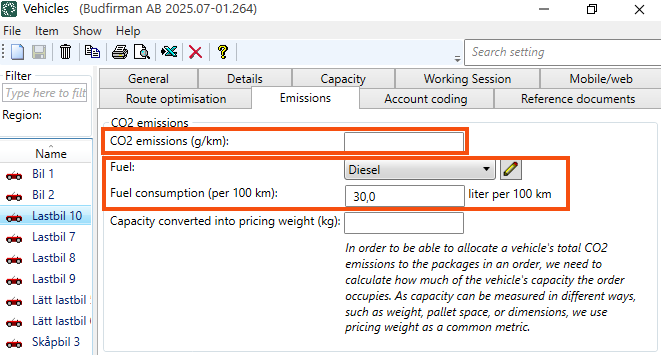
Select one of the following:
-
Enter CO2 emissions for the fuel, and then enter Fuel and Fuel consumption (per 100 km) for the vehicles, vehicle types and/or price vehicle types.
If you choose this method, you’ll have a better chance of obtaining more accurate CO₂ statistics.
-
Enter the CO2 emissions (in g/km) of vehicles, vehicle types and price vehicle types directly in Opter.
-
Mix the two ways above. For example:
-
Enter CO2 emissions directly in Opter for the price vehicle types, and enter fuel and fuel consumption for the vehicles.
-
Enter CO2 emissions directly in Opter for some vehicles, and enter fuel and fuel consumption for other vehicles.
-
Enter CO2 emissions or specify the fuel type and fuel consumption for the vehicle types, or skip entering any CO2 emissions data for the vehicle types and instead enter CO2 emissions data for vehicles and price vehicle types.
-
The data on CO2 emissions is taken firstly from the vehicle, secondly from the vehicle type and thirdly from the price vehicle type.
In Opter 2025.12.00 and later, the fields CO2 emissions (g/km), Fuel and Fuel consumption (per 100 km) are also in the subcontractor register. If the shipment is subcontracted, the information on the CO2 emissions of the vehicle is taken firstly from the subcontractor register and secondly from the price vehicle type.
The calculation of the estimated CO2 emissions is based, among other things, on the price vehicle type, as it is not known which vehicle will carry out the transport at the time the customer places the order.
-
-
Decide whether you want to specify the CO2 emissions of the fuel, (to then be able to specify fuel and fuel consumption for vehicles, vehicle types and/or price vehicle types and for subcontractors).
The fuel supplier should have information about the fuel’s CO2 emissions. We suggest using WTW (Well-To-Wheel) for the CO2 emissions of the fuel, to get an overall picture of the emissions.
-
If you have some services that are particularly climate efficient and some other services that are less climate efficient, you can apply different CO2 emission factors to the different services to reflect how much of the transport is usually empty/carpooling and how much is carpooling. The CO2 emission factor is set for the service, and if you wish, you can make exceptions for one or more of the price vehicle types under the service.
-
If working with consignments, it is possible to select if the CO2 emissions calculated for the consignment order are to be distributed between the original shipments, and in that case how the CO2 emissions should be distributed.
-
If a subcontractor carries out the shipment, your Opter can obtain information on the CO2 emissions via EDI, the subcontractor register (in Opter version 2025.12.00 and later), or the price vehicle type.
CO2 emissions can be imported and exported via EDI.
For more information, see the steps below and This is how Opter calculates CO2 emissions.
Step 2 (optional): Take pricing weight into account when calculating CO2 emissions
You do not need to start with this step, it can be added later, or you can make these settings while still making CO2 emission settings for vehicles, vehicle types, price vehicle types and services in the steps below.
Choose whether to take into account the pricing weight of the order compared to the capacity of the vehicle, by using:
-
The Take pricing weight into account when calculating CO2 emissions checkbox in the Services window, on the Emissions tab.
-
The Capacity converted into pricing weight (kg) field in the Vehicles, Vehicle types and/or Price vehicle types windows in the Emissions tab. In Opter version 2025.12.00 and later, the field Capacity converted into pricing weight (kg) is also available in the subcontractor register on the tab Emissions.
In order to allocate a vehicle's total CO2 emissions to the packages that make up an order, Opter needs to calculate how much of the vehicle's capacity the order occupies. As capacity can be measured in different ways, such as weight, pallet space or dimensions, Opter uses pricing weight as a common measure. Pricing weight is stated in kilograms. For more information on pricing weights, see Calculating the pricing weight.
When Opter calculates CO2 emissions, the information on the vehicle's Capacity converted into pricing weight (kg) is taken firstly from the vehicle, secondly from the vehicle type and thirdly from the price vehicle type. If the shipment is subcontracted, the information on the vehicle's Capacity converted into pricing weight (kg) is taken firstly from the subcontractor register and secondly from the price vehicle type.
Example, calculation of CO2 emissions taking into account pricing weight
If the maximum capacity of the vehicle (in volume or Pallet space, for example) corresponds to a pricing weight of 40 000 kg, then we enter 40 000 kg in the field Capacity converted into pricing weight (kg) for the vehicle in the vehicle register and tick the checkbox Take pricing weight into account when calculating CO2 emissions on the service.
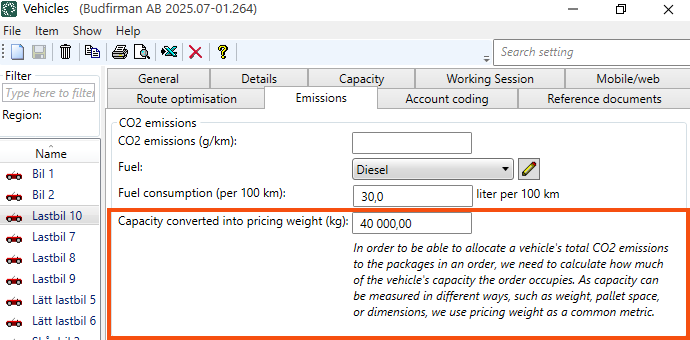
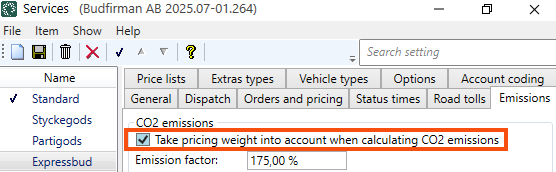
If the maximum capacity of the vehicle corresponds to a pricing weight of 40,000 kg, and the vehicle transports an order with a pricing weight of 20,000 kg, Opter expects that order to occupy half of the vehicle's capacity.
The calculated CO2 emissions of an order are a summation of the calculated CO2 emissions of the shipments in the order. Opter calculates CO2 emissions for a shipment using one of the following formulae
-
If pricing weight is taken into account:
Distance × CO2 emissions of the vehicle × emission factor x (pricing weight of the order / capacity of the vehicle).
Example: 350 km × 760 g/km × emission factor 1.25 × (order weight 20 000 kg / vehicle capacity 40 000 kg) = 166 250 g CO
The calculation is thus: 350 x 760 x 1.25 x 0.5 = 166 250.
(The CO2 emission factor in the example is 125%, therefore Opter uses 1.25 in the calculation).
-
If pricing weight is not taken into account:
Distance × CO2 emissions from the vehicle × emission factor.
Example: 350 km × 760 g/km × emission factor 1.25 = 332 500 g CO
In the example above we use a vehicle, but if the field Capacity converted into pricing weight (kg) is not filled in for the vehicle, Opter looks secondly at the vehicle type (if the field Capacity converted into pricing weight (kg) is filled in there) and lastly at the price vehicle type. If the shipment is subcontracted, the information on the vehicle's Capacity converted into pricing weight (kg) is taken firstly from the subcontractor register and secondly from the price vehicle type.
Step 3 (optional): Enter the CO2 emissions of the fuel
Select one of the following:
-
If you want to enter the CO2 emissions of vehicles, vehicle types, price vehicle types and subcontractors directly in Opter, you can skip this step and go directly to Enter CO2 emissions for vehicles.
-
If you want to enter the CO2 emissions for the fuel instead, and then enter the fuel and fuel consumption for the vehicles, vehicle types, price vehicle types and subcontractors' vehicles, do this step and the steps below.
To add a new fuel or update the CO2 emissions information for a fuel type, follow these steps:
-
Click Register > Fuel (and on the tab General).
-
To add a new fuel, click on
 and give the fuel type a name, for example “Electricity”, “Diesel”, “Biogas” or “HVO”.
To update the information about a fuel type, select the fuel whose settings are to be configured from the list on the left.
-
In the CO2 emissions field, enter the amount of carbon dioxide emitted by the fuel in grams.
The fuel supplier should have information about the fuel’s CO2 emissions.
Should WTW, WTT or TTW be used to indicate the fuel’s CO2 emissions?
-
WTW (Well-To-Wheel). WTW provides an overall picture of emissions. WTW = WTT + TTW.
-
WTT (Well-To-Tank). Greenhouse gas emissions that occur during the extraction, processing and transport of the fuel.
-
TTW (Tank-To-Wheel). Greenhouse gas emissions that occur when fuel is used in a vehicle.
In the field CO2 emissions in the fuel register you can choose whether you want to use WTW, WTT or TTW. For example, if you use TTW, you will need separate handling to add WTT afterwards. We therefore suggest that you use WTW in the field CO2 emissions in the fuel register.
So it is the figure you choose to use (WTW, WTT or TTW for the CO2 emissions of the fuel) that will be used in the CO2 emissions calculations in Opter. So what you get as a result (CO2 emissions for orders/shipments) in Opter depends on the figures you chose to use. The same applies to the figures you choose to use for the fuel consumption of vehicles, for example.
WTT for a fuel type may differ from refuelling to refuelling
The WTT (and thus also the WTW) of a fuel type may differ from refuelling to refuelling, but the difference is quite small compared to all other uncertainties. (For more information, see This is how Opter calculates CO2 emissions).
If you want exact figures for WTT or WTW, the fuel supplier should have this information.
-
-
In the Unit field, enter, for example, “litres”, “kg” or “kWh”.
For example, if “2680” has been entered in the CO2 emissions field and “litres” in the Unit field, this means that the fuel emits 2680 grams of carbon dioxide per litre.
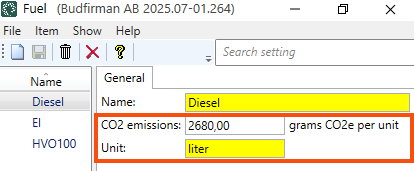
-
Click on Save to save all changes.
-
Repeat the steps above for all the fuels you use.
-
Close the Fuel window.
Step 4: Enter the CO2 emissions of the Vehicles
-
Click on Register > Vehicles and the Emissions tab.
-
Select the vehicle for which settings are to be configured from the list on the left. (To add a new vehicle, click on
and give the vehicle a name). -
Indicate the CO2 emissions of the vehicle by entering one of the following:
-
Fuel and Fuel consumption (per 100 km).
-
CO2 emissions (g/km).
If you enter Fuel, Fuel consumption (per 100 km) and CO2 emissions (g/km), Opter will use the value in the CO2 emissions (g/km) field to calculate the CO2 emissions.
If you want the data you entered in the fuel register to be used, leave the CO2 emissions (g/km) field blank and fill in the Fuel and Fuel consumption (per 100 km) fields. Opter will then calculate the CO2 emissions (in g/km) for the vehicle itself.
(The unit for Fuel consumption (per 100 km) is set in the fuel register, see Step 3 (optional): Enter the CO2 emissions of the fuel above).
-
-
If it has been selected to take pricing weight into account when calculating CO2 emissions:
Capacity converted into pricing weight (kg), for example 40 000 kg. (For more information, see Step 2 (optional): Take into account pricing weight when calculating CO2 emissions above).
-
Click on Save to save all changes.
-
Repeat the steps above for all the vehicles you use.
-
Close the Vehicles window.
If you change CO2 emissions (g/km), Fuel, Fuel consumption (per 100 km) and/or Capacity converted into pricing weight (kg) for a vehicle in the vehicle register:
-
You may then have one or more orders for which you would like the CO2 emissions to be recalculated. For more information, see Recalculate CO2 emissions for orders.
-
Please note that, for example, columns Fuel and CO2 emissions (g/km) in the CO₂ statistics report show the current setting in the registers. For more information, see Creating a statistical report about CO2 emissions in grams.
Step 5: Enter CO2 emissions for the vehicle types
-
Click on Register > Vehicle types and the Emissions tab.
-
Select the vehicle type for which settings are to be configured from the list on the left. (To add a new vehicle type, click on
and give the vehicle type a name). -
Indicate CO2 emissions for the vehicle type by entering one of the following:
-
Fuel and Fuel consumption (per 100 km).
-
CO2 emissions (g/km).
If you enter Fuel, Fuel consumption (per 100 km) and CO2 emissions (g/km), Opter will use the value in the CO2 emissions (g/km) field to calculate the CO2 emissions.
If you want the data you entered in the fuel register to be used, leave the CO2 emissions (g/km) field blank and fill in the Fuel and Fuel consumption (per 100 km) fields. Opter will then calculate the CO2 emissions (in g/km) for the vehicle type itself.
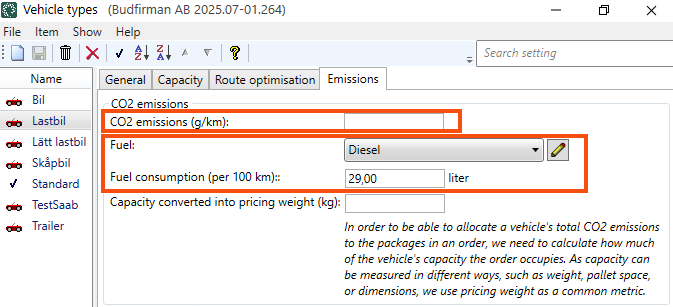
(The unit for Fuel consumption (per 100 km) is set in the fuel register, see Step 3 (optional): Enter the CO2 emissions of the fuel above).
-
-
If it has been selected to take pricing weight into account when calculating CO2 emissions:
Capacity converted into pricing weight (kg), for example 39 000 kg. (For more information, see Step 2 (optional): Take into account pricing weight when calculating CO2 emissions above).
-
Click on Save to save all changes.
-
Repeat the steps above for all vehicle types you use.
-
Close the Vehicle types window.
If you change CO2 emissions (g/km), Fuel, Fuel consumption (per 100 km) and/or Capacity converted into pricing weight (kg) for a vehicle type:
-
You may then wish to recalculate the CO2 emissions for the orders. For more information, see Recalculate CO2 emissions for orders.
-
Please note that, for example, columns Fuel and CO2 emissions (g/km) in the CO₂ statistics report show the current setting in the registers. For more information, see Creating a statistical report about CO2 emissions in grams.
Step 6: Enter CO2 emissions for the price vehicle types
-
Click on Economy > Price lists > Price vehicle types and the tab Emissions.
-
In the list on the left, select the price vehicle type you want to make settings for. (To add a new price vehicle type, click on
and give the price vehicle type a name). -
Please indicate CO2 emissions for the price vehicle type by entering one of the following:
-
Fuel and Fuel consumption (per 100 km).
-
CO2 emissions (g/km).
If you enter Fuel, Fuel consumption (per 100 km) and CO2 emissions (g/km), Opter will use the value in the CO2 emissions (g/km) field to calculate the CO2 emissions.
If you want the data you entered in the fuel register to be used, leave the CO2 emissions (g/km) field blank and fill in the Fuel and Fuel consumption (per 100 km) fields. Then Opter itself will calculate the CO2 emissions (in g/km) for the price vehicle type.
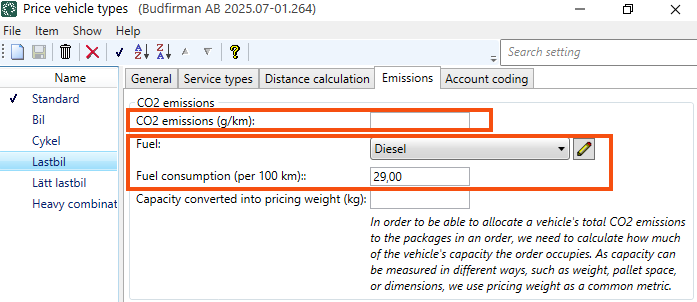
(The unit for Fuel consumption (per 100 km) is set in the fuel register, see Step 3 (optional): Enter the CO2 emissions of the fuel above).
-
-
If it has been selected to take pricing weight into account when calculating CO2 emissions:
Capacity converted into pricing weight (kg), for example 35,000kg. (For more information, see Step 2 (optional): Take into account pricing weight when calculating CO2 emissions above).
-
Click on Save to save all changes.
-
Repeat the steps above for all price vehicle types you use.
-
Close the Price vehicle types window.
If you change CO2 emissions (g/km), Fuel, Fuel consumption (per 100 km) and/or Capacity converted into pricing weight (kg) for a price vehicle type:
-
You may then wish to recalculate the CO2 emissions for the orders. For more information, see Recalculate CO2 emissions for orders.
-
Please note that, for example, columns Fuel and CO2 emissions (g/km) in the CO₂ statistics report show the current setting in the registers. For more information, see Creating a statistical report about CO2 emissions in grams.
Step 7: Setting the CO2 emission factor for a service
Set the CO2 emission factor for a service and possibly for the underlying price vehicle types.
The default setting for the CO2 emission factor is 100% for all services, so you don't need to make any changes if you want a 100% emission factor.
By default, the CO2 emission factor for all price vehicle types on a service is the same as the factor for the service. This means that it is not necessary to configure any settings for the price vehicle types on the service if the same CO2 emission factor as the service’s is required.
This is how to set the CO2 emission factor for a service and, if applicable, for the price vehicle types under the service:
-
Click on Economy > Price lists > Services and select the service for which the CO2 emission factor is to be set.
-
Go to the Emissions tab.
-
If it has been selected to take pricing weight into account when calculating CO2 emissions, select the Take pricing weight into account when calculating CO2 emissions checkbox. (For more information, see Step 2 (optional): Take into account pricing weight when calculating CO2 emissions above).
-
In the Emission factor field enter an emission factor in percent.
Examples of how to choose the CO2 emission factor for a particular service can be found in This is how Opter calculates CO2 emissions.
-
Choose one of the following scenarios:
-
If all price vehicle types linked to the service should have the same emission factor as the service, nothing else needs to be done in the Services window. Go to step 7 below. (That is, click on Save to save all changes).
-
If you want to specify a different emission factor for a particular price vehicle type under the service, go to step 6 below.
You can see which price vehicle types are linked to the service on the Vehicle types tab in the Services window.
-
-
To enter an emission factor for a specific price vehicle type, click Click here to add a new item. in the table in the box CO2 emissions.
Select a price vehicle type in the Price vehicle type column and set an emission factor in percent in the Emission factor column by entering a value or using the arrows.
Examples of how to select the CO2 emission factor for a particular price vehicle type can be found in This is how Opter calculates CO2 emissions.
You can set the emission factor for more price vehicle types under the service by adding more rows to the table.
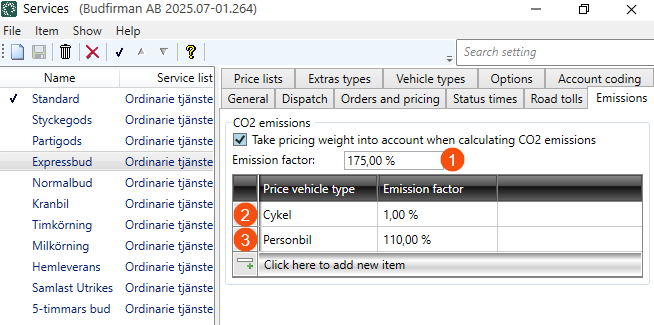
The figure shows the CO2 emission factor for the service (1) and that we have excluded the price vehicle types "Bicycle" (2) and "Passenger car" (3) from the service. As a result, a CO2 emission factor of 175% will be applied to the service and all underlying price vehicle types, except for "Bicycle" and "Passenger car". For "Bicycle" a CO2 emission factor of 1% will be used and for "Car" a CO2 emission factor of 110% will be used.
If, for example, you change Emission factor for a service:
-
After that, you might want to recalculate the CO2 emissions for the words. For more information, see Recalculate CO2 emissions for orders.
-
Please note that column Emission factor in the CO₂ statistics report shows the current setting for the service, or the price vehicle type under the service. For more information, see Creating a statistical report about CO2 emissions in grams.
Step 8 (optional): Set how the CO2 emissions calculated for the consignment order are to be distributed
If working with consignments, it is possible to select if the CO2 emissions calculated for the consignment order are to be distributed between the original shipments, and in that case how the CO2 emissions should be distributed:
-
If you have chosen not to distribute the consignment order’s CO2 emissions among the original shipments, this means that the original shipments (and therefore the original orders) retain their normal CO2 emission calculations, as if they were not in a consignment. In that case, select [None] from the drop-down menu Assignment of CO2 emissions to original shipment in the instructions below.
-
If the consignment order’s CO2 emissions are to be distributed among the original shipments, it can be chosen how the consignment order’s CO2 emissions should be distributed among the original shipments.
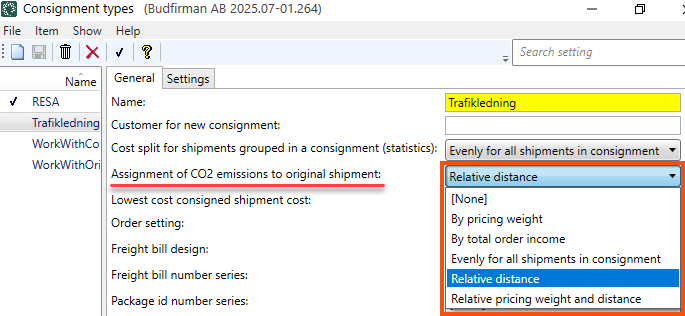
For example, CO2 emissions can be distributed equally between the original shipments, or for example distributed based on the pricing weight and/or the distance of the original shipments. Selection is made in the Assignment of CO2 emissions to original shipment drop-down list in the instructions below. For more information on the choices in the drop-down menu, see Consignment types (window).
Opter first totals the CO2 emissions of the consignment shipments that are included in the consignment order. The CO2 emissions calculated for the consignment order are then distributed between the original shipments.
Proceed as follows:
-
Click on Settings > Consignment types.
-
On the General tab there is the Assignment of CO2 emissions to original shipment drop-down list. Choose if and how the CO2 emissions of the consignment shipment are to be distributed between the original shipments. For more information on the choices in the drop-down menu, see Consignment types (window).
-
Click on Save to save all changes.
Example, consignment, distribute CO2 emissions based on distance
We have selected that the calculated CO2 emissions for the consignment order are to be distributed between the original shipments based on the distances of the original shipments. We have therefore selected Relative distance in the Assignment of CO2 emissions to original shipment drop-down list in the Consignment types window. (See picture above).
We have 2 customer orders (original orders):
-
One customer order (one original order) is going from Stockholm to Karlstad. Distance 300 km.
-
One customer order (one original order) is going from Stockholm to Oslo. Distance 500 km.
The original orders are consolidated into one consignment order. The consignment is the route actually travelled by the supplier, i.e. Stockholm - Karlstad - Oslo. Distance: 500 km. The consignment order can have one or several consignment shipments.
Opter calculates CO2 emissions as follows:
-
Opter totals the CO2 emissions of the consignment shipments that are included in the consignment order, and the total is for example 60,000 g CO2.
Details of how Opter calculates CO2 emissions for a shipment can be found in This is how Opter calculates CO2 emissions. For example, the formula could be:
The shipment’s distance × CO2 emissions from the vehicle × emission factor.
-
Opter totals the distances of the two original shipments, 300 km + 500 km = 800 km.
-
The calculated CO2 emissions of the consignment order are distributed between the original shipments, based on the distance of the original shipments. (CO2 emissions are distributed based on the distance of the original shipment in relation to the total sum of the distances of the original shipments).
-
The original shipment Stockholm - Karlstad. Distance 300 km.
The calculation is 300 km / 800 km = 0.375 (37.5%).
This original shipment is thus to be allocated 37.5% of the CO2 emissions of the consignment order.
The calculation is 0.375 x 60,000g = 22,500g CO2.
This original shipment is allocated CO2 emissions of 22,500 g.
-
The original shipment Stockholm - Oslo. Distance 500 km.
The calculation is 500 km / 800 km = 0.625 (62.5%).
This original shipment is thus to be allocated 62.5% of the CO2 emissions of the consignment order.
The calculation is 0.625 x 60,000g = 37,500g CO2.
This original shipment is allocated CO2 emissions of 37,500 g.
-
Step 9 (optional): Subcontractor carries out the shipment
If a subcontractor carries out the shipment, your Opter can obtain information on CO2 emissions in one of the following ways
-
Via EDI, i.e. the subcontractor sends information on calculated CO2 emissions via EDI. For more information, see CO2 emissions via EDI.
-
Via the price vehicle type, i.e. via the fields CO2 emissions (g/km), Fuel, Fuel consumption (per 100 km) and Capacity converted into pricing weight (kg) on the tab Emissions in the window Price vehicle types. Please check with the subcontractor that the fields contain updated information. Instructions are available at Step 6: Setting CO2 emissions for the price vehicle types above.
See also Step 7: Setting the CO2 emission factor for a service above, as you may want to check or change the CO2 emission factor for any price vehicle type under any service.
-
Via the subcontractor register, from Opter version 2025.12.00 and later, the fields CO2 emissions (g/km), Fuel, Fuel consumption (per 100 km) and Capacity converted into pricing weight (kg) are available on the Emissions tab in the Subcontractors window. Instructions are below, see How to.
Example
If you have entered CO2 emissions data in the subcontractor register, and on the price vehicle type, and if you also receive Calculated CO2 emissions data from the subcontractor via EDI, then
-
Opter uses the Calculated CO2 emissions data (for the shipment/order) received via EDI.
-
If you later change something on which the CO2 emissions calculations in Opter are based, such as the distance of the shipment or order, Opter will calculate the CO2 emissions for the shipment/order based on the data in the subcontractor register.
If CO2 emissions data is not available in the subcontractor register, Opter will use the data on the price vehicle type.
The same applies if you choose to recalculate the CO2 emissions of the order (where the shipment is included) in the order check or in the Order reception. For more information, see Recalculate CO2 emissions for orders.
Proceed as follows
If you want the CO2 emissions data to be retrieved from the subcontractor register, do the following
Applies to Opter version 2025.12.00 and later.
-
Click on Register > Subcontractors and the Emissions tab.
-
In the list on the left, select the subcontractor you want to make settings for. (If you want to add a new subcontractor, see Adding a new subcontractor).
-
Please indicate the CO2 emissions of the subcontractor's vehicle by indicating one of the following:
-
Fuel and Fuel consumption (per 100 km).
-
CO2 emissions (g/km).
If you enter Fuel, Fuel consumption (per 100 km) and CO2 emissions (g/km), Opter will use the value in the CO2 emissions (g/km) field to calculate the CO2 emissions.
If you want the data you entered in the fuel register to be used, leave the CO2 emissions (g/km) field blank and fill in the Fuel and Fuel consumption (per 100 km) fields. Then Opter itself will calculate the CO2 emissions (in g/km) of the subcontractor's vehicle.
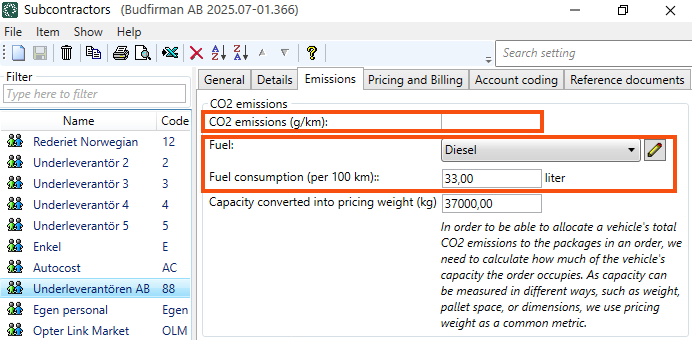
(The unit for Fuel consumption (per 100 km) is set in the fuel register, see Step 3 (optional): Enter the CO2 emissions of the fuel above).
-
-
If it has been selected to take pricing weight into account when calculating CO2 emissions:
Capacity converted into pricing weight (kg), for example 37 000 kg. (For more information, see Step 2 (optional): Take into account pricing weight when calculating CO2 emissions above).
-
Click on Save to save all changes.
-
Repeat the steps above for all subcontractors you use.
-
Close the Subcontractors window.

