New design
Last updated: 10 August 2026
In this article
Applies to Opter from version 2025.12.00 onwards.
Opter has been given a new look, and some features have been improved as part of the new design.
Select New design or Classic design
In the login window, you can select New design or Classic design by clicking on the slider. Opter saves your most recent selection.
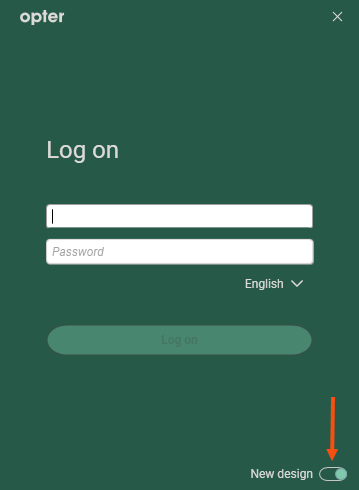
You can still choose to use Opter in the classic design, but we recommend that you use the new design. The classic design will be phased out eventually.
New colours and icons
See the pictures below and Icons in the Order reception.
Colours in dispatch
Some of the colours in dispatch have been adjusted so that the default colours for resource boxes and task statuses now follow the new design’s colour scheme, regardless of whether you’re using Opter’s new or classic design. If you have previously selected one or more colours in a dispatch setting, all the colours in that dispatch setting will be retained. If you want to change to Opter’s new default colours, click Settings > Dispatch settings, select the Color settings tab, choose which colour setting you want to change (for example, the colours of the resource boxes) and click the down arrow. The colour picker opens. Click on Automatic and then save your changes. For more information, see Dispatch settings (window).
In the new design, you can freely enter your own colour codes or choose a colour from an advanced palette. For more information, see Dispatch settings (window).
Menu tabs instead of traditional menus
The new design features menu tabs instead of traditional menus in the order reception section, for example.
In the classic design, the menus open vertically.
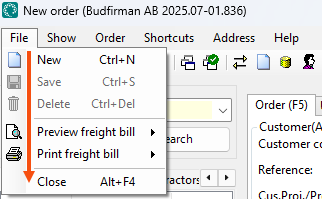
In the new design, the menus open horizontally. These are what are known as ribbon menus.
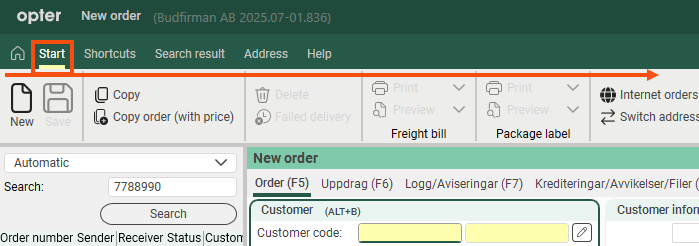
If you feel that the menu bar (ribbon) takes up too much space in the order reception window, you can minimise the ribbon (step 1) or close it (step 2) by doing one of the following:
-
Press Ctrl + F1.
-
Double-click on the name of the menu tab (for example Search result).
-
Click on the up arrow to the right of the menu tabs.
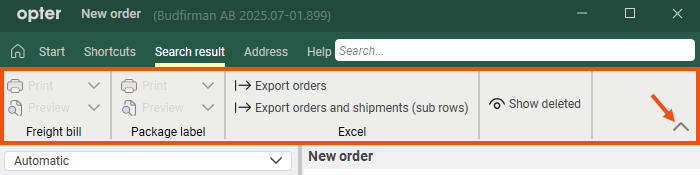
For example, if you click the up arrow once, the ribbon menu will become smaller.

If you then click the up arrow again, the ribbon menu will close.

Opter remembers your last setting.
If the ribbon menu is closed and you want to open it, you can choose whether or not to dock the ribbon menu:
-
If you want to open and pin the ribbon menu, double-click on any of the menu tabs (for example, Search result) or click once on the down arrow.
The Ribbon menu will then remain open until you choose to close it.
-
If you want to reopen the most recently used menu tab and dock the ribbon, press Ctrl + F1.
The Ribbon menu will then remain open until you choose to close it.
-
If you want to open the ribbon menu but not dock it, click on one of the menu tabs (for example Search result).
When the ribbon menu is not docked, it will close if, for example, a pop-up window opens or if you click in a field in the order reception.
You can dock the ribbon menu at any time by pressing Ctrl + F1, clicking the down arrow, or double-clicking any of the menu tabs.
Show keyboard shortcuts
Hover the mouse pointer over an option to display the keyboard shortcut.
For example, if you hover the mouse pointer over Copy, Copy (F9) will appear, which means you can press the F9 key to copy an order in the order reception.
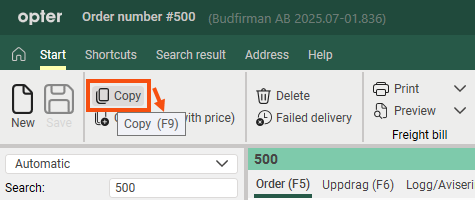
Shortcut keys are displayed where a shortcut key is available.
New keyboard shortcuts
The new design includes a few new keyboard shortcuts, they are Ctrl + H, Ctrl + L, Ctrl + F and Ctrl + F1.
Ctrl + H
Opter displays the home page and the cursor is positioned in the search box at the top of the home page.
Ctrl + H works in all windows (except modal windows). (Modal windows are pop-up windows that lock the main window and require you to take some action before you can continue working in the main window.)
Ctrl + H performs the same function as clicking on  .
.

Example
You are in a (non-modal) window in Opter:
-
If you want to open the customer register, press Ctrl + H (or click
) and type ‘customers’. Then press Enter, and the customer register will open.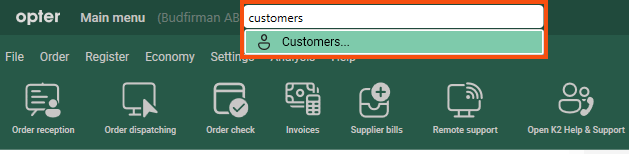
-
If you want to open the customer record for a specific customer, press Ctrl + H (or click
) and type the customer’s name, for example “Kastrup”. Then press Enter, and the customer record for that customer will open.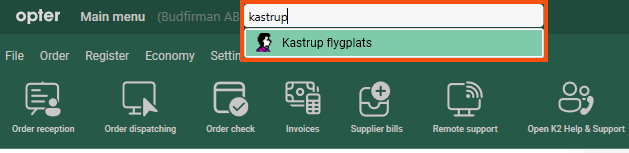
-
If you want to open order number 501, press Ctrl + H (or click
) and type “501”. Then press Enter, and order 501 will open.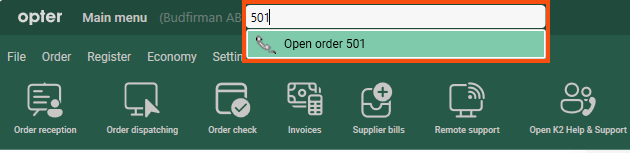
Ctrl + L
If you press Ctrl + L:
-
In the order reception screen and in the registers, the cursor jumps to the field where you can search for settings such as the name of a tick box, a drop-down list or a field in the order reception screen or register.
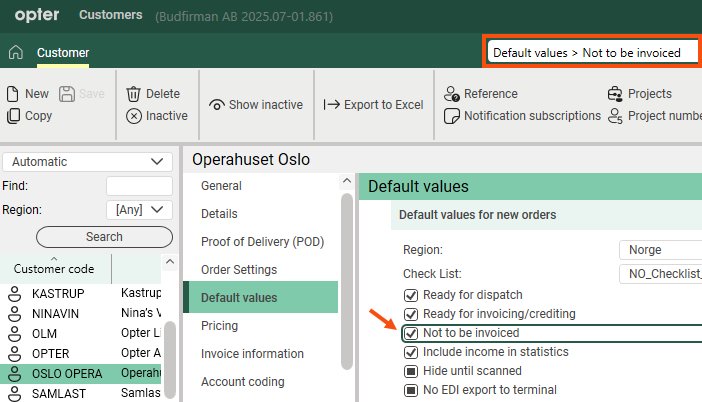
In the image above, we have pressed Ctrl + L in the customer register, entered the name in a tick box (Not to be invoiced) and pressed Enter. Opter locates the tick box in the register and ticks it so that we can find it quickly.
-
On the home page, the cursor jumps to the search box at the top.
Ctrl + F
If you press Ctrl + F:
-
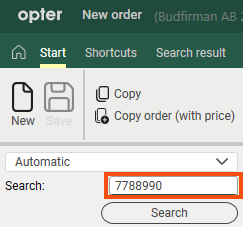
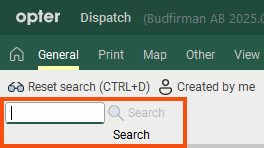
In the order reception, dispatch and customer register (for example), the cursor jumps to the search field. Type in what you’re looking for – for example, a consignment note number – and then press Enter or click on Search.
-
On the home page, the cursor jumps to the search box at the top.
-
In registers, such as the subcontractors’ register, the cursor jumps to the field where you can filter the list of subcontractors.
Ctrl + F1
If you feel that the menu bar (ribbon) takes up too much space in the order reception window, you can minimise the ribbon (step 1) or close it (step 2) by doing one of the following:
-
Press Ctrl + F1.
-
Double-click on the name of the menu tab (for example Search result).
-
Click on the up arrow to the right of the menu tabs.
For example, if you press Ctrl + F1 once or click the up arrow, the ribbon menu will become smaller.
If you then press Ctrl + F1 again or click the up arrow once more, the ribbon menu will close.
Opter remembers your last setting.
If the ribbon menu is closed and you want to open it, you can choose whether or not to pin the ribbon menu:
-
If you want to open and pin the ribbon menu, double-click on one of the menu tabs (for example, Search result) or click once on the down arrow.
The Ribbon menu will then remain open until you choose to close it.
-
If you want to reopen the most recently used menu tab and dock the ribbon, press Ctrl + F1.
The Ribbon menu will then remain open until you choose to close it.
-
If you want to open the ribbon menu but not dock it, click on one of the menu tabs (for example Search result).
When the ribbon menu is not docked, it will close if, for example, a pop-up window opens or if you click in a field in the order reception.
You can dock the ribbon menu at any time by pressing Ctrl + F1, clicking the down arrow, or double-clicking any of the menu tabs.
Quick search in the order reception department
New quick search function in the order reception department.
Select Automatic and enter the order number, invoice number, consignment note number, parcel number, sender’s reference, recipient’s reference or extra ID 1–extra ID 5 in the search field. Press Search or Enter. Opter then searches through orders with order dates from the last three months.
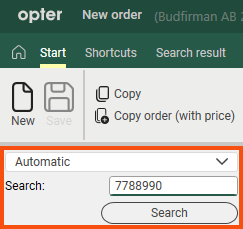
If you enter a customer code in the search field, Opter will display the most recent orders in the dispatch system where the customer code matches. If you leave the search field blank and press Search, Opter will display the most recent orders in dispatch. Further details on the quick search function can be found in Order reception.
Notification of hidden fields in order reception
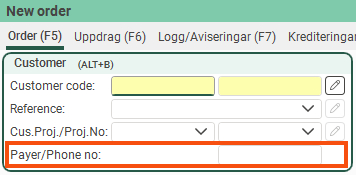
If there are fields that are not displayed in a group in the order reception, Opter indicates this by means of three small dots in the frame.
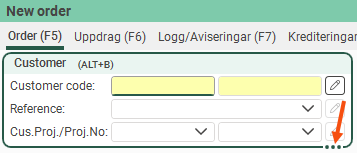
If you want to see all the fields, drag the frame. The bullet points disappear when all fields are displayed.
Size adjustments to orders received in the order reception are saved per user and per computer
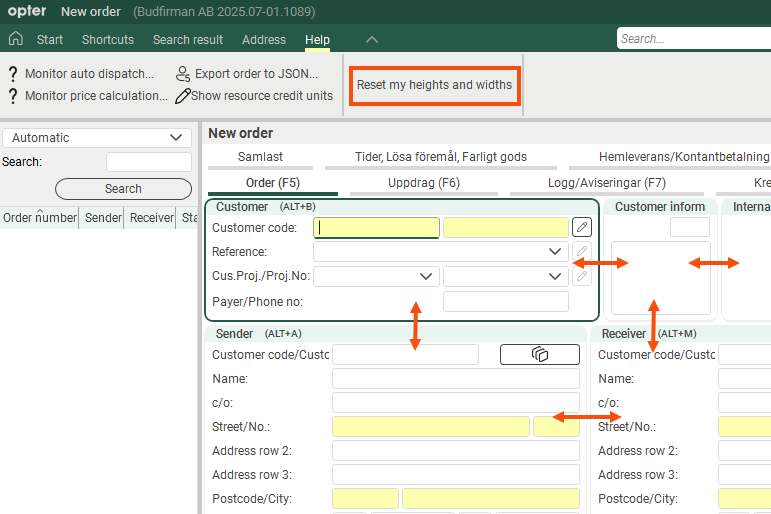
In the order reception area, each individual user can adjust the size (height/width) of the groups by dragging the group’s borders. (See the image below.) Opter saves the group sizes for each order setting, user and computer.
In other words, if you adjust the group sizes in the order reception screen, Opter will automatically save your adjustments (for the current order setting), so that the order reception screen looks the same the next time you open it. If you work on different computers (with, for example, different resolutions or screen sizes), Opter will save your settings for each computer.
If you have adjusted the group sizes and later wish to revert to the default setting, click the Reset my heights and widths button (in the order reception section under Help). The group sizes in your order reception will then be reset to the default values saved for the current order settings. If you wish to save new standard dimensions for an order configuration, press the Make my settings the default button on the Tab settings tab in the window Order entry settings.
Create a new default setting for size adjustments in order reception
In window Order entry settings on the Tab settings tab, you will find the button Make my settings the default.
If you click the Make my settings the default button, the following will happen for the order setting highlighted in the list on the left:
-
The dimensions (height/width) of the groups in the order reception area that you currently have will be set as the new default for all users who have not made their own adjustments to the dimensions.
-
Users who have made their own size adjustments will retain them, but if they press the Reset my heights and widths button (in the order reception section under Help), your current size adjustments will take precedence. (If they subsequently make their own adjustments, Opter will automatically save those adjustments for each order setting, user and computer.)
Once one of you has clicked the Make my settings the default button, you cannot remove the new default setting (for your Opter), but you can always adjust the sizes in the order reception screen again and then save this as the default by clicking the Make my settings the default button once more.
For more information, see Order entry settings (window).
Scroll between the tabs in the registers
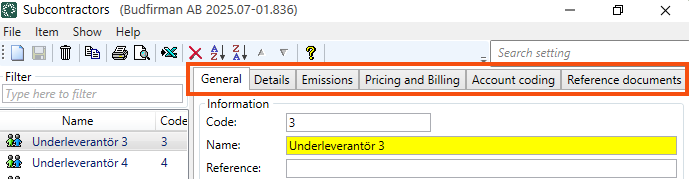
In the registers, the tabs are displayed vertically in the new design and you can scroll between them.
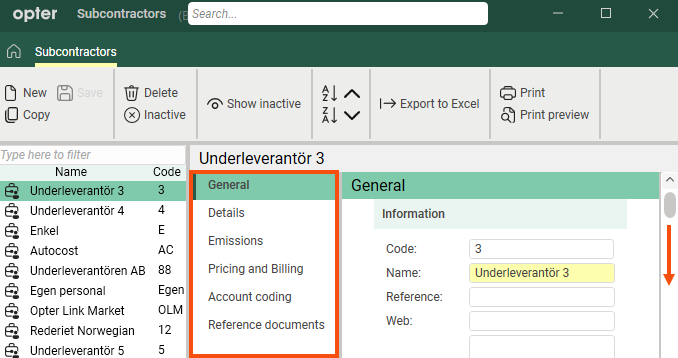
In the classic layout, the tabs are displayed horizontally (and you cannot scroll between them).
Attach a tab
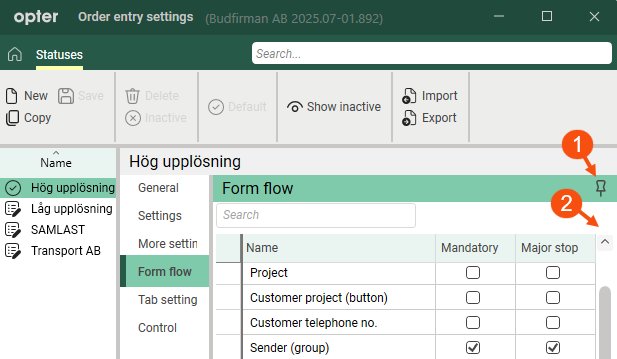
To make it easier to work with the settings, you can pin certain tabs by clicking on  (1) in the image below.
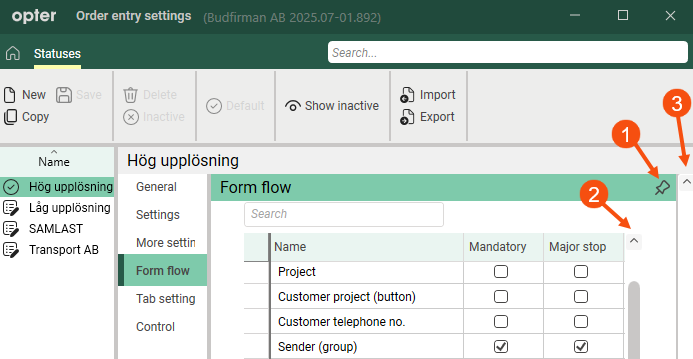
The image above shows what the Form flow tab looks like in the Order entry settings window if you have not pinned the tab. Both the list’s scroll bar (2) and the window’s scroll bar (3) are displayed.
The image below shows what the Order entry settings window looks like once you have pinned the tab Form flow. The list’s scroll bar (2) is still visible, but the window’s scroll bar is not. The list of settings has reached its maximum length.
For example, you can pin the following tabs:
-
Tabs in the window Dispatch settings.
-
Form flow in the window Order entry settings.
When you no longer want the tab to be pinned, click on  (1) in the image above or click on any other tab.
Scroll through maps
In the customer register, in window Ferries and in window Adjust address positions, you can zoom in on the map in one of the following ways:
-
In the new design, you can zoom by holding down the Ctrl key and scrolling. The text (1) is displayed if you scroll without holding down the Ctrl key.
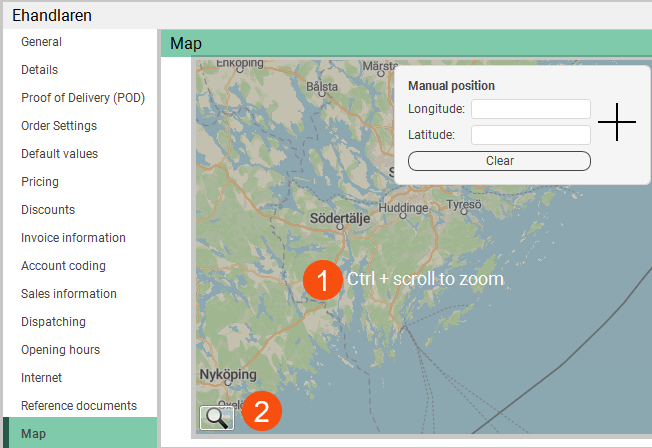
In the Opter Classic design, you can zoom in on the map by scrolling.
-
Click on the magnifying glass (2), then click + or -, or drag the slider up or down. This approach works for both classic and modern designs.
For more information, see Adjust address positions (window) and Customers (window).

