Examples of routes
Last updated: 11 March 2026
In this article
Here are a few examples of common routes.
Direct transport from one postcode area to another
We want to create a route from the area in Stockholm in which postcodes start with 12 to the area in which the postcodes start with 11. It should be a distribution route.
Summary:
|
Name |
Type |
From |
To |
|---|---|---|---|
|
Stockholm 12*–11* |
Distribution |
Postcode 12* |
Postcode 11* |
To set the route, do the following:
-
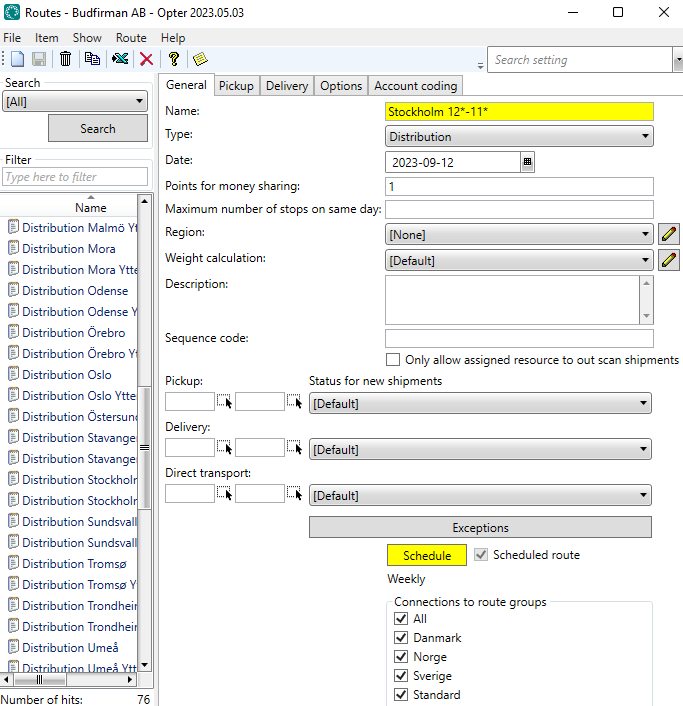
Click Order > Routes > New to create a new route. We’re calling the route “Stockholm 12*–11*”.
-
In the Type drop-down list, select Distribution.
-
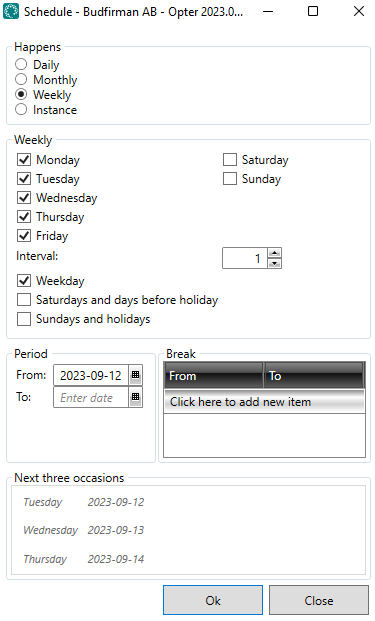
We open the route Schedule and set it to Weekly. We mark the days of the week on which the route is to be operated; in our case, Monday to Friday. For more information, see Schedule, routes (window).
-
Click on the Pickup tab and create a new row under From postcodes. Choose Country “Sweden” and enter “12*” in the Postcode field.
We are selecting Monday to Friday inclusive, as we want the “12*” postcode area to be served for collections on those days.
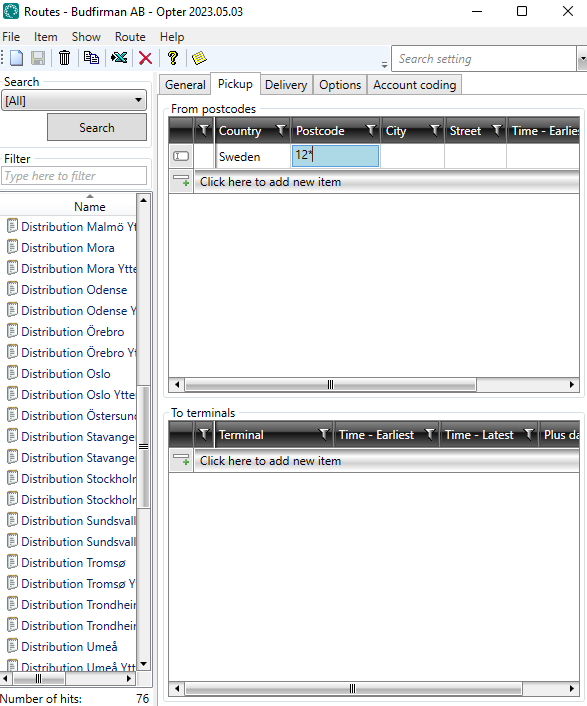
The columns for Saturday and Sunday are grey, as the route does not operate on those days of the week according to the timetable we have just set. This means that it doesn’t matter whether Saturday and Sunday are selected or not. The schedule takes precedence over these settings.
-
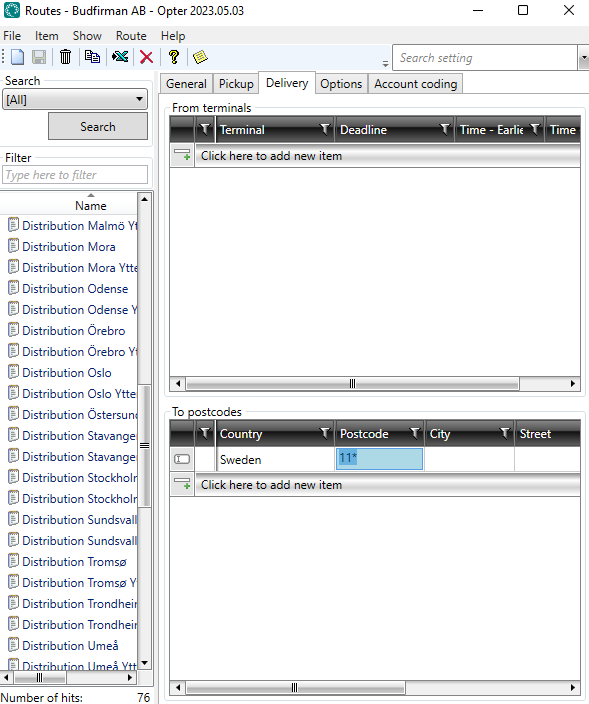
On the Delivery tab, we create a new row below To postcodes. There, we also select Country “Sweden” but enter “11*” in the field Postcode.
We are selecting Monday through to Friday, as we want the postcode range “11*” to be served on those days.
-
Click on Save to save all changes.
-
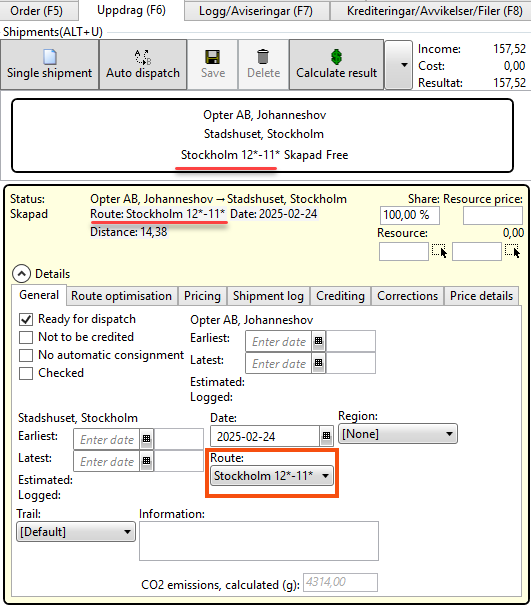
Under Shipments in the order reception section, we can now see that an order from a sender with the postcode “120 07” to a recipient with the postcode “111 52” has been assigned to the route “Stockholm 12*–11*”.
-
On the Routes panel in the dispatch centre, we can see how many shipments are on the “Stockholm 12*–11*” route.
Comments
In this example, we have no intermediate stops and the route therefore involves direct transport. In order for a shipment to be assigned this route, we need to go to Economy > Price lists > Services, select the service to be used and, on the Dispatch tab, tick Allow automatic dispatching and Allow direct connections (one leg).
The pickup or delivery area could also be a terminal. For the route to be selected, the address on the order must be a terminal selected from the terminal register.
An order is split into several shipments
Routes can best be likened to train timetables, where the departures are routes and the stations are terminals.
This example illustrates a route where goods can be transported from Stockholm to Gothenburg and Malmö via transhipments at terminals along the way.
-
From: Akademigränd 3, 111 52 Stockholm
-
To: 2 Storgatan, 211 41 Malmö
The sender is matched via their postcode to the “Stockholm Collection” route, which transports the goods to the terminal in Stockholm. A scheduled lorry then transports the goods to the terminal in Jönköping, where they are reloaded. Another scheduled bus takes the goods to the terminal in Malmö. Finally, the goods are delivered to the recipient’s address via the “Malmö Delivery” route, which is selected based on the recipient’s postcode.
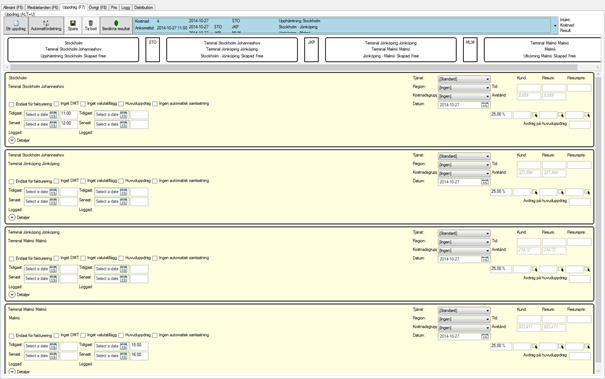
A total of four shipments are created for the order, each to be carried out by a separate vehicle.

For this to work, the following applies:
-
Allow automatic dispatching must be selected for the service to be used. Economy > Price lists > Services > the tab Dispatch.
-
The terminals shown in the image above must be listed in the terminal register. Register > Terminals.
-
The following routes must be created.
Name
Type
From
To
Stockholm pickup
Distribution
Postcode 11*
Stockholm terminal
Gothenburg delivery
Distribution
Gothenburg terminal
Postcode 41*
Malmö delivery
Distribution
Malmö terminal
Postcode 21*
Stockholm–Jönköping
Line haul service
Stockholm terminal
Jönköping terminal
Jönköping–Gothenburg
Line haul service
Jönköping terminal
Gothenburg terminal
Jönköping–Malmö
Line haul service
Jönköping terminal
Malmö terminal
We won’t go into detail about how all these routes are created; instead, we’ll simply show you how to create a distribution route and a line route.
The “Stockholm Collection” delivery route
This is how to create one of the required distribution routes:
-
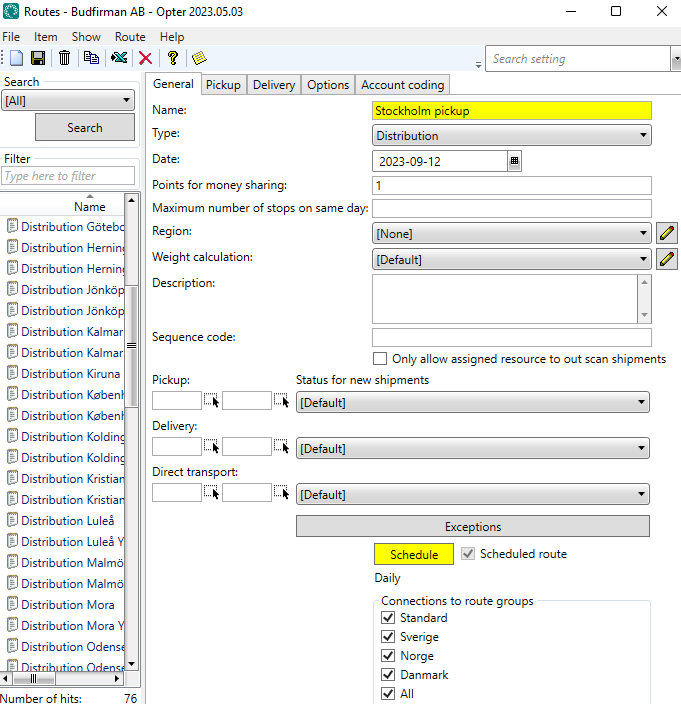
We click on Order > Routes > New to create a new route, which we’ll call “Stockholm Collection”.
-
In the Type drop-down list, select Distribution.
-
We open the route Schedule and set it to Weekly. We mark the days of the week on which the route is to be operated; in our case, Monday to Friday. For more information, see Schedule, routes (window).
-
We go to the Pickup tab and create a new row below From postcodes, where we select Country “Sweden” and enter “11*” in the column Postcode. We are selecting Monday through to Friday, as we want the “11*” postcode area to be served for collections on those days.
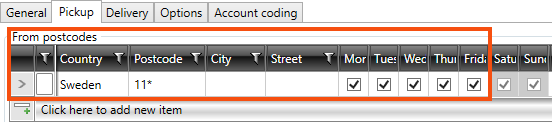
The columns for Saturday and Sunday are grey, as the route does not operate on those days of the week according to the timetable we have just set. This means that it doesn’t matter whether Saturday and Sunday are selected or not. The schedule takes precedence over these settings.
-
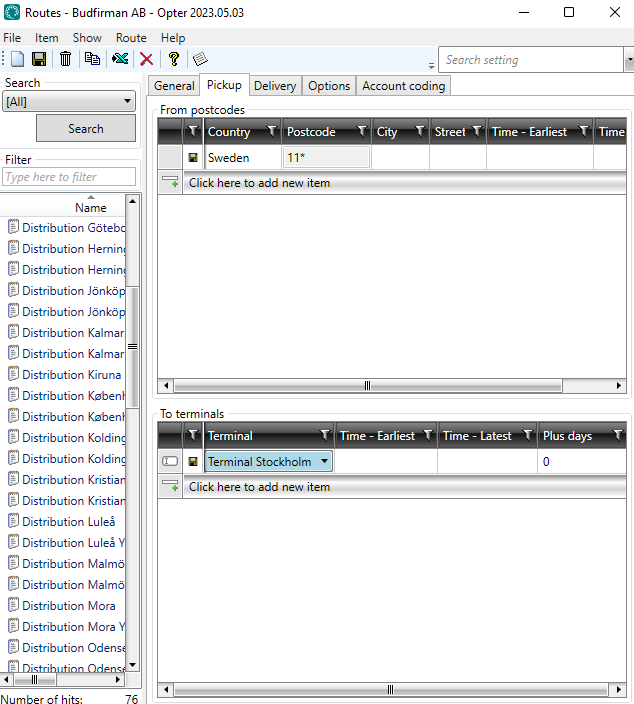
We select the “Stockholm terminal” on a row under To terminals and click on Save to save all changes.
Creating a Stockholm–Jönköping line haul route
Here’s how we create one of the required route lines.
-
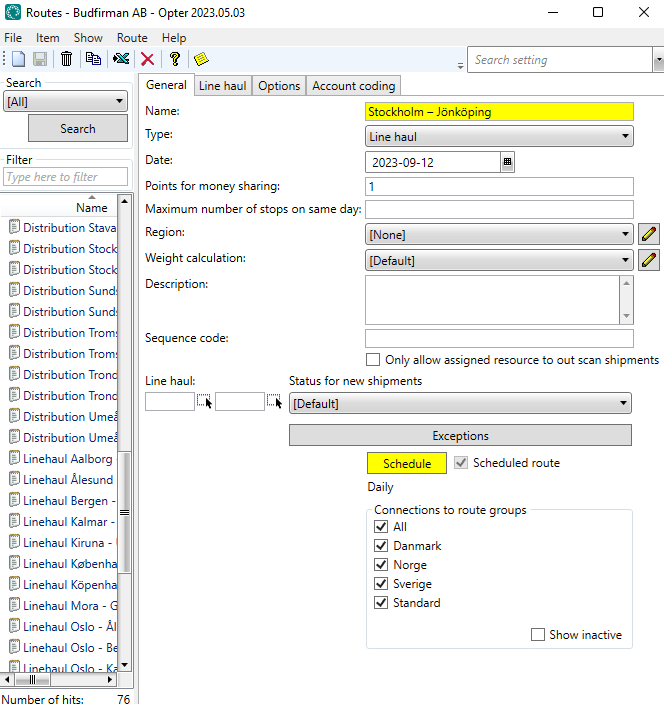
We click on Order > Routes > New to create a new route called “Stockholm–Jönköping”.
-
In the Type drop-down list, select Line haul.
-
We open the route Schedule and set it to Weekly. We mark the days of the week on which the route is to be operated; in our case, Monday to Friday. For more information, see Schedule, routes (window).
-
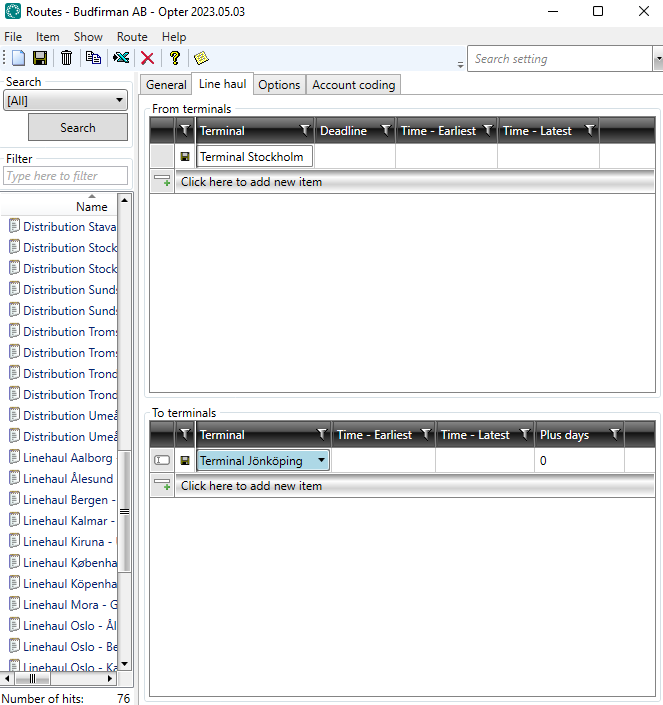
Go to the Line haul tab and select ‘Terminal Stockholm’ from the list below From terminals.
-
We then select ‘Terminal Jönköping’ from a list under To terminals and click Save to save all changes.
Once you have selected Allow automatic dispatching for the service, all terminals are in place and all routes have been created, we can test how the routes work.
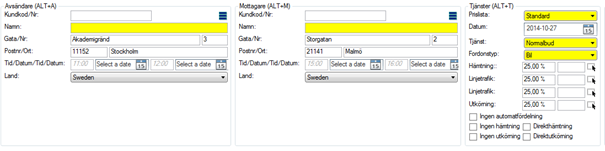
Create an order with the sender’s address “Akademigränd 3, 111 52 Stockholm” and the recipient’s address “Storgatan 2, 211 41 Malmö”.
Opter then splits the order into four shipments, which we can see under Shipments in the order reception. One for pick-ups, two for line haul and one for deliveries.
Delivery route with collections from different postcode areas on different days of the week
If the route is to collect from the postcode area “82*” on Mondays, “84*” on Tuesdays, “86*” on Wednesdays, “87*” on Thursdays and “88*” on Fridays, do the following:
-
Set the route schedule to Weekly, and select Monday to Friday inclusive. For more information, see Schedule, routes (window).
-
Go to the Pickup tab and add a row for each postcode area under From postcodes. Select the day of the week on which each postcode area is to be served.
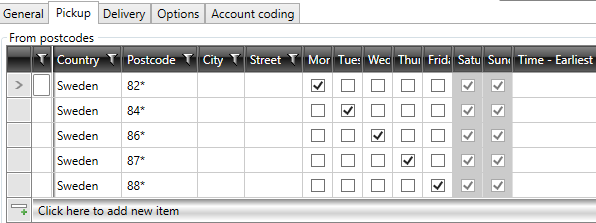
The columns for Saturday and Sunday are grey, as the route does not operate on those days of the week according to the timetable we have just set. This means that it doesn’t matter whether Saturday and Sunday are selected or not. The schedule takes precedence over these settings.
-
Click on Save to save all changes.
If the route also involves deliveries to different postcode areas on different days of the week, see the next example.
Delivery route with deliveries to different postcode areas on different days of the week
If the route is to cover the postcode areas “82*” on Mondays, “84*” on Tuesdays and Fridays, “86*” on Wednesdays, “87*” on Thursdays and “88*” on Fridays, do the following:
-
Set the route schedule to Weekly, and select Monday to Friday inclusive. For more information, see Schedule, routes (window).
-
Go to the Delivery tab and add a row for each postcode area under To postcodes. Select the day of the week on which each postcode area is to be served.
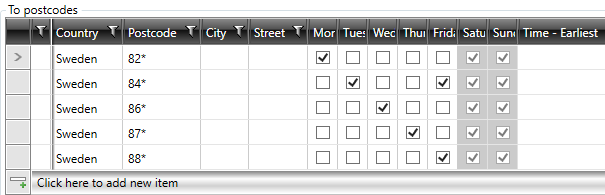
The columns for Saturday and Sunday are grey, as the route does not operate on those days of the week according to the timetable we have just set. This means that it doesn’t matter whether Saturday and Sunday are selected or not. The schedule takes precedence over these settings.
-
Click on Save to save all changes.
If, at a later date, you wish to change the settings so that the postcode area “82*” is served on both Mondays and Thursdays, simply tick Thursday for the postcode area “82*”.
If you then wish to change the settings so that the postcode area “82*” is served on Mondays, Thursdays and Saturdays, tick Saturday for that postcode area and then amend the schedule so that the route is also served on Saturdays. Unless you change the timetable, there will be no service on Saturday.
Distribution route involving large volumes of goods to and from the same street
If you have large volumes of goods to and from the same street, it may be useful to enter the street number on tabs Pickup and Delivery. If you enter a house number, we recommend that you also enter the street name, and preferably the country, postcode and/or town.
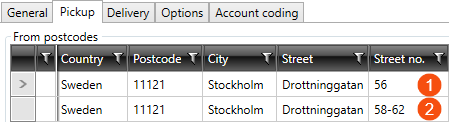
You can enter a single house number (1) or a range (2). You cannot use “*” in this column.

