Consolidation settings (window)
Last updated: 17 March 2026
 Order > Consolidate orders >
  next to the drop-down menu Setting
In this article
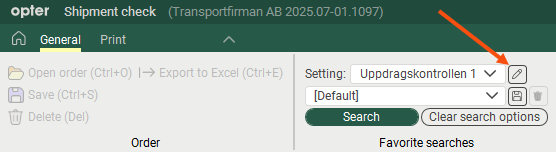
In this window, you can configure how the consolidation check works and which columns are to be displayed in the order list. There are various possible configurations, as shown on the left.
Columns
Put the columns you want to display in the list Included. Double-click on a column to move it between the lists. You can move several columns at once by Ctrl-clicking or Shift-clicking them and then pressing Enter.
In the text fields above the lists, it is possible to search for the name of a column.
You decide the order of the columns by dragging and dropping them up and down the list.

