Adjust prices (window)
Last updated: 24 July 2025
 Economy > Adjust prices
In this article
In this window you can update the prices for one or more Price items. All columns in the window can be sorted and filtered so that only the price items you wish to update are displayed in the list. For more information, see Adjusting prices.
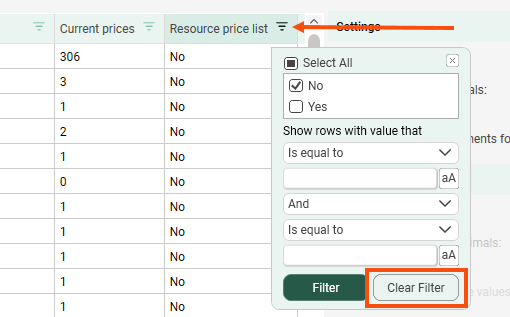
When you open the window, the list is filtered to show only customer price lists, not resource price lists. If you also want to adjust resource price lists, click  in the Resource price list column and select Rensa filter.
Columns
Select the Price items and extras for which you want to update the price. You can sort and filter on all columns to show only the Price items/extrras you want to adjust prices on.
Price item/Extra
As Price items can be inherited and copied between price lists, there may be several items with the same name in the list. If you have different prices for Price items in different price lists, you can first filter by price list to get better control of how prices are adjusted.
The extras are listed once for each price list for which they are activated, as they may have different prices in different price lists. If you tick an extras box, the new prices cannot take effect from a future date. Price adjustments for extras always take effect immediately and always replace the current prices.
Price list
The price lists available in the system.
Used by
This column shows:
-
whether the Price item can be added manually to an order
-
if the price item is used to price services (visible on the Services tab in the price list)
-
if it is an extras.
Blank rows mean that the Price item/extra is not used in that price list.
Current prices
The number of prices entered in the price matrix.
Resource price list
When you open the window, the list is filtered to show only customer price lists, not resource price lists. If you also want to adjust resource price lists, click in this column and then click Clear Filter.
Settings/Resource values
|
Function |
Description |
|---|---|
|
Adjust price (%) |
The percentage by which prices are adjusted. If you want to reduce the prices, type a minus sign/hyphen before, "-5%". |
|
Number of decimals |
How many decimal places the prices in the price matrix should have after the price adjustment. The maximum number is 6. |
|
Lowest unit |
Instead of specifying the number of decimal places, you can specify how the adjusted prices should be rounded. You can round to both whole numbers and decimals. Example: If you type "5" here and the price "100" is adjusted by 3% to 103, the new price is rounded to "105" in the price matrix. If you adjust the price by 2% instead, the price remains 100 because 102 is rounded to the nearest five. |
|
Use same adjustments for resource values |
Existing resource values are adjusted by the same percentage as customer prices and thus follow the same price trend. If there are missing resource values in the price matrix, they are not added. If you tick this checkbox, everything below Resource values is greyed out. For more information and examples, see Adjusting prices. |
|
Create resource values if they do not exist |
Only applies if you adjust the customer price and resource values by different amounts. If there are combinations of conditions that have no resource values in the price matrix, you can fill in those cells during the price adjustment. The resource value added is the old customer price and the percentage adjustment in the field Adjust price (%). If there are no resource values in the price matrix, the commission is based on the customer price. For more information and examples, see Adjusting prices. |
Valid from
|
Function |
Description |
|---|---|
|
Immediately (replace current prices) |
If you adjust prices on extras, you must select this option. It is not possible to choose a future date. |
|
date field |
The date on which the new prices will apply. If you select this option, a new price generation is created for the Price items that are price adjusted. |
|
Based on prices from |
The adjustment is based on the prices in force on that date. You can enter a future date here whether or not you have created a new price generation for that date. The prices valid on that date are used as the basis for the price adjustment. If you have an index-based contract with your customers, you can base the new prices on the same previous price generation, the base price. For more information and examples, see Adjusting prices. |
|
Recalculate |
Prices are adjusted according to the settings and the new prices are saved on the Price items, either directly or as a new price generation. If you adjust extras, prices are updated immediately. |
|
Close |
The window closes without any changes being made. |

