Invoice export to E-Financials (API)
Last updated: 12 May 2026
In this article
Applies from Opter version 2026.01.149.
You can connect (integrate) Opter with E-Financials, after which you can export invoices from Opter to E-Financials.
E-Financials is an accounting tool provided by "RIK" (the Estonian Centre for Registers and Information Systems). Further information about E-Financials is available at https://www.rik.ee/en/e-financials/introduction-e-financials.
Data sent from Opter to E-Financial
When you export invoices from Opter to E-Financials, the following happens:
-
The invoices are exported:
-
The information in the invoice header (i.e. invoice number, invoice date, due date, payment terms, total invoice amount, etc.).
-
All invoice lines (i.e. order number, item name, amount, accounting account, VAT rate, etc.).
For more information, see The invoice in E-Financials below.
-
-
Customer information is exported and updated in E-Financials.
The customer’s name and corporate ID number are sent from Opter to E-Financials. The customer's corporate ID number is used to match customers between Opter and E-Financials. If the customer does not exist in E-Financials, the integration will attempt to create the customer in E-Financials.
-
If you wish, the Opter invoice with all the details can be attached as a PDF file. (You can adjust this setting in Step 2 below.)
Conditions
API key
To connect Opter to E-Financials, you need to set up the following in E-Financials:
-
"API Key Id" (API key).
-
"API Key Password" (API key password).
-
"API Key" (Public API key).
You should then copy the API key, password and public API key and enter them into Opter in Step 2 below.
 Create the API key, password and public API key in E-Financials
If there are several of you who need to be able to export invoices to E-Financials, the following applies:
-
If you are using the same IP address, you will be able to use the same API key, password and public API key.
-
If you use different IP addresses, you will need a set of API keys, passwords and public API keys for each IP address. In this case, you will need to set up an invoice export for each IP address.
The E-Financials user interface is subject to change, but at the time of writing, it works as follows:
-
In E-Financials, click on "Settings" > "General Settings", scroll down to "e-invoice API access permissions" and click on the "Add new access token" button.
-
In the "Add new API access token" window, enter your name or your company’s name in the "Name" field. In the "Allowed IP addresses" field, enter your IP address or your shared IP address, then click "Save".
-
Once the API key, password and public API key have been created, you can retrieve them under "e-invoice API access permissions" by clicking "Load key" on the row containing the IP address you entered ("Allowed IP addresses").
When you click on "Load key", a text file will be downloaded containing the API key, the password and the public API key.
Invoice number and invoice number series
E-Financials accepts invoice numbers from Opter. We recommend that you ensure that the invoice numbers generated in Opter do not clash with the numbers of any invoices generated directly in E-Financials. You can resolve this by using different invoice number series in Opter and E-Financials.
Default currency
We recommend that you use the Euro (EUR) as the default currency in Opter. (For more information, see Valuutad (window) and Currencies.)
Currency codes
E-Financials and Opter use the same currency codes.
Exchange rates
Exchange rates in Opter are sent to E-Financials when invoices are exported.
We recommend that you ensure you always have up-to-date exchange rates in Opter. Click on Majandus > Valuutad, then the Valuutakursid tab. For more information, see Valuutad (window) and Currencies.
Account numbers and VAT rates
The accounting account numbers and VAT rates used in Opter must exist in E-Financials, and each accounting account must have the correct VAT rate in both Opter and E-Financials.
It is important that there is an account with the number "1210" for trade receivables, and sales accounts with the correct VAT rate (e.g. "3100 - E-Financials Sales of goods in Estonia (VAT 24%)"). For more information, see Step 1 below.
The customer’s VAT registration number
If a customer is to be invoiced at 0% VAT, they must have a VAT registration number in Opter.
We recommend that you check that all customers have a Käibemaksu number in Opter by clicking on Register > Kliendid and the tab Detailid.
Customer’s corporate ID number
The customer’s corporate ID number is used to match customers between Opter and E-Financials during invoice export.
We recommend that you check that all customers have a Organisatsiooni number in Opter by clicking on Register > Kliendid (and the Üldine tab). For more information, see Kliendid (window).
If the customer is Estonian, E-Financials checks that the customer’s corporate ID number is a valid Estonian corporate ID number.
Project
The projects used in Opter must exist in E-Financials. In Opter, you can find the economic units under Majandus > Majandusüksused.
Bank account number (IBAN)
The office’s or region’s IBAN in Opter must match a bank account number in E-Financials.
In Opter, depending on whether you use the IBAN for the office or the region:
-
For the office, click Seaded > Kontorid and the tab Arve tasumine. Please check that the correct bank account number is entered in the field IBAN.
-
For the region, click Majandus > Piirkonnad and the tab Makseinfo. Please check that the correct bank account number is entered in the field IBAN. Tick the box IBAN for all regions.
Step 1: Check Maksearved and käibemaksumäärad
The account numbers and VAT rates used in Opter must be present in E-Financials, and each account must have the correct VAT rate in both Opter and E-Financials.
It is very important that the account coding is correct. We recommend that you contact Opter Support or your system administrator if you require assistance with checking the account coding.
To check that you have the correct accounting account numbers and VAT rates in Opter, do the following:
-
Click on Majandus > Arveldususskeemide nõuded.
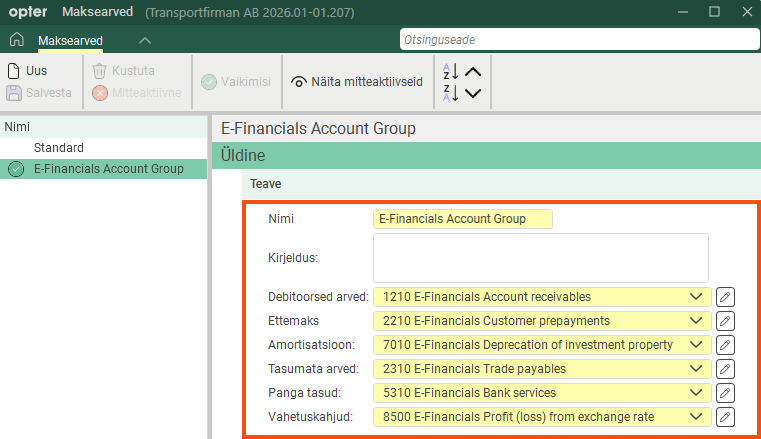
The image shows what it might look like in the window Maksearved.
-
In field Debitoorsed arved, check that you have account "1210". This is important to ensure that invoice exports to E-Financials work properly.
If you don't have it, click on
 next to the drop-down menu. The Kontod window opens. Click on
  Uus and give the account a Nimi ("1210") and a Kirjeldus (e.g. "E-Financials Accounts Receivable"). Click on Salvesta.
 -
In window Maksearved, check that the remaining accounts are the same as those used in E-Financials.
If you want to change anything, click on
next to the drop-down menus. Click on Salvesta when finished.
-
If there are several options in the list on the left-hand side of the window Maksearved, select the one for E-Financials as the default by highlighting it in the list and then clicking
 Vaikimisi at the top of the menu. (The setting is saved automatically.)
 -
Click on Majandus > Kontod. Please check that you have the same sales accounts in Opter and E-Financials:
-
For example "3100 - E-Financials Sales of goods in Estonia (full VAT rate)", this account is required for the export of invoices to E-Financials to work.
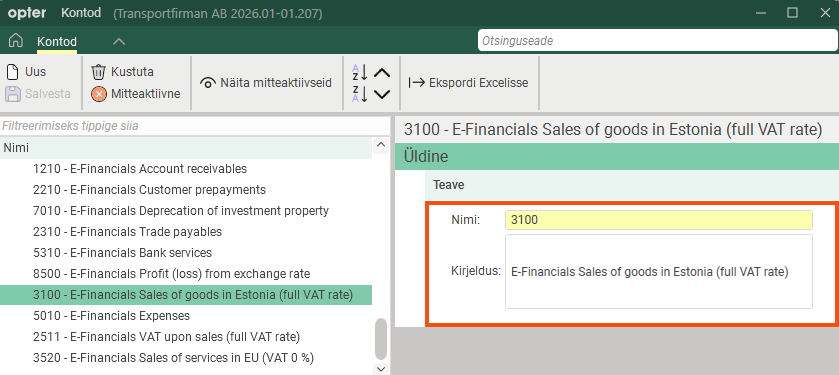
The image shows what it might look like in the window Kontod. For more information, see Kontod (window).
-
You will probably also need an account for sales within the EU (0% VAT), e.g. "3520 - E-Financials: Sales of services in the EU (VAT 0%)".
-
-
Click Majandus > KM määrad, and check that the VAT rates are set correctly. (For more information, see Registering VAT rates and käibemaksumäärad (window).)
You will probably need a VAT rate of 24% and one of 0%.
-
VAT rate of 24%: Account "3100" is linked to a 24% VAT rate in E-Financials. Select account "3100" from the drop-down list Konto müük (and probably also from the drop-down list Konto erinevus).
-
VAT rate of 0%: If a 0% VAT rate is applied to sales within the EU, it is important that you tick the box EU VAT.
Click on Salvesta to save all changes.
-
-
If a customer is to be invoiced at 0% VAT, they must have a VAT registration number in Opter. Check that the customer has a Käibemaksu number in Opter by clicking on Register > Kliendid and the tab Detailid.
-
Click on Seaded > Kontorid and the Arve seaded tab. Check that OCR-numbri tüüp is set to soome keel.
Step 2: Create an invoice export for E-Financials in Opter
-
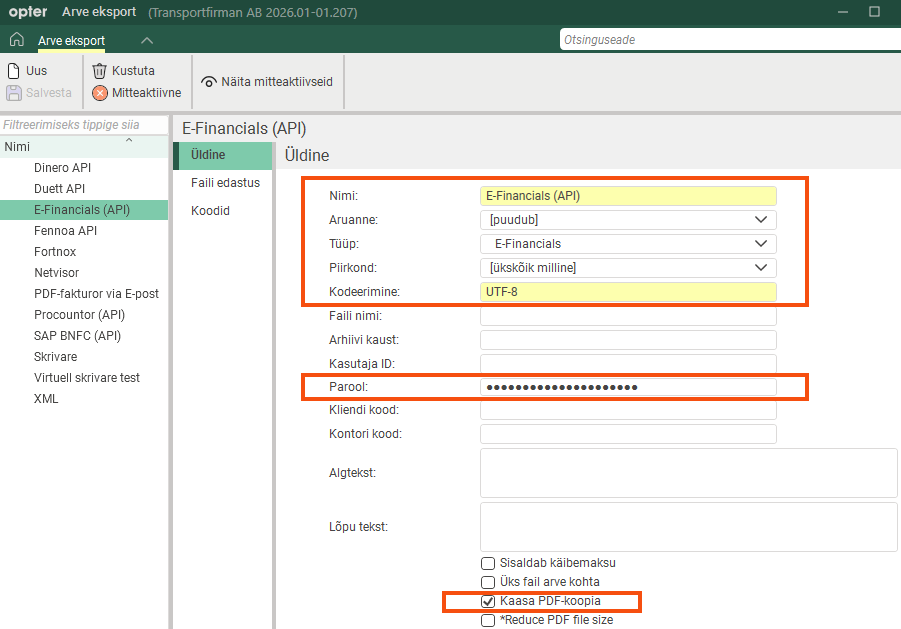
Click Majandus > Arved > Arve eksport and create a new invoice export by clicking Uus. The following fields must be filled in on the Üldine tab:
-
Nimi: For example, “E-Financials (API)”.
-
Aruanne: Mitte ühtegi.
-
Tüüp: E-Financials.
-
Kodeerimine: UTF-8.
-
Parool: The API key password ("API Key Password"). (Copy it from the text file (from E-Financials) and paste it here. For more information, see the section API key above.)
-
Tick box Kaasa PDF-koopia if you would like the Opter invoice to be attached in PDF format.
E-Financials does not support the display of all the details one might wish to include on a transport invoice, such as distance, weight, consignment note number and so on. The graphic invoice is therefore created with all the details in Opter and sent to E-Financials as a PDF file.
-
-
Click on Salvesta to save all changes.
-
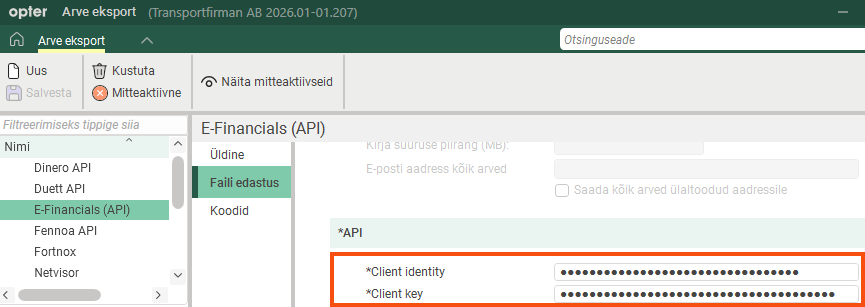
Click on the Faili edastus tab. The following fields must be filled in:
-
Client identity: API key ("API Key Id"). (Copy it from the text file (from E-Financials) and paste it here. For more information, see the section API key above.)
-
Client key: Public API key ("API Public Key"). (Copy it from the text file (from E-Financials) and paste it here. For more information, see the section API key above.)
-
-
Click on Salvesta to save all changes.
Step 3: Add the invoice export to an invoice export group
To create a new invoice export setting (i.e. a group of exports) or to check whether an invoice export setting (group) already exists to which you wish to add the invoice export to E-Financials, proceed as follows:
-
Click Majandus > Arved > Arve ekspordi seaded.
-
Check the list on the left to see if there is already an invoice export setting (group) to which you wish to add the E-Financials export. Click on the invoice export setting and tick the box for “E-Financials (API)” (or whatever name you gave the invoice export) under Eksport.
If there is no invoice export setting (group) where you want to add the E-Financials export, create a new one. Click
 and give the invoice export setting a name, for example “E-Financials (API)”. Tick the box next to “E-Financials (API)” (or whatever name you gave the invoice export) under Eksport.
 -
Click on Salvesta to save all changes.
-
Choose which invoice export setting should be the default. To select E-Financials (API) as the default, tick “E-Financials (API)” in the list on the left and click
 .
. -
To ensure that all invoices are posted in E-Financials, select the “E-Financials (API)” export option for all export settings (groups).
-
Click on Salvesta to save all changes.
-
To set which invoice export setting (group) applies to a particular customer, click on Register > Kliendid and search for the customer for which the setting is to be made. Click on the Arveteave tab and select invoice export setting (group) in the Arve eksport drop-down list. Click on Salvesta to save all changes.
Step 4: Export the invoices to E-Financials
The invoice information can be exported from Opter when closing an invoice period, or subsequently when choosing whether to export entire invoice periods or individual invoices.
Proceed as follows:
-
In Opter, click Majandus > Arved > Arved.
-
Select the invoice or invoice period you wish to export, right-click and select Ekspordi.
-
Click Eksportida ja saata to export the invoice or invoice period to E-Financials.
The number of invoices to be exported and the number of invoices exported are displayed, as well as a progress bar (at the bottom of the window), are shown in the Arve eksport window in Opter. When the invoice export has been completed, the entire progress bar is green.
If the invoice export fails, the progress bar turns grey and there is a statement indicating that the export failed. If the export fails, an error message is displayed, see Error messages below.
The invoice in E-Financials
The information fields on the invoice in E-Financials can be modified, but at the time of writing, the following information is displayed, as shown in the table.
Field name | Description |
|---|---|
"Invoice date" | The invoice date is shown here. |
"Invoice file" | Click here to download your Opter invoice (in PDF format). (The Opter invoice will be included in the export to E-Financials if you have ticked box Kaasa PDF-koopia in Step 2 above.) |
"Invoice number" | The invoice number is shown here. The invoice number comes from Opter, and the exported invoice now has the same number in E-Financials. For more information, see Invoice number and invoice number series above. |
"Deadline/In days" | The invoice due date and payment terms. (For more information, see Koostage arveid (window) and Maksetingimus (window).) |
"Code" (column) | The column shows the account and VAT rate. For example, if it says "3100-24", this refers to account 3100 and a VAT rate of 24%. If it says "3520-0", this means account 3520 and a VAT rate of 0%. |
"Product/Service" (column) | The column displays the order number, sender reference and recipient reference, or the order number and item name. The first line of an order shows the order number, the sender’s reference and the recipient’s reference. For example "Order: 261 sender ref. "Gianna N" receiver ref. "Martin Smith"". One row is then displayed per price item, for example: "Order: 261 "Road toll", "Order: 261 "Cold" or "Order: 261 "Extension". |
Troubleshooting
If the export fails, an error message will be displayed. The error messages and suggested remedial actions are listed in the table below.
Once you have rectified the problem/error, you can export the invoices again. If an invoice already exists in E-Financials, Opter will not export that invoice to E-Financials (again), but will move on to the next invoice in the export. No duplicates are created in E-Financials.
The message The following invoices {0} already exist in E-Financials.
A message is also displayed indicating which invoices were not exported because they were already present in E-Financials. The fact that an invoice (i.e. an invoice number) already exists in E-Financials may be due to one of the following reasons:
-
The invoice has already been exported from Opter to E-Financials (during a previous invoice export).
-
An invoice with the same invoice number has previously been created directly in E-Financials.
We recommend that you use different invoice number series in Opter and E-Financials to avoid this problem. For more information, see Invoice number and invoice number series above.
Error messages
If the export to E-Financials does not work, an error message will appear. Error messages only appear if something goes wrong during export. Error messages are displayed in a popup window, and are not saved anywhere.
| Error message | Description |
|---|---|
It was not possible to connect to E-Financials. {0}. | This may be due to one of the following:
|
It was not possible to create a customer with the customer code {0} in E-Financials. {1}. | Read the full error message; the first part is from Opter, and the second part is from E-Financials. The problem is likely to be that the customer’s corporate ID number is missing from Opter or is not a valid corporate ID number in Estonia (if the customer is Estonian). Check the customer’s Organisatsiooni number in Opter by clicking on Register > Kliendid (and the Üldine tab). For more information, see Kliendid (window). You can then try exporting the invoice again. |
It was not possible to send invoice {0} to E-Financials. {1}. | Read the full error message; the first part is from Opter, and the second part is from E-Financials. The problem may be due to an incorrect VAT rate, for example. |
It was not possible to update the customer {0} in E-Financials. {1}. | Read the full error message; the first part is from Opter, and the second part is from E-Financials. |
The call to E-Financials was cancelled. | Opter suspended exports for some reason. Please try exporting the invoices again. |
The API call to E-Financials was unsuccessful. Status code {0}. | Status codes are HTTP codes, such as "401" ("Unauthorised"). The API call may have failed for one of the following reasons, for example:
|
An unknown error occurred in the API call to E-Financials: {0}. | The HTTP client may have encountered a problem. Please try exporting the invoices again. If that still doesn't work, you can try restarting the Opter client. |
It was not possible to interpret the response from E-Financials: {0}. | E-Financials sends something unexpected to Opter. E-Financials has probably changed its API. Contact the Opter support team. |
Call to E-Financials {0} was unsuccessful. Status code {1}. | Contact the Opter support team. |
The invoice export to E-Financials was cancelled. | Opter suspended exports for some reason. Please try starting the invoice export again. |
The following {0} have been removed from or inactivated in E-Financials {1}. | The account or project appears to have been deleted or deactivated in E-Financials; for example, account "3100" may have been deactivated. (The accounts and projects used in Opter must exist in E-Financials.) Activate or create the account or project in E-Financials. Then restart the invoice export. |
The following {0} is not in E-Financials {1}. | The account or project is missing from E-Financials; for example, account "3100" is missing. (The accounts and projects used in Opter must exist in E-Financials.) Create the missing account or project in E-Financials and restart the invoice export. |
For the period {0}, there is no account for sales or the account is incorrect. | For example, the sales account "3100" may be missing or have the wrong VAT rate in Opter. Please ensure that you have sales accounts and the correct VAT rates set up in Opter; this is essential for the invoice export to E-Financials to work. For more information, see Step 1 above. Please contact Opter Support if you need help. |
Sales articles missing for the following accounts: {0}. | It is likely that the VAT rate in the Opter account is incorrect. (Accounts and VAT rates must match between Opter and E-Financials.) Please contact Opter Support if you need help. |
The invoice file could not be generated. | Opter is unable to generate the PDF invoice. This may be due to an error in the invoice report (template). Please check the report. For more information, see Arve malli skeem (window), Aruanded (window) and Aruanderedigeerija (window). Please contact Opter Support if you need help. |
The call to E-Financials timed out. | Please try starting the invoice export again. If the problem persists, please contact Opter Support. |
There is no bank account with the IBAN {0} in E-Financials. | The office’s or region’s IBAN in Opter must match a bank account number in E-Financials. For more information, see Bank account number (IBAN) above. Make sure that Opter and E-Financials have bank accounts with matching IBANs. Please try starting the invoice export again. |
There are no accounts for the period {0}. Make sure that there is an account for accounts receivable in the account coding charts. | There is no account coding chart in Opter. Please contact Opter Support if you need help. |
For the period {0}, there is no account for accounts receivable or the account is incorrect. | Account "1210" is missing in Opter. Tick the Debitoorsed arved box in the window Maksearved. For more information, see Step 1 above. Please contact Opter Support if you need help. |
The account for accounts receivable ({0}) is incorrect for the period {1}. | It is likely that the accounts receivable balance does not match the expected VAT rate. In Opter, please check that you have an accounting account "1210" for trade receivables and that the VAT rate linked to the account is correct. For more information, see Step 1 above. Please contact Opter Support if you need help. |
There are multiple accounts for accounts receivable ({0}) for the period {1}. | Check the account coding in Opter. There should be no more than one account for trade receivables. For more information, see Step 1 above. Please contact Opter Support if you need help. |

