Supplier bill export to file
Last updated: 30 October 2024
In this article
Opter can export supplier bill data as an XML file, and by means of a transform (XSLT file), that XML file can be converted into a format that the receiving system can read. Contact if you want to customise the conversion of the XML file from Opter so that you get a file in a format that your accounting system can import.
Create a supplier bill export
Click on Majandus > Hankija arved > Hankija arve eksport and create a supplier bill export with the XmlSerialiser type. Encoding should usually be ISO-8859-1 or UTF-8.
Go to the Faili edastus tab and choose how you want to transfer the files to the receiving system. As it is a file that is being exported, choose E-post, Ftp or SFTP. Then fill in the details under Ftp or E-post.
For more information about the settings, see Hankija arve eksport (window).
Customise the XSLT file
Contact to customise the XSLT file so that you get the data you want to include in the export.
If you have a ready-made XSLT that you want to use, you can insert it and test the result.
-
Click on Edit Transformation Template. The Teisenda redigeerijat window opens. It has three parts, Allikas, Muutma and Tulemus (in the Tulemus tab).
-
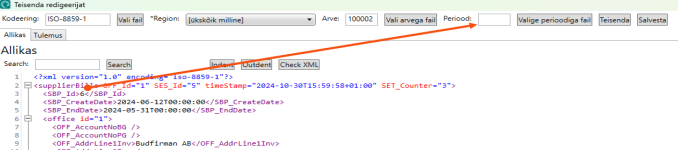
To load a supplier bill, enter the supplier bill number in the Arve field and click on Vali arvega fail. The supplier bill is displayed in XML format under Allikas.
-
Paste the content of the XSLT file you want to use to convert the XML file under Muutma.
-
Click on Teisenda at the top of the window and go to the Tulemus tab to check the result of the conversion.
-
To save any changes to the XSLT file, click on Salvesta at the top of the window.
It is not possible to load entire supplier bill periods, as is possible for invoice exports in the XSLT editor, because the period number is not visible in the Kreeditarved window. But it is possible to find out the period’s ID by loading a supplier bill that is in the period. The ID is shown at the top of the <SBP_Id> tag. You can enter this ID in the Periood field and thereby load the whole period.