Payment import from Fortnox
Last updated: 12 May 2026
In this article
Opter can be connected to the Fortnox accounting system, www.fortnox.se. Then it is possible to:
-
Export invoices from Opter to Fortnox. For instructions, see Invoice export to Fortnox.
-
Importing payments from Fortnox to Opter. For instructions, see below.
-
Export supplier bills from Opter to Fortnox. For instructions, see Supplier bill export to Fortnox.
When a payment import is made from Fortnox, Fortnox sends the invoice number and the amount paid. If the payment has been made in a currency other than the default currency in the Opter system, Fortnox will also send the current exchange rate at the time of payment.
If you import payments from Fortnox, you must have SEK as the default currency in Opter.
Conditions
Invoice export first
As the invoice numbers to which the payments apply must match between Opter and Fortnox, invoices must first have been exported from Opter to Fortnox in order to be able to import payments. For more information, see Invoice export to Fortnox.
Licences
To be able to connect (integrate) Opter to Fortnox, you need an integration licence. You also need to have software licences for invoicing and accounting in Fortnox. These licences (also called "programs" and "add-ons") can be ordered in the Fortnox program. Contact Fortnox if you need more information about your licences.
We recommend that you first set up the invoice export according to Invoice export to Fortnox, which requires an integration licence and invoicing licence in Fortnox. Next, check whether you have the accounting licence in Fortnox. If you don’t already have it, you’ll need to add it so that you can import payments.
Standard currency
For the export of invoices and supplier bills to Fortnox, and the import of payments from Fortnox to Opter, to work, the default currency in Opter must be Swedish kronor (SEK).
Do not change the default currency as that would cause major problems in the system. If your default currency is not the Swedish krona, you will not be able to export invoices and supplier bills to Fortnox, or import payments from Fortnox.
Currency codes
Fortnox only accepts three-letter currency codes, such as “DKK”, “SEK”, “GBP” and “EUR”.
Exchange rates
It is important that you always use exactly the same exchange rates in Fortnox and Opter, to avoid issues such as exchange rate losses and payments that do not match the invoice in Opter exactly and are therefore recorded as advance payments.
To always have the same exchange rates in Fortnox and Opter, proceed as follows:
-
In Fortnox: Go to Invoicing > Currency, and set Automatic exchange rates to “NO”.
-
Set exactly the same exchange rates in Fortnox and Opter. When updating an exchange rate, change the exchange rate at the same time in both Fortnox and Opter. In Opter, exchange rates are set under Majandus > Valuutad> Valuutakursid tab.
Step 1: Create a payment import
To import payments from Fortnox, you must first set up the payment import.
-
Click on Majandus > Makse import and then on Loe faili at the bottom right.
-
Click on
 , next to the Faili tüüp drop-down list.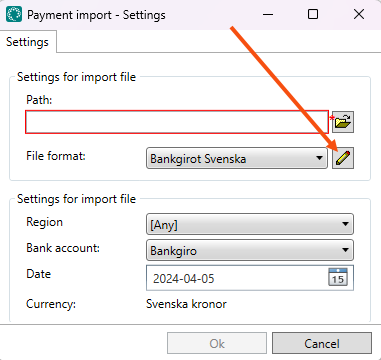
The Makse import window opens.
-
Create a new payment import by clicking on Uus in the Makse import window and giving it a name (for example "Fortnox"). The following fields must be filled in:
-
Impordi tüüp: FortnoxAPI
-
Vormingu tüüp: API
-
Ignoreeri makseid enne: Refers to the date the payment was registered in Fortnox. Enter the registration date from which payments will be imported into Opter.
-
Ignoreeri allolevaid numbreid: Refers to the invoice number in Fortnox. Payments for invoices with lower numbers are not imported into Opter. By default, this field is set to "0", which means that payments for all invoices exported from Opter will be imported.
Tick Use service account if you wish to use a service account when importing payments. Further information on what a service account is can be found in Invoice export to Fortnox.
Click on Salvesta to save all changes.
-
-
The new file type can be seen in the Makse import – Seaded window. Click on OK to close the window.
Step 2: Importing payments from Fortnox
-
Click on Majandus > Makse import and then on Loe faili at the bottom right.
-
Select "Fortnox" (or the name given to the payment import for Fortnox) from the Faili tüüp drop-down list.
-
Click on OK to import the payments.
If you are not already logged in to Fortnox, a new window will open where you log in with your usual Fortnox username and password. If authentication is successful, the import starts.
The following applies with regard to payment imports:
-
If the payment was registered before the date specified for Ignoreeri makseid enne, the payment is not imported.
-
If the payment concerns an invoice with a lower invoice number than the one entered in Ignoreeri allolevaid numbreid, the payment is not imported.
-
The invoice/OCR numbers must match between Opter and Fortnox, otherwise the payments are not imported.
-
-
Click on Salvestage maksed in the bottom right-hand corner.
The imported payments are displayed in Majandus > Manuaalmaksed.
Troubleshooting
If the import from Fortnox isn't working, see the troubleshooting tips in Invoice export to Fortnox. If you are using a service account, please also see the troubleshooting tips for service accounts in Invoice export to Fortnox.

