Last updated: 19.02.2021
Installing Fleet 101 K2 Mobile for iOS
We strongly recommend that you use the new Opter Driver app for iPhone and iPad instead. The new Opter Driver app requires iOS version 15.0 or later. For more information, see Getting started with Opter Driver.
The installation and configuration of the app is done in the following steps:
-
Install the app.
-
Configure the app (via a QR code or a link from Opter on the computer).
-
Choose how users will log in.
-
Create login credentials.
Step 1: Install the app
Fleet 101 K2 Mobile requires iOS 6.0 or later. To see which iOS version a phone is running, tap Settings > General > About on the phone, and the iOS version is shown under Software Version.
-
Open the App Store on the mobile phone.
-
Search for “Fleet 101 K2 Mobile” and install the app with that name.
Step 2: Configure the app
-
Open Opter on a computer.
-
Click on QR codes and links for the apps under Help in the right-hand column.
-
Click on the link for the app to generate a QR code.
-
Open the app on your mobile and scan the QR code. It may be necessary to install a QR scanner from the App Store if you don't already have one.
You can send the link displayed in Opter on your computer to the person who will configure the app. That person can then tap the link on their mobile phone.
To ensure the times of shipments are displayed correctly in the app, the correct time zone must be set. Press Settings > General > Date and time and activate Set automatically. The time zone in Sweden is GMT+01:00 Central European Time.
Step 3: Choose whether users should log in as vehicles or drivers
Usually the type of resource against which the crediting is being done is selected; this is called the primary resource. The primary resource is specified on the Krediteerimine tab in the office settings.
-
Click on Seaded > Mobiilne andmeside > Mobiilseadmete tüübid.
-
Select Sõidukid or Autojuhid.
Step 4: Create login credentials
Depending on the user login procedure adopted in step 3 above, login credentials are created for vehicles or drivers.
 Creating login credentials for vehicles
The username and password are the same as those used to log in to the vehicle web. If you change them, the new details will apply there too.
-
Click Register > Transpordivahendid, select a vehicle from the list on the left and go to the tab Mobiil/veeb.
-
Enter the username that the resource should use to log in to the app. If the vehicle is new to the register, save it so that you can then create a password.
-
Click on Vaheta parool (1), enter the password in both fields (2 and 3), and then click on Okei (4) to save the password.
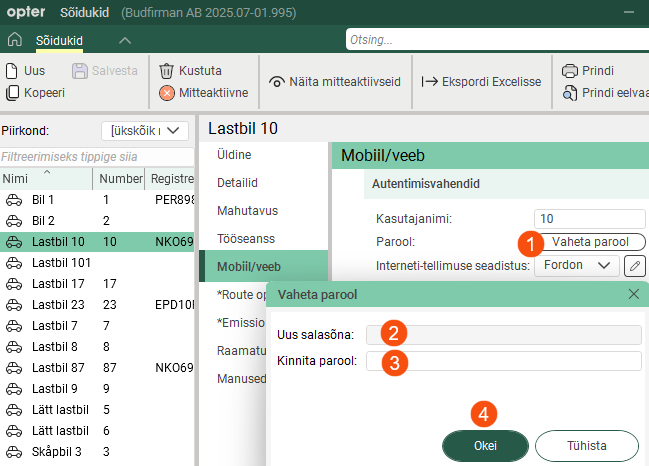
Passwords are not displayed in the log and cannot be recovered by Opter. If someone has forgotten their password, you can create a new one by clicking Vaheta parool and entering the new password.
The users can now log into the app using the credentials defined by you.
The login credentials are also valid for the vehicle web.
Creating login credentials for drivers
The username and password are the same as those used to log in to the driver web. If you change them, the new details will apply there too.
-
Click on Register > Töötajad.
-
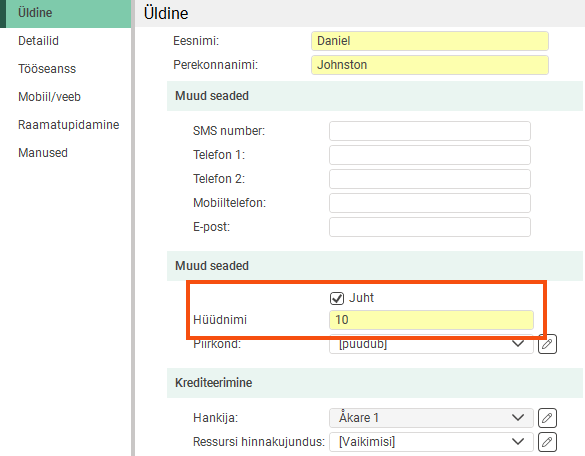
Select an employee from the list on the left, then select Juht on the tab Üldine. A call number for the driver also has to be entered. If the driver is not listed as an employee, add them by clicking on Uus.
-
Go to the Mobiil/veeb tab and enter the username you want to use to log in to the app. If the driver is new to the register, save their details so that you can create a password later.
-
Click on Vaheta parool (1), then enter your password in both fields (2 and 3). Then click Okei (4) to save the password.
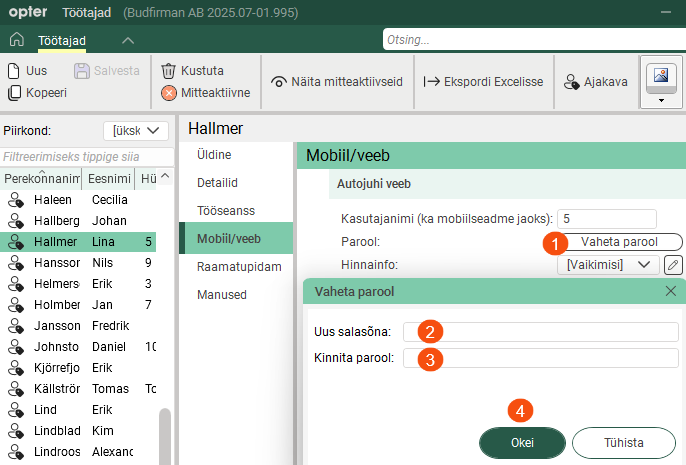
Passwords are not displayed in the log and cannot be recovered by Opter. If someone has forgotten their password, you can create a new one by clicking Vaheta parool and entering the new password.
The users can now log into the app using the credentials defined by you.
The login credentials are also valid for the driver web.

