Deleting a registered payment
Last updated: 26 October 2021
In this article
To delete a payment, proceed as follows:
-
Click on Economy > Manual payments.
-
Find the registered payment you want to delete. In the Manual payments window it is possible to search by bank account and date, invoice number, and customer code and amount. For detailed search instructions, see Searching for registered payments.
Registered payments for the selected bank account and date are displayed in the Payments list at the bottom left of the window. Registered payments for a specific invoice are displayed in the Invoice payments list at the bottom right of the window.
-
Right-click on the payment to delete and select Delete. Deleted payments are shown in pink and marked with
 .
.Click on a payment to see its details.
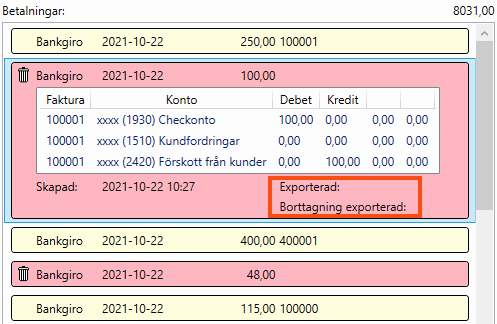
If the payment has been exported via the sales ledger export, the sales ledger export number is displayed after Exported. If there is no number after Exported, this means that the payment has not been exported via the sales ledger export. Opter handles these two scenarios as follows:
-
If the payment has not been exported via the sales ledger export, it will be “zeroed”.
-
If the payment has been exported to your accounting software via the sales ledger export, a counter-entry with the date of the original payment is created. The counter-entry is exported in the next sales ledger export. After the next sales ledger export, the sales ledger export number is displayed after Delete exported.

