Searching for registered payments
Last updated: 27 July 2026
In this article
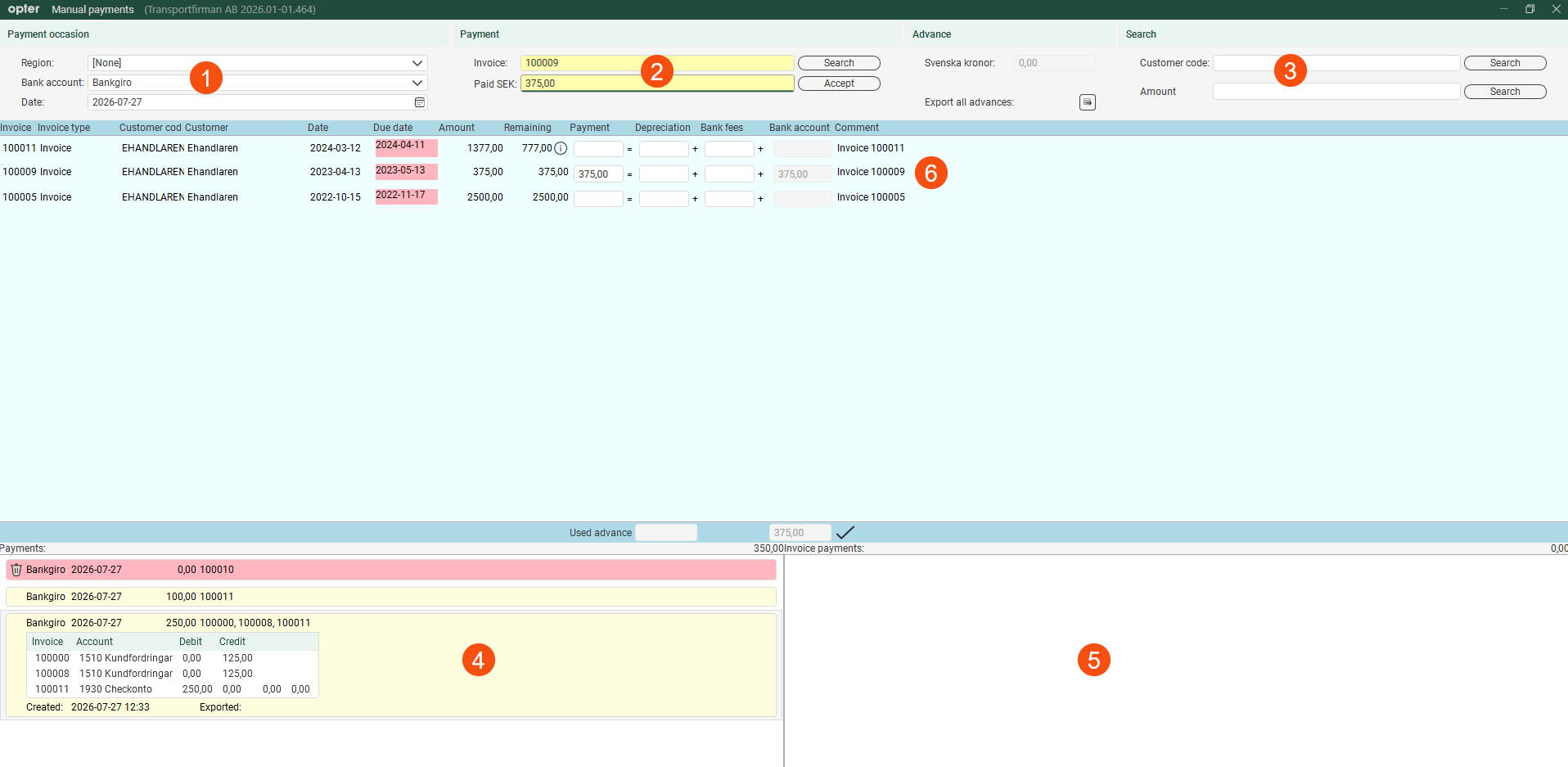
You can search for payments that have already been recorded in various ways in the Manual payments window (Economy > Manual payments).
Bank account type and date (1)
Select the options below Payment occasion. If there are any payments registered that match the search criteria, they are listed under Payments at the bottom left of the window (4). Deleted payments are also listed. They are displayed in pink and labelled  . Click on a payment to see its details.
Invoice number (2)
Enter the invoice number in the Invoice field under Payment and click Search or press Enter. If there are any payments registered for the invoice, they are displayed under Invoice payments at the bottom right of the window (5). Deleted payments are also displayed. They are displayed in pink and labelled . Click on a payment to see its details.
The searched for invoice is displayed in the invoice list in the middle of the window (6). If the same customer has invoices that have not yet been paid in full, they are also shown in the list.
Customer code and amount (3)
Enter the customer code and, if applicable, the amount under Search, then click on Search. If there are any invoices that have not yet been paid in full and that match the customer and the amount, they will be displayed in the invoice list (6).