The address fields in the window Create consignment
Last updated: 12 June 2025
In this article
When you create a new consignment order in the dispatch system, the Create consignment window opens, where you can enter details such as the sender and recipient for the consignment order. You can customise which fields are displayed for the addresses in that window by creating an order view and setting it to the consignment type.
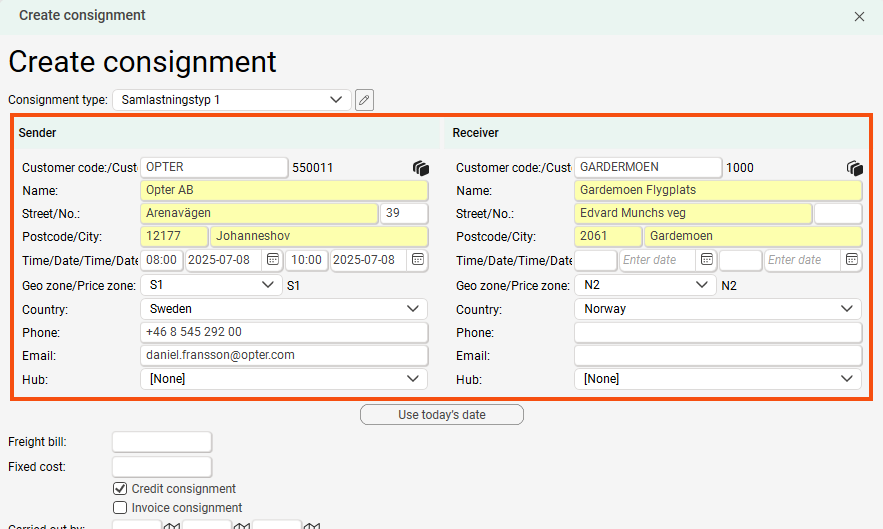
Customise the address fields
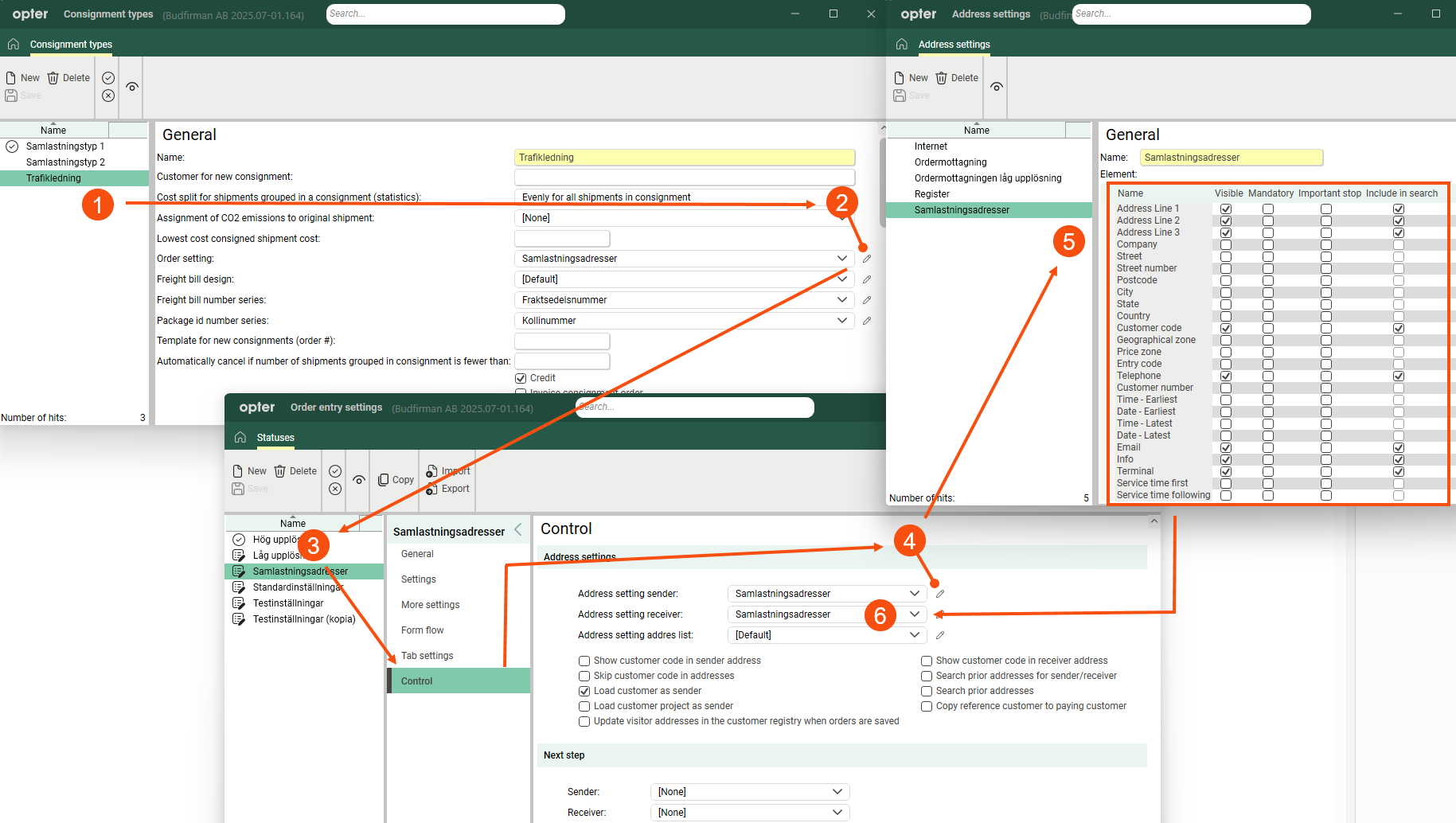
The easiest way to customise the address fields is to start from the consignment type. The settings are made in several different windows, but if you start from the consignment type, it will be a natural flow.
-
Click Settings > Consignment types and select the consignment type for which you want to configure the address fields.
-
Click on
 next to the drop-down menu Order setting. The Order entry settings window opens.
 -
Here, you can either create a completely new order view or use an existing one by selecting it from the list and clicking Copy in the menu. Of course, you can also change the address settings of an existing order view.
-
Go to the Control tab and click on
next to Address setting sender. The Address settings window opens. -
Here, once again, you can either edit an existing address setting or create a new one by clicking New in the menu. Save and close the window when you are done.
-
In window Order entry settings, select the same address setting for Address setting receiver. Save and close the window and you will be returned to the consignment type where the new order view has been selected. Also save the consignment type.
The view you set for the consignment type is also used when you open the consignment order in Order reception. If you want different address settings for the order reception and the Create consignment window, you can copy the order view and name the copy, for example, “Domestic consignments (Create consignment)”. Change the address fields in the copy. Then copy the consignment type and set the order view "Domestic consignments (Create consignment)" on the copy. Then you have two identical consignment types, as close as on the order view. When you create a new consignment, you select the copy of the consignment type that contains the modified address settings, but the consignment order itself will have the same settings because the consignment type is identical.
Selecting the consignment type when creating the consignment order
Select the shipments you want to consign in the dispatch system, right-click and select Connect to consignment. Then click on Create consignment. At the top of the window, select the consignment type to which you set the address fields.

See also
-
(ordermottagningen)

