Start the consignment at the last delivery address of the vehicle
Last updated: 9 October 2025
Applies to Opter 2025.06.00 and later.
In this article
If you want the vehicle/resource to be paid for the distance it travels empty between the last shipment's delivery address and the consignment's first pick-up address, you can add the last shipment's delivery address as the new start address for the consignment.
Opter can suggest a new starting address when you assign the consignment to a vehicle in the dispatch. The proposed new start address will appear in a pop-up window. If you want the new start address to be added, answer Yes/Yes to the question in the pop-up window.

The image shows the pop-up window:
-
This shows the date, pick-up time and address of the first consignment pick-up address.
-
This displays the vehicle number and then the date, delivery time, Order number and delivery address of the vehicle's last delivery address prior to the consignment shipment pick-up time.
-
Opter asks if you want to add the vehicle's last delivery address as the new start address for the consignment.
If you allocate several consignment shipments at the same time
If you select several consignment shipments and allocate them to a vehicle, the pop-up window will appear once per consignment shipment.
If you select several original orders and several consignment shipments, and then allocate them to a vehicle, the pop-up window will appear once per consignment shipment. The pop-up window is not displayed for original orders.
Enable the feature
-
Click on Settings > Consignment types > and on the General tab.
-
In the list on the left, tick the consignment type you want to activate the feature for.
-
Select the Add the vehicle's most recent address as the sender address when assigning the consignment shipment checkbox.
-
Click on Save to save all changes.
-
Repeat the steps above for all consignment types for which you want to activate the function.
Add the last delivery address of the vehicle as the start address
To add the vehicle's last delivery address as the new start address for the consignment shipment, follow these steps
-
Create a new consignment. (For more information, see Automatic creation of consignments and Manual creation of consignments.)
-
Assign the consignment shipment to a vehicle in the dispatch, by doing one of the following
-
Select the shipment in one of the lists, and drag and drop it onto a resource box or a subcontractor.
-
Select the shipment and press Ctrl + M, and enter the vehicle in the window Manual assignment.
A pop-up window appears. Choose whether to add the vehicle's last delivery address as the new start address (dispatch/collection address) of the consignment shipment.
If the pop-up window does not appear, see No suggestion for new start address appears below.
-
-
If you reply Yes/Yes, the address will be added (creating a new shipment) and the order will then be saved automatically.
If you use the window Create consignment
In the dispatch centre, you can open the Create consignment window in the following ways
-
Select the shipments you want to be included in the consignment. Right-click on one of the selected shipments and select Connect to consignment from the context menu. The Consignment selection window appears. Click on the Create new consignment button. The Create consignment window opens.
-
Select the shipments you want to be included in the consignment and drag and drop them onto the surface Drag here to create consignment. The Create consignment window opens. (If you don't have the surface Drag here to create consignment, you can choose to view it, see Dispatch settings (window).)
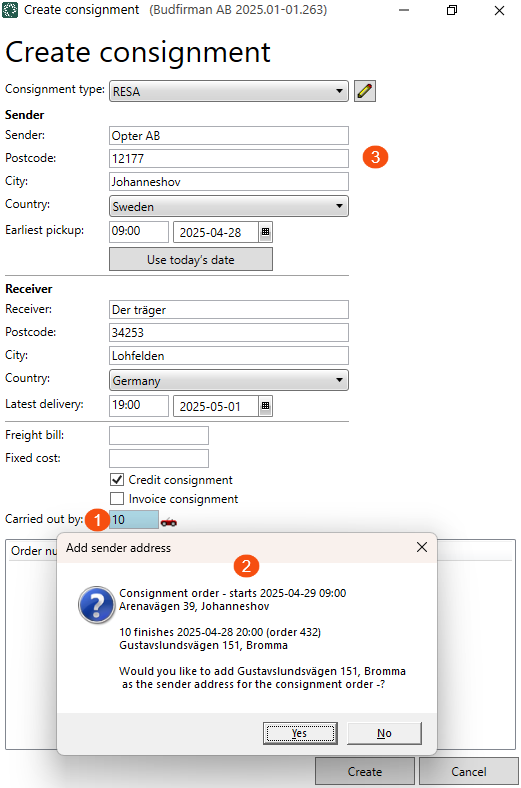
If you create the consignment using the Create consignment window in the dispatch and allocate the consignment to a vehicle (1), the pop-up window (2) will appear.
If you want to add the last delivery address of the vehicle as a new start address (dispatch/collection address) on the consignment shipment, please reply to Yes/Yes.
The sender address (3) is then changed directly in the Create consignment window, and the consignment is then created from that address (3).
How Opter selects addresses
The text below describes how Opter chooses which address is displayed as a suggested new start address in the pop-up window, when a consignment shipment is allocated to a vehicle.
Opter searches through the current shipments on the vehicle and finds the last delivery address that is before the consignment shipment's pick-up time. (If the consignment shipment has several consignment shipments, Opter will look at the pick-up time of the first consignment shipment).
-
Among the current shipments on the vehicle, Opter selects shipments (and therefore addresses) in the following order of priority
-
The shipment with the last logged delivery time.
That is, the resource has already delivered the shipment and the delivery is registered (logged) in Opter, for example via the Opter Driver app.
If there are several shipments with already logged delivery times, Opter will select the shipment with the latest delivery time (among the shipments with already logged delivery times).
-
The shipment with the latest delivery time.
-
The shipment with the earliest delivery time.
-
The shipment with the latest order date.
It does not matter whether the current assignments on the vehicle are consignment shipments or regular assignments.
-
-
If the vehicle has already delivered its last shipment, Opter will suggest that address in the pop-up window.
-
For the consignment shipment pick-up time, Opter looks at the following order of priority
-
Earliest pick-up time.
-
Latest collection time.
-
The order date of the consignment order.
For example, if there is no earliest pick-up time specified on the first consignment shipment, Opter looks at the latest pick-up time on the first consignment shipment.
-
-
If the last delivery address of the vehicle is exactly the same as the first pick-up address of the consignment shipment, the pop-up will not be displayed.
Example
 Opter has several shipments to choose from
Vehicle X has two shipments:
-
Shipment 1 is unloaded from Vehicle X at 10:00 at address A. That is, shipment 1 has a logged delivery time.
-
Shipment 2 is loaded on Vehicle X, the last delivery time of the shipment is at 14:00 at address B.
We have two consignments:
-
Consignment 1 is not allocated, and the first consignment shipment has a latest pick-up time of noon. 12:00 at address C.
-
Consignment 2 is not allocated, and the first consignment shipment has a latest pick-up time of noon. 16:00 at address D.
The following happens when we assign the consignments to Vehicle X
-
When we assign consignment 1 to vehicle X, the pop-up window asks if we want to add a new start address, which is address A, (i.e. the address where shipment 1 has been delivered).
We reply Yes/Yes, address A is added as new start address and the order is saved. The resource/vehicle is now also paid for the distance it travels empty between address A and address C.
-
When we assign consignment 2 to vehicle X, the pop-up window asks if we want to add a new start address which is address B, (i.e. the address where shipment 2 is to be delivered by noon. 14:00).
We reply Yes/Yes, address B is added as new start address and the order is saved. The resource/vehicle is now also paid for the distance it travels empty between address B and address D.
If you change vehicles on the consignment shipment
The consignment shipment 3 is allocated to Vehicle Y.
We change our mind and allocate the consignment shipment 3 to Vehicle X instead. In this case, we are not asked if we want to add a new start address. The start address from Vehicle Y remains on the consignment shipment.
For more information, see Changing the vehicle on the consignment shipment and Removing the extras below.
No suggestion for a new start address is displayed
The start address suggestion pop-up window is not displayed in the following cases:
-
The consignment shipment is already loaded.
-
The last delivery address of the Vehicle is exactly the same as the first pick-up address of the consignment shipment.
-
You allocate an original order to a vehicle. This function only works when you allocate consignment shipments.
-
If you have already assigned the consignment shipment to a vehicle and have chosen to add a new start address, but then change the vehicle on the consignment shipment, the pop-up will not appear. (In addition, the starting address from the first vehicle remains on the consignment shipment).
Consider the following
-
It only works in dispatch, when you assign a consignment shipment to a resource by selecting the shipment in one of the lists, and then dragging and dropping the shipment onto a resource box or a subcontractor, or via manual assignment (Ctrl + M). For more information, see Assigning shipments to resources in dispatch.
-
It does not work when distributed on the map in the dispatch. For more information, see Assigning shipments to resources in dispatch.
-
It does not work when allocating resources in Order reception.
(In the Order reception, in the section Addresses, you can manually add an address before the first address by selecting the top line and clicking on New - before. This will create a new address line, where you can enter a starting address. In this case, you will not get any help from Opter in choosing the start address).
-
The function gives a suggestion or no suggestion for a new start address. (If the function does not have a suggestion, the pop-up window will not appear.) For more information, see How to select Opter address and No suggestion for new start address shown above.
-
If you assign the consignment shipment to a vehicle and choose to add a new start address, but then change the vehicle or remove the vehicle from the consignment shipment, the start address will remain on the consignment shipment. For more information, see If you change the vehicle on the consignment shipment and If you remove the vehicle from the consignment shipment below.
If you change vehicles during a consignment shipment
If you assign the consignment shipment to a vehicle and choose to add a new start address, but then change the vehicle on the consignment shipment, the following applies:
-
The pop-up window is not displayed. That is, you will not be asked again if you want to select the last delivery address of the new vehicle as the new start address of the consignment.
-
The starting address of the first vehicle remains on the consignment shipment.
If you wish, you can remove the start address in the Order reception, in the section Addresses, by selecting the address line and clicking on Delete, and then save the order.
If you then want to add a new start address, you can manually add an address before the first address by selecting the top line and clicking on New - before. This will create a new address line, where you can enter the new start address. (In this case, you will not get any help from Opter in choosing the start address.)
If you remove the vehicle from the consignment shipment
If you assign the consignment shipment to a vehicle and choose to add a new start address, but then remove the vehicle from the consignment shipment, the start address will remain on the consignment shipment.
If you want to remove the start address, see Remove extras start address below.
Remove added start address
If you have added a new start address to a consignment shipment, and later change your mind and want to remove it, do the following
-
Open the consignment order in the Order reception.
-
In the Addresses section, select the address line and click on Delete.
-
Click on
 to save the change to the order.
Troubleshooting
-
If the start address suggestion pop-up window does not appear, see No new start address suggestion appears above.
-
If the pop-up window should appear, but does not, check that the function is enabled for the consignment type you are using. See Enable function above.
-
If you want to know how Opter chooses which start address is displayed in the pop-up window, see How Opter chooses address and Example above.
-
If the start address of a consignment seems illogical, it may be because the vehicle has been changed or removed, and a previously extrased start address remains. See If you change the vehicle on the consignment shipment and If you remove the vehicle from the consignment shipment above. If you want to delete a previously extrased start address, see Delete extras start address above.

