Saadetise kontroll (window)
Last updated: 27 May 2026
 Tellimus > Saadetise kontroll
In this article
In this window, it is possible to search for shipments based on a wide range of criteria. Certain values can also be changed for several shipments at the same time.
Some columns display information about the shipment, whilst others display information about the order. The description in Saadetise seaded (window) indicates whether the column shows the shipment or the order value.
The menu tabs
Üldine
|
Function |
Description |
|---|---|
|
Ava tellimus (Ctrl+O) |
Opens the order that the cursor is currently on in the list. You cannot open multiple orders at the same time. |
|
Salvesta (Ctrl+S) |
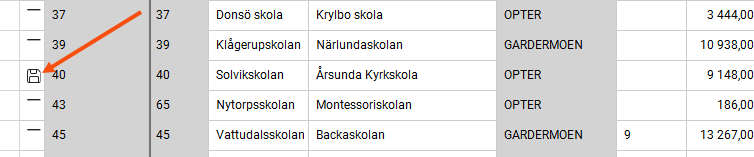
Saves all the changes you have made to the orders in the list. Amended orders are indicated by If you want to undo a change, click on that row and press Ctrl + Z. You can select and undo several rows at once by holding down Ctrl or Shift and clicking.
|
|
Kustuta (Del) |
If you want to delete an order, click on that row and press Delete. The line is marked with If you do not want to delete the order, click on the row and press Delete again, or press Ctrl + Z. You can select and undo multiple rows at once by holding down Ctrl or Shift and clicking.
|
|
Võta tagasi (Ctrl+Z) (order check only) |
If you want to undo a change or deletion, click on that row and press Ctrl + Z. You can select and undo several rows at once by holding down Ctrl or Shift and clicking.
|
|
Kopeeri (Ctrl+C) (order check only) |
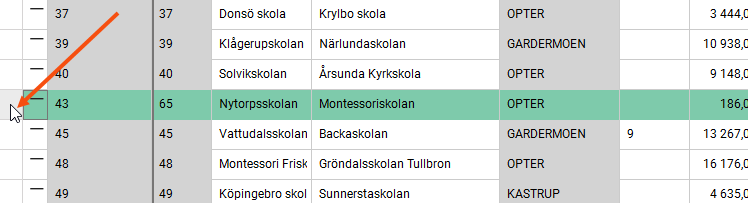
Copies a row or a cell in the order list. If you want to copy an entire row, click on the far left of the row to select the whole row. If you click in a cell, only that cell will be copied.
|
|
Kleebi (Ctrl+V) (order check only) |
Paste copied rows or cells. It is possible to copy an entire row and then paste it into a cell on another row (for example, in column Kaugus), but the result will be unpredictable. Just paste row by row and cell by cell. |
|
Ekspordi Excelisse (Ctrl+E) (only the assignment review and the cost review) |
Exports the entire filtered list to Excel.
|
|
Seadistus |
You can have several different views for different tasks, for example with different columns. Use this drop-down menu to select a view. If you want to change a view or create a new one, click |
|
Konsolideerimise tüüp (consolidation check only) |
The consolidation type determines the properties of the consolidation order, and which orders are to be matched and proposed for consolidation. You may have several different types. Here you can choose which one to use. Click on |
|
Saadetise tüüp (consolidation check only) |
The consignment type determines the properties of the consignment order, and which shipments are to be matched and proposed for consignment. You may have several different types. Here you can choose which one to use. Click on |
|
Saved searches |
You can save searches you perform frequently so that you can use them again quickly. For more information, see . [Vaikimisi]: Search for today's orders that are not ready for invoicing. You can change the search settings, but they will be reset when you close the control. If you want to save a search, select the criteria you want to search by (1), enter a name in the field (2) and save it (3). You are deleting a saved search with
|
|
Otsing |
Adjust your search settings and click on Otsing. You can then refine your search results further using the column filters. The information displayed in the columns is described in section Saadetise kontroll (window) below. |
|
Tühjendage otsinguvalikud |
Removes all settings under Otsinguseaded, as well as the customer code and customer name, but the search period is retained. |
|
Periood Alates Saaja |
Select a predefined time period or enter your own time period in the date fields. The search is based on the order date. |
|
Kliendi kood Kliendi nimi Valitud klient |
You can view orders from a specific customer by entering the customer code or customer name here. |
 .
.
 and is removed when you click on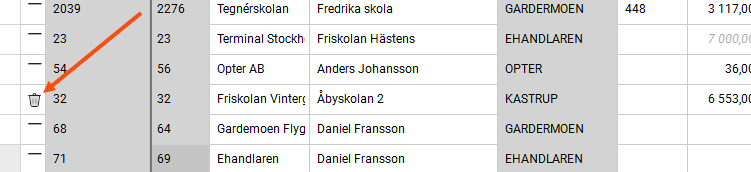
 to open the settings window.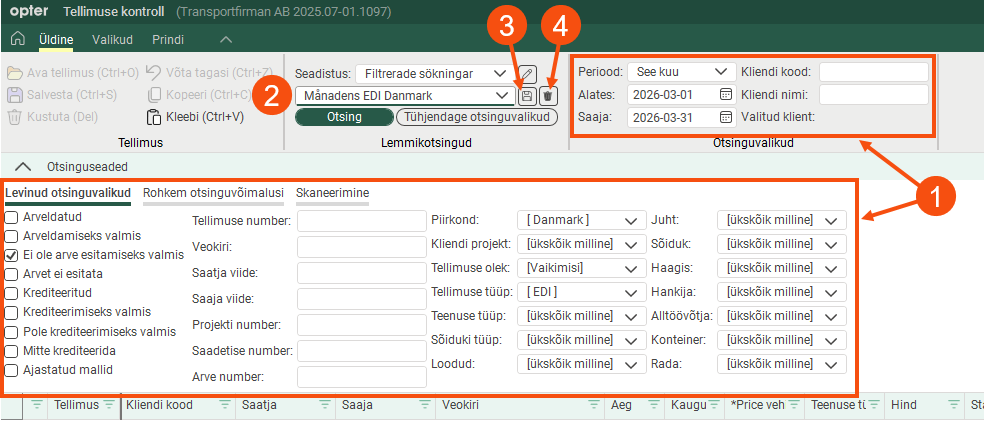
Prindi
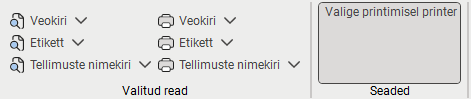
On this menu, you can preview and print freight bills, parcel labels and order lists for the orders you have selected. The reports you can choose from when you click on  are those marked as freight bill/parcel label/order list in the window Aruanded.
|
Function |
Description |
|---|---|
|
|
Preview or print the freight bills for the orders you have selected from the list. |
|
|
Preview or print the parcel labels for the orders you have selected from the list. |
|
|
Preview or print a list of the orders you have selected in the list. When you click on |
|
Valige printimisel printer |
Click the button to enable it if you want to be able to choose a printer before printing. If this option is not enabled, freight bills, parcel labels and order lists will be printed directly on your default printer.
|
 /
/
Task list
(missing or bad snippet)For more information, see Saadetise seaded (window).
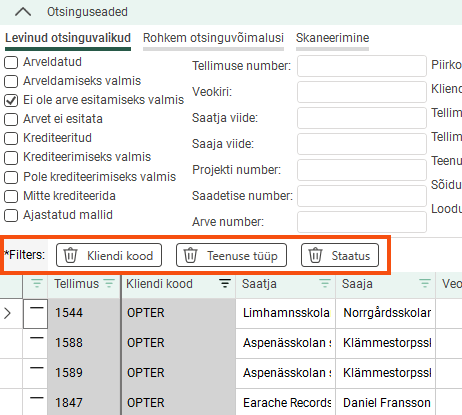
If you filter by any of the columns, they will appear as buttons just above the list. You can also use these buttons to disable the filters.
At the bottom of the window, the sum of the values in the columns is displayed.

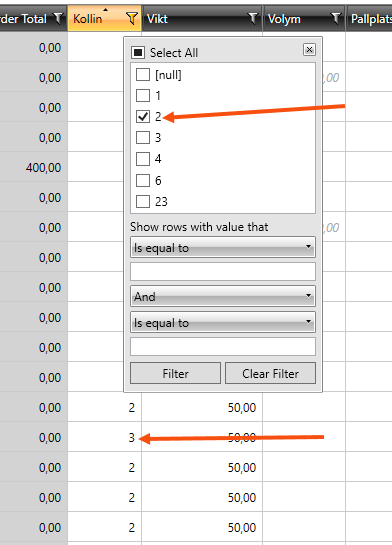
If you have filtered a column and sorted the search results, the list will not be updated if you change a value, such as the number of parcels. This also applies once you have saved the new number of packages. The search results will not be updated until you filter or sort the list again.
The above applies only to columns containing free-text values, not to columns that retrieve values from a register (for example, Ressurss), or when you use the special filters under Filter näitab ridu väärtusega, mis.
Columns in the task list
You can choose which columns to display in the task list. For more information, see Saadetise seaded (window).
Column | Description |
|---|---|
Vastuvõetav viivitus | If the order is overdue and the checkbox is selected, then the reason indicated for the order being overdue is acceptable, i.e. this order is not considered to be overdue in Opter. They will then, for example, not appear in the search results if a search for delayed orders is carried out. For more information, see and Hilinemise põhjused (window). |
Aadress 2 – saatja | Sender’s address 2 on the order. |
Aadress 2 – saatja – Saadetis | Sender’s address 2 on the shipment. |
Aadress 2 - vastuvõtja | Receiver’s address 2 on the order. |
Aadress 2 – vastuvõtja – Saadetis | Receiver’s address 2 on the shipment. |
Aadress 3 – saatja | Sender’s address 3 on the order. |
Aadress 3 – saatja – Saadetis | Sender’s address 3 on the shipment. |
Aadress 3 - vastuvõtja | Receiver’s address 3 on the order. |
Aadress 3 - vastuvõtja - Saadetis | Receiver’s address 3 on the shipment. |
Aadressi asukoha täpsus - saatja - Saadetis | Address position accuracy for the sender on the shipment. Visualised via a scale going from low accuracy To improve the accuracy, click on the icon and a window will open with the position of the address marked with a cross on a map and the coordinates of the address. Better coordinates can be entered manually or the position on the map can be adjusted. Click on Salvesta. Now |
Aadressi asukoha täpsus - vastuvõtja - Saadetis | Address position accuracy for the receiver on the shipment. Visualised via a scale going from low accuracy To improve the accuracy, click on the icon and a window will open with the position of the address marked with a cross on a map and the coordinates of the address. Better coordinates can be entered manually or the position on the map can be adjusted. Click on Salvesta. Now |
Saabumise skannimine esimeses terminalis | Arrival scan at the first terminal on the order. |
Saabumise skannimine esimeses terminalis | Arrival scan at the last terminal on the order. |
Vastutav müügiinimene | Sales rep. responsible for the order. |
Hinnaartikli nimi | Price item name on the order. The column shows the name of the price item. |
Hinnaartikkel | Price items on the order. The column shows the description of the price item if there is one, otherwise the name of the price item is shown. |
Väljumiskontrolli esimene terminal | Departure scan at the first terminal on the order. |
Väljumise skannimine viimane terminal | Departure scan at the last terminal on the order. |
Mitte krediteerida |
|
Not to be credited - shipment |
|
Hankija arve nr | Displays the credit number if there is a credit on the shipment. |
Saatja | The order’s sender. |
Saatja – Saadetis | The shipment’s sender. |
Saatja viide | The order’s sender reference. |
Kaugus | The shipment’s driving distance in kilometres. If the distance has been entered manually, it is displayed in standard black text. If the distance has been calculated, it is displayed in italic grey text. |
Kaugus (Tellimus) | The order’s driving distance in kilometres, i.e. the sum of the distances of all the shipments making up the consignment. If the distance has been entered manually, it is displayed in standard black text. If the distance has been calculated, it is displayed in italic grey text. |
Kahjud | If there are any deviations registered on the order, the number of deviations is displayed here. |
CO2 emissions, calculated (g) | The shipment’s calculated CO2 emissions. For more information, see Settings for CO2 emission calculations. |
Konteinerid | Containers on the order. |
Otsene kuluhind | The direct expense price of the order. Direct expenses are expenses that are not to be included in the turnover. Direct expenses are always inclusive of VAT. |
Otsene kuluhind - klient | The direct expense price in the customer's currency. |
Kütuselisa | The Kütuselisa on the order. |
Kütuselisa- klient | The Kütuselisa in the customer's currency. To change the fuel extra for a specific customer, see the instructions in Selecting fuel extra for a customer. |
Väliskrediit – summa | The total amount of all external credits on the order or a manually specified amount is displayed as follows:
|
Väline krediit – kuupäev | If the external credit is imported, the crediting date specified by your partner is displayed. If the external credit has been added manually in order reception, the date entered is displayed. If the order has more than one external credit, the date of the last registered external credit is displayed. |
Väline krediit – tehtud | The checkbox can be selected automatically or manually in accordance with the following scenarios:
The checkbox can be deselected automatically or manually in accordance with the following scenarios:
|
Väline krediit - number | If the external credit is imported, the credit number used by your partner is displayed. If the external credit has been added manually in order reception, the credit number that was entered will be displayed, if a number was entered. |
Väline krediit – erineb | The difference between Väliskrediit – summa and the calculated amount (i.e. the expected income on the order). |
Väline sõnum | If the order has an external message, it is displayed here. |
Välise tellimuse nr (eksport) | If the order has been exported, the external order number is displayed here. |
Välise tellimuse nr (import) | If the order has been imported, the external order number is displayed here. |
Lisamõõde 1–Lisamõõde5 | If the extra dimension fields are used, a choice can be made as to whether or not to display them in the shipment check. The names of the fields Lisamõõde1–Lisamõõde5 are set in Seaded > Kontorid > the Terminoloogia tab. |
Arve koostamise kuupäev | The date the order’s invoice was created. |
Arve nr | The order’s invoice number. |
Arve olek | The invoice status of the order, for example Arveldatud, Arveldamiseks, EI esitata arvet or Ainult krediteerimine. |
Arvet ei esitata | The checkbox is selected if the order is not to be invoiced, only credited. If the checkbox is selected, Arve olek is set to Ainult krediteerimine. |
Ohtlikud kaubad – Radionukliidi sümbol | Shows whether the order is marked as Ohtlikud kaubad – Radionukliidi sümbol. |
Ohtlikud kaubad – UN number | Shows whether the order is marked as Ohtlikud kaubad – UN number. |
LDM | The load metres of the order. |
Sõiduki tüüp | The type of vehicle used for the shipment. |
Veokiri | The order’s freight bill number. |
Ettevõte – saatja | The order’s sending company. |
Ettevõte – saatja – Saadetis | The shipment’s sending company. |
Ettevõte – vastuvõtja | The order’s receiving company. |
Ettevõte – vastuvõtja – Saadetis | The shipment’s receiving company. |
First loaded status | Shows which driver and/or vehicle first set the status of the shipment to Korjatud and when. The information displayed is the status the shipment was set to (Korjatud), the driver’s call number, the driver’s name, the vehicle number, the vehicle name, and the date and time the status was set. The time is shown in hours, minutes, seconds and milliseconds. Details of the driver and vehicle are displayed if available. If the status of the shipment has not yet reached Korjatud in the life cycle, nothing is displayed in the column. |
No automatic consignment |
|
Sisemine sõnum | If the order has an internal message, it is displayed here. |
Failitüübid (manused) | If the order has attachments, the file types are displayed here. |
Valmis arvete esitamiseks/krediteerimiseks | If the checkbox is selected, the order is ready for invoicing and crediting. |
Saatmiseks valmis | Select/deselect the orders that are ready to be assigned. |
Ready for dispatch - shipment | Select/deselect the shipments that are ready to be assigned. |
Kliendi kood | The customer code for the order. |
Manual price - shipment | Enter a manual resource price for the shipment. |
KM | The VAT amount for the order in the default currency. |
KM- klient | The VAT amount for the order in the customer’s currency. |
KM-(%) | The VAT rate for the order. What is displayed is the name of the VAT rate, as specified in field Nimi in window käibemaksumäärad. For more information, seekäibemaksumäärad (window). |
VAT, shipment (%) | The VAT rate for the shipment. What is displayed is the name of the VAT rate, as specified in field Nimi in window käibemaksumäärad. For more information, seekäibemaksumäärad (window). |
Saaja | The receiver’s name on the order. |
Tellimuse kuupäev | The date on which it is planned to start transport. |
Tellimus nr | The order number. |
Pod – aeg | The date and time that the POD (proof of delivery) was issued on the order. |
Hind | The price of the order. |
Hinnastamise kaal | Order Hinnastamise kaal. For more information, see Calculating the pricing weight. |
Piirkond | The shipment’s region. If there is no region specified in the shipment but there is one on the order, the order’s region is displayed. |
Region (order) | The region of the order. Use this in conjunction with the Piirkond column to view orders that have different regions specified in the order and the shipments. |
Ressurss | The resource assigned to the shipment. |
Skaneeritud pakid | The number of scanned packages on the order. |
Most recent unloaded status | Shows which driver and/or vehicle last set the status of the shipment to Kohale toimetatud and when. The information displayed is the status the shipment was set to (Kohale toimetatud), the driver’s call number, the driver’s name, the vehicle number, the vehicle name, and the date and time the status was set. The time is shown in hours, minutes, seconds and milliseconds. Details of the driver and vehicle are displayed if available. If the status of the shipment has not yet reached Kohale toimetatud in the life cycle, nothing is displayed in the column. |
Staatus | The status of the shipment, for example Määratud, Korjatud or Kohale toimetatud. |
Aeg | The order time in hours and minutes. The time can be used to calculate, for example, price item prices. The time is indicated in the format “hours:minutes”, for example “3:45” means 3 hours and 45 minutes. |
Teenuse tüüp | The type of service ordered, such as home delivery, groupage, part loads, distribution or hours. |
Arveldatud kogukulu kõigi kuluüksuste kohta | Shows the total actual cost of all the cost price items in the order. |
Kõigi omahinnaga üksuste eeldatav kogukulu | Shows the total estimated cost of all the cost price items in the order. |
Contribution margin % - Shipment | Shows the coverage of the shipment as a percentage. The coverage rate is calculated as follows: Tulemus/Sissetulekud That is, the total profit from the shipment divided by the total revenue from the shipment. The total profit and total revenue for the shipment include any costs and revenue arising from consignments. |
Kaal | The sum of the weight of all the packages in the order. If the weight is entered manually, it is displayed in normal black text. If the weight has not been entered manually, the calculated weight is displayed in grey text in italics. |
Hankija | Shows the order’s supplier. |
 to high accuracy
  .
.  is displayed in the column in shipment check. If the
  will be displayed in the column instead to indicate that the address position has been adjusted. Click on
  in the top left corner of shipment check to save all changes.
 : The order is not credited.
 : The order is credited.
