Price items (order reception)
Last updated: 14 October 2026
 Order > Order reception
In this article
Here you can see which price items are on the order and change them manually if you wish. You can also add price items manually to the order. The price items can be both income and expenses.
Icons may be displayed on the far left of the group Price items, so that you can quickly see which price items have been added automatically or manually, and which are, for example, road tolls.
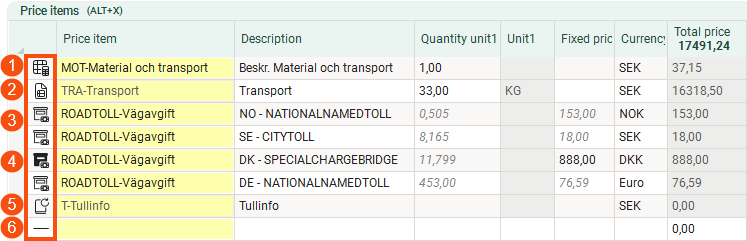
In the image, the order contains one manually added price item (1) with a sub price item (2), four toll price items (3) – one of which has been manually amended (4) – and one automatically added price item (5). At the very bottom is the blank line (6) where you can add a new price item. Further information about the icons can be found in Icons in the Order reception.
You can set which columns are displayed in group Price items by clicking on the Control tab in the order settings, then clicking  next to the drop-down list Price item, or via Settings > Order reception > Price items settings. In window Price items settings, add the columns you want to include below Included. You can choose the order of the columns by moving them up and down the list. The higher up it is, the further to the left the column in group Price items appears in the order reception.
If the group Price items is not displayed, or if you would like it to appear in a different place in the order reception area, you can configure this. For more information, see Organising the groups in Order reception.
|
Column |
Description |
|---|---|
|
Price item |
Shows the article’s Code and Name. |
|
Description |
Displays the description of the price item. If the price item is a road toll that has been added automatically, the description is retrieved from PTV. If the currency for the road toll or an exchange rate is missing in Opter, the description begins with an error message, such as "No currency found - EUR" or "No exchange rate". For more information, see Administering road tolls. |
|
Unit price |
Shows the customer the price of the price item per unit, for example per kilometre or per kilo. The price for the line item is the unit price multiplied by the number of units (Quantity unit1 or Quantity unit2) multiplied by Quantity. If the price in the price list is a unit price, it is shown here. If the price in the price list is a fixed price, the cell is left blank and the price is shown in column Fixed price instead. The unit price is shown without the discount. Column Total price shows the discounted price of the item row. You can enter a unit price manually. It is then used instead of the price in the price list. If you have entered both a unit price and a fixed price manually, the fixed price will be used. This column is only displayed if you have permission to view prices. |
|
Resource |
Displays the code for the resource to which the item row is linked. If the article is not available on any resource, the cell is blank. You can also select or change the resource directly in the cell. |

