Icons in the Order reception
Last updated: 14 October 2026
In this article
The order reception screen displays icons so that you can quickly see which orders deviate from the standard and what types of price items are included in the order. There are also icons that show how accurately the address’s location has been determined.
Order type
On the far left of Order reception, icons can be displayed so that you can quickly see which orders are Internet orders, consignment orders, Failed deliveries, and which orders are currently open with someone else, for example. The picture shows what the Order reception might look like in the new design.
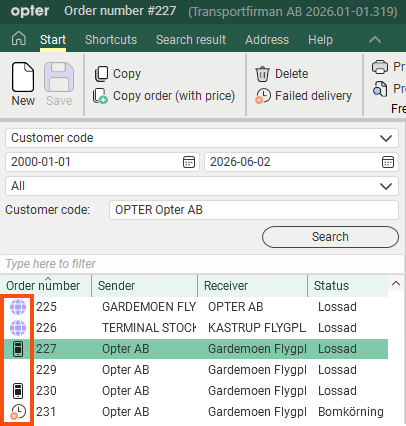
The image shows that orders 225 and 226 are internet orders, 227 and 230 were created in Opter Driver, and 231 is a failed delivery. Order 229 is a standard order created in the order reception department. It does not have an icon because icons are only displayed for orders that differ from the standard.
|
Icon in a classic design |
Icon in a new design |
Description |
|---|---|---|
|
|
|
Internet orders. The order is created on one of the websites, for example on the customer web. For more information, see The customer web and Creating order templates on the customer web. |
|
|
|
The order is created in the Opter Driver app. For more information, see New orders in Opter Driver. |
|
|
|
The order is created/imported from an EDI connection. For more information, see EDI integration with Opter. |
|
|
|
The order is open. The column Edited by shows who has the order open. |
|
|
|
Consignment orders. For more information, see Consignment, overview. |
|
|
|
Failed delivery. |
|
|
|
Trashed order. |
|
|
|
The order is a schedule template. |
|
|
|
The order is created from a schedule template. |
|
|
|
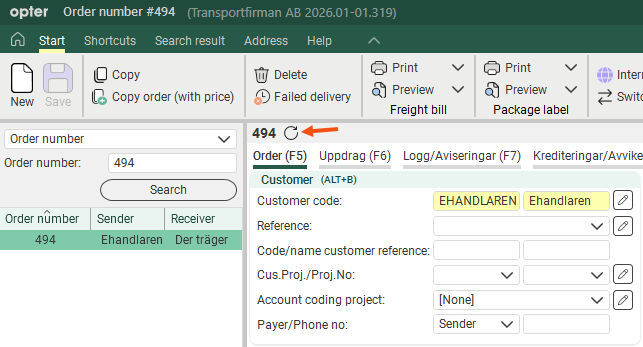
If the icon appears next to the order number or next to the text New order, this means that prices are currently being calculated for the order.
|


Price items
Icons may be displayed on the far left of the group Price items, so that you can quickly see which price items have been added automatically or manually, and which are, for example, road tolls.
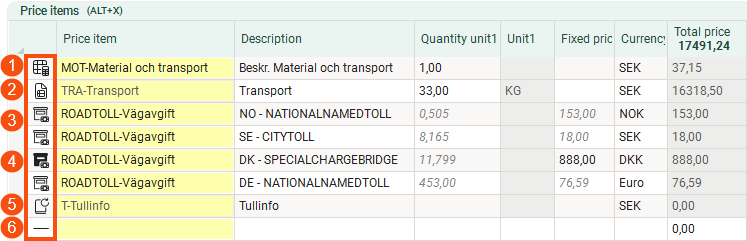
In the image, the order contains one manually added price item (1) with a sub price item (2), four toll price items (3) – one of which has been manually amended (4) – and one automatically added price item (5). At the very bottom is the blank line (6) where you can add a new price item.
The icons are described in the list below. Opter checks the list from top to bottom and selects the first icon that matches the item row.
|
Icon in a new design |
Description |
|---|---|
|
|
No price item has been selected. For example, the icon appears on the blank line where you can add a new price item. |
|
|
An automatic cost price item for which the order has been trashed. |
|
|
An automatically created price item that has been edited manually. |
|
|
Automatically added price item that has not been edited. |
|
|
Road toll, manually amended. For more information, see Administering road tolls. |
|
|
Road toll. For more information, see Administering road tolls. |
|
|
Sub-article, i.e. an article that is part of a main article. (Sub price items are listed under the main article in the group Price items.) |
|
|
Manually added price item. |


For more information, see Price items and Price items (order reception).
The accuracy of address positions
In groups Sender, Receiver, Consignor and Consignee, the icons  /
/ /
/ /
/ show how accurately the address’s location has been determined. The icon indicates that the coordinates for the exact address have been found. The icon
  indicates that the coordinates for the address have been adjusted manually. For more information, see Addresses and address positions and Sender/Receiver (order reception).

