Fuel extra (surcharge)
Last updated: 16 September 2026
In this article
A fuel surcharge is used to compensate for changes in the prices of diesel and other fuels. You can read more about fuel surcharges in the SÅ Index at the Swedish Road Haulage Association. In Opter, the fuel surcharge is a percentage mark-up on the total price of an order.
Create and edit DMT
To start using fuel extras, you need to create the extra itself, specifying a percentage and a date from which it is to take effect.
Proceed as follows:
-
Click on Economy > Invoices > Fuel extra.
-
Click on the fuel surcharge you wish to amend in the list on the left, or create a new one by clicking on New and entering a name.
-
Enter a percentage in column Extra (for example, ‘10 %’). The percent sign does not need to be entered.
-
In column From, select the date from which the extras are to apply. It is the order date that determines which DMT applies to an order.
-
Choose a date in the future so that you have time to inform the customers, suppliers and subcontractors who will be affected.
-
You can add several percentage rates to take effect from different dates. For example, 10% from 1 April, 12% from 1 June, 14% from 1 August. This way, you can add future fuel surcharges well in advance so that you have time to notify those affected.
-
If the new percentage rate is to apply only to new orders, it is advisable to issue invoices just before the change comes into effect, so that existing orders are not at risk of being affected by the new fuel surcharge.
-
If you enter a validity date that is in the past and want it to be applied to orders that are already recorded in the system, you must recalculate the price for those orders. For more information, see Adjusting prices.
If you amend an existing DMT, it is important that you specify a start date. If you simply change the percentage without specifying when it is to take effect, there is a risk that the price of existing orders will be recalculated when you open them. The new fuel surcharge is also applied to orders that you enter retrospectively, and for which you may already have agreed a price.
-
-
Select a default DMT that applies to all orders on the Pricing tab in the office settings.
If you only want to apply fuel surcharges to a small number of customers, you can select [None] as the default fuel extra and apply a fuel extra to those customers instead. However, if you want a DMT to apply to all orders except those for certain customers, set a default DMT in the office settings and select No fuel extra for those customers.
Special rules
If you want to apply a different percentage rate to, for example, a specific price vehicle type, you can add a special rule for that price vehicle type. Click the button in column Special rules and configure the settings. For more information and examples, see Special rules (window).
Check the settings
Place a test order to check that the fuel surcharge is as you intended. Please note that the order date for the test order must be later than the date on which the fuel surcharge comes into effect.
For example, check the following:
-
That a price item such as ‘loading assistance’ is not eligible for a fuel allowance.
-
The ‘Bicycle’ price vehicle type is not eligible for a fuel allowance. The ‘electric bike’ price vehicle type might be subject to a fuel surcharge, but this would probably be lower than for a lorry.
-
To ensure that customers who are not to be charged fuel extra do not have it applied to their orders.
-
That suppliers and subcontractors do not receive fuel extra, or that they receive fuel extra at the agreed percentage rate.
-
That invoices and supplier bills look as they should.
Configuring DMT for customers and resources
You can set a default DMT that applies to all customers, resources, pricing, price items and extras in the Fuel extra drop-down list on the Pricing tab in the office settings. You can then make exceptions to the default settings for customers, resources, price items and extras.
Choosing fuel extra for customers
You can select a different fuel extra rate for individual customers, or disable it completely, on the Pricing tab in the customer register. Select fuel extra from the drop-down list Fuel extra or tick the box No fuel extra.
You can always disable the fuel surcharge on both the customer price and the resource price by selecting No fuel extra under Price in the order reception. See also Separate the DMT settings for the customer and the resource below.
Choosing fuel extra for suppliers and subcontractors
You can select a different fuel extra rate for individual suppliers/subcontractors, or disable it entirely, on the Pricing and Billing tab in the supplier or subcontractor register. Select fuel extra from the drop-down list Fuel extra or tick No fuel extra.
If you set a fuel extra for a supplier, this applies to all drivers and vehicles linked to that supplier.
You can always deactivate the fuel surcharge directly for a particular shipment by selecting No fuel extra on the Pricing tab for that shipment in the order reception system.
Selecting fuel extra for drivers or vehicles
You can select a different fuel extra rate for individual drivers/vehicles (depending on what you are crediting), or disable it completely, on the General tab in the vehicle or driver register (the window Employees). Select fuel extra from the drop-down menu Fuel extra or tick No fuel extra.
-
If the driver is employed by you (and is paid by you), or if you own the vehicle, no resource costs are calculated, and therefore the fuel surcharge is irrelevant. In such cases, the driver/vehicle is not associated with any supplier.
-
If you are crediting an employee (driver), it does not matter whether you make any changes to the vehicle register, and vice versa. You can see what you’re credited with in the Crediting tab in the office settings.
-
You can always deactivate the fuel surcharge directly for a particular shipment by selecting No fuel extra on the Pricing tab for that shipment in the order reception system.
How Opter selects fuel extra
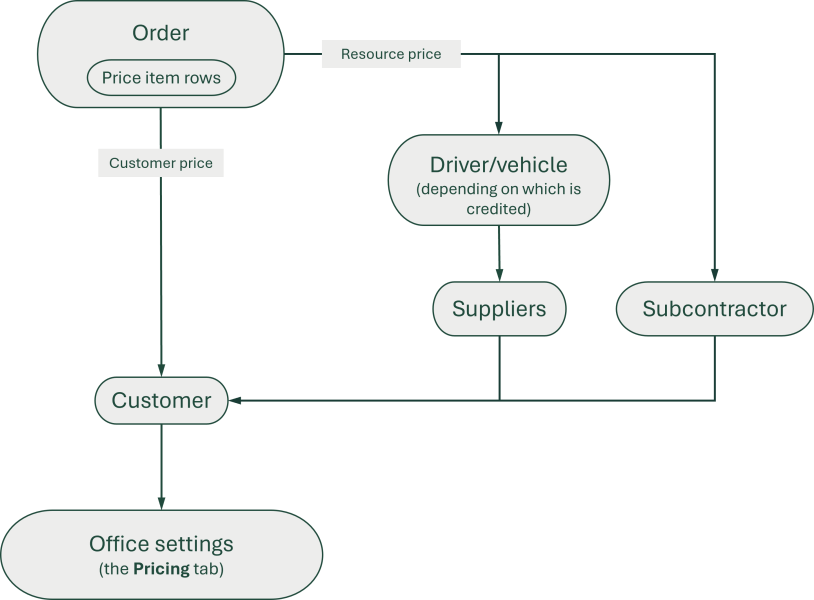
The fuel extra percentage for customers and resources is selected in accordance with the flowchart below. If the setting is [Default] for an option, Opter moves on to the next one. This assumes that No fuel extra is not selected anywhere. If this is ticked, the fuel surcharge will be ‘0’.
If you tick No fuel extra for a supplier, no drivers or vehicles belonging to that supplier will be assigned fuel extra either. In that case, you can enable fuel extra for individual drivers/vehicles in the relevant register.
More fuel extra for the resources
If you want the resource to receive a larger share of the fuel allowance, you can tick Gross calculation of fuel extra on the Crediting tab in the office settings. In that case, the fee factor is not applied to the fuel extra component of the resource price; instead, the fuel surcharge is always calculated on the basis of the resource value.
If you have entered a resource value lower than the customer price in the price matrix, you will still receive a margin on the fuel extra component, even though the fee factor is not used. However, if you have not specified a particular resource value, the resource price is calculated on the basis of the customer price, in which case the full fuel extra amount paid by the customer goes directly to the resource.
The examples below are based on a customer price of 1,000 SEK, a fuel extra of 10 per cent (100 SEK of the customer price) and a fee factor of 80 per cent.
|
Resource value |
Gross calculation of fuel extra |
|
DMT to the resource |
Your share of fuel extra |
|---|---|---|---|---|
|
None (= customer price, 1,000) |
|
|
80 (1,000 × 0.1 × 0.8) |
20 (20 per cent) |
|
None (= customer price, 1,000) |
|
|
100 (1,000 × 0.1) |
0 (0 per cent) |
|
900 |
|
|
72 (900 × 0.1 × 0.8) |
28 (28 per cent) |
|
900 |
|
|
90 (900 × 0.1) |
10 (10 per cent) |


Separate the DMT settings for the customer and the resource
If you do not wish to add fuel extra to the customer price, but still want to pay it to the resources, you can set it so that No fuel extra on the order applies only to the customer price, and not to the resource price. Select Separate "No fuel extra" for customer and resource on the Order Settings tab in the office settings. This setting then applies only to the customer price, both under Price and on the item lines. If you separate the settings and want to be able to disable fuel extra for the resources on individual item lines, you can display the column No resource fuel extra. Information on how to display the column can be found in Fields, settings and columns in order reception.
This separation also applies to No fuel extra in the article register. In such cases, individual price items will not have any fuel extra applied to the customer price, but fuel extra will be added to the resource price.
Disable fuel extra on price items and extras
You can disable the fuel surcharge for individual price items and extras in the price list.
In the price item register, there are two settings on the General tab that you use to control the fuel surcharge for the price item:
-
No fuel extra: Disables fuel extra for both customer prices and resource prices for the price item. If you change the DMT setting for manual items and want existing orders to be updated, it is not enough simply to recalculate the order price. You must remove the price item from the order and then add it again.
-
No resource fuel extra: Fuel extra is being removed from resource prices, but customer prices will still be subject to fuel extra.
No fuel extra on resource price copy has the same function as No resource fuel extra and no longer needs to be used.
To apply the extras, disable fuel extra on the Extras tab in the price list. This setting applies to both customer prices and resource prices.
-
You can also disable the fuel surcharge for individual customers and resources (see above).
-
See also Special rules (window). Using special rules, you can disable fuel extra for additional values by entering ‘0’ as the percentage.
DMT in the order reception department
You can disable the fuel surcharge on an order by ticking No fuel extra under Price or on individual item lines. These settings apply to both the customer price and the resource price. The price items contain No resource fuel extra, which you can use if you want the fuel extra to be added to the customer price but not to the resource price for that particular item.
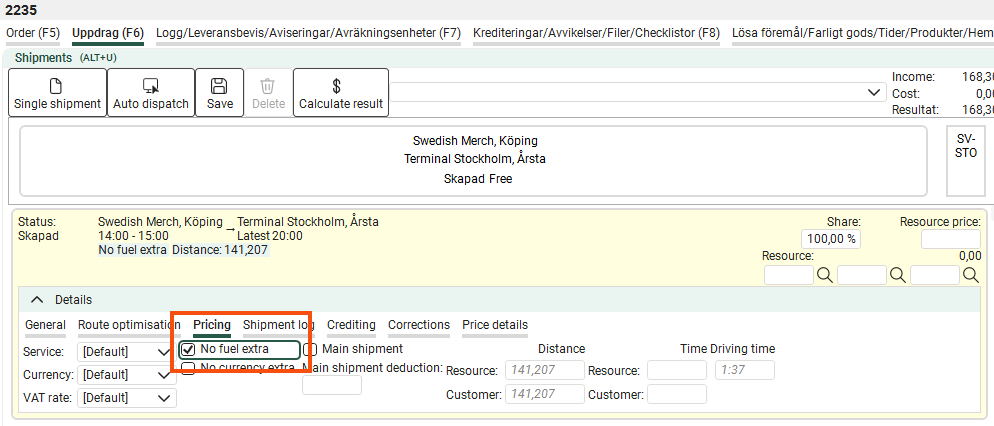
You can also disable DMT for individual shipments by selecting No fuel extra on the Pricing tab for that shipment.
DMT on invoices and supplier bills
See Fuel surcharge on invoices and Fuel surcharge on supplier bills.
DMT on the web portals
You can control whether prices on the web portals are displayed with or without DMT using the Show price including fuel extra option on the General tab in the internet order setting.
DMT on EDI connections
If you are working with a partner who does not use a fuel surcharge, you can disable the fuel surcharge in the export mapping (the tab General). And vice versa. If you do not use fuel extra, but the other party does, you can disable fuel extra on imported orders. It is not possible to select a separate percentage rate for EDI orders.

