Scheduled orders
Last updated: 17 April 2024
In this article
What is referred to as a scheduled order in Opter is sometimes also called a firm order. A scheduled order is a recurring order, which is created regularly in the system.
To create scheduled orders, first create a schedule template. The schedule template is actually an normal order with an order number. It can be opened in order reception, but is not displayed in dispatch or in the statistics.
When scheduled orders are generated, Opter creates a copy of the schedule template and it is the scheduled copy that appears in dispatch. When the term scheduled order is used, it often refers to a scheduled copy. The scheduled copies can be generated either manually, or automatically in accordance with a predefined schedule.
Creating a schedule template
See Creating schedule templates.
Generating scheduled orders
Scheduled orders can be generated in two ways, manually or automatically. A schedule template can also be copied in order reception, just like any order.
Manual
Click on Tellimus > Genereeri ajakavaga tellimused. Check that the correct orders are selected and then click on Genereeri <x> korraldusi. The orders are created, assigned an order number and can be opened in order reception.
Automatic
Choose whether to generate the scheduled copies automatically in the schedule settings of the schedule template. For more information, see Creating schedule templates.
Copy a schedule template in order reception
View existing schedule templates
To view schedule templates, regardless of whether or not scheduled copies for them are generated manually or automatically, click on Tellimus > Genereeri ajakavaga tellimused. The list shows all the schedule templates you have. The colour of the schedule template indicates whether a scheduled copy for it has, should or should not be generated during the course of the day.
-
 (green): a scheduled copy has been generated today.
 -
 (yellow and highlighted): to be generated today but has not yet been generated.
 -
 (red): no scheduled copies are to be generated today.
Double-click on a schedule template to open it in order reception. The template can be edited there. The way scheduled copies are generated can be changed by clicking on Ajakava under Seaded.
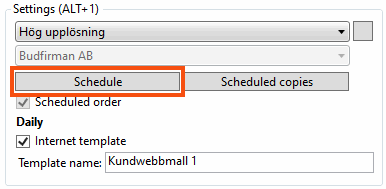
Searching for scheduled copies and schedule templates in order reception
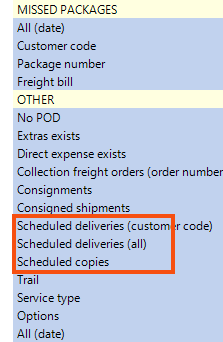
Select one of the following options almost at the bottom of the drop-down list in the search section on the left:
-
Ajakavalised tarned (kliendikood): enter the customer code and click on Otsing to display all the schedule templates for a specific customer.
-
Ajakavalised tarned (kõik): click on Otsing to display all the schedule templates available in the system.
-
Plaanitud koopiad: enter an order number on a scheduled copy or schedule template and click Otsing. The schedule template (
 ) and all scheduled copies (
 ) that have been based on that template are displayed. If you search with an order number that is not a schedule template or scheduled copy, you will not get any hits.
If you open a scheduled copy, information about the schedule template on which it is based is displayed in the Seaded section.
The search results with all the order information can be exported to Excel by selecting one of the export options ( ) in the toolbar, Ekspordi tellimusi or Eksporditellimused ja saadetised (alamread).

