Fields and checkboxes in Order reception
Last updated: 20 April 2026
In this article
It is possible to choose which fields, drop-down lists and checkboxes are to be visible, important stops, mandatory to complete (required) and which are to be displayed in capital letters. For more information, see Tellimuse sisestamise seaded (window). You can also set certain fields to be mandatory when a particular customer is selected, see Set which fields are mandatory for a specific customer below.
Adding a field, drop-down list or checkbox
-
If you want to make changes to groups Saatja, Saaja, Consignor, Consignee or Aadressid, see Aadressi seaded (window).
-
If you want to add a field, a drop-down list or a tick box:
 Proceed as follows
-
Click on Seaded > Tellimused& vastuvõtt > Tellimuse sisestamise seaded.
-
Select the configuration to be changed from the list on the left. Click on the Vormi vool tab.
To make it easier to work with the settings, you can pin the Vormi vool tab by clicking
 at the far right of the window. For more information, see New design.
 -
Search for the field (for example, Kaugus) and tick the box in the column Nähtav.
-
Check the checkbox in the Kohustuslik column if the field is mandatory to fill in.
-
Check the checkbox in the Peamine peatus column to allow users to go to the field by pressing Enter.
For more information on settings for shifting between fields in order reception, see The tab order in order reception.
-
-
Select the checkbox in the Suurtäht column if the name of the field should be shown in capital letters.
-
Click on Salvesta to save all changes.
The field Kaugus appears in the Mõõtmed group in the order reception.
-
-
If you want to add an extra field, such as the Lisamõõde 1 field in the Mõõtmed group in the order reception:
Proceed as follows
-
Click on Seaded > Kontorid > and on the Terminoloogia tab.
-
Give the Lisamõõde 1 field a name.
-
Click on Salvesta to save all changes.
-
Click on Seaded > Tellimused& vastuvõtt > Tellimuse sisestamise seaded.
-
Select the configuration to be changed from the list on the left. Click on the Vormi vool tab.
-
Search for Lisamõõde 1 and select the checkbox in the Nähtav column.
-
Check the checkbox in the Kohustuslik column if the field is mandatory to fill in.
-
Check the checkbox in the Peamine peatus column to allow users to go to the field by pressing Enter.
For more information on settings for shifting between fields in order reception, see The tab order in order reception.
-
-
Select the checkbox in the Suurtäht column if the name of the field should be shown in capital letters.
-
Click on Salvesta to save all changes.
The field Lisamõõde 1 appears in the Mõõtmed group in the order reception.
-
Set which fields are mandatory for a specific customer
Under Register > Kliendid, on the Tellimuse sätted tab in the Tellimuse vastuvõtul kohustuslikud väljad box, it is possible to see which fields can be set as mandatory to complete for a particular customer, for example Tellimisaknas viide kohustuslik, Veokirja number kohustuslik and Extra ID 1.
Here’s how to add the Extra ID 1 field to the Andmed group in the order reception screen and make it mandatory to fill in when a specific customer is selected in the order reception screen:
-
Click on Seaded > Kontorid > and on the Terminoloogia tab.
-
Give the Täiendav ID1 field a name, for example “Invoice reference”.
-
Click on Salvesta to save all changes.
-
Click on Seaded > Tellimused& vastuvõtt > Tellimuse sisestamise seaded. Click on the configuration to change in the list on the left, for example Suur ekraan.
-
Click on the Vormi vool tab and search for Täiendav id1.
-
Select the Nähtav checkbox on the Täiendav id1 row. (If you also tick the box Kohustuslik for row Täiendav id1 here, the field Extra ID 1 in group Andmed in the order reception will become mandatory for all customers).
-
Click on Salvesta to save all changes.
-
Click on Register > Kliendid. In the list on the left, select the customer for whom the Extra ID 1 field should be mandatory.
-
Click on the Tellimuse sätted tab in the Tellimuse vastuvõtul kohustuslikud väljad box and select the Extra ID 1 checkbox.
-
Click on Salvesta to save all changes.
-
To set the Extra ID 1 field to be mandatory to complete for more customers, repeat steps 8-10 above for each customer to which this setting should apply.
(To make the field mandatory for all customers, select the checkbox in the Kohustuslik column for Täiendav id1 on the Vormi vool tab under Seaded > Tellimused& vastuvõtt > Tellimuse sisestamise seaded) instead.
The Extra ID 1 field now appears in the Andmed group in the order reception and is mandatory for those customers for whom you have set it as mandatory.
Deleting a field, drop-down list or checkbox
To delete a field, drop-down list or checkbox from order reception, proceed as follows:
-
Click on Seaded > Tellimused& vastuvõtt > Tellimuse sisestamise seaded.
-
Click on the setting to be changed in the list on the left. Click on the Vormi vool tab.
-
Search for the field, drop-down list or checkbox to be deleted, for example by typing its name in the search box.
-
Deselect the checkbox in the Nähtav column.
-
Click on Salvesta to save all changes.
Notification of hidden fields in order reception
This feature is only available if you are using the new Opter design; it is not available in the classic design. The new design is available from version 2025.12.00 onwards.
If there are fields that are not displayed in a group in the order reception, Opter indicates this by displaying three small dots in the frame.
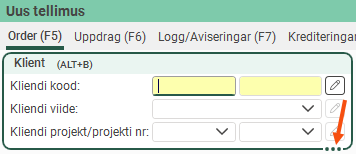
If you want to see all the fields, drag the frame. The bullet points disappear when all fields are displayed.
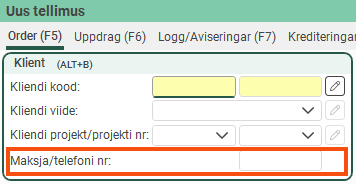
For more information, see Organising the groups in Order reception.

