User accounts for the supplier web
Last updated: 26 October 2026
In this article
You can create a common user account shared by all riders, or individual user accounts for each rider, if you want full control.
If there are certain users who have specific needs to be able to view and do certain things on the supplier web, it is sufficient to create individual user accounts for those users and associate specific internet order settings with those supplier references. The REST can share on a joint account.
If the user enters the wrong password five times when logging in to the web portal, they will have to wait 15 minutes before the next attempt.
Create a common user account for all rider users
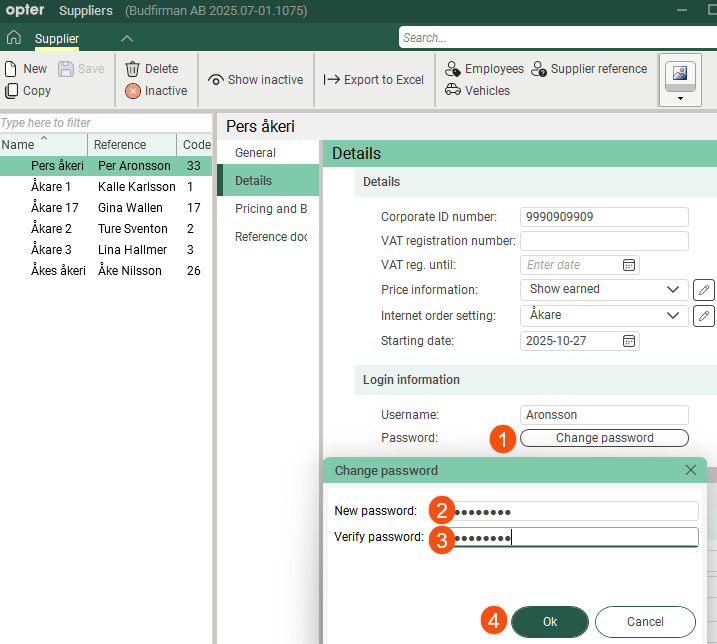
If you want to have a common account that is shared by all users of the rider, enter the username and password on the Details tab of the rider register. There you also set the internet order setting that applies to all users.
-
Click on Register > Suppliers and select a rider from the list on the left. Click on the Details tab.
-
Enter the username to be used to log in to the supplier web. If you have created a new supplier, save them so that you can create a password in the next step.
-
Click on Change password (1), enter the same password in fields New password (2) and Verify password (3). Then click Ok (4) to save the password.
Passwords are case-sensitive; in other words, Opter distinguishes between upper- and lower-case letters. “PASSword&!999” and “Password&!999” are two different passwords.
Passwords are not displayed in the registry. If someone has forgotten their password, you can create a new password by clicking on the Change password button and entering the new password.
Create user accounts for individual users
If some or all of your staff need personal user accounts – for example, so that they can view and perform various tasks on the supplier web – you can add them as supplier references (users) and create user accounts for them. You can then associate different internet order settings with the different supplier references, and set it so that, for example, one user can see supplier bills and prices, while another cannot.
-
Click Register > Suppliers > select a supplier > Supplier reference from the menu.
-
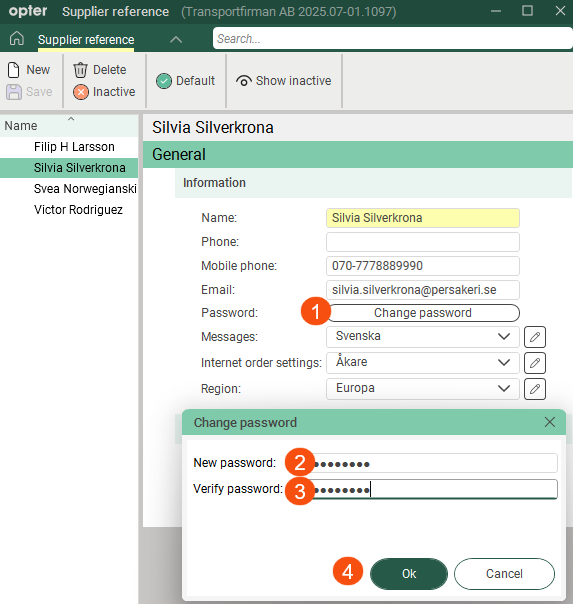
Select an existing reference, or add a new one, and enter the email address in the field Email. This will be the person’s username. If you have added a new supplier reference, save it so that you can create a password.
If there are supplier references with the same username (email address) and password for different suppliers, they may choose which supplier they are when they log in to the supplier web.
If you wish to deactivate an individual user, you can deselect Internet user on the supplier reference.
-
Click on Change password (1), enter the same password in fields New password (2) and Verify password (3). Then click on Ok (4) to save it.
Passwords are case-sensitive; in other words, Opter distinguishes between upper- and lower-case letters. “PASSword&!999” and “Password&!999” are two different passwords.
Passwords are not displayed in the registry. If someone has forgotten their password, you can create a new password by clicking on the Change password button and entering the new password.
-
Select an internet order setting. The internet order settings allow you to control the layout and functions of the supplier web, and you can create bespoke views for this particular user. For more information, see Internet order settings (window).
-
Select Internet user. It states that the user can log in to the supplier web.

