Supplier reference (window)
Last updated: 17 March 2026
 Register > Suppliers > Supplier reference
In this article
In this window, you can create personal user accounts for the supplier web for individual users at the suppliers’ companies. You can have a shared user account for all users (set up in the driver register) and personal user accounts for those who need them (set up here). For example, if certain users require a different view or different functions on the supplier web than others (different internet order settings).For more information, see User accounts for the supplier web and Suppliers (window).
Information
|
Function |
Description |
|---|---|
|
Name |
The user’s first name. |
|
Phone Mobile phone |
The user’s telephone number. |
|
|
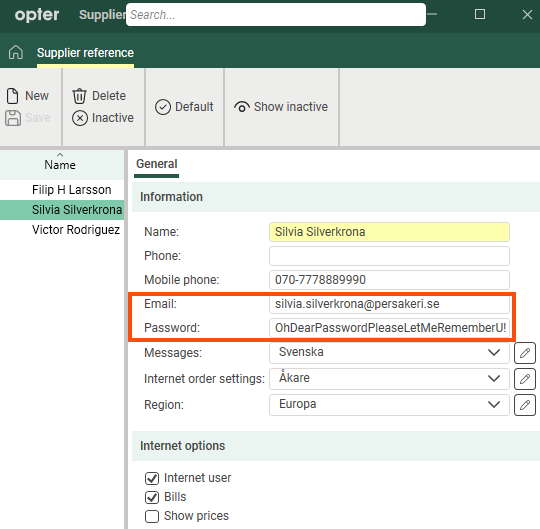
The email address will be the person’s username for logging in to the supplier web. |
|
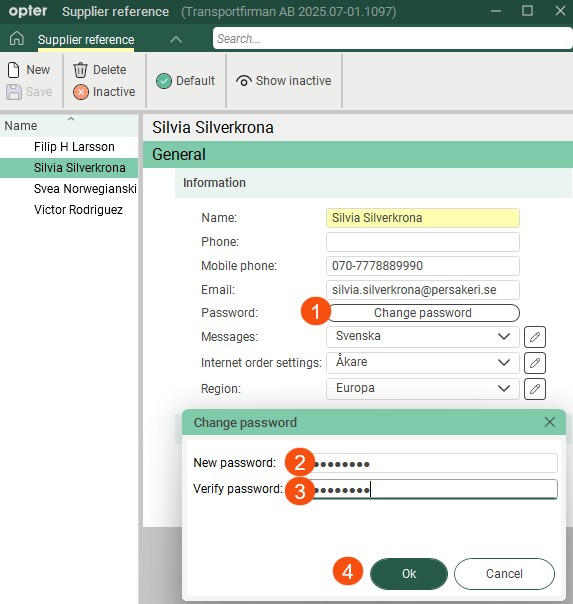
Change password (The button is available from Opter 2025.12.00 onwards.) |
Password for logging in to the supplier web.
For more information, see User accounts for the supplier web and Introduction to the supplier web. |
|
Messages |
If you wish to use specific notifications for this supplier reference, select a message group here. [Default]: The message group that is selected by default in the window Messages. |
|
Internet order settings |
If you wish to use a specific view and specific functions on the supplier web for this particular user, you can create a specific internet order setting for this purpose. (If you want to create a new internet order setting, click [Default]: The setting in the driver register is used. |
|
Region |
The region is preselected in the booking form when this user makes a booking on the supplier web portal. |

 to open the
 Internet options
|
Function |
Description |
|---|---|
|
Internet user |
|
|
Bills |
Shows/hides the menu option Supplier bills on the supplier web. For more information, see User accounts for the supplier web and Internet order settings (window). |
|
Show prices |
Shows/hides the price details at the top of the order form on the supplier web. For more information, see User accounts for the supplier web and Internet order settings (window). |
 : Users can log in to the supplier web using their email address and password.
 : The user is unable to log in to the supplier web (even though an email address and password have been provided above).
