Subcontractors (window)
Last updated: 17 September 2026
 Register > Subcontractors
In this article
In this window, you can manage your subcontractors. For more information, see Adding new subcontractors.
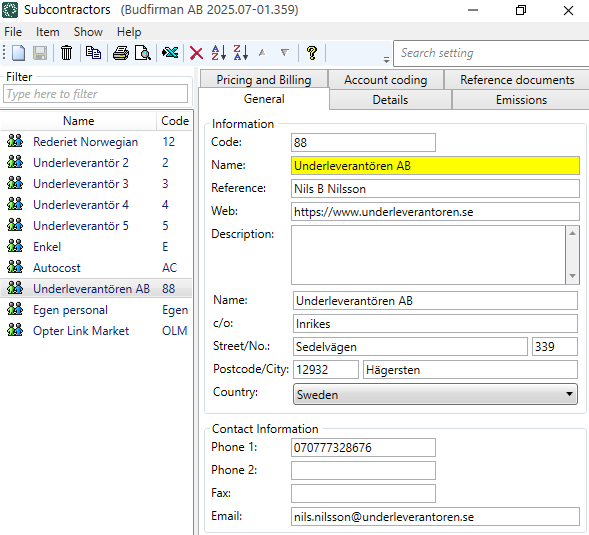
General
Information
|
Function |
Description |
|---|---|
|
Code |
The call number of the subcontractor. Used in dispatch, among other things. |
|
Name |
The name of the subcontractor as you would like it to appear in Opter. |
|
Reference |
Contact person at the subcontractor. |
|
Web |
The address of the subcontractor's website. For example, ‘https://www.subcontractor.se’. |
|
Description |
Free text field for internal notes. The description is not displayed anywhere else but here. |
|
Name c/o Street/No. Postcode/City Country |
Company details. |
Contact Information
|
Function |
Description |
|---|---|
|
Phone 1 Phone 2 |
Telephone number of the subcontractor. |
|
Fax |
Fax number if applicable. |
|
|
Used to send out shipment notifications. If you select Send notification upon assignment (email) on the Details tab, you must enter an e-mail address here. For more information, see Email notifications of shipments to subcontractors. If you want to send supplier bills to a different e-mail address, enter the alternative address in the Pricing and Billing tab. |
Details
Details
|
Function |
Description |
|---|---|
|
Corporate ID number |
Enter the Corporate ID number of the subcontractor. |
|
VAT registration number |
Enter the subcontractor's VAT registration number (VAT number). |
|
VAT reg. until |
This applies only in Norway, where newly registered companies cannot apply for VAT registration until their turnover has exceeded NOK 50,000. If you engage a newly established subcontractor in Norway, you should therefore not add VAT to the supplier bills made to that subcontractor until they have become VAT-registered. Here, you enter the date on which the subcontractor becomes VAT-registered, i.e. the date from which you are required to pay VAT to them. You can also tick Withhold VAT on the Pricing and Billing tab to indicate that VAT is not payable on supplier bills. Rapporttagg: ResTaxRegistrationEndDate Lägg till format="yyyy-MM-dd" i data-taggen för att få datumet i formatet ”2026-09-16”. |
|
Which price details are displayed in the order preview on the subcontractor web. If you click on [Default]: The setting in field Resource price subcontractor on the Crediting tab in the office settings applies. |
|
|
Internet order settings |
The internet order settings determine what the subcontractor can see and do on the subcontractor web. For more information, see Internet order settings (window). [Default]: The setting on tab Internet in the Office settings is used. |
|
Internet order customer |
If the subcontractor is to be able to place orders via the web portal, you must select a customer here. The online customer is listed as the customer on all orders created by the subcontractor. The subcontractor cannot therefore choose which customer is to be named on the order. The customer's name is displayed on the subcontractor web. Type in the field to search for a customer. |
|
Starting date |
Enter the start date for when the subcontractor starts working for you. |
|
Send notification upon assignment (email) |
An email is sent every time a shipment is assigned to the subcontractor. The email address used is the one you entered in the Email field on the General tab. For more information, see Email notifications of shipments to subcontractors. |
|
Attach freight bill |
This setting can only be used if you have ticked Send notification upon assignment (email) above. Specify whether the freight bill should be attached to the email. |
 , the
, the Login information
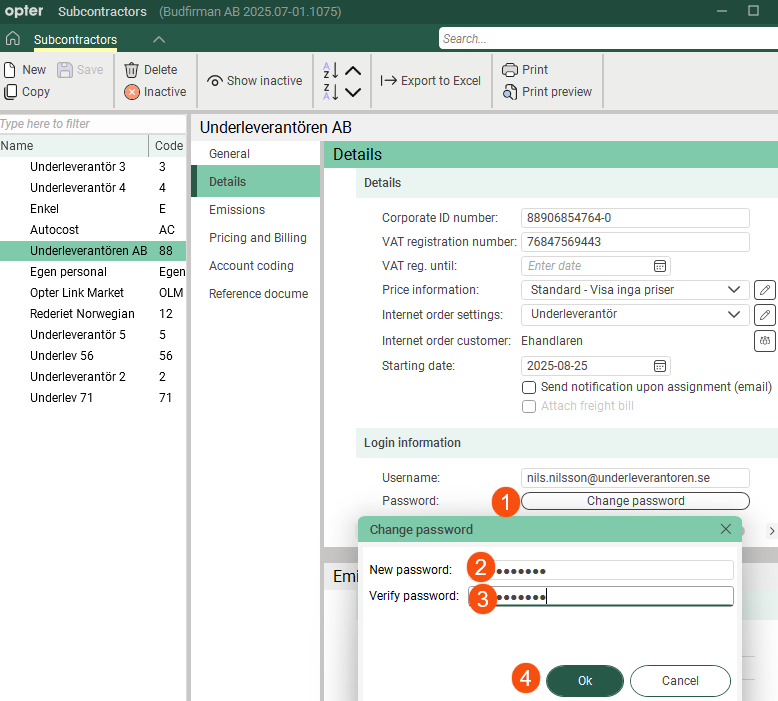
Here you can create a user account for the subcontractor web. For more information, see Subcontractor web user accounts.
|
Function |
Description |
|---|---|
|
Username |
Username for logging in to the subcontractor web. |
|
Password |
Password for logging in to the subcontractor web. Click on Change password (1), enter the same password in both fields (2, 3) and then click on Ok (4) to save the password.
|
Emissions
Settings for calculating CO2 emissions. For more information, see CO2 emissions, overview, Settings for CO2 emission calculations and This is how Opter calculates CO2 emissions.
CO2 emissions
|
Function |
Description |
|---|---|
|
CO2 emissions (g/km) |
Enter CO2 emissions in grams per km for the subcontractor's vehicle. If you enter Fuel, Fuel consumption (per 100 km), and and CO2 emissions (g/km), the value in the CO2 emissions (g/km) field will be used to calculate the CO2 emissions. If you want Opter to calculate CO2 emissions in g/km, leave the field CO2 emissions (g/km) blank and fill in the fields Fuel and Fuel consumption (per 100 km). The CO2 emissions data are taken primarily from the subcontractor register and secondarily from the price vehicle type. This means that if you do not provide any information on the subcontractor’s CO2 emissions, the figures for the price vehicle type will be used instead. For more information, see Settings for CO2 emission calculations and This is how Opter calculates CO2 emissions. |
|
Fuel |
The type of fuel used by the subcontractor’s vehicles. The CO2 emissions of the fuel must be entered in the fuel register. For more information, see Settings for CO2 emission calculations. |
|
Fuel consumption (per 100 km) |
Indicate the average fuel consumption in the selected unit per 100 km of the subcontractor's vehicle. The unit is set in the fuel registry. Example: 2.5 litres per mile = 25 litres/100 km. If you enter Fuel, Fuel consumption (per 100 km), and and CO2 emissions (g/km), the value in the CO2 emissions (g/km) field will be used to calculate the CO2 emissions. If you want Opter to calculate CO2 emissions (in g/km), leave the field CO2 emissions (g/km) blank and fill in the fields Fuel and Fuel consumption (per 100 km). The CO2 emissions data are taken primarily from the subcontractor register and secondarily from the price vehicle type. This means that if you do not provide any information on the subcontractor’s CO2 emissions, the figures for the price vehicle type will be used instead. For more information, see Settings for CO2 emission calculations and This is how Opter calculates CO2 emissions. |
|
Capacity converted into pricing weight (kg) |
Use this if you wish to take into account the order’s pricing weighting in relation to the capacity of the subcontractor’s vehicle. If the shipment has been subcontracted, the relevant information is obtained, in the first instance, from the register of subcontractors and, in the second instance, from the price vehicle type when calculating CO2 emissions. For more information, see Settings for CO2 emission calculations. |
Pricing and Billing
Pricing
|
Function |
Description |
|---|---|
|
Add new resource pricing schemes and edit existing ones by clicking on [None]: No cost or expected cost is generated for the supplier bill, even if you enter a manual cost for the shipment.
|
|
|
Fuel extra |
This policy also applies to all drivers and vehicles belonging to the subcontractor. [Default]: The fuel extra setting for the customer on the order applies (tab Pricing in the customer register). For more information, see Fuel extra (surcharge) |
|
No fuel extra |
Another way to avoid a fuel surcharge is to set a fuel extra of 0% and select it. |
|
Currency extra |
[Default]: The currency surcharge for the customer on the order applies (tab Pricing in the customer register). For more information, see Currencies. |
|
No currency extra |
Another way to avoid currency surcharges is to create a 0% rate and select it. |
|
Create cost price items automatically |
Specify whether cost price items should be created automatically. For more information, see Receiving invoices from subcontractors and suppliers, Settings for receiving invoices and tracking costs and Adding new cost price items to cost check. |
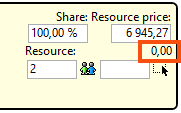
 : The subcontractor does not receive a fuel surcharge.
 : The subcontractor is entitled to a fuel allowance in accordance with the arrangements set out above.
Billing
|
Function |
Description |
|---|---|
|
Crediting interval |
The settlement interval is a way of grouping different subcontractors. For example, those that are to be credited weekly or monthly, but you can actually give the credit interval (grouping) any name you like; it is not linked to a specific date or time. When you create supplier bills, you can select a settlement interval, which acts as a filter to determine which subcontractors are to be credited. Click For more information, see Create Supplier Bills (window). |
|
Supplier bill export |
The subcontractor’s supplier bill export settings (this therefore does not apply to an individual supplier bill export). For more information, see Supplier bill export settings (window). [Default]: The settings on tab Crediting in the office settings apply. |
|
Sales ledger number |
The subcontractor’s sales ledger number. Used in settlement exports to match the subcontractor in the other system. |
|
Supplier bill design |
Template for the subcontractor’s supplier bill. [Default]: The setting in field Credit note - subcontractor on the Reports tab in the office settings applies. If you wish to edit the template, you can preview an existing supplier bill in the Credit notes window and then click Edit report in the editor that opens. |
|
Specify whether the subcontractor is to be credited or whether they are to send invoices. You can pay your subcontractors in two different ways: either by supplier bills (self-invoicing) or by them invoicing you. For more information, see Receiving invoices from subcontractors and suppliers and Settings for receiving invoices and tracking costs.
|
|
|
Withhold VAT |
This applies only in Norway, where newly registered companies cannot apply for VAT registration until their turnover has exceeded NOK 50,000. If you engage a newly established subcontractor in Norway, you should therefore not add VAT to the supplier bills made to that subcontractor until they have become VAT-registered. This setting does nothing. VAT is not deducted from the supplier bills; you will need to do this manually yourselves. The setting for the tick box can be displayed on settlement reports as “True/False” using the report tag ResWithholdVAT. You can also enter a date by which the subcontractor is expected to be registered for VAT in VAT reg. until on the tab Details.
|
|
Do not send supplier bill via Opter Link |
This setting serves as a note and has no function. |
|
Email supplier bill export |
Enter the email address to which supplier bills should be sent. If you do not enter an e-mail address here, the supplier bills will be sent to the same address as the shipment notifications (e-mail address on the General tab). Applies only to settlement exports of the types PDF, XmlSerializer and Fortnox. |
|
VAT Account number |
This currently has no function. |
|
The subcontractor's bank account number. This field can be exported to other systems via settlement exports. If you export supplier bills to other financial systems, it is important that you enter the bank account number and, where applicable, the clearing number in the correct format. Check which format the receiving system expects. |
|
|
AccountNo BG Plus giro account number |
The subcontractor’s Bankgiro number and Plusgiro number used for domestic payments. |
|
IBAN BIC/SWIFT |
The subcontractor’s international bank account number and BIC code, which are used for international payments. |
|
Payment Condition |
For more information, see Payment Condition (window). [Default]: The settings on tab Invoice settings in the Office settings apply. |
|
Currency |
If the subcontractor is based in another country, you can make things easier for them by crediting them in their currency. Bear in mind that you’ll need to use an exchange rate between your currency and that of the subcontractor to ensure the figures are correct. For more information, see Currencies. [Default]: The office currency applies (tab Pricing in the office settings). |
Account coding
Account coding
In Opter, the VAT rate on the order determines the income and cost account to which a certain amount is booked. On this tab you can make exceptions to the regular account coding. The tabs you make changes to are marked with  .
.
Click on  to display the VAT rates held in the system. Then select the account to which amounts with the different VAT rates should be posted. More information on the individual drop-down lists can be found at The Account coding tab. The settings in this tab apply if you reach item 4 in the list in How Opter selects accounts for income and expenses. If [Default] is selected for any of the options here, the account coding is taken from the VAT rate.
For more information on how Opter selects the VAT rate on orders (column Sales) and supplier bills (column Cost), see How Opter chooses the VAT rate for customer invoices and How Opter chooses the VAT rate on credits.
Options
Here, you select the options fitted to the subcontractor’s vehicle. They do not appear anywhere other than in this register.
For more information, see Options and Options (window).
The options don’t really have anything to do with account coding, but they’ve ended up on this tab.
Reference documents
On the Reference documents tab, files that can be opened on other computers can be added. The files that are added are not attached to orders, instead the function works as a file server and is intended for exchanging information. The files are saved in the database.
|
Function |
Description |
|---|---|
|
New |
Adds a file that is on the computer. It is only possible to add one file at a time. |
|
Delete |
Deletes files from the registry. It is only possible to delete one file at a time. |
|
Open |
Opens the selected file in the list. |
|
File name (column) |
The file name. |
|
Created |
When the file was added as a document in Opter. |
|
File name (field) |
The file name of the selected file. You can rename the file by typing the new name and clicking Save on the menu. Remember to keep the same file extension (for example “.docx”), otherwise the application to use has to be selected when the file is opened. |
|
Comment |
Free text. Information about the file. The information is only shown here. |

