Subcontractor web user accounts
Last updated: 26 October 2026
In this article
If the user enters the wrong password five times when logging in to the web portal, they will have to wait 15 minutes before the next attempt.
Here's how to create login details for the subcontractor web:
-
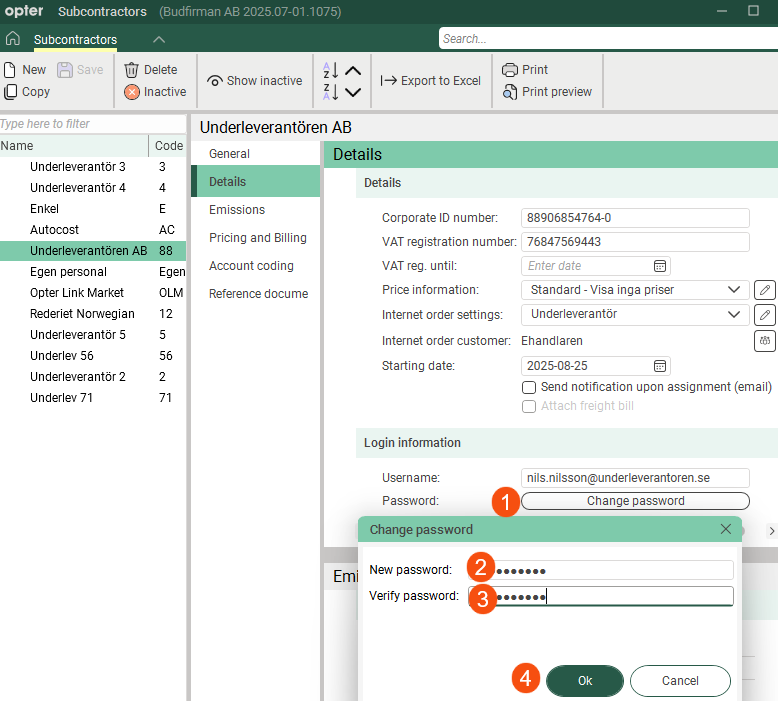
Click Register > Subcontractors and select a subcontractor from the list on the left. Go to the Details tab.
-
Enter the username to be used to log in. If you have created a new subcontractor, save it so that you can create a password in the next step.
Click on Change password (1), enter the same password in fields New password (2) and Verify password (3). Then click on Ok (4) to save it.
Passwords are case-sensitive; in other words, Opter distinguishes between upper- and lower-case letters. “PASSword&!999” and “Password&!999” are two different passwords.
Passwords are not displayed in the registry. If someone has forgotten their password, you can create a new password by clicking on the Change password button and entering the new password.
If you want the subcontractor to be able to create orders on the subcontractor web, you must enter a Internet order customer. The online customer becomes the customer named on the order. For more information, see The order form on the subcontractor web.

