User accounts for the customer web
Last updated: 27 October 2026
In this article
You need to create login credentials for customers to allow them to log in and place orders via the customer web. The login details are created for individual References.
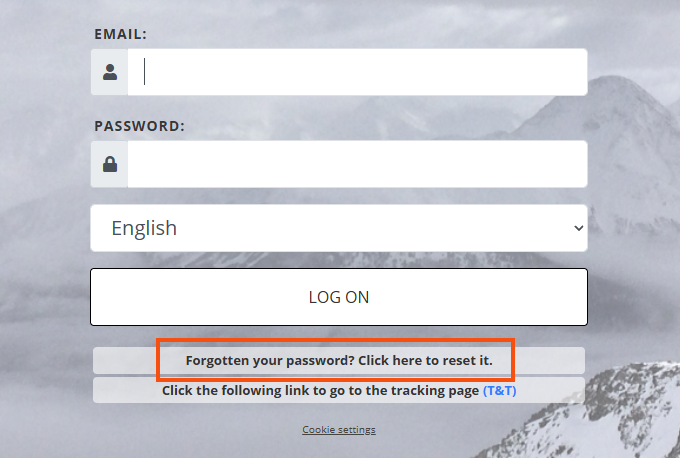
If the user enters the wrong password five times when logging in to the web portal, they will have to wait 15 minutes before the next attempt. If a user has forgotten their password, they can reset it themselves by clicking on the link on the login page.
Create user accounts
-
Click on Register > Customers.
-
Find the customer where the person you want to give login details to works.
-
Click on Reference in the menu. The Reference window opens.
-
Enter your name and email address. The email address will be the person’s username for logging in to the customer web.
-
Enter your password in the field Enter new password.
-
The password must be at least eight characters long and must contain at least one number, at least one uppercase letter, at least one lowercase letter and at least one special character (!@#$%^&*?_~-().,).
-
The password is case-sensitive. If you create the password “Password”, users must log in using “Password”; “password” will not work.
-
-
Select Internet user. It states that the reference can log in to the customer web.
-
Go to the Internet tab and select what the reference should be able to see and do on the customer web by ticking or unticking the options. For more information, see Reference (window).
The options you deselect here are exceptions to the setting specified in the internet order setting. For the setting to take effect, it must be selected both here and in the internet order settings. For more information, see Internet order settings (window) and Reference (window).
Change your password for the customer web
Changing your password in the Opter client
To change the password for an ordering party, enter the new password in the Enter new password field and copy it. When you save the reference, the password is encrypted and you can no longer view it in plain text. Make sure you copy the password before you save it, so that you can give it to the reference.
Changing your own password on the customer web
If you want customers to be able to change their own passwords, display the menu option Settings on the customer web by ticking Change default settings for new orders in the internet order setting and for the reference.
Under the menu option Settings, you can also set default values for orders created on the customer web. If you do not want references to be able to change them, you can also change your password on the login page using the ‘Forgotten password’ link. In that case, you don’t need to display the menu option Settings at all.
Changing other people’s passwords on the customer web
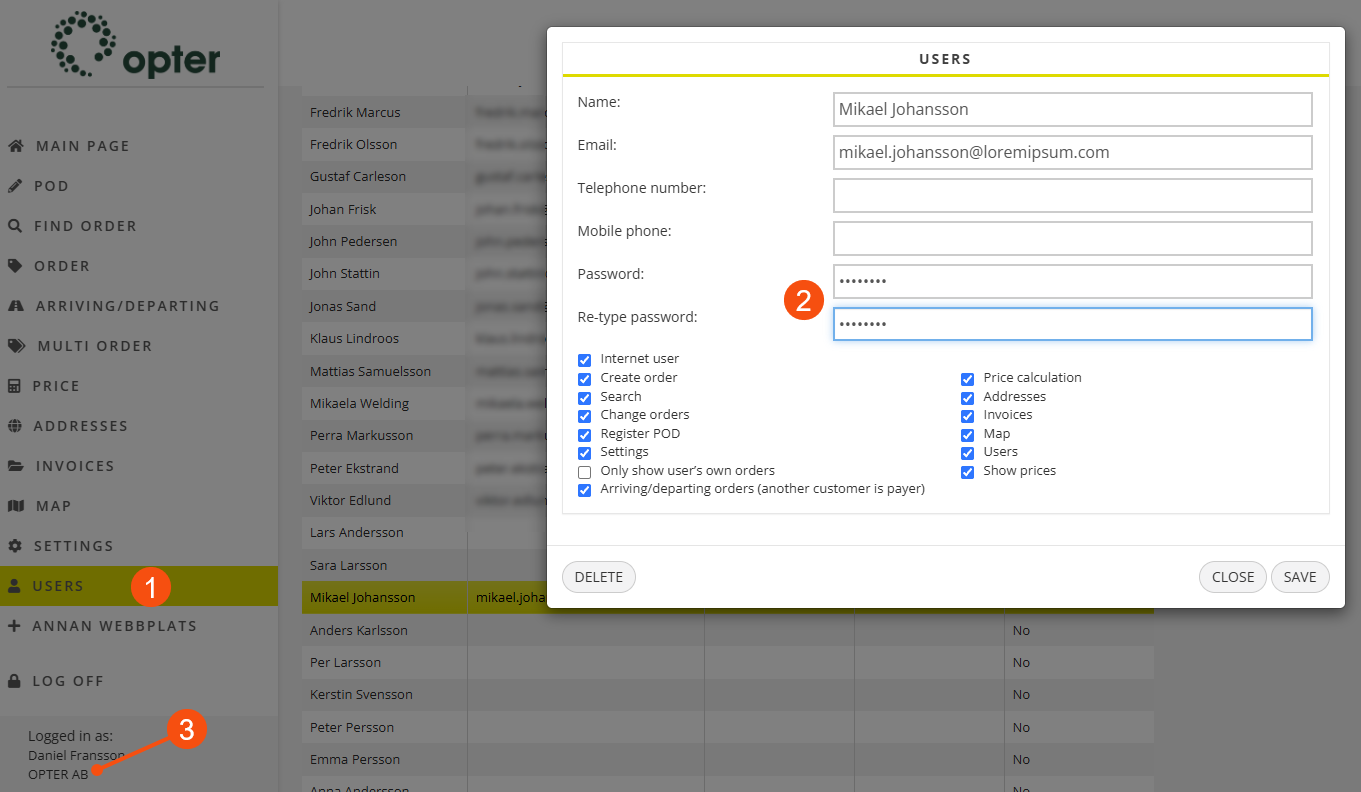
If you want a specific reference at a customer’s organisation to be the administrator for that customer – and to be able to add and remove user accounts, as well as set what users are allowed to do – tick the Add, delete and edit other internet users option for that reference and the corresponding internet order setting (on the tab Menu alternatives and functions). The menu option Users will then appear, showing a list of all the references for that client.
If the administrator changes the password for another reference (2), it is only changed for the reference they are logged in as. If the user who received the new password has access to several clients, they will have two passwords for the customer web. The new password for that specific customer, and the old password for all other customers. If the user logs in with the new password, the customer list is never displayed; instead, they are logged in directly to that customer.
Reference authorities with access to multiple clients
If a reference has the same username (email address) and password for different clients, they will be asked to select a client when they log in to the customer web. This may occur, for example, if there are several companies in the customer register that belong to the same group, and a member of staff at head office has access to all those customers. If you change a customer’s password in the Opter client, it will be changed for all customers where the reference has the same email address. The password is linked to the email address, not to the customer.
If you add a reference for Customer 2, using the same email address as for Customer 1, and do not specify a password for the new reference at Customer 2, the password for the existing reference at Customer 1 will be removed and the user will no longer be able to log in to the customer web at all. Error message No user can be found appears on the login page.
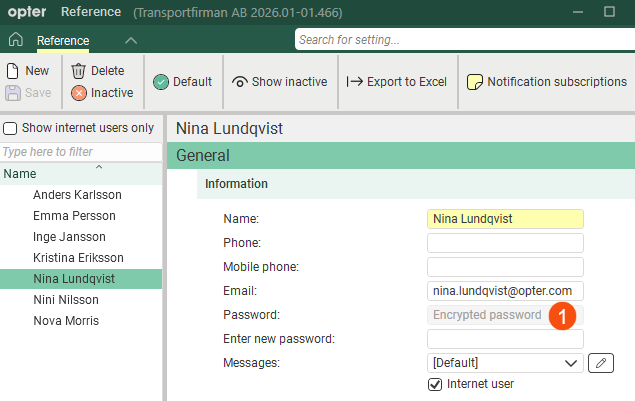
Check that the reference has a password in the customer register. If it does, it will say Encrypted password in field Password (1). If the field is blank, the reference does not have a password. In that case, please enter a password; this will change the password for all customers to which the reference has access – in this instance, both Customer 1 and Customer 2.
Example
anna@headoffice.com acts as the reference authority on behalf of the subsidiaries Customer 1, Customer 2 and Customer 3. When she logs in to the customer web, she can select a customer. She is also the administrator for all other references. If she logs in as Customer 1 and changes the password for daniel@headoffice.com, Daniel will have one password for Customer 1 and a different password for Customer 2 and Customer 3.

