Reference (window)
Last updated: 23 October 2026
In this article
 Register > Customers > find a customer > Reference from the menu
Reference is used to refer to those who can place orders via the customer portal. In this window, user accounts are created for the customer’s ordering parties. For more information, see User accounts for the customer web.
What the ordering party can see and do on the customer web is generally controlled by the internet order setting, but this window makes it possible to define exceptions to those settings for individual ordering parties.
General
|
Function |
Description |
|---|---|
|
Name Phone Mobile phone |
Contact details for the reference. |
|
|
Ordering party’s email address. It also serves as a user ID when logging into the customer web. |
|
Password |
Password for the customer web. The field is read-only. To change the password for the ordering party, enter the new password in Enter new password below. |
|
Enter new password |
Here the ordering party’s password can be changed by entering a new one. The password is not saved in this field but in the Password field above. The new password must be at least eight characters long and contain at least one number, at least one uppercase letter, at least one lowercase letter and at least one special character (!@#$%^&*?_~-().,). If the same email address is used to log in to other customers’ accounts, the new password will also apply to those accounts. |
|
Messages |
The set of notifications that the ordering party receives when various events occur for an order. |
|
Internet user |
|
 : The ordering party can log into the customer web.
 : The ordering party cannot log into the customer web.
Internet
Access right for customer web
The menu options displayed on the customer web and the reference’s access rights are primarily determined by the internet order setting, which is configured further down the page. In order for the reference to be able to carry out any of the actions listed below, the option must be selected both here and in the internet order setting. If the reference is not to have access to any of the options, untick this box.
|
Function |
Description |
|---|---|
|
Show prices |
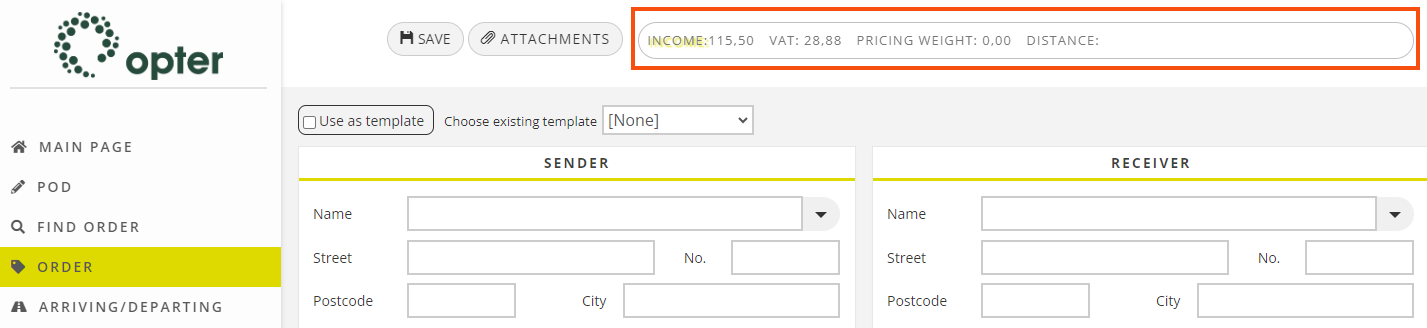
Shows/hides the order’s total price, VAT, pricing weight and distance at the top of the order page.
|
|
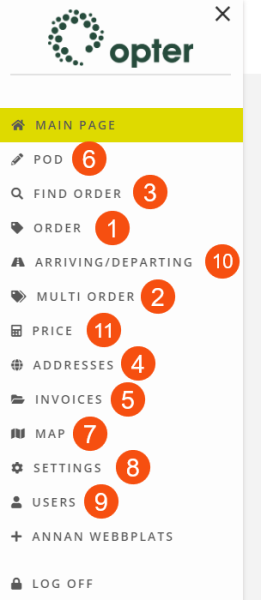
Create orders (1) |
Shows/hides the menu option Order in the menu, where the user can create new orders. |
|
Create multi-orders (2) |
Shows/hides menu option Multi order in the menu. The user can create orders from one sender to multiple receivers. For more information, see Activating multi-orders on the customer web. |
|
Change orders |
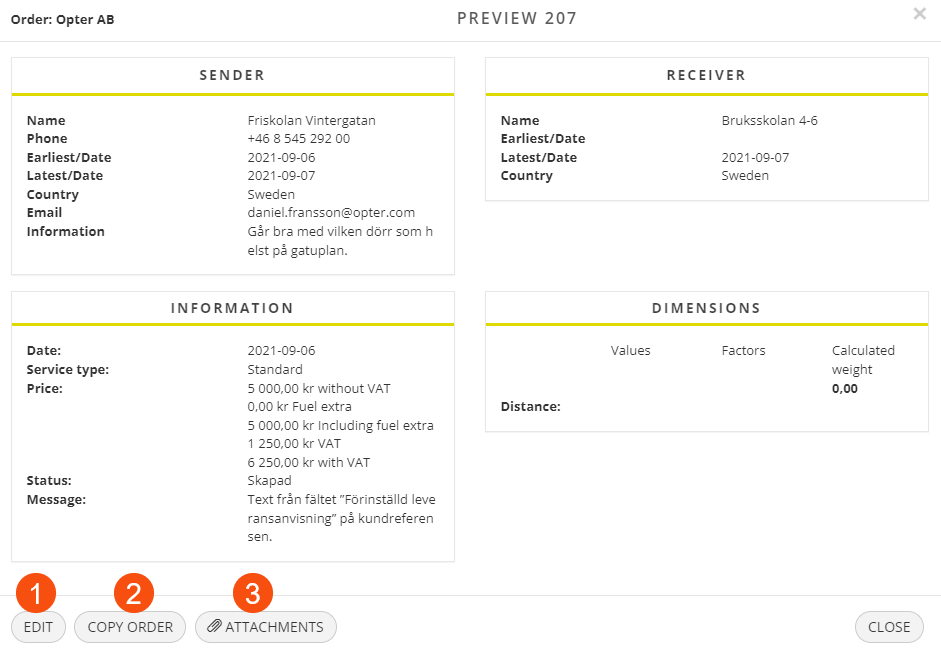
Shows/hides the Edit button in the detail view. The user can amend existing orders if their status permits this. The orders that may be amended are specified in the internet order settings (tab General). For more information, see Changes to orders registered on the customer web.
|
|
Search for orders (3) |
Shows/hides the menu option Find order in the menu. If Only show reference’s own orders is selected (see below), only the ordering party's own orders are shown in the search results. |
|
Add and amend addresses (4) |
Shows/hides the menu option Addresses in the menu. The user can add new and modify existing addresses. |
|
Show invoices (5) |
Shows/hides menu option Invoices in the menu. The user can see a list of invoices in closed invoice periods on the customer web. Click on an invoice in the list to download a PDF file of it. |
|
Search for proof of delivery (6) |
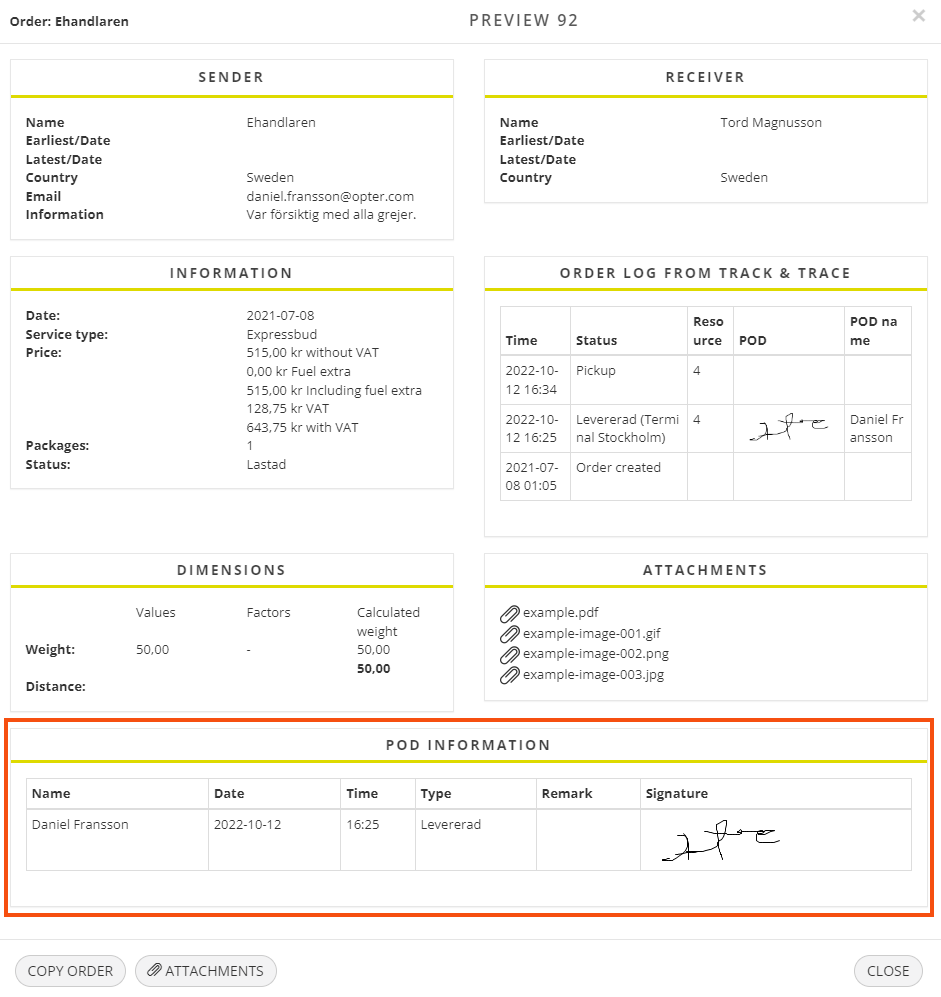
Shows/hides menu option POD in the menu and block POD Information in the detail view (displayed if there is a POD on the order). Users can look up orders with proofs of delivery and make changes to the proofs of delivery. If Only show reference’s own orders is selected (see below), only the ordering party's own orders are shown in the search results.
|
|
Show vehicle on map (7) |
Shows/hides menu option Map in the menu. Users can see the location of vehicles on the map. If Only show reference’s own orders is selected (see below), only the vehicles carrying the ordering party's own orders are shown on the map. |
|
Change default settings for new orders (8) |
Shows/hides menu option Settings in the menu. Users can specify the default settings for an order and change their own password for the customer web. As a system administrator, you can always change the passwords for all references. See Enter new password on the General tab above. |
|
Add, delete and edit other internet users (9) |
Shows/hides the menu option Users in the menu. The user can manage their own and other reference accounts and access rights for the relevant customer. As a system administrator, you can always manage all user accounts for the customer web here in the Opter client. |
|
View incoming/outgoing orders (other customer pays) (10) |
Shows/hides the menu option Arriving/Departing in the menu. It is a list of all orders for which the customer does not pay but is the receiver or sender. Orders paid for by the customer themselves are displayed on the home page. If Only show reference’s own orders is selected (see below), only the ordering party's own orders are shown in the list. |
|
Do price calculations (11) |
Shows/hides the menu option Price in the menu. The users can calculate total price, VAT, pricing weight and distance for an order without starting an ordering process. If the price is acceptable and the user wishes to place the order, the data entered by the user in the price calculation is included in the order form. |
|
Only show reference’s own orders |
|
Settings for customer web
|
Function |
Description |
|---|---|
|
Internet order settings |
The customer’s internet order setting. It could, for example, be a version of the customer’s internet order setting with just a few changes. [Default]: The settings on tab Internet in the customer register apply. |
|
The message is filled in automatically under Message on the order form in the customer portal. The same message is then routed to Internal message and External message in the order reception department. See also Internet order settings (window). |

