Adding new riders
Last updated: 29 September 2026
In this article
In the supplier register, you can add new suppliers and manage existing ones.
The terms ‘supplier’ and ‘subcontractor’ are defined in Suppliers, subcontractors, drivers and vehicles.
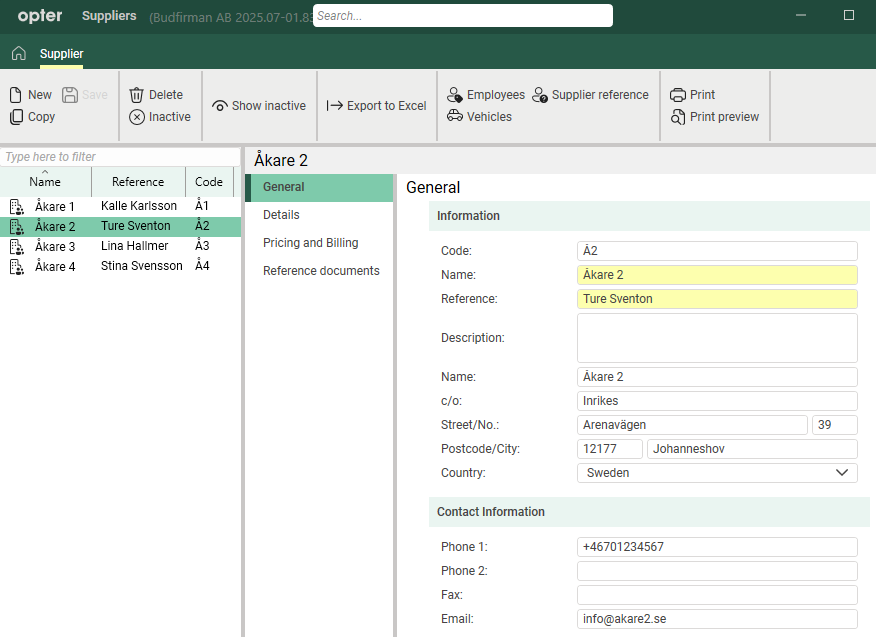
Add a new supplier
You can add a new supplier simply by clicking New on the menu, but you can also copy a supplier you already have in the register by selecting them from the list and clicking Copy on the menu. Then give the new supplier a code, a name and a contact person (reference). The new supplier won’t appear in the list until you’ve saved it.
Further information on the settings in the rider register can be found in Suppliers (window).
Some of the data you provide to the supplier is included in settlement exports from Opter to external financial systems.
Link drivers and vehicles to suppliers
Drivers employed by the supplier are registered as employees in Opter. Then connect them to the supplier in one of the following ways:
-
Register > Employees > the General tab > Supplier.
-
Register > Suppliers > Employees on the menu. The Employees for supplier window opens.
Find a driver and double-click on them to link them to the supplier. If you want to remove a driver from the supplier, double-click on them under Associated employees.
Leave the search field blank and click Search to bring up a list of all employees.
Connecting the supplier’s vehicle is done in the same way. Enter them in the vehicle register and link them to the supplier:
-
Register > Employees > the General tab > Supplier.
-
Register > Suppliers > Vehicles on the menu. The Vehicles window opens.
Find a vehicle and double-click on it to assign it to the supplier. If you want to remove a vehicle from the supplier, double-click on it under Associated Vehicles.
Leave the search field blank and click Search to display a list of all vehicles.
See also User accounts for Opter Driver, User accounts for The driver web and User accounts for The vehicle web.
The supplier web
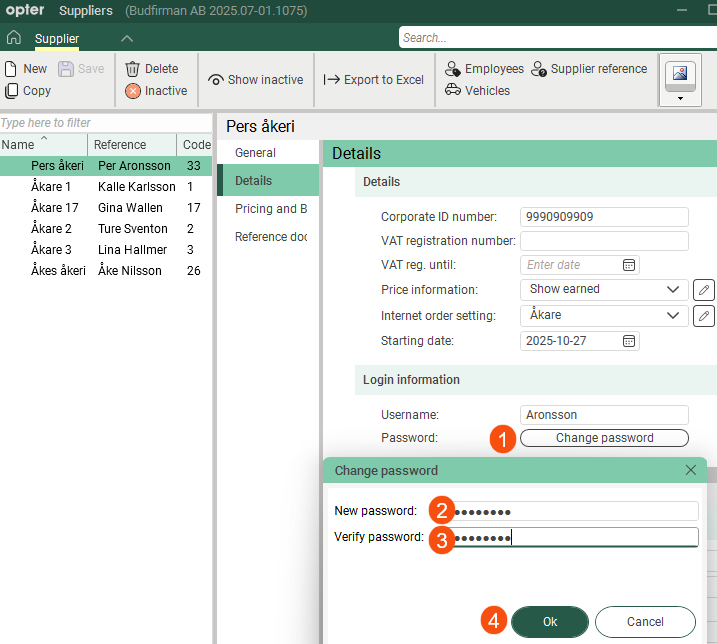
If you want the supplier to be able to manage their shipments on the supplier web, create a user account for them by entering a username and setting a password on the tab Details.
If any of the supplier’s users require specific views or functions on the supplier web, you can set these up as supplier references and assign them a specific internet order setting. Click on Supplier reference in the menu and fill in the fields.
For more information, see User accounts for the supplier web and Supplier reference (window).
-
Passwords are case-sensitive; in other words, Opter distinguishes between upper- and lower-case letters. “PASSword&!999” and “Password&!999” are two different passwords.
-
Passwords are not displayed in the register. If someone has forgotten their password, and you don’t know it, you can create a new one by clicking Change password, but this will change the password for everyone using the shared account. Please remember to let everyone who uses it know.
Deactivate carriers
You can deactivate suppliers who are no longer in use. Select the supplier from the list on the left and click Inactive on the menu. The change is saved when you close the window.
Deactivated suppliers do not appear in the supplier register, and they cannot be selected when choosing suppliers from various registers. However, the history of deactivated skiers remains in Opter, and you can reactivate them by clicking Show inactive on the menu in the skier register, selecting a deactivated skier and then clicking Inactive on the menu. The change is saved when you close the window.

