AddSecure Co-Driver – driver app
Last updated: 8 September 2026
In this article
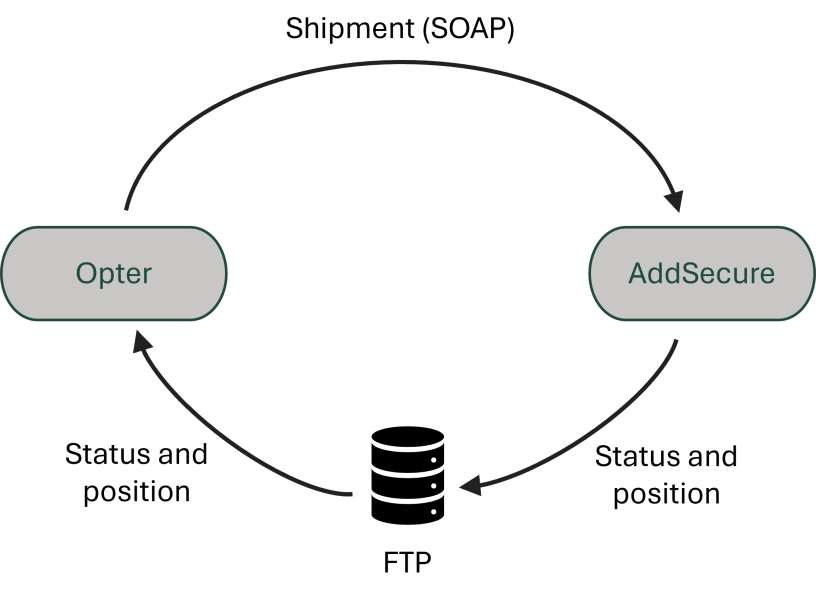
AddSecure is a transport management system and can be used, amongst other things, to calculate drivers’ pay based on working hours and distance travelled. You can use the AddSecure driver app alongside Opter. Shippments are sent to AddSecure when you assign them to a driver using their app, and status and location data are sent back to Opter as they are updated in AddSecure. This way, you can manage traffic control in Opter.
POD-types and deviation types from Opter are displayed in the AddSecure app, and proofs of delivery and deviations recorded in the AddSecure app are transferred to Opter.
Step 1: Set up an FTP server to receive status updates
If you have Opter Cloud, you can order the FTP service from Opter. Contact for more information. If you are running the system on-premises, you can either use a folder on an existing FTP server or contact your IT provider to set up a new one.
Specify the folder in which the files containing status updates from AddSecure should be saved. Opter reads the files and updates the shipments. Once the FTP is set up, configure your mobile data settings as follows:
-
AddSecure.FtpServer: URL to the FTP server, for example ftp.opter.cloud.
-
AddSecure.FtpUsername: Username.
-
AddSecure.FtpPassword: Password.
-
AddSecure.FtpAcceptNameMismatch: If you are using Opter Cloud, you must set this to “true” for the FTP server to work.
-
AddSecure.FtpPath: Path to the folder on the FTP server where the files containing the status information are located, for example “/AddSecure”. If you want to place the files directly in the root directory, simply type a slash, “/”.
You can also configure the following two settings, although they are not mandatory:
-
AddSecure.FtpPollInterval: Specify how often Opter should check whether the files on the FTP server have been updated (in seconds). The default is every ten seconds.
-
AddSecure.FtpQuarantinePath: You can specify a particular folder on the FTP server where files that could not be imported are saved, for example, “/AddSecure/Failed”. By default, they are saved in the same folder as the files that have been read (AddSecure.FtpPath), with the name <filename>.err.
Information on how to add mobile data settings can be found in Mobile data settings (window).
Step 2: Activate the mobile device type AddSecure
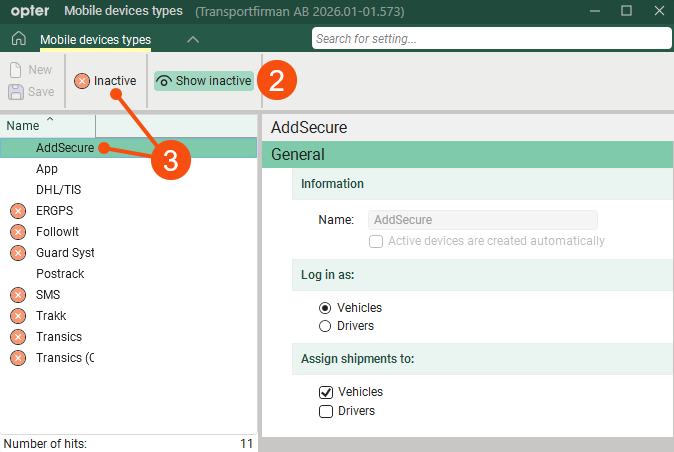
To configure the app for drivers, the device type must be enabled. It is deactivated by default.
-
Click on Settings > Mobile data > Mobile device types.
-
Click on Show inactive in the menu.
-
Select AddSecure from the list and click Inactive on the menu.
AddSecure now appears in the table of mobile devices on the Mobile/web tab in the vehicle register.
Step 3: Mobile data settings for communication
You need to add four mobile data settings to enable Opter to communicate with AddSecure. Please contact AddSecure if you do not know your login details or the web address.
-
AddSecure.ApiUsername: Username for the AddSecure account.
-
AddSecure.ApiPassword: Password for the AddSecure account.
-
AddSecure.CustomerNr: Your AddSecure customer number.
-
AddSecure.BaseUrl: URL that Opter calls to add, update and delete shipments in AddSecure.
Information on how to add mobile data settings can be found in Mobile data settings (window).
Step 4: Connect the vehicles in AddSecure and Opter
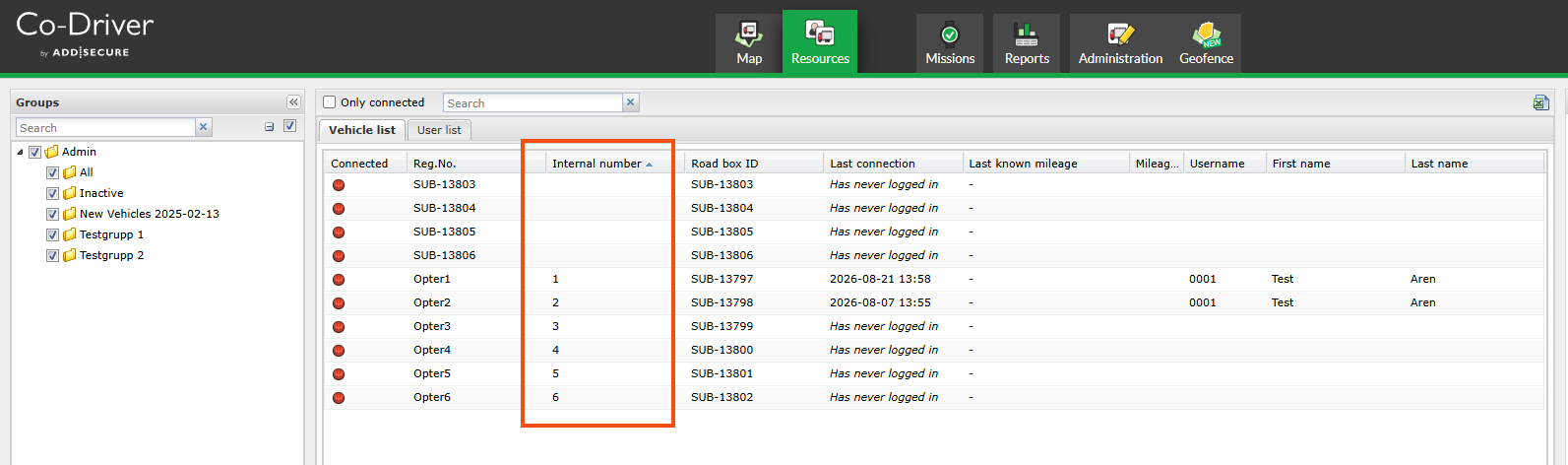
Match up the vehicles that appear in both Opter and AddSecure.
-
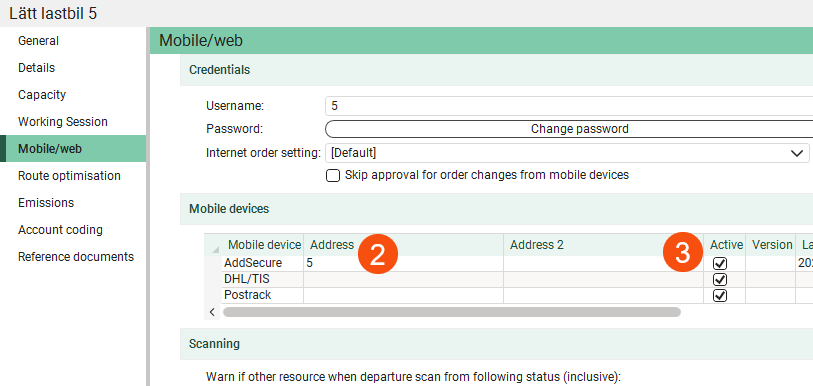
Click on Register > Vehicles.
-
Go to the Mobile/web tab and enter the vehicle number (Internal number) from the AddSecure portal in the Address field. Repeat this for all vehicles listed in both Opter’s and AddSecure’s vehicle registers.
-
Check that Active is ticked.
-
Try assigning a shipment to one of the vehicles. The shipment should appear in the app, and its status and location should be visible to dispatch in Opter.
Known limitations
The integration does not support the following functions:
-
Notifications regarding logging in and out (not supported in AddSecure).
-
Complete the order by scanning (not supported in AddSecure).
-
Chat with the driver outside of a shipment (this feature is not supported in AddSecure).
-
Status update in AddSecure if the status changes in Opter (this feature is not supported in AddSecure).
-
Map more statuses between the systems dynamically. Only Opter’s standard life cycle is used.
-
Customise the layout and design in the AddSecure app in a similar way to Opter Driver.
The video shows how to set up a Postrack tracking device, but the process is the same for AddSecure.

