Return to the same address in a consignment, example
Last updated: 5 September 2025
In this article
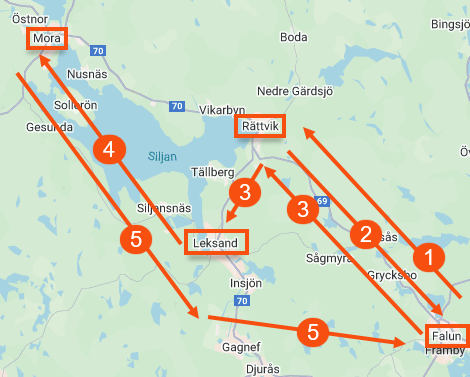
Normally, Opter's co-loading function is based on unique stops, where each address appears once. However, in real-life scenarios, the need to return to the same address several times in the same consignment sometimes arises, for example if one of the orders in the consignment fills the whole vehicle and the driver has to drive back to the consignor's address to collect the remaining goods. (See 2 in the picture below.)
In Opter, it is possible to place the same address several times in a consignment, so that:
-
The route will be correctly recorded in Opter, leading to:
-
A more accurate CO2 emissions calculation for the consignment order, as the CO2 emissions calculation is based on distance (etc.).
-
Correct remuneration of the resource performing the consignment shipment, if the remuneration is based on distance.
-
-
The driver gets the right route sequence in the Opter Driver app.
-
The dispatcher can adjust the route manually, by splitting the deliveries over several stops.
Below we show with an example how to place the same address several times in a consignment. See also Examples, further details and Requirements below.
This is how we solve it in Opter
-
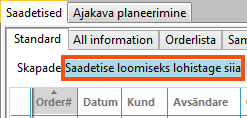
We create a consignment, for example, by marking all the customer orders (shipments) and dragging and dropping them on the surface Saadetise loomiseks lohistage siia in the dispatch.
-
In the Order reception, in the section Aadressid, we click on Calculate route sequence. The addresses are put in an optimal order.
(Route sequence calculation can only be performed if all stops are unique addresses).
-
Order no. 3401 fills the entire vehicle and we want the driver to drive this order to Rättvik first. So we need to separate order no 3401 from the rest of the orders that we want to collect later.
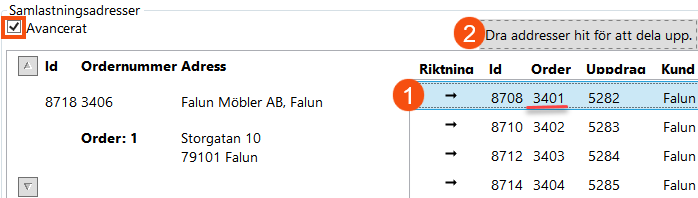
In the Order reception, in the section Saadetise aadressid, we select the line with order no. 3401 (1) and drag and drop it on the surface Jagamiseks kukutage aadressid siia. (2).
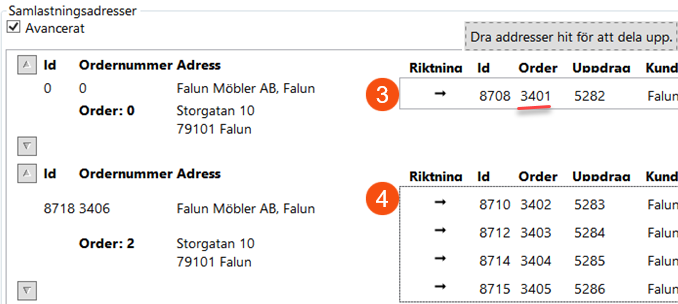
We have now separated order 3401 (3) from the rest of the orders (4).
-
In the Order reception, in the section Aadressid, we move up the delivery address (in Rättvik) for order no 3401 so that the route is as we wish. We select the address line and click on the Tellimus üles button until we reach the correct position in the route sequence.
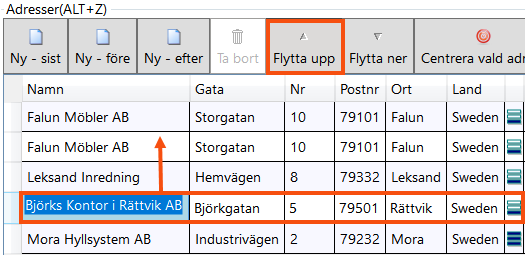
Now the route sequence is as we wish:
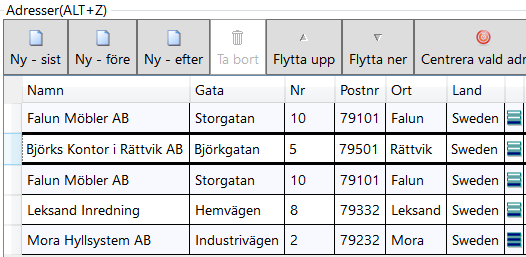
-
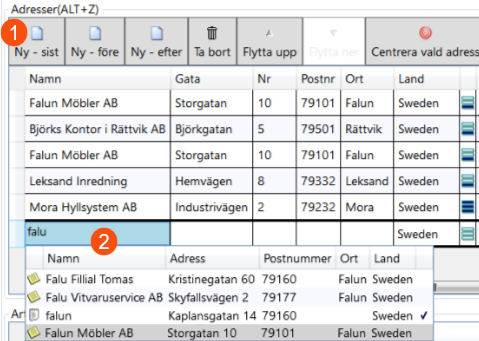
We want the driver and the vehicle to return to Falun (the consignment address/starting address) after all consignment shipments have been completed, so we add a final address manually.
In the Order reception, in the section Aadressid, we click on the button Uus - viimane (1) and enter the final address (2), and then we save the order.
-
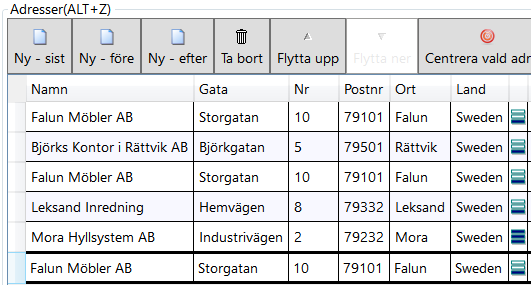
Now the route in Opter matches the reality and the distances are correct.
Examples, further details
In this example (above), the transport company drives for a furniture company located in the city of Falun and has its warehouse there.
We have the following customer orders to be executed on the same day, and we want to consign them, see image below.

Order No 3401 fills the entire vehicle and the driver must first drive this order from Falun to Rättvik and then drive back to Falun to collect the remaining goods.
The picture shows the route (simplified to give an overview):
-
Falun -> Rättvik. (Transport of order No 3401 which fills the entire vehicle.)
-
Rättvik -> Falun. (Vehicle and driver return to the sender's address to collect the remaining goods)
-
Falun —> Leksand.
-
Leksand -> Mora.
-
Mora —> Falun. (If you want the driver and vehicle to return to Falun after all consignment shipments have been completed, you can add a final address manually).
Requirements
-
Display section Saadetise aadressid on any tab in the order reception module. You get a better overview and you can easily separate certain orders from the rest of the orders in a consignment, for example if you can't pick up all the orders at the sender's address at the same time.
If you do not have section Saadetise aadressid, you can add it in the order settings. For instructions, see Organising the groups in Order reception.
Tick the box Täpsemalt at the top of the section Saadetise aadressid, and you can easily move addresses up and down the list and access the area Jagamiseks kukutage aadressid siia. (so that you can separate certain orders from the rest).
-
Display section Aadressid on any tab in the order reception area.
You get a better overview, you can calculate the route sequence and you can easily add addresses and change the location of addresses.
By default, section Aadressid is located on the tab Saadetised. If you do not have the Aadressid section, you can add it in the order settings. For instructions, see Organising the groups in Order reception.
-
Display area Saadetise loomiseks lohistage siia in the dispatch system. You can then select the shipments you want to include in the consignment and drag and drop them onto the workspace Saadetise loomiseks lohistage siia.
The Loo saadetis window opens.
If you do not have the Saadetise loomiseks lohistage siia area, you can choose to display it; see Veokorralduse seadistused (window).

