The order form on the subcontractor web
Last updated: 9 June 2026
In this article
To enable users to place an order via the web portal, tick Create orders on the Menu alternatives and functions tab in the internet order setting. The menu option Order will then appear on the web portal. You then decide which fields should appear on the order form, and which ones should be mandatory on the tab Fields on the order page.
Set the layout of the form
Click on Settings > Internet > Internet order settings and go to the Fields on the order page tab. Here, you can choose which blocks and fields to display on the order form by dragging them into the list Included. You cannot change the order of the fields; the layout is fixed.
Items in the list marked with “(group)” will show or hide the entire block in the order form. You can then show or hide individual fields in that block containing other entries, such as those marked ‘(dangerous goods)’ in brackets.
-
Show/hide the entire block Dangerous goods.
-
Shows/hides individual fields in the block Dangerous goods.
You can hide an entire block simply by removing the group entry from the list Included. You don’t need to delete every single field. That way, you can easily restore it using the same field later on, should you wish to do so.
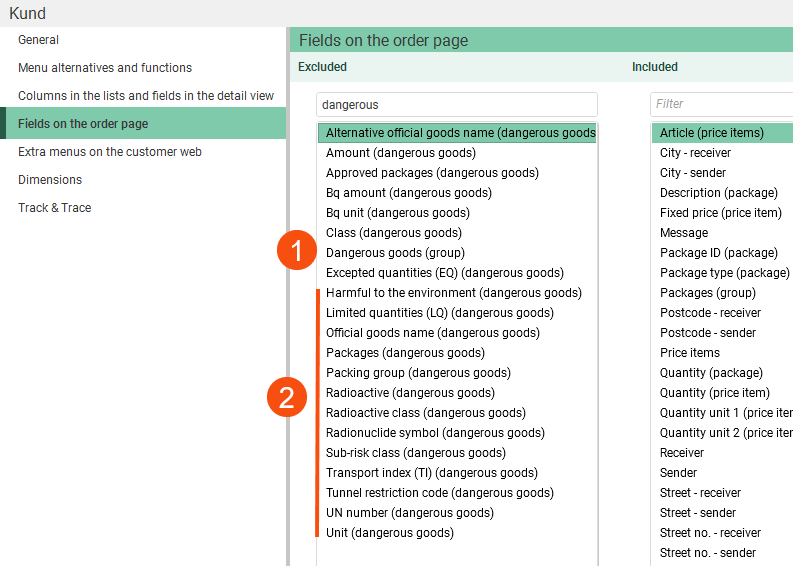
If you want a field to be mandatory, tick the box at Mandatory the bottom right. It will then be highlighted in yellow on the order form, and the order cannot be saved until the user has filled it in.
You can see the changes immediately by saving the settings and then refreshing the order page in your browser. That way, you can easily try things out.
See also Internet order settings (window).
Example
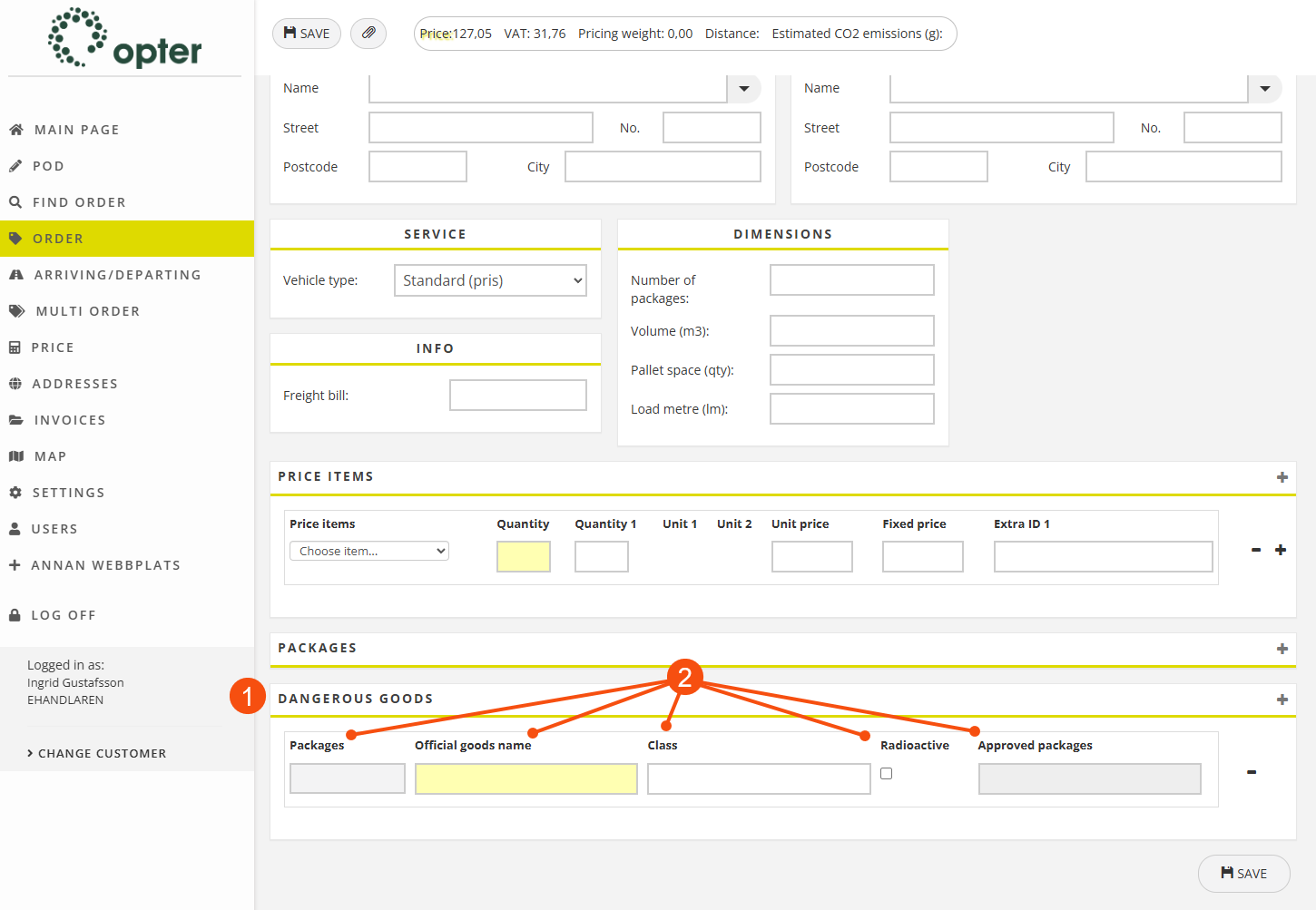
If you add Dangerous goods (group) to Included, the entire block Dangerous goods will be displayed (1). You can then select which fields are to be displayed under Dangerous goods using the fields followed by “(dangerous goods)” in brackets (2). In the example below, Mandatory has been marked for Official goods name (dangerous goods) and must be filled in (highlighted in yellow).
Customer orders from the subcontractor web
Subcontractors cannot choose which customer is listed on the order; they can only specify the sender and recipient. You specify which customer should be listed on the orders in the subcontractor register. Orders created by a subcontractor on the subcontractor web therefore always have the same customer.
-
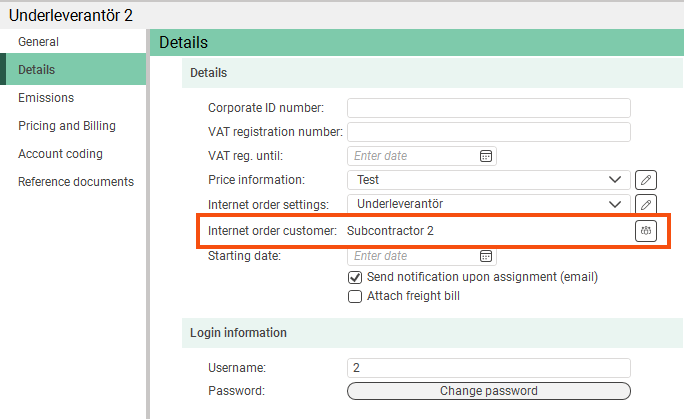
Click on Register > Subcontractors, select a subcontractor from the list on the left and go to the tab Details.
-
Click on
 to the right of the Internet order customer field, search for a customer and click on Use selected.
If you still want the subcontractor to be able to identify the actual customer in some way, there are a couple of options.
-
Add a customer to the customer register that is used exclusively for online orders from a single subcontractor (for example, “Subcontractor 2”). Combine this with the subcontractor entering the actual customer in a free-text field, an additional ID field or as the reference. You can then look up the orders in the order check system and assign the correct customer to them.
-
Register the subcontractor as a haulier or driver instead. The subcontractor will then be able to view the entire customer database.
Example
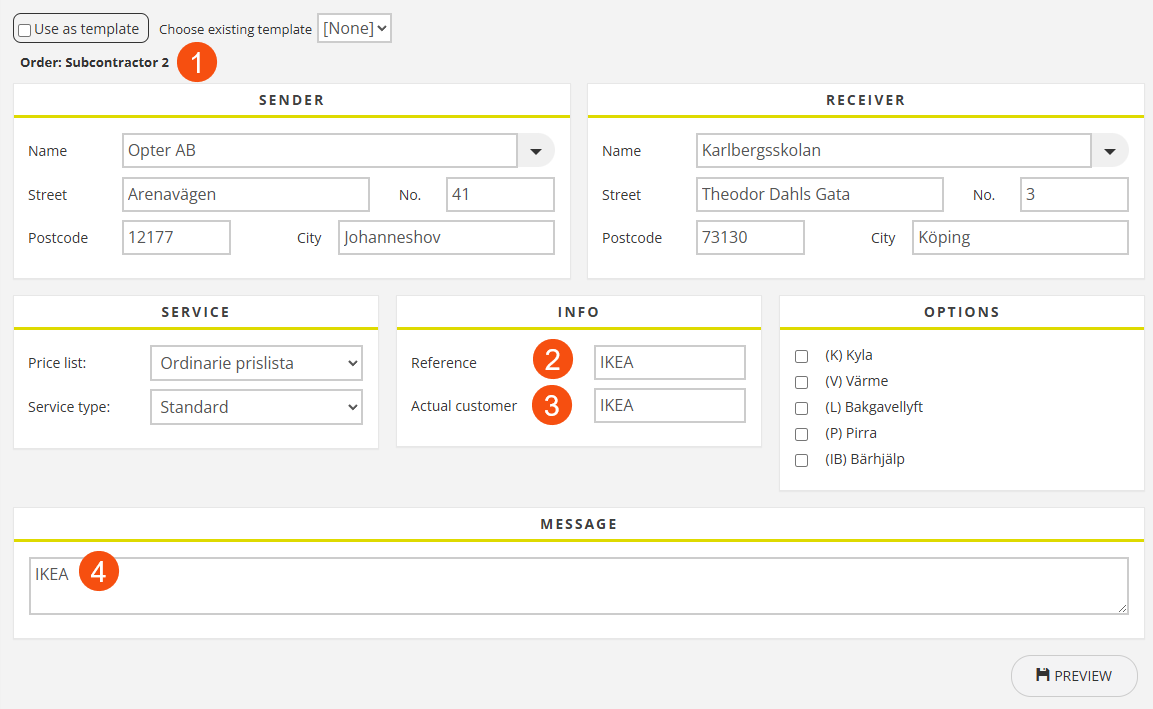
In this example, we have added the customer “Subcontractor 2” to the customer register (1) and linked it to the subcontractor. There are also three options where the subcontractor can specify the actual customer on the order form. Choose the option that best suits your way of working.
-
Reference (2).
-
The extra ID field “Actual customer” (3).
-
The free-text field Message, or any other free-text field (4).
 Reference manager at the subcontractor’s client
|
Advantages |
Disadvantages |
|---|---|
|
Simple search by customer code in the order check system. |
You cannot search directly in the 'Orderer' field in the order check; instead, you must filter by the column Reference. |
|
Make it clear in the order reception department who the actual customer is. |
You must add the customers that the subcontractor is to handle as the reference to the customer register. |
|
You can control which customers the subcontractor can create orders for and be sure that they are always entered in the same way. |
|
Proceed as follows:
-
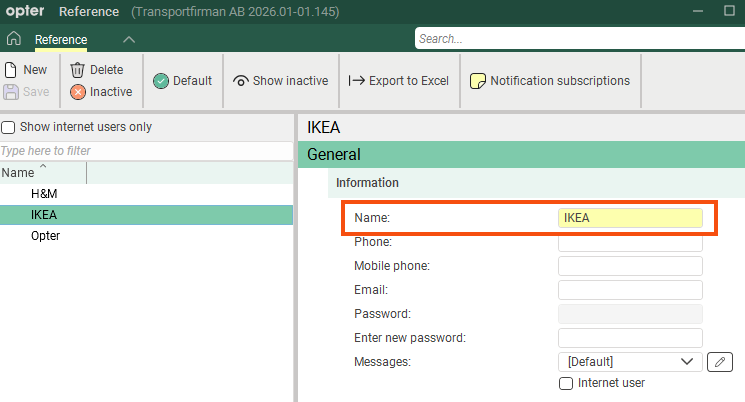
Find Subcontractor 2 in the customer register and click Reference in the menu. The only thing you need to enter in the 'Reference' field is the name of the actual customer. No further information is required.
-
Include the Reference field on the Fields on the order page tab in the internet order setting.
-
The subcontractor begins by entering the name of the actual customer in field Reference on the order form. A list of the references you have added to the customer register will be displayed.
-
The customer is displayed in the Reference field in the order reception.
-
Open the order check and make sure that the Reference column is displayed (see Order check). Then retrieve all orders from the customer “Subcontractor 2”.
-
Filter the list by one of the actual customers and change the customer on all orders at once (see Order check).
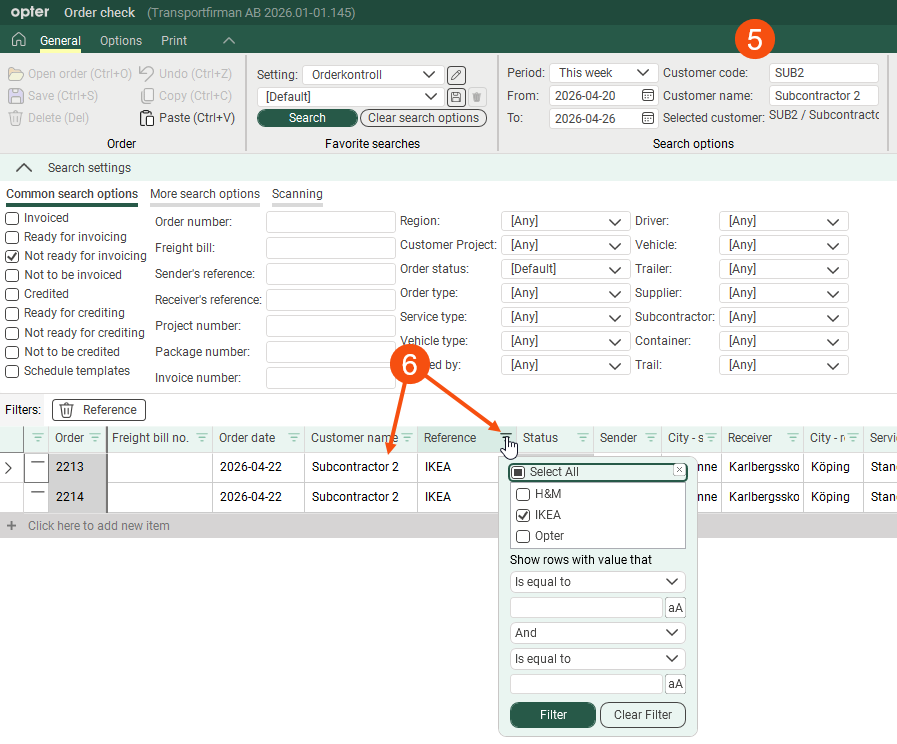
Also add Reference to the Columns in the lists and fields in the detail view tab in the internet order setting so that the subcontractor can see who the customer is on existing orders.
Extra ID field, “Actual customer”
|
Advantages |
Disadvantages |
|---|---|
|
You can search directly for the actual customer in the order check system. |
The subcontractor must enter the customer's name manually. If it isn't entered in exactly the same way every time, it can make searches in the order check system more difficult. |
|
It’s clear what the field refers to, as you enter the name yourself. |
|
|
Flexible. The subcontractor can enter any customer. |
|
Proceed as follows:
-
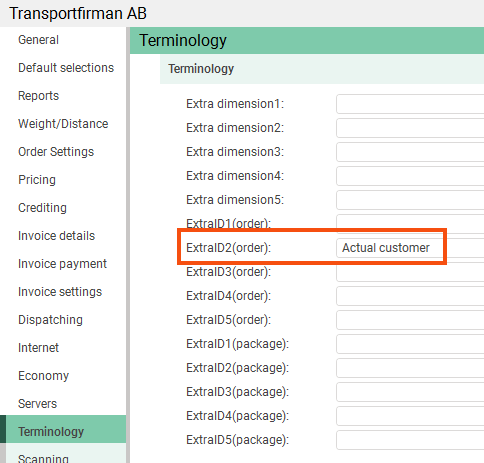
Go to the Terminology tab in the office settings and enter the name you want to give the customer field for any of the fields ExtraID1(order)–ExtraID5(order). In our case, “Actual customer”.
-
Include the Actual customer field on the Fields on the order page tab in the internet order setting.
-
The subcontractor enters the name of the actual customer in the field Actual customer on the order form.
-
The customer is displayed in the field Actual customer in block Data in the order reception.
-
We are adding column Extra ID2 to the order check to display column Actual customer (see Order check).
-
Find the orders:
-
Find all orders from the customer Subcontractor 2 and filter the list.
-
Search directly for Actual customer on the tab More search options.
-
-
Then change the customer on all orders at once (see Order check).
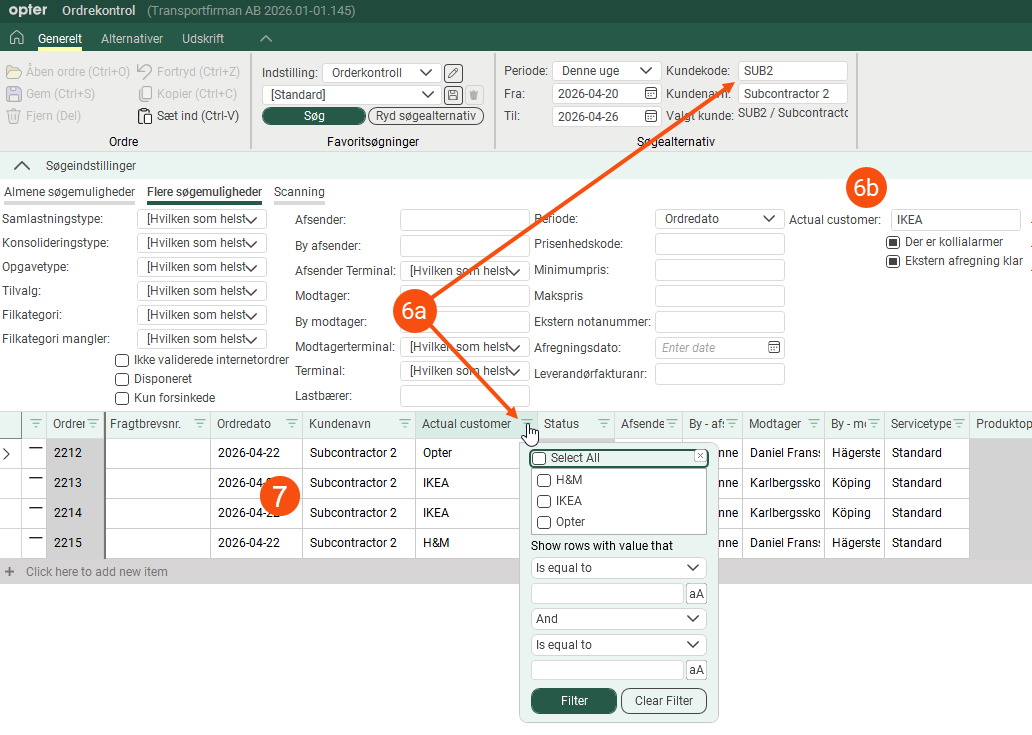
Also add Actual customer to the Columns in the lists and fields in the detail view tab in the internet order setting so that the subcontractor can see who the customer is on existing orders.
The free-text field Message
|
Advantages |
Disadvantages |
|---|---|
|
Simple search by customer code in the order check system. |
The customer name is stored in two fields: Internal message and External message. |
|
Flexible. The subcontractor can enter any customer. |
You cannot search directly in the message field in the order check; instead, you must filter one of the columns in which the customer name appears. |
|
|
The subcontractor must enter the customer's name manually. If it isn't entered in exactly the same way every time, it can make searches in the order check system more difficult. |
Proceed as follows:
-
Include the Message field on the Fields on the order page tab in the internet order setting.
-
The subcontractor enters the name of the actual customer in field Message on the order form.
-
The customer is listed in Internal message and External message in the order reception.
-
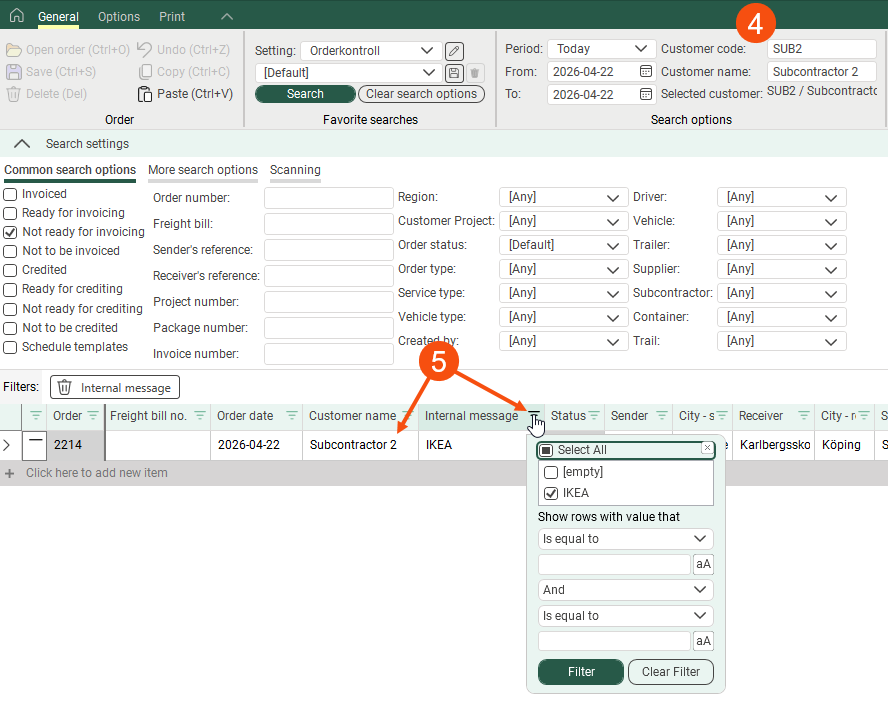
Open the order check and ensure that one of the columns Internal message and External message is displayed in the list (see Order check). Then retrieve all orders from the customer “Subcontractor 2”.
-
Filter the list by one of the actual customers and change the customer on all orders at once (see Order check).
-
You can also use the Extra message field on the web portal. It is linked to Internal extra message in the order reception system.
-
Also add Internal message to the Columns in the lists and fields in the detail view tab in the internet order setting so that the subcontractor can see who the customer is on existing orders.
Order templates
If there are users who often book similar orders, you can let them create templates that can then be used as a basis for the orders. Templates for web orders can be created both on the web portal and in Order reception, and saved per customer.
Activate the function
In order to create templates on the web, the function must be enabled in the internet order settings. This can be done as follows:
-
Click on Settings > Internet > Internet order settings.
-
Select the correct set of internet order settings in the list on the left.
-
Select the Use order templates checkbox on the General tab.
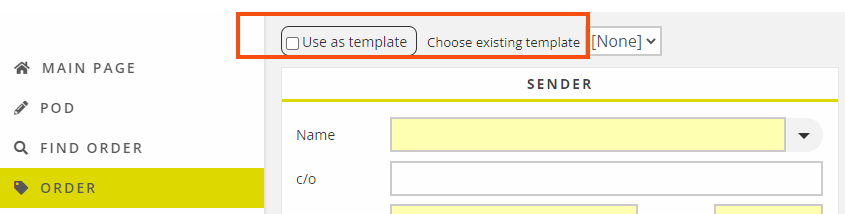
A tick box to create templates and a drop-down box to select a template are now displayed on the order page of the web portals.
Creating templates in order reception
For information about how to create and use templates on the subcontractor web, see Creating order templates on the subcontractor web.
A template can be created in order reception and made available for web orders for the customer specified on the order. The order is given an order number, but is not displayed in dispatch or in the statistics, and only serves as a template. The next time an order is placed on the web, the user can select the template from the Choose existing template drop-down list on the order page.
This can be done as follows:
- Create a new order and fill in the details you want to be included in the template.
-
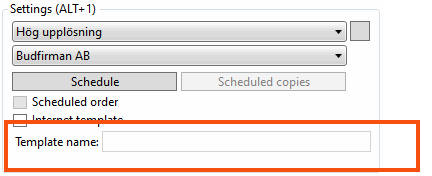
Select the Internet template checkbox in the Template box.
-
Give the template a name in the Template name field. The name will be displayed in the list of templates on the web for the customer you have specified on the order.
- Save the order.
Once the template has been saved, you can open it again and enter the order number in the template name so that it is easy to find the template if it needs to be modified or deleted, as the template name is displayed in the list on the web.
Dates in order templates
The order date entered when creating a template on the web is saved in the template. An order date does not have to be specified when creating the template unless it is mandatory for internet orders according to the internet order settings (Mandatory checkbox on the Fields on the order page tab).
If a template with a pre-filled order date is used, the following applies:
-
If the date in the template is in the future, that date will be used for the order that is created.
-
If the date in the template has already passed, the current date is set for the order that is created.
-
If Manual order date is selected in the internet order settings, a date must be entered manually on the order that is created, regardless of whether the date in the template is in the future or not.
- If Manual order date is deselected in the internet order settings, the current date is entered on the order.
Deleting web order templates
Users cannot delete order templates themselves on the web; this must be done by you in order reception, by deselecting the Internet template checkbox on the order that should no longer be a template. If the internet template is created in order reception, the order becomes a standard order so that also needs to be cancelled to ensure it does not appear in dispatch and the statistics. If the template is created on the web, it does not need to be cancelled as it is then counted as a scheduled order but is not used to generate scheduled copies.
It is not possible to search only for internet templates, but in the order check it is possible to select the Schedule templates search option, so that internet templates also appear in the list. The search can then be refined by entering, for example, the customer to find the right order.

