Prevent shipments from being taken over by scanning in Opter Driver
Last updated: 6 October 2026
Applies to Opter Driver for iOS and Opter Driver Labs for Android.
In this article
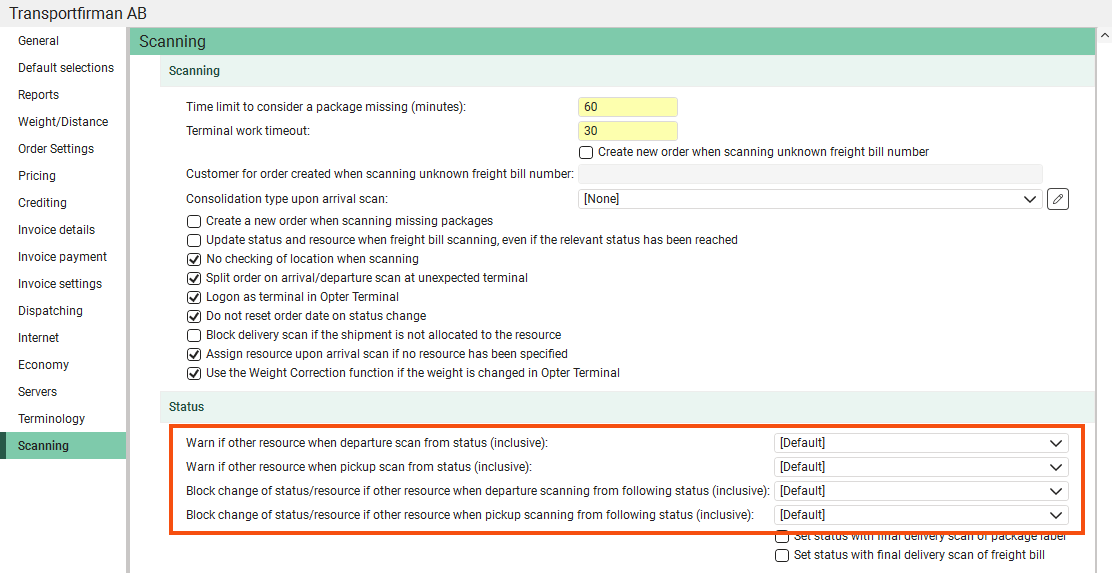
By default, a driver can take over a shipment from another driver – provided it does not have status Picked up or later – by scanning the shipment. You can set it so that the driver who scans the shipment receives a notification when they take over the shipment from someone else, or so that it is not possible to take over the shipment at all.
You can set the status from which the message or block is to take effect using the four options under Status on the Scanning tab in the office settings. You can then make exceptions for drivers/vehicles (depending on what you are managing) on the Mobile/web tab in the relevant register.
-
If you set the system to both notify and block for the same status, the takeover will be blocked.
-
If you want to change the text colour of the message, you can do so in App.OpterDriver.Design. Search for OTHERRESOURCEWARNING and OTHERRESOURCERESOURCE, and change color in the two lines in the sections scanrows and/or scandetailrows. For more information, see App.OpterDriver.Design.
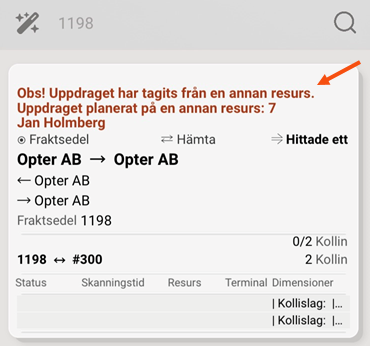
Please let us know if the driver is taking over the shipment
If you set up an alert, the message Note! This shipment has been transferred from a different resource. The shipment is planned for a different resource will appear in Opter Driver when the driver scans a shipment belonging to someone else. The driver can also see who the shipment was for.
The status of the shipment is changed and the person carrying out the scanning is assigned as a resource to the shipment. The driver who is scanning has therefore taken over the shipment. The operator can undo the scan by swiping right in the scan list, but the original resource is not restored and the status of the shipment is reset to Created. So it is not a restoration to the way it looked before the scan.
Instructions for drivers can be found in Scan using Opter Driver.
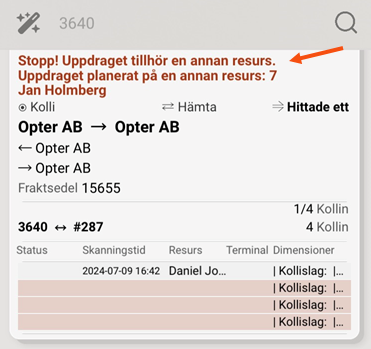
Prevent drivers from taking on shipments
If you block the scan, the message Stop! This shipment is assigned to a different resource. The shipment is planned for a different resource will appear in Opter Driver when the driver scans a shipment belonging to someone else. The driver can also see who the shipment belongs to.
The status of the shipment will not change, and the resource will not be replaced. The scan appears in the order log in the order reception system.
Instructions for drivers can be found in Scan using Opter Driver.
Example
|
Required functionality |
Settings |
|---|---|
|
All resources must be able to take over shipments until they are taken over by another resource. |
No settings need to be adjusted. Any resource can take over a shipment by scanning it, until the shipment has been given the status Picked up. It may be convenient if you wish to manage the allocation by having drivers scan their departure details when collecting goods at a terminal. |
|
No resource should be able to take over a shipment. |
In the office settings, select the first status in your life cycle (usually Created) for:
In the vehicle/driver register (Employees), you retain [Default] for all settings. |
|
A warning must always be displayed when resources take over shipments. |
In the office settings, select the first status in your life cycle (usually Created) for:
In the vehicle/driver register (Employees), you retain [Default] for all settings. |
|
A particular resource should be able to take on shipments, but no others. |
In the office settings, select Created for:
In the vehicle/driver register (Employees), select Picked up for:
|
|
A particular resource must not be able to take on shipments, but all others must be able to do so. |
In the office settings, you keep [Default] for all settings, which means you can take over shipments that have not yet been loaded. In the vehicle/driver register (Employees), select Created for:
|
|
No resources should be allocated for collection from the sender, but they may be allocated for departure scans at the terminal. |
In the office settings, select Created for Block change of status/resource if other resource when pickup scanning from following status (inclusive). In the vehicle/driver register (Employees), you retain [Default] for all settings. |

