User accounts for the Opter client
Last updated: 11 May 2026
In this article
System administrators, dispatchers and other prospective Opter users must be listed as employees and have a user account. If there is a new person, start by adding them as an employee. If the person is already listed as an employee, go directly to step 2.
If you deactivate a user – for example, because an employee is leaving – that user will be logged out and will no longer have access to the system.
Step 1: Adding the person as an employee
-
Click on Register > Töötajad.
-
Click on Uus and enter the first name and last name. These are the only fields that have to be filled in to create an employee, but additional information may need to be provided at a later stage depending on how the employee will use the system.
-
If the employee you are creating is not a driver, untick the checkbox Juht. Otherwise leave it selected.
Step 2: Create a user account for the employee
You can either create login credentials in Opter, or have users log in with Microsoft Entra ID (formerly Azure AD, see Log in with Microsoft Entra ID (formerly Azure Active Directory)). How to create a user account with login credentials in Opter:
-
Click on Seaded > Juurdepääs.
-
Click on Uus in the toolbar to create a new user account.
-
Enter a user name. The username can contain the characters 0-9, a-z and A-Z. So no Å, Ä and Ö, spaces, colons or quotation marks, but full stops are fine.
Have a pattern for usernames so that they are easy to remember and easy to manage, for example first and last names with a full stop in between.
-
Select which employee is to be connected to the user account in the Töötaja drop-down list.
If the desired person is not listed as an employee, they can be added by clicking on
 next to the drop-down list. Once you have done this, however, you must close the Juurdepääsuõigused window for the new employee to appear in the list. Save the changes temporarily under a different employee, close and reopen the window, then switch to the correct employee once you have added them.
 -
If you have Opter Cloud, tick the box Kaugjuurdepääs. If it is not selected, the user cannot log into Opter.
-
Save the user account details, then click Vaheta parool, enter the password the user will use to log in in both fields, and click OK. We recommend the use of “strong” passwords.
The password is case sensitive. If you create the password "Password", users must log in with "Password", "password" does not work.
If you have Opter Cloud, your password must be at least 8 characters long and contain at least one uppercase letter, one lowercase letter, one number and one special character (!@#$%^&*?_~-().,).
-
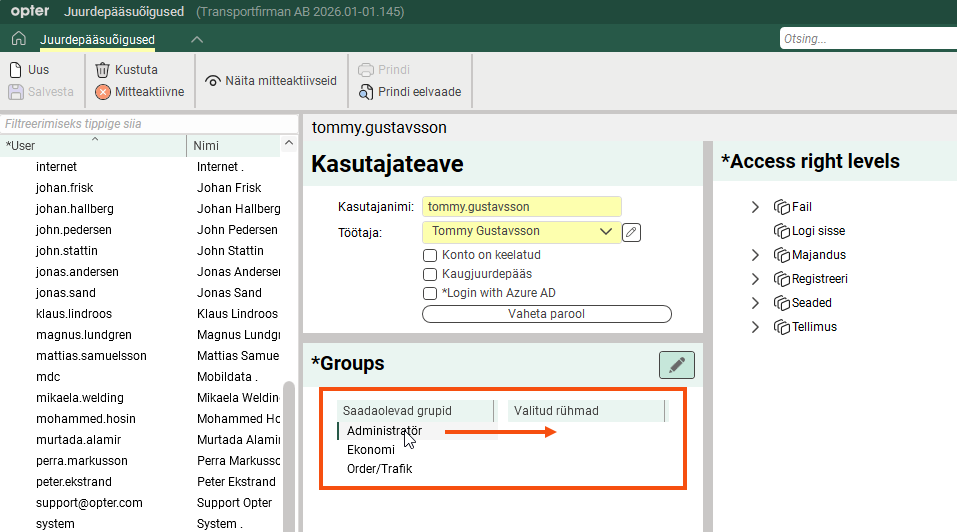
GIF the user the authorisation they should have either by double-clicking on any of the groups under Saadaolevad grupid to move it to Valitud rühmad, or by right-clicking on individual functions in the tree structure on the right and selecting an authorisation. For more information about access rights, see Setting access rights for users.
-
It is possible to save the user account without specifying any access rights, but the user cannot then log in to Opter.
-
The passwords are encrypted and Opter cannot access them. If a user forgets their password, you must create a new one by clicking on Vaheta parool.

