Registering damage in Opter Driver for Android
Last updated: 24 September 2020
In this article
The driver can register deviations in Opter Driver immediately when the deviations are detected.
The settings defining which fields are displayed and which must be filled in are configured in Seaded > Kahjud > Kahju tüübid in Opter.
A deviation is registered in Opter Driver as follows:
-
There are three ways to register deviations:
-
Open the order in the Töös list, press
 and select Kahjud. All the deviations that have already been registered for the order are displayed.
 -
Give a long-press on the order in Töös and select Kahjud. All the deviations that have already been registered for the order are displayed.
-
Press
, select the next status at the top of the menu and press Kahju. (Applicable when changing the status from Korje/peale laetud, Tarnitud / maha laaditud, Pealelaadimine algas and Kohaletoimetamine algas.) Then go directly to step 3 below.
-
-
Press Lisa uus in the top right corner.
-
Enter a type. If the configuration in Opter states that these are required, specify the event and reason. Any yellow fields must be filled in. Filled in fields turn green.
-
Enter a comment. It can be either mandatory or voluntary.
-
To add a picture, click on Pilt and select Galerii (if the picture has already been taken) or Kaamera (to take a new picture).
-
To change the file name of a picture, press
 .
. -
To delete a picture that has been added, press
 .
.
-
More pictures can be added by tapping Pilt again.
-
A larger preview of a picture that has been added can be shown by pressing on it.
-
-
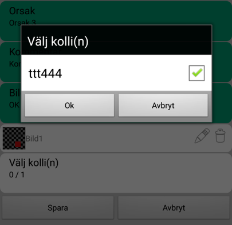
If the shipment consists of several packages, it is also possible to state to which package the deviation refers, by pressing Valige pakkeüksused.
-
Register the deviation by pressing Salvesta.
Once Salvesta has been pressed, it is no longer possible to change the deviation.
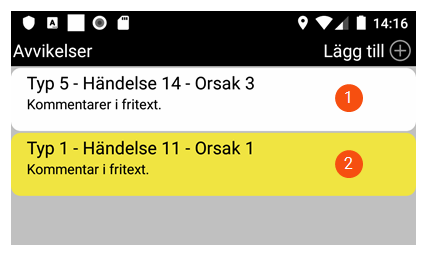
The registered deviation is displayed in the list of Kahjud in order reception.
Deviations with a white background have been approved in dispatch (1) and deviations with a yellow background have not yet been approved (2). Deviations that are not approved in dispatch are automatically removed from the list in the app.