Examples of routes
Last updated: 13 October 2026
In this article
Here are a few examples of common routes.
Direct transport from one postcode area to another
A delivery route from postcodes beginning with 12 to postcodes beginning with 11 in Stockholm, operated Monday to Friday.
|
Name |
Type |
From |
To |
|---|---|---|---|
|
Stockholm 12*–11* |
Distribution |
Postcode 12* |
Postcode 11* |
-
Direct transports do not make any intermediate stops at terminals but go directly from the sender to the recipient. To assign this route to an order, tick Allow automatic dispatching and Allow direct connections (one leg) on the Dispatch tab for the services that will be included in the orders (Economy > Price lists > Services).
-
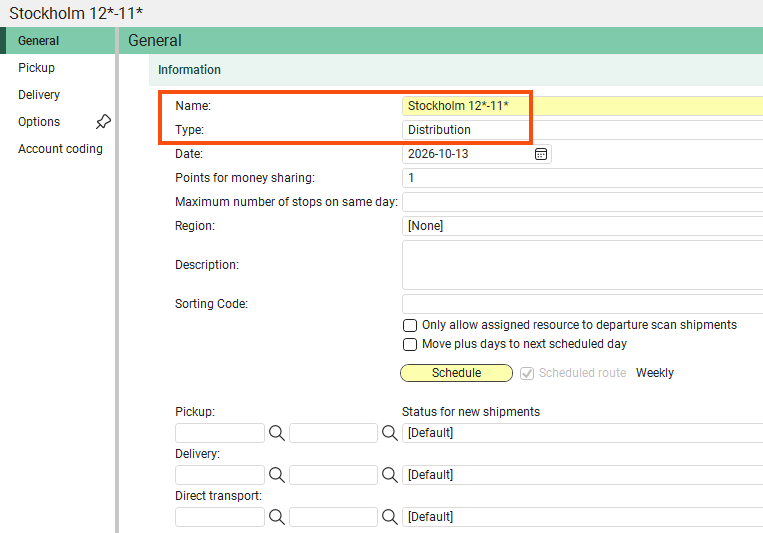
Create the distribution route ‘Stockholm 12*–11*’.
-
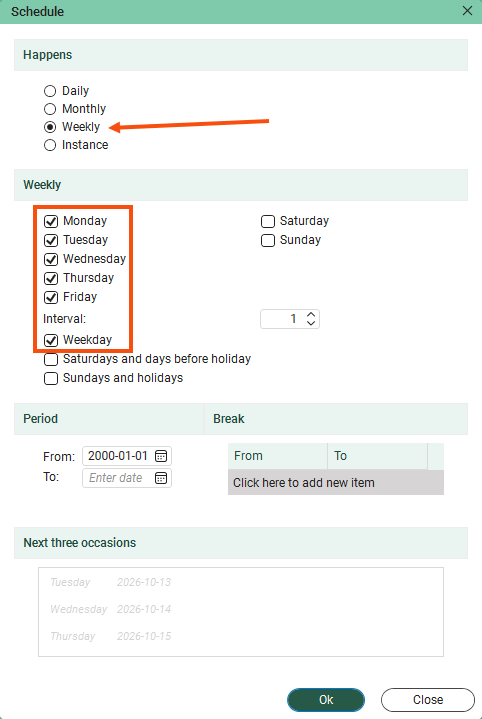
Click on Schedule and set the days on which the route is to operate. In this case Weekly, Monday–Friday.
-
Click on the Pickup tab and create a new row under From postcodes. Choose Country “Sweden” and enter “12*” in the Postcode field.
We are selecting Monday to Friday inclusive, as we want the “12*” postcode area to be served for collections on those days.
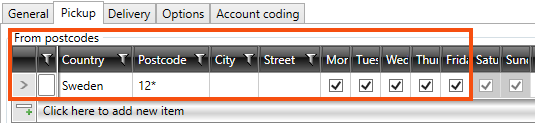
The columns for Saturday and Sunday are grey, as the route does not operate on those days of the week according to the timetable we have just set. It doesn’t matter whether Saturday and Sunday are selected or not. The schedule takes precedence over these settings.
-
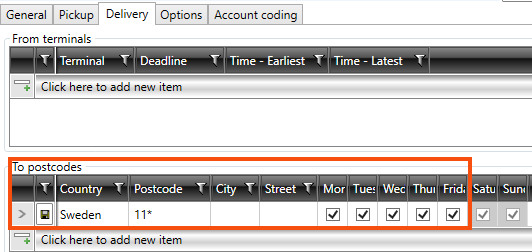
On the Delivery tab, we create a new row below To postcodes. There, we also select Country “Sweden” but enter “11*” in the field Postcode.
We are selecting Monday through to Friday, as we want the postcode range “11*” to be served on those days.
-
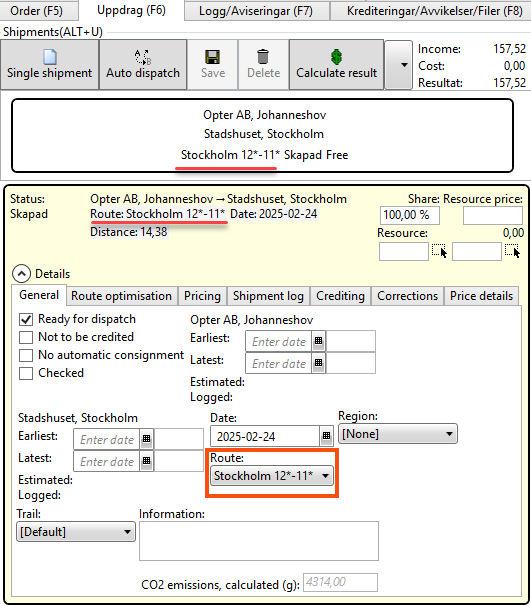
Under Shipments in the order reception section, we can now see that an order from a sender with the postcode “120 07” to a recipient with the postcode “111 52” has been assigned to the route “Stockholm 12*–11*”.
An order is split into several shipments using auto dispatch
The order is matched with routes in a distribution network to transport the goods from Stockholm to Malmö via transhipments at terminals. The scheduled routes are operated by a fixed vehicle, with the shipments allocated along the route. Delivery routes are not allocated automatically. The route operates from Monday to Friday.
-
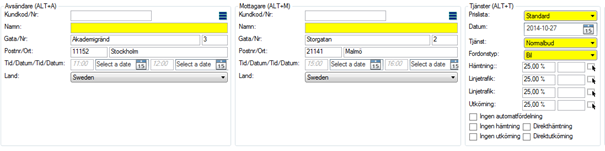
From: Akademigränd 3, 111 52 Stockholm.
-
To: Storgatan 2, 211 41 Malmö.
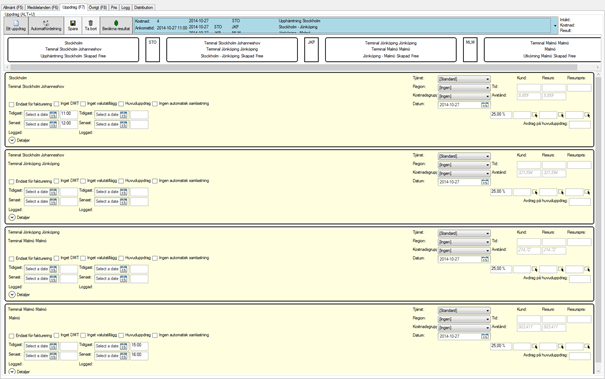
The sender is matched, via their postcode, to the ‘Distribution Stockholm Ytter’ route, which transports the goods to the terminal in Stockholm. A scheduled lorry then transports the goods to the terminal in Jönköping, where they are reloaded. Another scheduled bus takes the goods to the terminal in Malmö. Finally, the goods are delivered to the recipient via the ‘Distribution Malmö’ route, which is selected based on the recipient’s postcode. In total, the order is split into four shipments, each carried out by a separate vehicle.
|
Name |
Type |
From |
To |
|---|---|---|---|
|
Stockholm pickup |
Distribution |
Postcode: 11* |
Stockholm terminal |
|
Stockholm–Jönköping |
Line haul |
Stockholm terminal |
Jönköping terminal |
|
Jönköping–Malmö |
Line haul |
Jönköping terminal |
Malmö terminal |
|
Malmö delivery |
Distribution |
Malmö terminal |
Postcode: 21* |
-
Tick Allow automatic dispatching on the Dispatch tab for the services that will be included on the orders (Economy > Price lists > Services).
-
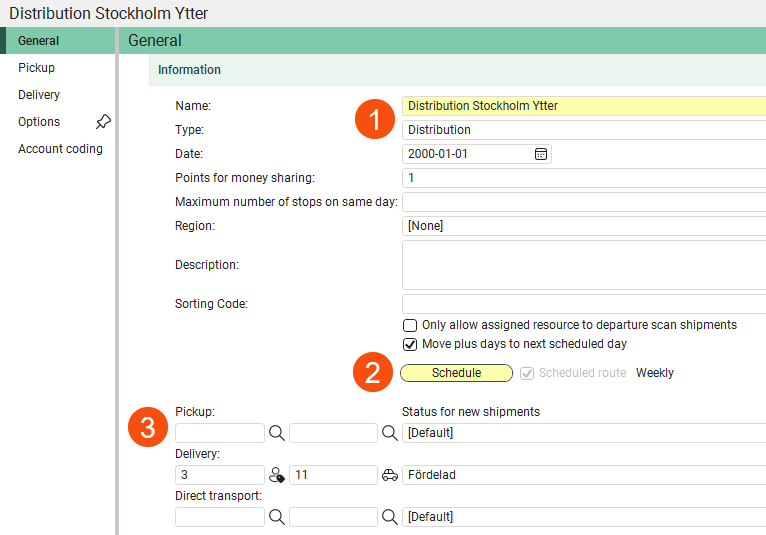
Create the route ‘Distribution Stockholm Ytter’ (1) and set the timetable (2). No auto dispatch at collection (3).
Creating a Stockholm–Jönköping line haul route
Here’s how we create one of the required route lines.
-
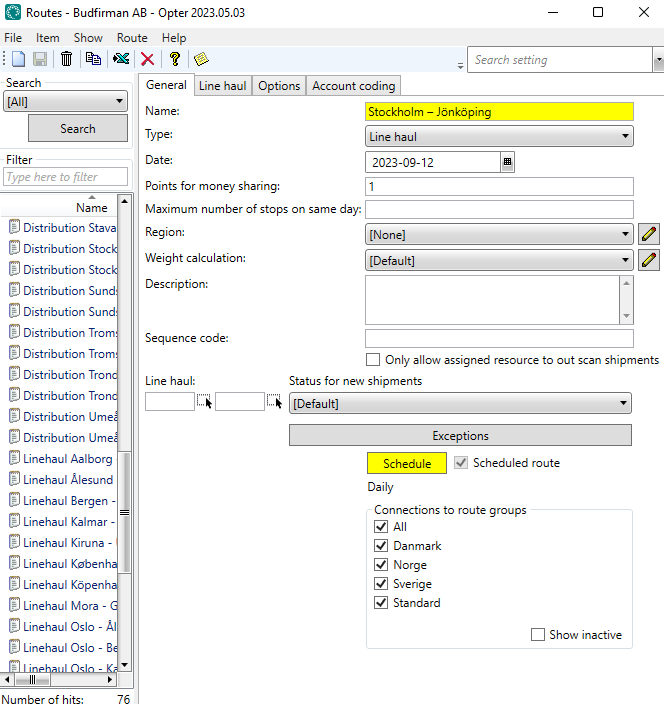
We click on Order > Routes > New to create a new route called “Stockholm–Jönköping”.
-
In the Type drop-down list, select Line haul.
-
We open the route Schedule and set it to Weekly. We mark the days of the week on which the route is to be operated; in our case, Monday to Friday. For more information, see Schedule, routes (window).
-
Go to the Line haul tab and select ‘Terminal Stockholm’ from the list below From terminals.
-
We then select ‘Terminal Jönköping’ from a list under To terminals and click Save to save all changes.
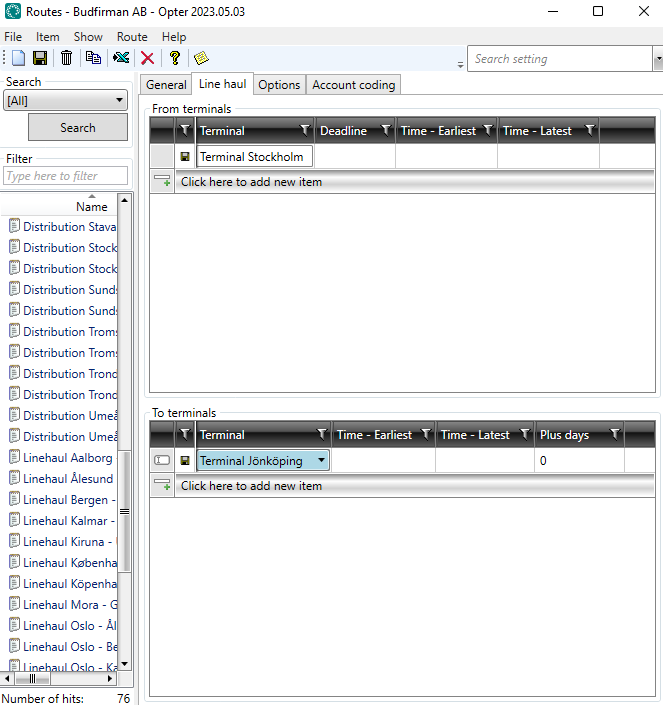
Once you have selected Allow automatic dispatching for the service, all terminals are in place and all routes have been created, we can test how the routes work.
Create an order with the sender’s address “Akademigränd 3, 111 52 Stockholm” and the recipient’s address “Storgatan 2, 211 41 Malmö”.
Opter then splits the order into four shipments, which we can see under Shipments in the order reception. One for pick-ups, two for line haul and one for deliveries.
Delivery route with collections from different postcode areas on different days of the week
If the route is to collect from the postcode area “82*” on Mondays, “84*” on Tuesdays, “86*” on Wednesdays, “87*” on Thursdays and “88*” on Fridays, do the following:
-
Set the route schedule to Weekly, and select Monday to Friday inclusive. For more information, see Schedule, routes (window).
-
Go to the Pickup tab and add a row for each postcode area under From postcodes. Select the day of the week on which each postcode area is to be served.
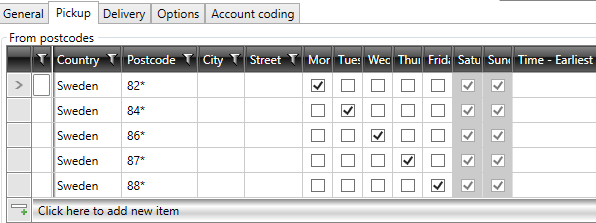
The columns for Saturday and Sunday are grey, as the route does not operate on those days of the week according to the timetable we have just set. This means that it doesn’t matter whether Saturday and Sunday are selected or not. The schedule takes precedence over these settings.
If the route also involves deliveries to different postcode areas on different days of the week, see the next example.
Delivery route with deliveries to different postcode areas on different days of the week
If the route is to cover the postcode areas “82*” on Mondays, “84*” on Tuesdays and Fridays, “86*” on Wednesdays, “87*” on Thursdays and “88*” on Fridays, do the following:
-
Set the route schedule to Weekly, and select Monday–Friday. For more information, see Schedule, routes (window).
-
Go to the Delivery tab and add a row for each postcode area under To postcodes. Select the day of the week on which each postcode area is to be served.
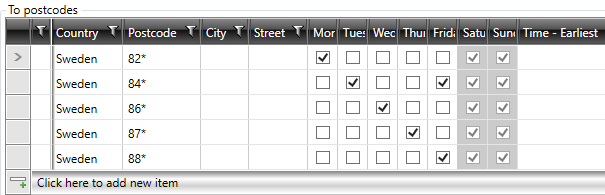
The columns for Saturday and Sunday are grey, as the route does not operate on those days of the week according to the timetable we have just set. This means that it doesn’t matter whether Saturday and Sunday are selected or not. The schedule takes precedence over these settings.
If, at a later date, you wish to change the settings so that the postcode area “82*” is served on both Mondays and Thursdays, simply tick Thursday for the postcode area “82*”.
If you then wish to change the settings so that the postcode area “82*” is served on Mondays, Thursdays and Saturdays, tick Saturday for that postcode area and then amend the schedule so that the route is also served on Saturdays. Unless you change the timetable, there will be no service on Saturday.
Distribution route involving large volumes of goods to and from the same street
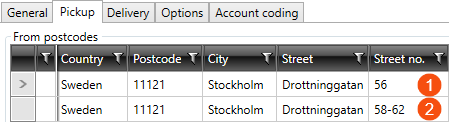
If you have large volumes of goods to and from the same street, it may be useful to specify exact street addresses, including house numbers, for collection and delivery. If you enter a house number, we recommend that you also enter the street name, and preferably the country, postcode and/or town.
You can enter a single house number (1) or a range (2). You cannot use “*” in this column.