Settlement export to Visma Business NXT (API)
Last updated: 16 September 2026
In this article
Applies from Opter version 2026.06.00 onwards.
Opter integrates with several different Visma systems, each of which has different functions. Check which system you are using:
-
Visma.net, see Exporting sales ledgers to Visma.net.
-
Visma e-conomic, see Exporting invoices to Visma e-conomic and Supplier bill export to Visma e-conomic.
-
Spiris, see Accounting data export to Spiris (formerly eEkonomi).
-
Visma Business NXT, see Invoice export to Visma Business NXT (API) and Settlement export to Visma Business NXT (API).
You can link Opter to Visma Business NXT. You can then do the following:
-
Export supplier bills from Opter to Visma Business NXT. For instructions, see below.
-
Export invoices from Opter to Visma Business NXT. For instructions, see Invoice export to Visma Business NXT (API).
The export can be further customised to suit your needs by adding a transform. In that case, please contact the EDI team at .
(missing or bad snippet) Please contact the EDI team at .
Further information about Visma Business NXT is available at businessnxt.se (in Swedish) and vismasoftware.no/erp/business-nxt (in Norwegian).
Data sent from Opter to Visma Business NXT
When you export settlement data from Opter to Visma Business NXT, the following happens:
-
The supplier bills are exported:
-
The information in the supplier bill header, i.e. the supplier bill number, supplier bill date, supplier bill due date, total supplier bill amount, etc.
-
The summary account coding for the settlement (i.e. amount, currency, VAT rate, accounting account, economic unit, department, etc.).
-
The exchange rate is included by default if you do not use a transform. If you use a transform, the exchange rate will be sent along if the transform specifies that it should be included.
-
-
The information about the supplier or subcontractor is exported and updated in Visma Business NXT.
Under Register > Suppliers, information is retrieved from the following fields:
-
On the General tab: Name, Phone 1, Phone 2, Email and the supplier’s address.
-
On the Details tab: Corporate ID number and VAT registration number.
-
On the Pricing and Billing: Ledger number tab (corresponding to ‘supplier number’ (‘supplierNo”) in Visma Business NXT).
Under Register > Subcontractors, information is retrieved from the following fields:
-
On the General tab: Name, Phone 1, Phone 2, Email and the subcontractor’s address.
-
On the Details tab: Corporate ID number and VAT registration number.
-
On the Pricing and Billing: Sales ledger number tab (corresponds to ‘supplier number’ (‘supplierNo”) in Visma Business NXT).
The integration handles database updates on the assumption that everything in Opter is correct. If the information exported from Opter does not match the information in Visma Business NXT, the integration will, by default, either update the information in Visma Business NXT automatically or display an error message. If you do not want the information about suppliers and subcontractors in Visma Business NXT to be updated automatically, you can configure this in Step 2 below.
-
-
If you wish, the Opter graphical supplier bill, showing all the details, can be attached as a PDF file. (You can configure this in Step 2 below.)
Conditions
Company ID with Visma
To configure the settlement export (and the invoice export), you will need to know your company ID (and, if applicable, your department ID) with Visma. Please contact Visma Business NXT support if you need help.
Supplier vs Supplier and Subcontractor
“Supplier” and “Subcontractor” in Opter are referred to as “supplier” in Visma Business NXT.
Credit note vs supplier invoice
“Credit note” in Opter is referred to as a “supplier invoice” in Visma Business NXT.
Credit number vs supplier invoice number
“Credit number” in Opter is referred to as the “supplier invoice number” in Visma Business NXT.
Visma Business NXT accepts supplier bill numbers from Opter. We recommend that you ensure that the numbers of supplier bills generated in Opter do not clash with the numbers of any supplier bills generated directly in Visma Business NXT. You can resolve this by using different settlement number series in Opter and Visma Business NXT. (In Opter, you set the settlement number series in fields Start number and End number in window Supplier bill types for each supplier bill type that you use.) You’ll find the Supplier bill types window under Economy > Supplier bills.)
Sales ledger number, suppliers and subcontractors
‘Sales ledger number’ in Opter is called ‘supplier number’ (‘supplierNo”) in Visma Business NXT.
The suppliers and subcontractors listed in Opter must also be listed in Visma Business NXT. If the supplier or subcontractor listed on the supplier bill is not in Visma Business NXT, the supplier or subcontractor is automatically created in Visma Business NXT. (However, you can configure the system so that suppliers and subcontractors are not created automatically; see Step 2 below.)
The integration also checks whether the information about the supplier or subcontractor needs to be updated in Visma Business NXT. If it needs updating, this happens automatically. (However, you can configure the system so that information about suppliers and subcontractors is not updated automatically; see Step 2 below.)
Please check that all suppliers and subcontractors in Opter have a number in the Ledger number field on the Pricing and Billing tab in the register. When exporting settlement data, the number (‘supplier number’) is sent to Visma Business NXT.
Currencies and exchange rates
Visma Business NXT and Opter use the same currency codes. Ensure that the currencies used on invoices and supplier bills in Opter are also available in Visma Business NXT.
If you have suppliers and subcontractors in other countries, you can make it easier for them by billing in their currency. Click Register > Suppliers/Subcontractors > the Pricing and Billing tab and select the currency from the drop-down list Currency. For more information, see Currencies.
Currencies and exchange rates are sent to Visma Business NXT during settlement and invoice exports. If a currency is missing in Visma Business NXT, the following error message is displayed The currency {0} does not exist in Visma NXT.
We recommend that you ensure you always have up-to-date exchange rates in Opter. Click on Economy > Currencies, and the Currency rates tab. For more information, see Currencies (window) and Currencies.
If you use a transform, the exchange rate will be included if the transform specifies that it should be included.
Account numbers and VAT rates
Account numbers and VAT rates are sent to Visma Business NXT when invoices and settlement data are exported. The accounts and VAT rates covered by Opter’s account coding must be present in Visma Business NXT for the export to take place.
For more information, see Account coding, overview, Registering VAT rates and VAT rates (window).
Regions
Please check that the tick box Use order region for account coding (both invoicing and supplier billing) is set as you wish. You’ll find it on the Economy tab in the office settings. For more information, see Account coding by region.
Economic units and departments
Ensure that the economic units and underlying departments that exist in Opter are also present in Visma Business NXT. Please also ensure that the various departments are assigned to the correct economic unit in Opter and Visma Business NXT.
In Opter, all the economic units are available under Settings > Offices, on the Economy tab. If the economic units used in Opter are not available in Visma Business NXT, the following error message will be displayed The organisational unit {0} does not exist in Visma NXT.
In Opter, you can view the codes (values) for the various departments within an economic unit by clicking Economy > Economic units and selecting the economic unit. If the codes (values) used for the various departments within an economic unit in Opter are not present in Visma Business NXT, the integration will attempt to create them in Visma Business NXT.
Step 1: Create integration users and assign permissions
To use the integration, you need to create an Opter integration user in your Visma system and assign the appropriate permissions.
The username is "isv_Opter_NXT" for both invoice exports and settlement exports. Follow the instructions in Invoice export to Visma Business NXT (API).
Step 2: Create a supplier bill export in Opter
-
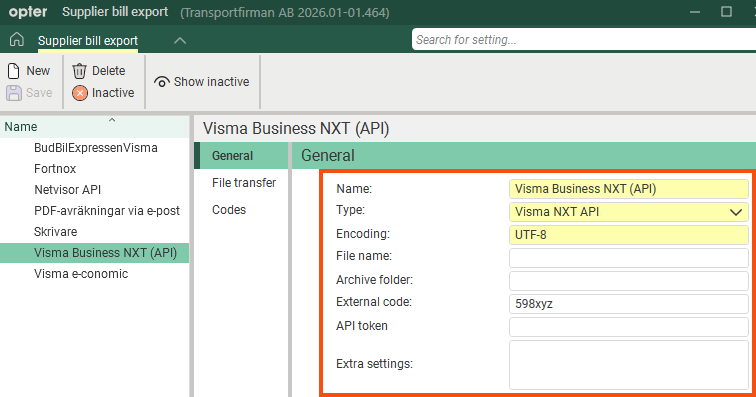
Click on Economy > Supplier bills > Supplier bill export to create a new supplier bill export. The following fields must be filled in on the General tab:
-
Name: For example, “Visma Business NXT (API)” or “Visma Business NXT (API) + transform” (if you’re also using a transform).
-
Type: Visma NXT API.
-
Encoding: Enter “UTF-8” if you do not use a transform.
If you are using a transform, specify the transform’s encoding here.
-
External code: Your company ID with Visma. Please use the following format:
<Company ID>-<department ID>, for example “12345” (company ID only) or “12345-1” (company ID and department ID).
-
API token: Leave this field blank.
-
Extra settings (optional): In this field, you can enter additional settings if you wish to customise the export, provided you do not use a transform.
If you do not enter anything in the Extra settings field, the default settings will apply, namely:
-
If the supplier or subcontractor on the supplier bill (which is exported) is missing from Visma Business NXT, it will be created automatically in Visma Business NXT.
-
If the information about the supplier or subcontractor on the exported supplier bill does not match the information in Visma Business NXT, the supplier information is automatically updated in Visma Business NXT.
 Further information about the field Extra settings
Use the format "parameter=value" and write one parameter per line, as in the example below.
Parameter
Description
CreateSuppliers= <true/false>
Select whether suppliers and subcontractors should be created automatically in Visma Business NXT or not:
-
”True” (default): If the supplier or subcontractor on the supplier bill (which is exported) is missing from Visma Business NXT, it is automatically created in Visma Business NXT.
-
“False”: If the supplier or subcontractor on the supplier bill (which is being exported) is missing from Visma Business NXT, you will receive an error message when you export the supplier bill. The error message is The supplier {0} does not exist in Visma NXT.
The supplier or subcontractor is therefore not created automatically in Visma Business NXT, but you can create the supplier or subcontractor manually in Visma Business NXT and then export the supplier bill again.
UpdateSuppliers= <true/false>
Select whether the information about the supplier or subcontractor should be updated automatically in Visma Business NXT or not:
-
”True” (default): If the details of the supplier or subcontractor on the exported supplier bill do not match the details in Visma Business NXT, the supplier details will be updated automatically in Visma Business NXT.
-
“False”: Opter does not update the information about the supplier or subcontractor in Visma Business NXT.
If you choose this option, we recommend that you manually keep the information about suppliers and subcontractors in Opter and Visma Business NXT up to date, so that it always matches.
If you are using a transform, the Extra settings field is not used, as the transform dictates what is sent. (In the transformer, you can disable the export and updating of information about suppliers or subcontractors, if you wish).
-
-
Include PDF copy (optional): Tick the box if you want the graphical supplier bill, including all details from Opter, to be sent to Visma Business NXT as a PDF file.
You can also tick the box Reduce PDF file size. (The file size is reduced by removing all text formatting (bold, italics, underlining) and by changing the font to Trebuchet MS, which takes up less storage space.) The extent to which the file size is reduced therefore depends, amongst other things, on how much formatting it contains.)
(At the time of writing, the tick boxes Include PDF copy and Reduce PDF file size are not displayed; the plan is to rectify these errors.)
If you are using a `transform`:
-
The Opter supplier bill in PDF format cannot be attached.
-
The setting for tick box Include PDF copy is ignored.
-
-
-
Click on Save to save all changes.
-
Click on the Codes tab. Select Tax rates from the drop-down list and match the VAT codes in Opter with those in Visma Business NXT.
The Name column shows the VAT codes available in Opter. Enter the name of the corresponding VAT code in Visma Business NXT in the column Code.
-
Click on Save to save all changes.
Step 3: Add the supplier bill export to a supplier bill export group
Click Economy > Supplier bills > Supplier bill export settings and select “Visma Business NXT (API)” (or the name you gave the settlement export) for the groups that are to be able to generate an export to Visma Business NXT. A new export group can also be created. Since all supplier bills are to be recorded in the accounts, you should select the export for all export groups.
Setting a default export group
-
Click on Settings > Offices and go to the Crediting tab.
-
Select an export group from the Supplier bill export drop-down list. Click on Save to save all changes.
-
Click
 or
or  to the right of the drop-down list to check the new default group.
Step 4: Export supplier bills to Visma Business NXT
Supplier bill information can be exported from Opter when closing a supplier bill period, or subsequently when it is possible to export entire supplier bill periods but not individual supplier bills.
Proceed as follows:
-
In Opter, click on Economy > Supplier bills > Supplier bills.
-
Right-click on a supplier bill period and select Export.
-
Click on Export and send.
At the bottom of the Supplier bill export window in Opter, a progress bar is displayed. When the supplier bill export has been completed, the entire progress bar is green. If the supplier bill export fails, the progress bar turns grey and there is a statement indicating that the export failed. If the export failed, an error message will be displayed; see Error messages below.
Troubleshooting
If the export fails, an error message will be displayed. The error messages and suggested remedial actions are listed in the table below.
Once you have resolved the problem/error, you can export the supplier bills again. If a supplier bill already exists in Visma Business NXT, Opter does not export that supplier bill to Visma Business NXT (again), but moves on to the next supplier bill in the export. No duplicates are created in Visma Business NXT.
Error messages
If the export to Visma Business NXT does not work, an error message will be displayed. Error messages only appear if something goes wrong during export. Error messages are displayed in a popup window, and are not saved anywhere.
| Error message |
Description |
|---|---|
|
Error making API call to Visma NXT |
This may be due to one of the following:
Contact the Opter support team. |
|
The user details were not accepted by Visma NXT. |
Please check that the username you entered in Step 2 above is correct:
If you spot any mistakes, correct them and save. You can then try starting the export again. If you receive the same error message again, check that the user “isv_Opter_NXT“is set up in Visma Business NXT and has the necessary permissions.” See Step 1 in Invoice export to Visma Business NXT (API). |
|
No access to the company {0} |
Please check that the information in field External code is correct; see Step 2 above. If you spot any mistakes, correct them and save. You can then try starting the export again. If you receive the same error message again, please contact Visma Business NXT support to obtain the correct company ID (and, if applicable, department ID). |
|
Error getting supplier bills |
Opter is unable to retrieve the supplier bill data from the database. Contact the Opter support team. |
|
Could not create voucher for supplier bill {0}: {1} |
If Opter is unable to create a voucher (a "voucher") for the supplier bill, the information on the supplier bill cannot be exported. You can view your supplier bill in Opter. If you spot any mistakes, correct them and save. You can then try starting the export again. If you need help, please contact Opter Support. |
|
Error when uploading PDF file to Visma NXT: {0} |
This error message is a warning, but it does not prevent the supplier bill from being created in Visma Business NXT. The PDF file containing the Opter graphical supplier bill could not be attached to the supplier bill in Visma Business NXT. This may be due to one of the following:
You can manually add the PDF file (the Opter statement) to the supplier bill in Visma Business NXT. If you do not want the Opter supplier bill to be included in the export, untick the tick box Include PDF copy; see Step 2 above. |
|
Account does not exist in Visma NXT: {0}. Check which accounts are available in Visma NXT. |
Ensure that the accounting account numbers covered by Opter’s account coding are also present in Visma Business NXT. Troubleshooting tips: A simple accounts receivable check displays the accounts for the period, along with their associated VAT rates/types and cost centres. Proceed as follows: Click Economy > Sales ledger, select Verifications, select the supplier bill period to be exported, and click Export. Check the result. You can then try exporting the supplier bill again. |
|
Incorrectly entered account number: {0}. Check the accounts available in Visma NXT. |
Ensure that the accounting account numbers covered by Opter’s account coding are also present in Visma Business NXT. You can then try exporting the supplier bill again. |
|
The currency {0} does not exist in Visma NXT. |
The supplier’s or subcontractor’s currency is missing from Visma Business NXT. You can add the currency in Visma Business NXT and then try exporting the supplier bill again. For more information, see Currencies and exchange rates above. |
|
The supplier {0} does not exist in Visma NXT. |
You have set CreateSupplier=false in the Extra settings field (in Step 2 above). You can do one of the following:
For more information, see Sales ledger number, suppliers and subcontractors above. |
|
Could not create supplier {0} in Visma NXT. |
The supplier or subcontractor is missing from Visma Business NXT. The integration was attempted by the carrier or subcontractor (‘the supplier’), but it did not work. You can manually create the ‘supplier’ in Visma Business NXT and then try exporting the supplier bill again. For more information, see Settlement export to Visma Business NXT (API) above. |
|
Error updating the supplier {0} with supplier number {1}. |
Something went wrong when the integration attempted to update the information about the supplier or subcontractor in Visma Business NXT. By default, if the details of the supplier or subcontractor on the exported supplier bill do not match the details in Visma Business NXT, the supplier details are automatically updated in Visma Business NXT. You can do one of the following:
For more information, see Sales ledger number, suppliers and subcontractors above. |
|
The organisational unit {0} does not exist in Visma NXT |
The economic units are missing in Visma Business NXT. Ensure that the economic units in Opter are also present in Visma Business NXT. For more information, see Economic units and departments above. You can then try exporting the supplier bill again. |
|
Could not create organisational unit value {0} for organisational unit {1} i Visma NXT: {2} |
It was not possible to create the department for the economic units in Visma Business NXT. Ensure that the economic units and underlying departments that exist in Opter are also present in Visma Business NXT. Please also ensure that the various departments are assigned to the correct economic unit in Opter and Visma Business NXT. For more information, see Economic units and departments above. You can then try exporting the supplier bill again. |
Please bear the following in mind
-
Visma Business NXT is primarily intended for Sweden and Norway, but Visma probably sells it in all its markets. The integration (between Opter and Visma Business NXT) has no known limitations based on market.
-
At the time of writing, the tick boxes Include PDF copy and Reduce PDF file size are not displayed; the plan is to rectify these issues.

