Attaching files in order reception
Last updated: 29 May 2026
In this article
You can add files to an order, either by dragging and dropping files and emails into Attachments in the order reception, or by browsing to a file on your computer. You can also drag and drop files from Attachments to the Desktop or File Explorer on your computer, or into an email in Outlook.
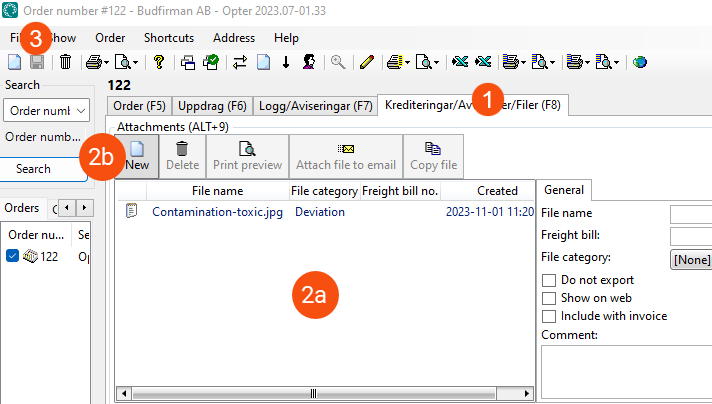
This is how to add a file to an order in order reception:
-
Open the order and go to the tab where group Attachments is located. If the group doesn't exist, you can add it; see Organising the groups in Order reception.
-
Select one of the following:
 2a: Drag and drop files and emails
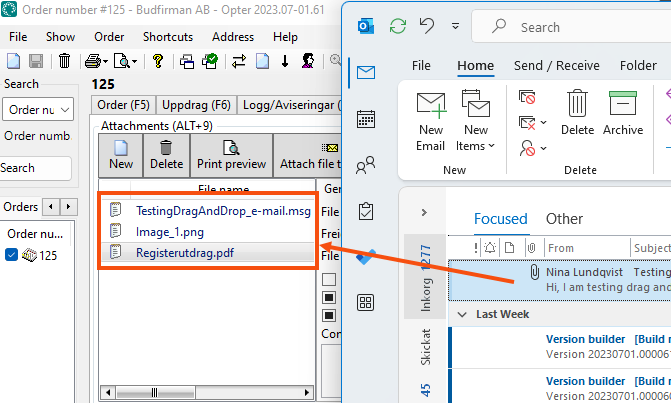
You can drag and drop files and emails into the Attachments group in the order reception as follows:
-
It is possible to drag and drop files from the Desktop, Explorer and other locations. Permitted file formats in this case are PDF, BMP, JPG, GIF, PNG, TIF and MSG.
-
You can drag and drop emails from Outlook Classic. Emails are saved as MSG files in Opter.
If the email has attachments, they are saved as separate files in Opter. Permitted file formats for files attached to emails are:
-
Images: JPG, GIF, PCT (PICT), PNG and TIF.
-
Microsoft Office files (PowerPoint, Word and Excel files): PPT, PPTX, DOC, DOCX, XLS and XLSX.
-
Video: QT, MP4 and XMS.
-
Audio: M4A, MPEG3, AAC and WAV.
-
PDF, ZIP, SQL and many more. For information about unsupported file formats, see support.microsoft.com.
The maximum size of the files that can be attached varies between 10 and 20 MB. For more information, see support.microsoft.com.
If an email does not need to be saved in Opter, but the files attached to the email are to be saved, just the attachments can be dragged and dropped directly from the email.
-
The picture shows how to attach an email from Outlook to an order in order reception using the drag and drop function. The email has two attachments, a PNG file and a PDF file.
 2b: Browse for files
Click New in the Attachments group, browse to the file you want to attach, and click Open. The file is added to the list of files. Only files in PDF, BMP, JPG, GIF, PNG and TIF formats are displayed when browsing, as only files in these formats can be attached in this way.
2c: If you are using the new Outlook
In the new Outlook, it is not possible to drag and drop emails directly into the group Attachments. Instead, you can take a screenshot of the email and save it in PNG, JPG or GIF format on your computer. You can then drag and drop the file into the group Attachments.
If the email in new Outlook contains attachments that you want to add to the order, you can first save the files to your computer and then drag and drop them into the group Attachments. For approved file formats, see 2a: Drag and drop files and emails above.
-
-
Click on Save to save all changes.
On the right-hand side of the group Attachments, you can rename the files, select a file category, and more. More information, such as how to copy the file to another order and how to remove an attachment, is available in Attachments (order reception).
The picture shows where in the window the above steps are performed.