Creating new orders automatically based on POD
Last updated: 18.11.2022
In this article
Sometimes it can be useful to create a new order when a delivery fails, for example if the receiver is not at home, and a new delivery attempt has to be made the next day. The system can be set up so that new orders are created automatically when the driver registers a proof of delivery of a certain type.
Step 1: Which POD types should automatically generate new orders?
Click on Seaded > Veokiri (POD) > Veokirja tüüp. It is possible to see which POD types you have in the system from the list on the left. Usually it is different types of failed deliveries that require a new transport booking.
Transportfirman AB uses, among others, the POD-types Kedagi pole kodus, “Not enough time for delivery” and “Partial delivery” (a sub-POD-type of Kohale toimetatud), all of which mean that further action must be taken regarding the goods after a delivery attempt has been made.
Step 2: Set what will apply to the new orders
Go to the Staatus ja koopiad tab and add a line under Automaatne tellimuste koostamine to display the settings that can be configured for the order that is to be created automatically when the POD is registered. For more information about the individual settings, see Veokirja tüüp (window). The status settings on the tab have nothing to do with the automatic copies, but are the status that the original order may have when the POD is registered.
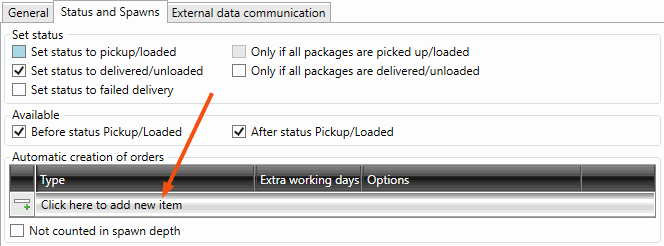
If Selle asemel kasutatakse põhilisi POD-tüübi sätteid is displayed under Automaatne tellimuste koostamine, it means that you are trying to add automatic copies for a sub-POD type with the Kasutage POD-i tüübi põhisätteid checkbox selected on the Üldine tab. Then there are two options:
-
To ensure that orders are generated automatically for the main POD type and any other sub-POD types, configure the automatic copies on the main POD type.
-
To ensure that orders are generated automatically only for the specific sub-POD type that has been selected, deselect Kasutage POD-i tüübi põhisätteid on the Üldine tab so that automatic copies for the sub-POD type can be configured. Bear in mind in this case that it will not inherit any other settings from the main POD type either.
Example
 Kedagi pole kodus, the POD creates two new orders
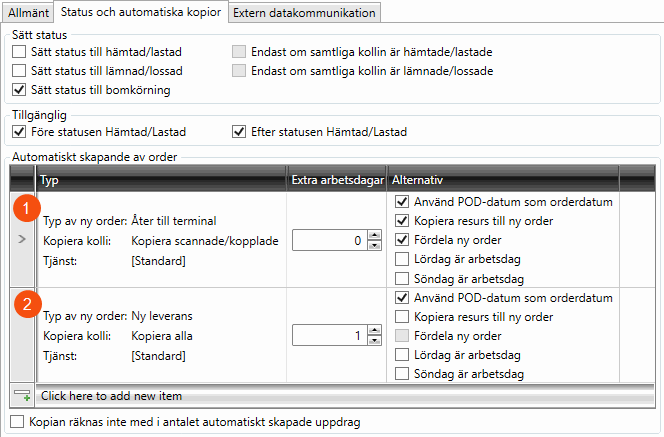
The Kedagi pole kodus POD type will generate two new orders. One to take the goods back to the terminal on the same day, assigned to the same resource that made the delivery attempt, and one for a new delivery the next day. It is not yet planned who will make the delivery the next day.
-
The transport back to the terminal is the first row in the above image:
-
Kopeeri skannitud/ühendatud: All existing packages are to be returned to the terminal as none have been delivered.
-
Kasutage tellimuse kuupäevana POD-kuupäeva and Lisatööpäevad = ”0”: the order date will be the same as the date of the current shipment because transport back to the terminal is at the end of the working session.
-
Kopeeri ressurss uude tellimusse, and Assign new order: the shipment that will take the goods back to the terminal is automatically assigned to the driver who registered the POD, and the new shipment is added directly to the Määratud list in dispatch.
-
-
The new delivery is the second row in the above image:
-
Kopeeri kõik: All the packages are transferred to the new delivery order because they are all to be delivered.
-
Kasutage tellimuse kuupäevana POD-kuupäeva and Lisatööpäevad = ”1”: the order date will be the next working day after the current shipment date.
-
The new shipment will be added to the Loodud list in dispatch and will have to be assigned manually because we do not yet know which resource will handle it.
-
“Not enough time for delivery”, the POD creates a new order every time the POD is registered
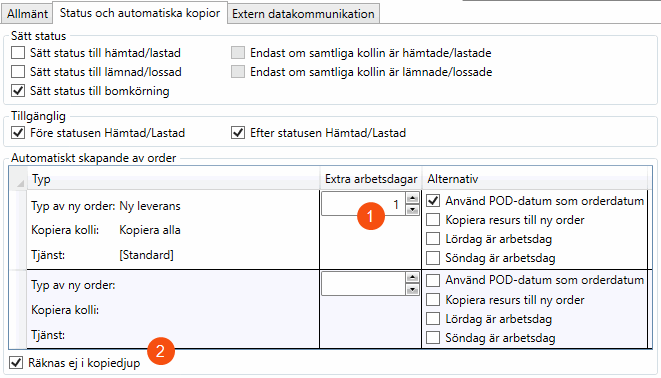
This POD-type is used when the transport company simply cannot meet the delivery deadline. A new order is created for a new delivery the following day, but the receiver should not be charged for it.
-
Kopeeri kõik: All existing packages are transferred to the new order as none have been delivered.
-
Teenus: The service level for the new order is being changed to express, as it was the transport company itself that missed the delivery and wishes to increase the priority.
The service can affect the price of the order, but by default Valmis arvete esitamiseks/krediteerimiseks is deselected for automatic copies because it is usually the original order that is invoiced and credited.
-
Kasutage tellimuse kuupäevana POD-kuupäeva and Lisatööpäevad = “1”: means that the order date will be the next working day after the current shipment date.
-
Kopeeri ressurss uude tellimusse: The new shipment is pre-planned for the driver who registered the POD because they will be driving the same trail tomorrow. However, the shipment is not yet allocated, but ends up in the Loodud list in dispatch.
-
Laupäev on tööpäev, and Pühapäev on tööpäev: As it was the transport company that failed to deliver the goods, we would like to resolve the matter as soon as possible.
-
Not counted in spawn depth: Selected because the delivery attempt should not count as a “real” attempt, copies created by this POD type are not counted.
“Partially delivered”, the POD creates a new order for the packages that were not delivered
This POD type is used when not all packages on an order have been delivered. The packages that have not been delivered are transferred to a new order for delivery at a later date. Rather like a back order.
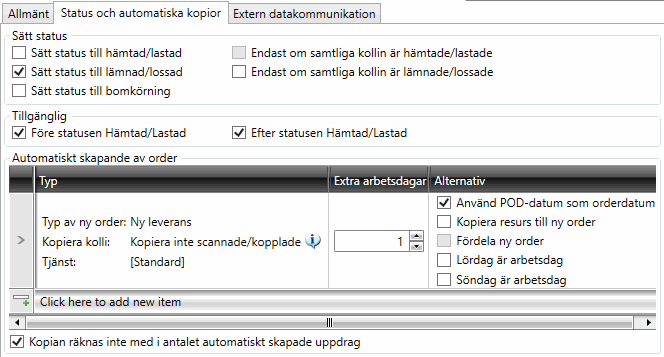
“Partially delivered” is a sub-POD type of Kohale toimetatud, which does not have any automatic copies configured. In order to create automatic copies on the sub-POD type alone, we first deselect Kasutage POD-i tüübi põhisätteid on the Üldine tab and then adjust the following settings on the Staatus ja koopiad tab
-
Määra olekuks tarnitud/mahalaaditud: The original order is regarded as unloaded because the packages that were not delivered are handled on the new order.
-
Koopiat pole skannitud/ühendatud: The packages that have not yet been scanned on the order are transferred to the new order, but those that have already been delivered are not transferred. If the POD that is registered is the last partial shipment, no new order is created because there are no packages left to copy to the new order.
-
The new shipment is added to the Loodud list in dispatch and has to be assigned manually.
-
Not counted in spawn depth: Selected because we do not know when all the packages have been delivered, and new orders will be created until the entire order is delivered.
Step 3: Manage the new orders
The orders that were created automatically have one shipment. If the new shipment has not been set to be assigned automatically, it must be assigned manually in dispatch. Other changes can also be made to the order as usual. The Valmis arvete esitamiseks/krediteerimiseks checkbox is deselected on all orders created automatically via POD, because it is usually the original order that should be invoiced and credited.
If new orders are no longer to be created automatically for a POD type, delete the row by first clicking at the far left to select it, and then pressing Delete.
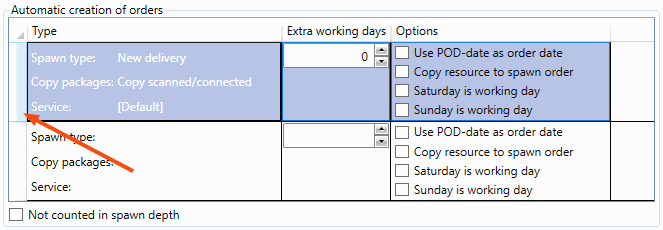
Automatic copies can be created a maximum of two times in this way. It is possible to see which order forms the basis for the copy in the Algne tellimus field under Juhi soovitus in order reception.
If the transport company has recorded the POD Kedagi pole kodus twice on the same original order – that is, made two delivery attempts, one standard (copy no. 1 is created) and one additional (copy no. 2 is created) – and there is still no one at home on the third attempt, no new orders are created when Kedagi pole kodus is recorded for the third time. This is to avoid an infinite number of delivery attempts.
If you have POD-types for situations that are beyond the recipient’s control and which should not be counted as a ‘genuine’ delivery attempt, such as the transport company’s ‘Not enough time for delivery’, you can select Not counted in spawn depth. This means that new order copies are created each time the POD type is registered, regardless of how many previous copies there are. Internal information
It is suitable to select Lõpetatud on the Üldine tab for POD types that generate orders automatically, so that multiple orders for the same transport are not handled at the same time in dispatch.

