Tracking log on Track & Trace
Last updated: 28 October 2026
In this article
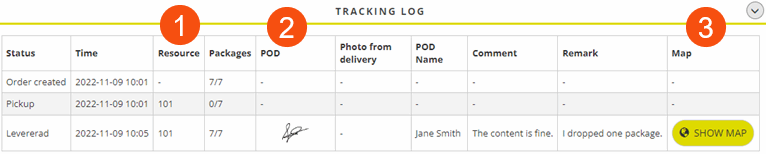
You can set the log to be displayed using the Show tracking log option on the Track & Trace tab in the internet order setting. You can then choose whether the following columns should be displayed in the log.
- Resource: tick Show resource in the internet order setting.
-
POD and Photo from delivery: tick Show POD in the internet order setting.
-
Map: tick Show position for scanning in the internet order setting.
The rest of the columns are always displayed in the tracking log.
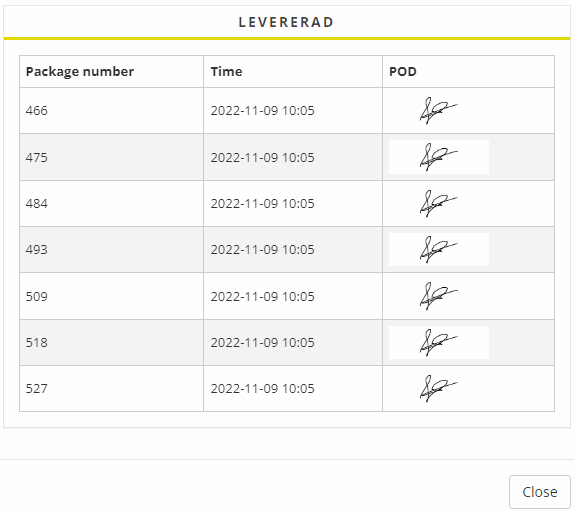
If you click on a row, a new window will open showing the control numbers. You can then see which parcel numbers have been scanned or delivered. Click on the Order created row to see the package IDs that were available when the order was created. If you click on the status line Delivered in the tracking log, it might look like this, for example. The list shows which parcel numbers have been delivered, when they were delivered (date and time) and the recipient’s signature on the pod.
Columns
|
Function |
Description |
|---|---|
|
Status |
An order may have the following statuses:
|
|
Time |
Shows the date and time when the status was set on the order. |
|
Resource |
Shows which resource changed the status of the order, so you can see which resource delivered the order, for example. Shown/hidden using the Show resource option on the Track & Trace tab in the internet order setting. |
|
Packages |
Shows the number of packages out of the total number of packages that have been scanned or delivered, for example. For example, if the Packages column on the Delivered status bar indicates “2/3”, it means that two packages out of three have been delivered. |
|
POD |
Shows the recipient’s signature on the proof of delivery. Shown/hidden using the Show POD option on the Track & Trace tab in the internet order setting. |
|
Photo from delivery |
Shows a delivery photo if available. The photo can be enlarged by clicking on it. Shown/hidden using the Show POD option on the Track & Trace tab in the internet order setting. |
|
POD name |
Shows the name of the receiver on the proof of delivery. |
|
Comment |
Shows any comments on the proof of delivery. |
|
Remark |
Shows any remarks on the proof of delivery. |
|
Map |
Once the order has been scanned or delivered, the user can see on a map where the scans and the delivery took place. Shown/hidden using the Show position for scanning option on the Track & Trace tab in the internet order setting. |

