Set up weight calculation for long loads
Last updated: 13 August 2026
In this article
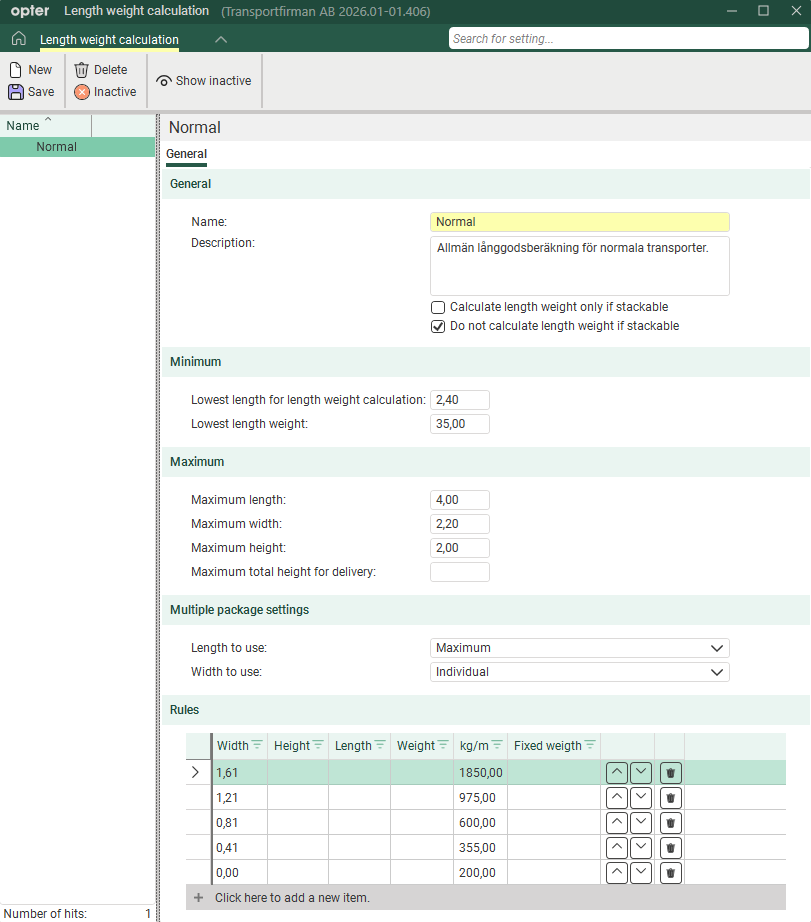
If you are using dimension Length weight length and want it to be convertible into a pricing weight, you must set up rules for weight calculations for long goods. You can configure these settings in the window Length weight calculation. There, you also define what is to be regarded as long goods by specifying the minimum and maximum dimensions for the packages that are to be assigned a length weight.
The fields in the window are described in Length weight calculation (window). The method for calculating the pricing weight is described in Calculating the pricing weight.
Create a length weight calculation
Here’s how to define which parcels are to be classified as long goods and how the weight of long goods is calculated.
-
Click on Settings > Weight calculation. Select the weight calculation you wish to work with from the list on the left.
-
Click
 next to the drop-down list Length weight calculation (on the tab General).
The Length weight calculation window opens.
-
Click New to create a new length weight calculation. Give the length weight calculation a name and, if necessary, a description.
-
In the following fields, enter the dimensions that must be met for a parcel to be classified as long goods:
-
Lowest length for length weight calculation, for example 2.40 metres.
-
Maximum length (metres).
-
Maximum width (metres).
-
Maximum height (metres).
The fields Lowest length for length weight calculation and Maximum length therefore define a range for the length of the long goods.
-
-
In the Lowest length weight field, enter the minimum length weight that the calculation can return, for example 35 kg.
This means that if the length weight calculation results in a length weight of 22 kg (i.e. less than 35 kg), Opter will use 35 kg instead.
-
In Length to use and Width to use, you can choose how the calculation should be carried out if the order contains several packages. See below for examples of how the various combinations of settings affect the pricing weighting, Multiple parcels – different ways of calculating.
-
In the table below Rules, specify the rules to be applied to the length weight calculation. Enter one rule per line.
In the first four columns (Width, Height, Length and Weight), you specify the conditions that apply. On each line, you can specify one or more conditions, for example Width and Height, or simply Width.
In the next two columns (kg/m and Fixed weigth), specify the result you want:
-
(kg/m) means that the weight you enter in the table is multiplied by the length of the package.
-
Fixed weigth means that a consignment which meets the definition of long goods will be assigned the length weight that you enter in the table.
Opter checks the rules from the top down in the table, so it is important that you place the rules in the correct order. You can move the rows up and down using the buttons

 .
.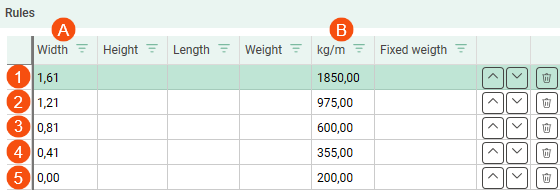
This is how Opter uses the table:
-
Opter first checks whether the criteria in the fields above the table have been met. The length, width and height of the package have been checked and are within the limits for long goods.
-
Opter then checks the rule on the first line (1).
If the package is 1.61 metres wide or more, Opter uses the factor for that row (B), 1,850 kg/m, when calculating the length weight. If the length of the consignment is 3.5 m, the length weight will be 6,475 kg (3.5 × 1,850 = 6,475).
-
If the package is not as wide as 1.61 metres, Opter moves on to the next line (2) and checks whether the width is between 1.21 and 1.60 metres. In that case, the length weight will be 3.5 × 975 = 3,412.50 kg.
-
If the package is between 0.81 and 1.2 metres wide, use row 3, and so on.
-
-
Click on Save to save all changes.
Testing
We recommend that you check that the result of the length weight calculation – and therefore also the pricing weight calculation – is as you require.
Create a new order in the order reception department and test it using different lengths and widths for a parcel. Is the pricing weighting as you’d like it to be?
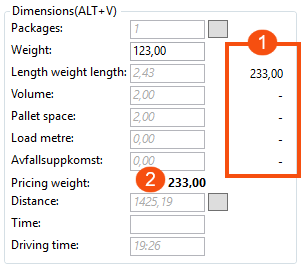
Under Dimensions, you can see the results of the weight calculation for the various dimensions (1), and the pricing weight used for the order (2). Opter uses the largest weight from the dimensions as the pricing weight. In this example, the length weight is used as the weight for pricing.
Try including more than one parcel in the order. Make the columns different lengths and widths. Is the pricing weighting as you would like it to be?
Example
Two parcels of different widths
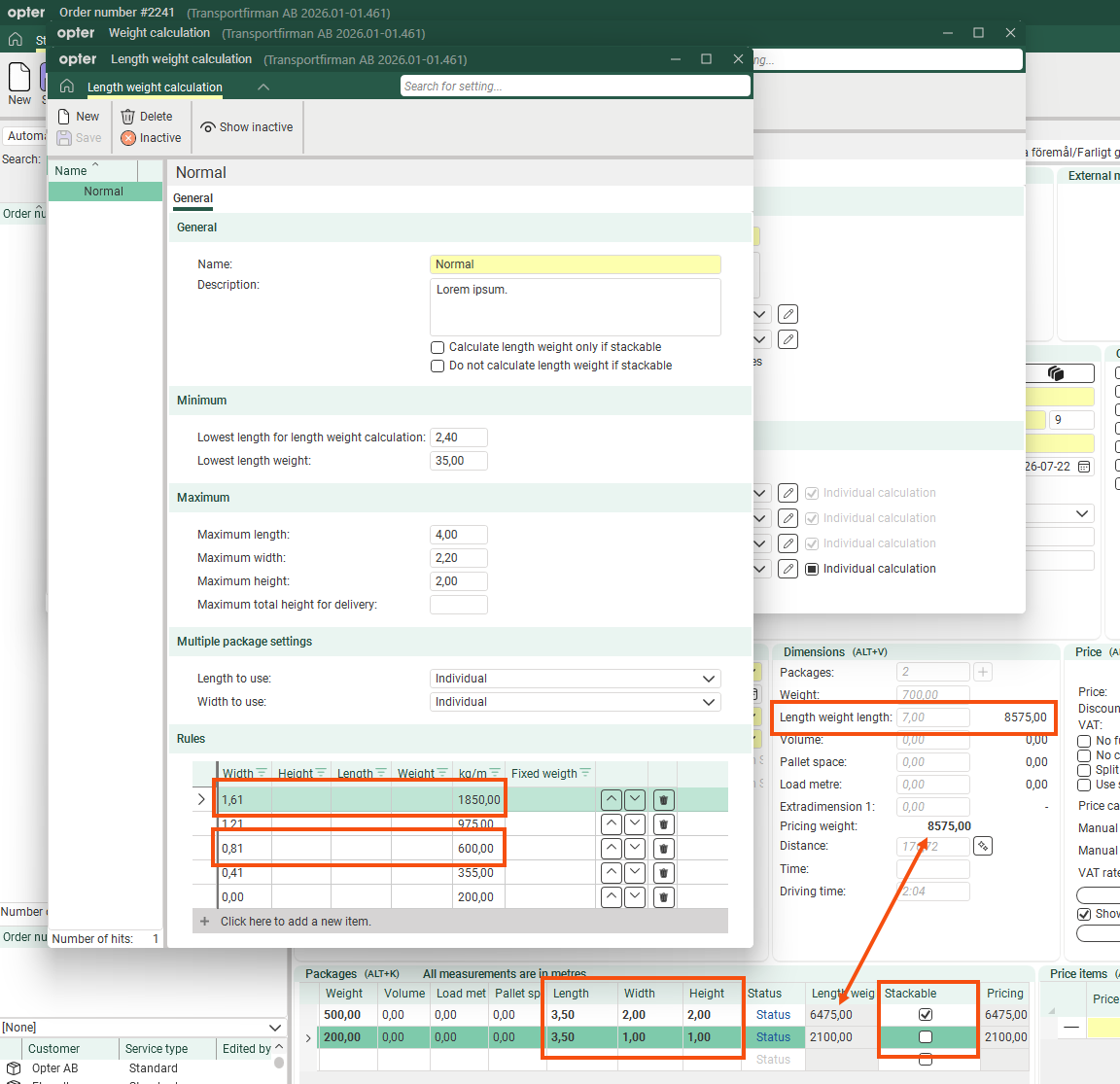
In this example, we have two parcels classified as long goods. They vary in width and therefore have different length weights according to the length weight calculation.
-
3.5 × 1,850 = 6,475
-
3.5 × 600 = 2,100
The total pricing weight is 8,575. One of the collines is marked as stackable, but as none of those settings are enabled, it is irrelevant.
Multiple parcels – different ways of calculating
The combinations of settings for drop-down lists Length to use and Width to use only affect the length weight on the consignment lines, not the pricing weight. The pricing weight shown under Dimensions in the order reception is a total of the length weights on the parcel lines, not the pricing weights.
If we use the same length weight calculation as in the example above, but with one parcel measuring 3.75 m in length and another measuring 3.5 m, the results of the different settings will be as shown in the table below.
The Pricing weight column is always calculated per consignment and does not take these settings into account. In our example, that column will always be calculated as follows:
-
Package 1: 3.75 × 1,850 = 6,937.50
-
Package 2: 3.5 × 600 = 2,100
|
Length to use |
Width to use |
Length weight |
Pricing weight for Length weight length below Dimensions |
|---|---|---|---|
|
Maximum |
Maximum |
Package 1: 0 (not calculated) Package 2: 0 (not calculated) This combination isn’t working at the moment. The order may be assigned a pricing weight from the length weight calculation if the goods are classified as long goods, but this is not shown on the consignment lines. If a length weight had already been specified on the order, the previous calculation will still be displayed. |
6,937.50. The highest value of the individual parcels. It is actually taken from column Length weight, but the calculation does not appear on the row. If a previous length weight is shown on the consignment line, this value may differ from the value on the consignment line. |
|
Maximum |
Sum from all packages |
Package 1: 0 (not calculated) Package 2: 0 (not calculated) This combination isn’t working at the moment. The order may be assigned a pricing weight from the length weight calculation if the goods are classified as long-haul freight, but this is not shown on the consignment lines. If a length weight had already been specified on the order, the previous calculation will still be displayed. |
– The sum of the widths of the two packages (3 metres) exceeds the maximum width for the length weight calculation (2.20 metres). The order is therefore not assigned any pricing weight in the length weight calculation. |
|
Maximum |
Individual |
Package 1: 3.75 × 1,850 = 6,937.50 Package 2: 3.75 × 600 = 2,250 |
6,937.50 + 2,250 = 9,187.50 |
|
Sum from all packages |
Maximum |
Package 1: 0 (not calculated) Package 2: 0 (not calculated) This combination isn’t working at the moment. The order may be assigned a pricing weight from the length weight calculation if the goods are classified as long-haul freight, but this is not shown on the consignment lines. If a length weight had already been specified on the order, the previous calculation will still be displayed. |
– The combined length of the two packages (7.25 metres) exceeds the maximum length for the length weight calculation (4 metres), and the packages would not be counted as long goods. If the packages were 2 and 1 metre respectively, the pricing weight from the length weight calculation would be 3 (the sum) × 1,850 (the factor for maximum width, 2) = 5,550, but this would not appear anywhere in the package lines. |
|
Sum from all packages |
Sum from all packages |
Package 1: 0 (not calculated) Package 2: 0 (not calculated) This combination isn’t working at the moment. The order may be assigned a pricing weight from the length weight calculation if the goods are classified as long-haul freight, but this is not shown on the consignment lines. If a length weight had already been specified on the order, the previous calculation will still be displayed. |
– The sum of the length and width of the two packages (7.25 and 3 metres respectively) exceeds the maximum length and maximum width for the length weight calculation (4 metres and 2.2 metres respectively), and the packages would not be classified as long goods. If the packages were 2 metres long and 1 metre wide, the pricing weight from the length weight calculation would be 4 (the sum of the lengths) × 1,850 (the factor for the total width, 2) = 7,400, but this would not appear anywhere in the package lines. |
|
Sum from all packages |
Individual |
Package 1: 0 Package 2: 0 The sum of the lengths, 7.25, exceeds the maximum length of 4 metres. If the packages were 2 metres long, the length weight would be:
|
0.00 If each parcel were 2 metres long, the weight used for pricing would be 7,400 + 2,400 = 9,800. |
|
Individual |
Maximum |
Package 1: 3.75 × 1,850 = 6,937.50 Package 2: 3.5 × 1,850 = 6,475 |
6,937.50 + 6,475 = 13,412.50 |
|
Individual |
Sum from all packages |
Package 1: 0 Package 2: 0 The sum of the widths, 3, exceeds the maximum width of 2.2 metres. If the packages were 1 metre wide, the length weight would be:
|
0.00 If each parcel were 1 metre wide, the pricing weight would be 6,937.50 + 6,475 = 13,412.50. |
|
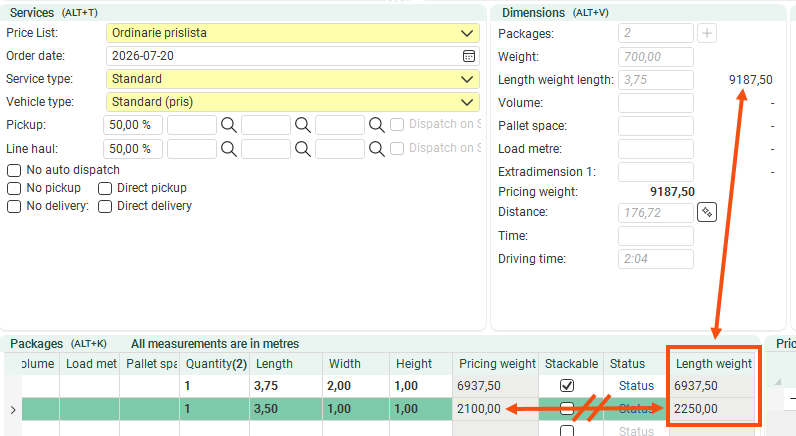
Individual |
Individual |
Package 1: 3.75 × 1,850 = 6,937.50 Package 2: 3.5 × 600 = 2,100 |
6,937.50 + 2,100 = 9,037.50 |
Here is the result with Length to use: Maximum and Width to use: Individual. Pricing weight does not use the maximum length (3.75), but rather the length of the collided item (3.5). Consequently, the pricing weight and the length weight will differ for that consignment. The total under Dimensions is the sum of the length weights.
Stackable goods
If you are transporting flagpoles, you can make the most of the space (by stacking several flagpoles on top of one another, or placing the flagpoles on top of other goods). Flagpoles are durable and not too heavy. Consequently, the length weight – and therefore the price – may be lower than if the flagpoles had taken up the entire width of the vehicle.
In that case, you should classify the flagpoles as long goods. Create a length weight calculation, for example ‘Flagpole’, with dimensions and weight corresponding to such packages. None of the boxes need to be ticked, as the consignment is regarded as long goods provided it meets the dimensions.
If you flag other goods with the same dimensions as ‘stackable’ in the order reception to indicate that goods can be placed on top of them (for example, flagpoles), tick the box Do not calculate length weight if stackable. In this case, goods occupying the area not are counted as long goods, but the flagpoles (which not are stackable) are regarded as long goods.
Troubleshooting
If the pricing weighting is not as you would like, please check the following:
-
Under Dimensions in the order reception, you can see the results of the weight calculation for the various dimensions (1), and which pricing weight is used for the order (2). Opter uses the largest weight from the dimensions as the pricing weight. Check the weight calculation settings. For more information, see Calculating the pricing weight.
-
If you have several different length weight calculations, check that the correct one is selected in the drop-down list Length weight calculation in window Weight calculation (the tab General)
Also check which weight calculation is used by default. The standard calculation is marked with
 . There may also be exceptions for a particular price list or customer. For more information, see Calculating the pricing weight.
 -
Check that the settings for dimensions Load metre, Volume and Pallet space are set as required on the Automatic dimensions tab of the weight calculation. For more information, see Weight calculation (window).
-
If the pricing weight is rounded incorrectly, check the settings in window Rounding rules. For more information, see Rounding rules (window) and Calculating the pricing weight.

