Creating order templates in the terminal web
Last updated: 2 September 2021
In this article
If you often create similar orders, you can ask your system administrator to activate the order template feature. When this is enabled, orders can be saved as templates and then selected from the Valige olemasolev mall list when creating a new order. To delete a template from the list, contact the system administrator.
How to create an order template:
-
Click on Tellimus in the menu on the left.
-
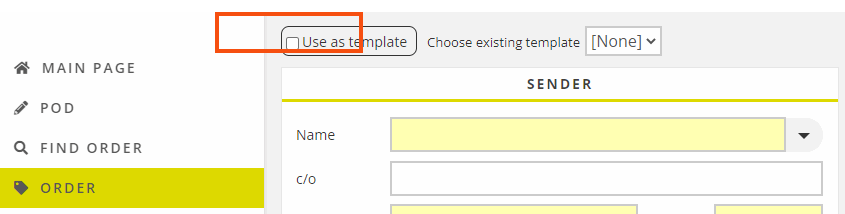
Select the Kasuta mallina checkbox, give the template a name, and click on Valige.
-
Fill in the order form in the same way as for an order.
-
Click on Salvesta mall. A preview of the order opens.
-
Click on Salvesta mall in the preview. The template is saved and you can continue filling in the order, or cancel if you don’t want to place an order at the moment.
Dates in order templates
The order date entered when creating a template is saved in the template. An order date does not have to be entered when creating the template unless the system administrator has made it mandatory to enter order dates in orders placed online. In this case an order date must be entered in the template as well.
If a template with a pre-filled order date is used, the following applies:
-
If the date in the template is in the future, that date will be used for the order that is created.
-
If the date in the template has already passed, the current date is set for the order that is created.

