Creating multi-orders on the customer web
Last updated: 14 February 2023
In this article
If your customers often create orders from the same sender to several different receivers, you can ask the system administrator to enable the multi-order function. When the function is enabled, orders from one sender to multiple receivers can be created more quickly and easily.
Conditions
In order to create a multi-order, the addresses must first have been registered. This is useful even when creating one order at a time. To register addresses that are used frequently, proceed as follows:
-
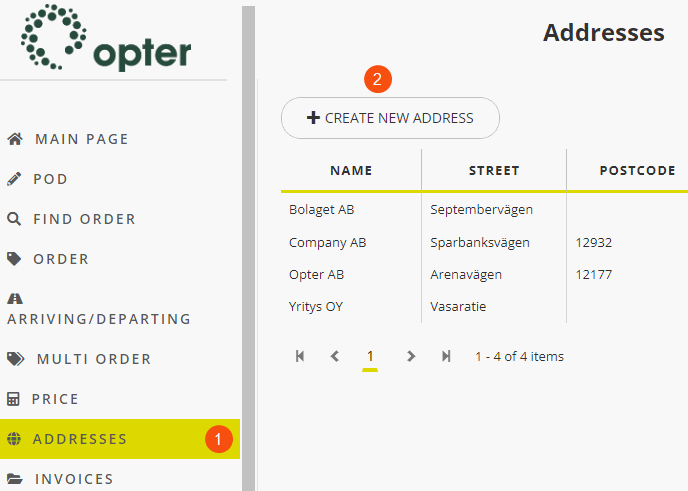
On the customer web, click on Aadressid (1) in the menu on the left.
-
Click on Loo uus aadress (2).
-
Enter the address and then click on Salvesta.
-
To add additional addresses, repeat steps 2 and 3 above.
Creating orders from one sender to multiple receivers
-
On the customer web, click on Multitellimus in the menu on the left.
-
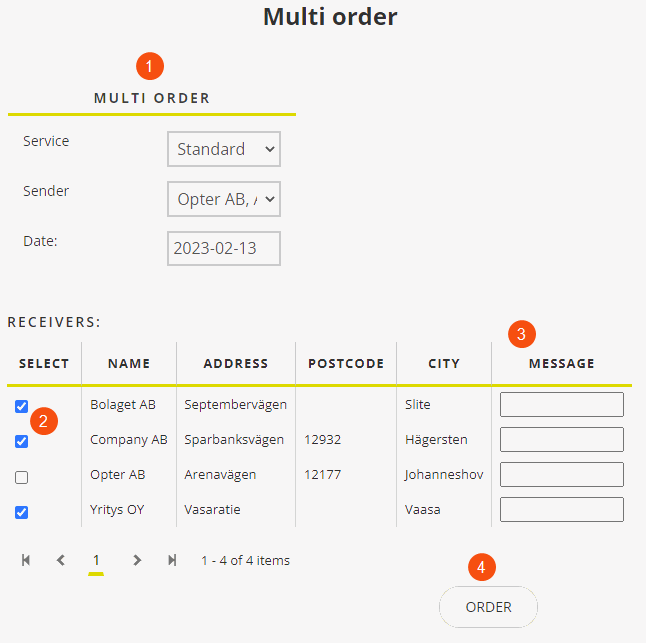
In the Multitellimus (1) section, select Teenus, Saatja and Kuupäev.
-
In the table below, select the receivers (2) you want to send to. Write a Sõnum (3) if you wish.
-
Once you have made your choices, click on Tellimus (4).
The orders are created, then a list of the order numbers is displayed. You can click on the order numbers to see the details of each order.
-
If the following applies, you can click on the order numbers and change the orders:
-
You are allowed to change existing orders.
-
The order has a status in which it can be changed.
For example, it is possible to add more information to the orders, such as the number of packages, weight and type of goods. Click on Salvesta when finished.
-
-
Multiple orders that you created can be changed by clicking on Otsi saadetist in the menu on the left to find them. In the Tarned section, you can search for orders you created yesterday, for example. Click on Otsing. The orders are listed further down the page. The orders you created today are listed without you having to search for them.
-
Click on the order you want to change. Then click on Redigeeri. Fill in the missing information such as weight, volume and vehicle type. Click on Salvesta when finished. If everything appears to be correct, click on Salvesta again.
-
Repeat steps 6 and 7 above until you are satisfied with the information in your orders.

