Order check settings (window)
Last updated: 11 September 2026
 Order > Order check >
  next to the drop-down menu Setting
In this article
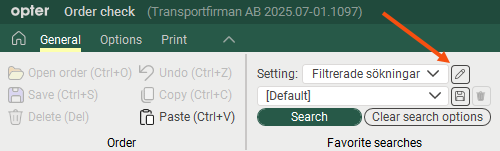
In this window, you can configure how order check works and which columns are to be displayed in the order list. There are various possible configurations, as shown on the left.
General
|
Function |
Explanation |
|---|---|
|
Name |
Used for identification. The name is shown in the list on the left when a new configuration is saved. |
|
Description |
Free text field for internal notes. The description is not displayed anywhere else but here. |
|
Suggest uncheck "Ready for invoicing/crediting" on order if there are price items without a price |
A warning will appear if a price is missing for any price item when you save the order. |
|
Suggest uncheck 'Invoice' for price items with zero price |
A warning will appear if the price of any price item is “0” when you save the order. |
|
Suggest check "Not to be invoiced" on order if zero price |
A warning will appear if the price of the order is “0” when you save it. |
Columns
Put the columns you want to display in the list Included. Double-click on a column to move it between the lists. You can move several columns at once by Ctrl-clicking or Shift-clicking them and then pressing Enter.
In the text fields above the lists, it is possible to search for the name of a column.
You decide the order of the columns by dragging and dropping them up and down the list.

