Invoice reminders
Last updated: 17 November 2026
In this article
To create a payment reminder, please note the following:
-
The invoice must be in Opter.
-
You must record payments in Opter.
-
The invoice must not be marked as fully paid. If an invoice has been partially paid, the reminder relates to the outstanding balance.
-
There must be no outstanding reminders from previous periods.
Payment reminders in Opter are simply reminders. They show the same amount as the original invoice they are a reminder of. Any reminder fees are created separately along with late payment interest rates. For more information, see Late payment interest and reminder fee.
The reminders that are sent out are the same report as the invoice report, but with an extra line indicating that it is a reminder. The row is printed using conditions in the report that correspond to the type of reminder (rows 6–9 in the example).
-
The third reminder prints two lines on the invoice. First, the standard text stating that the invoice has not been paid (line 8), followed by a warning that the matter may be referred to a debt collection agency (line 9).
-
You can set up different reports for different reminders, but it may be useful to send the invoice so that it includes all the details needed to pay it. For more information, see Invoice template scheme (window).
<!-- Reminder data -->
<dataitem x="18" y="66" distance="10" source="object" command="" width="185" height="150" fontsize="8">
<item name="Betalningspåminnelse" condition="IRO_Id" x="0" y="-2" fontbold="true" width="50" fontsize="12" />
<item name="Påminnelsedatum" condition="IRO_Id" x="0" y="4" width="40" />
<data name="IRO_CreateDate" condition="IRO_Id" x="32" y="4" width="40" format="d" />
<item condition="IsReminderType[1]" x="55" y="0" width="120" name="Enligt våra noteringar har ni ännu ej betalat denna faktura. Vänligen betala inom 10 dagar." />
<item condition="IsReminderType[2]" x="55" y="0" width="120" name="Enligt våra noteringar har ni trots tidigare påminnelse ej betalat denna faktura." />
<item condition="IsReminderType[3]" x="55" y="0" width="120" name="Enligt våra noteringar har ni trots tidigare påminnelser ej betalat denna faktura." />
<item condition="IsReminderType[3]" x="55" y="4" width="120" name="Om betalning inte sker inom 10 dagar tvingas vi låta ärendet gå vidare till inkasso." />
</dataitem>Send out payment reminders
Proceed as follows:
-
Click on Economy > Invoices > Invoice reminders.
-
Click on Create. Set what reminders should be created and the number of days after which they should be created.
Once there are three reminders, no new ones will be created. If you want to send the third reminder again, select Create reminder 3 even if already exists and click on Create. You can create the third reminder as many times as you want.
-
Click on Create at the bottom to create the reminders.
-
Close the reminder and export it; the invoices will then be sent out again with the reminder text.
You can set the system so that no reminders are sent out for an invoice by right-clicking on it and selecting No reminder in the window Invoices. There, you can also search for invoices marked as no-reminder.
Review invoice reminders
Reminders are created in a folder, a reminder event or a batch, in the same way as invoice periods. As long as the event hasn’t been closed, you can create and delete reminders that you don’t want to send. You can also delete the entire session as long as it is not closed. In other words, it is possible to create reminders for testing purposes, and then to completely delete them.
Reminder batches are listed in the upper part of the window. The lower part of the window lists the reminders included in the selected batch.
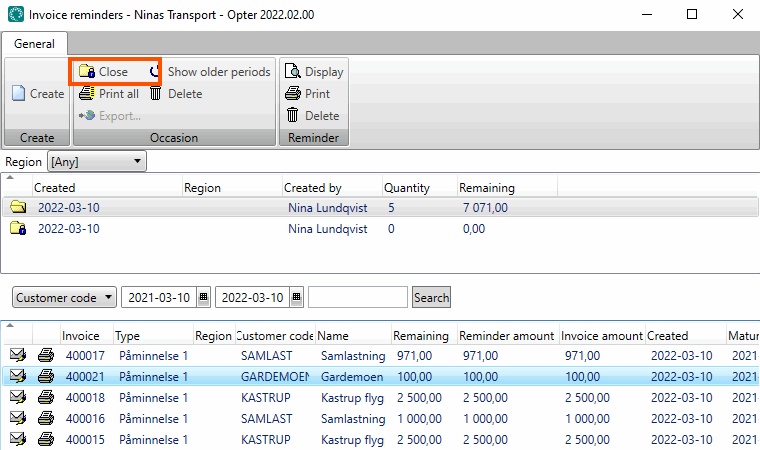
Once you have reviewed the invoice reminders and deleted those that are not to be sent, you can close the session by clicking on Close. Then you can no longer delete the reminders and the function to export invoice reminders becomes available.
Exporting and printing payment reminders
To be able to export payment reminders, Do not send reminders (that can be sent for some exports) in the Invoice export window must be unchecked.
The exports that can be carried out depend on the invoice export settings. Exporting invoice reminders works in the same way as exporting invoices and credit notes.
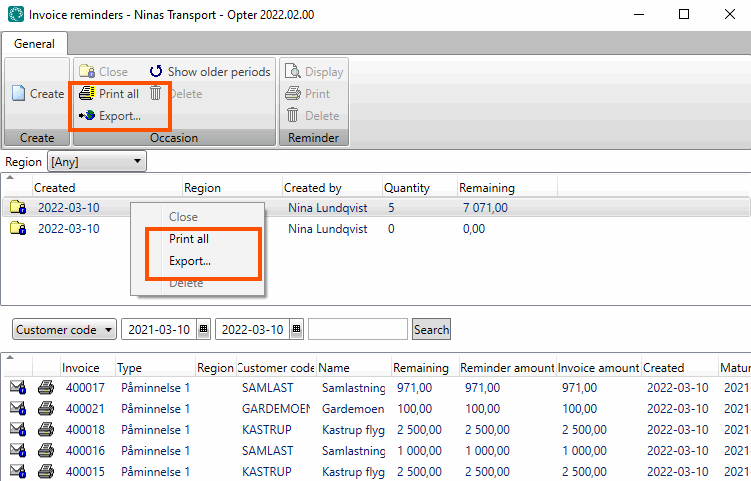
To export all reminders for a particular occasion, select that occasion and click Export or Print all, depending on what you want to do. You can also right-click on the batch and choose what you want to do from the context menu.
If the same customer has a lot of overdue invoices, you can send one invoice summary instead of sending a lot of separate invoice reminders.
Click on Economy > Invoices > Invoice summaries. You can download invoice summaries there. These can be designed as invoice reminders by editing the invoice summary.

