The Terminal Portal
Last updated: 10 June 2026
In this article
The system administrator can configure how the web portal looks, what is displayed and which functions are available on the various pages. It is therefore possible that not all the menus and options described here will be visible. Contact your system administrator if you want to use any of the functions mentioned below but cannot see them, or if you don’t have your login credentials.
If you enter the wrong password five times when logging in, you will have to wait 15 minutes before you can try again. If you have forgotten your password, contact your system administrator.
Main page
The main page shows an overview of current shipments and any shipments that have been ordered but not yet confirmed by the dispatcher. The columns to be displayed in the lists are defined by the system administrator. Click on a shipment to view details about it. Click on the map pin to go to the map.
Column filter
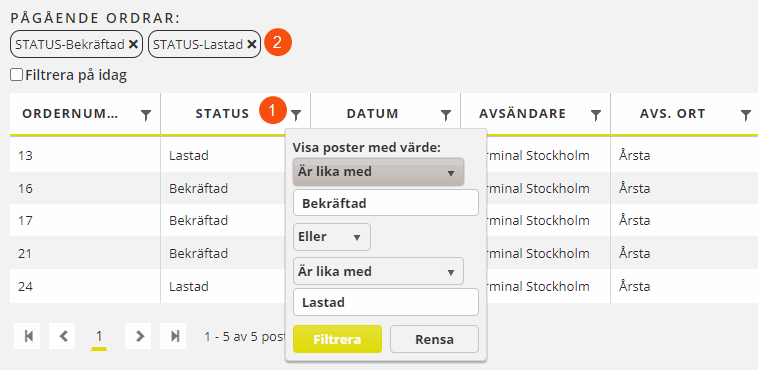
The columns can be filtered by clicking on  in the column headings (1). Multiple columns can be included in the filtering at the same time. After performing filtering, the filters can be removed one by one until the list shows all the shipments again (2).
More filters
You can also filter the list in one of the following ways:
-
Filter on today. Displays all shipments that have today's date as the shipment date.
-
Incoming. Displays all shipments arriving at the Terminal. (The filter is available in 2025.12.00 and later.)
-
Outgoing. Displays all shipments departing from the Terminal. (The filter is available in 2025.12.00 and later.)
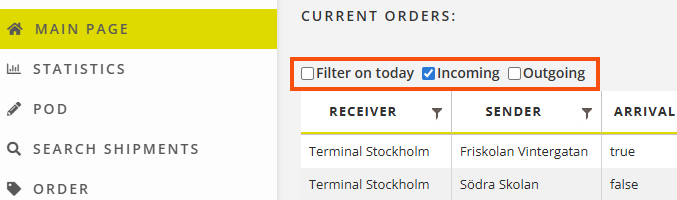
Click on the box next to the text to filter the list. Click again when you want to remove the filter. For example, if you are already filtering on Incoming (as in the image above), and then choose to filter on Outgoing, the filter Incoming will be automatically removed (otherwise nothing would appear in the list). You can combine the filter Incoming with the filter Filter on today if you wish. You can also combine the filter Outgoing with the filter Filter on today.
Order
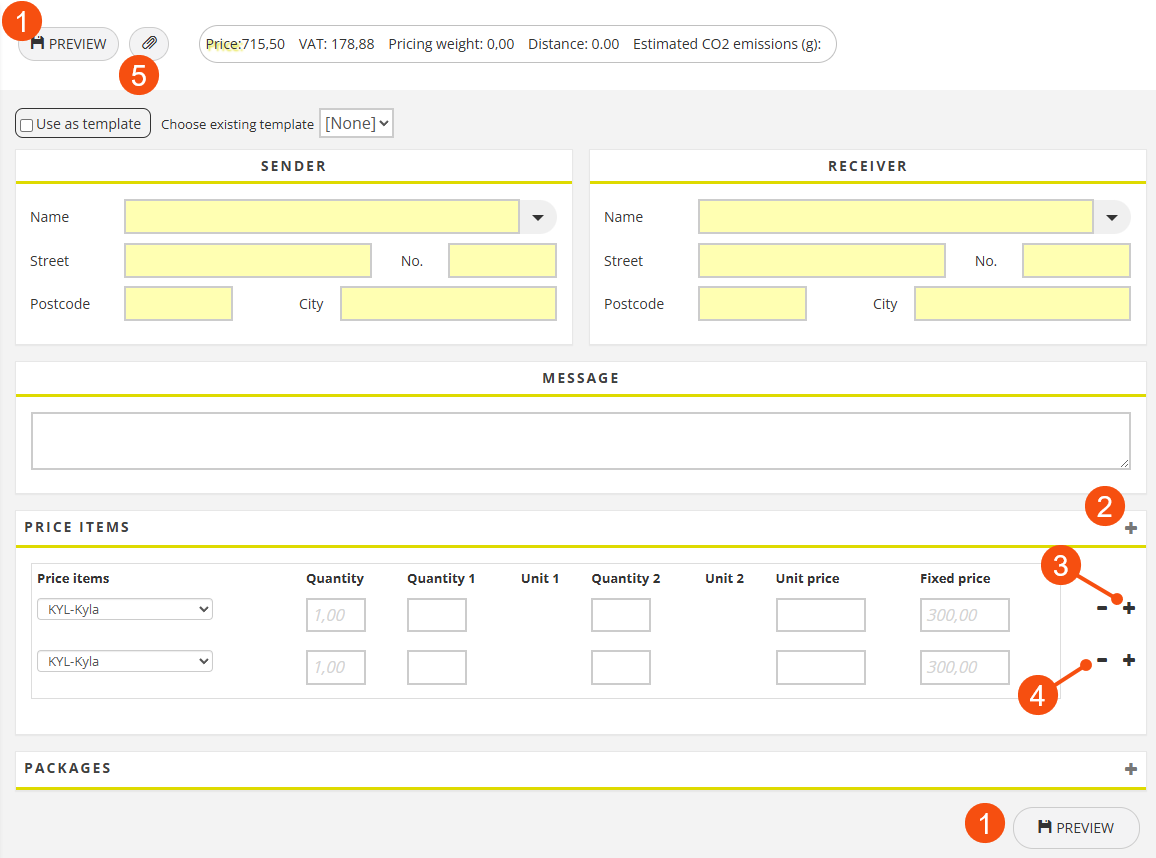
On the order page, you can enter orders into the system. Find a customer, fill in the form and click on Preview (1). Fields marked in yellow must be completed in order to save the order. If everything looks OK, click Save in the preview to save the order. To change anything, click on Close to go back to the order form.
If you want to add information about price items and parcels, for example, click the plus sign on the block to add a row (2). The plus sign on the line itself copies that line (3). You delete a row using the minus sign (4).
Files can be attached to the order in much the same way as in an email. It can be useful if, for example, you want to show where the goods are to be delivered using a picture. Click on  at the top of the page (5) and navigate to the file.
Delete incorrect addresses
Here’s how to remove incorrect addresses from the temporary address list that appears when you fill in the sender or recipient name field:
-
Enter the name of the sender or receiver in the Name field.
If one or more addresses match the name, they will be displayed in a list.
-
Use the arrow keys or the mouse to select the address you want to delete, then press the Delete key on your keyboard.
The incorrect address is deleted straight away, without any further prompt.
Log off
You will be logged out immediately when you click on Log off. No additional questions will be asked.

